
How to use Campaign Dashboards
Learn how to create, sync, and share Campaign Dashboards to track multi-channel marketing campaigns and report results to clients.
New to Campaign Dashboards? Start with What is Campaign Dashboards?
Creating a Campaign Dashboard
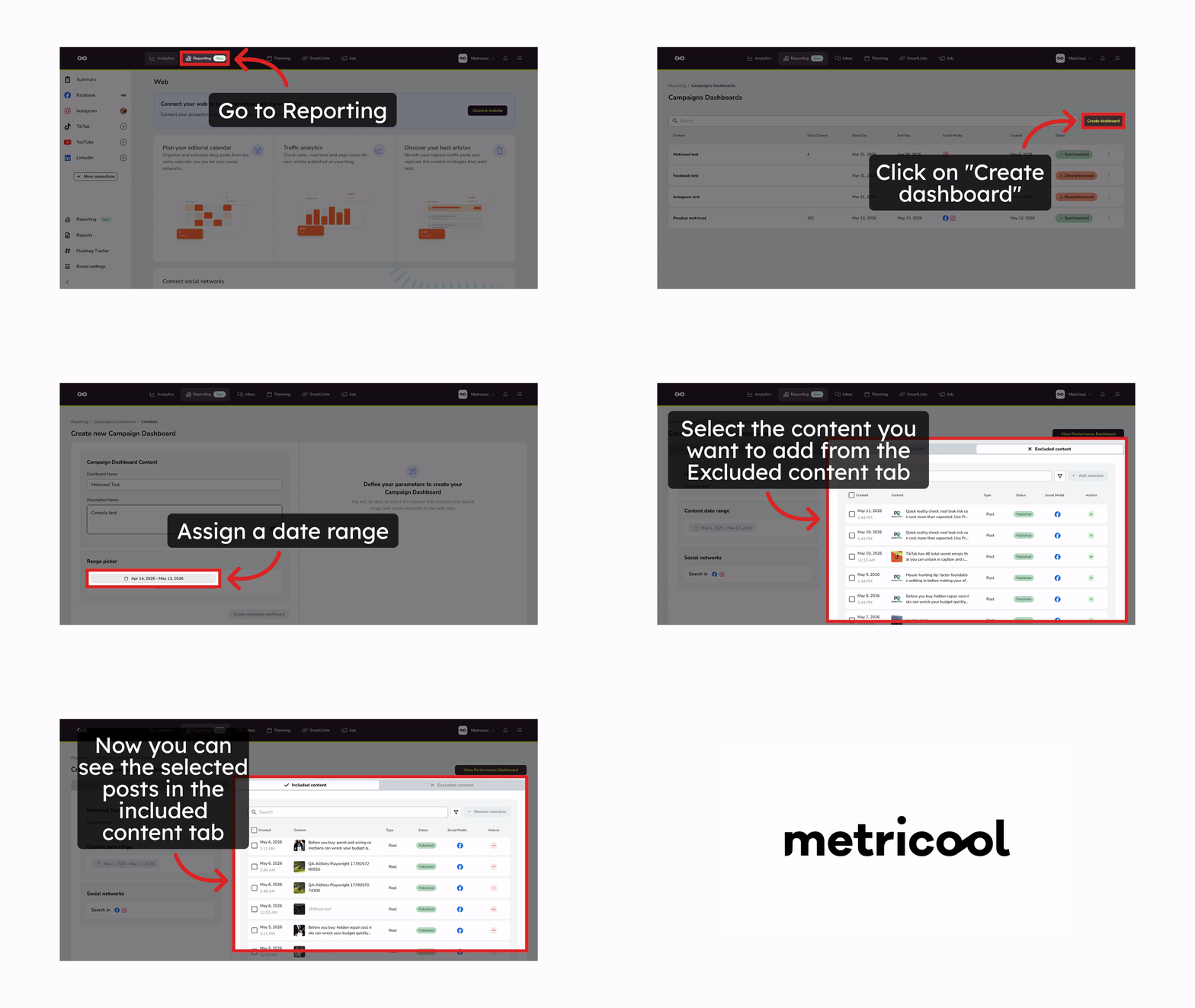
Go to Reporting > Campaigns Dashboards and click Create dashboard.
Fill in:
Campaign name — required. Used to suggest relevant posts automatically, so make it descriptive and specific
Description — required. Shown in the shared client view — write it as a brief context note for whoever receives the report
Date range — defines which posts are eligible for inclusion. Maximum period: 90 days
Social networks and ad platforms — select only the channels relevant to this campaign
Once saved, you move to content selection.
Reviewing the suggested content
Metricool automatically suggests relevant posts based on your campaign name and description. The editor shows two tabs: Included content and Excluded content.
By default, the Included content tab shows "No content added to this dashboard yet" — you decide what to include.
Posts that match your campaign appear in Excluded content — check the ones you want to add and click Add selection
To remove posts from the dashboard, select them from Included content and click Remove selection
Use the search bar and filters to find specific posts quickly
Adding posts from other areas of Metricool
You're not limited to adding content from the dashboard editor. There are two additional entry points.
From the Planner
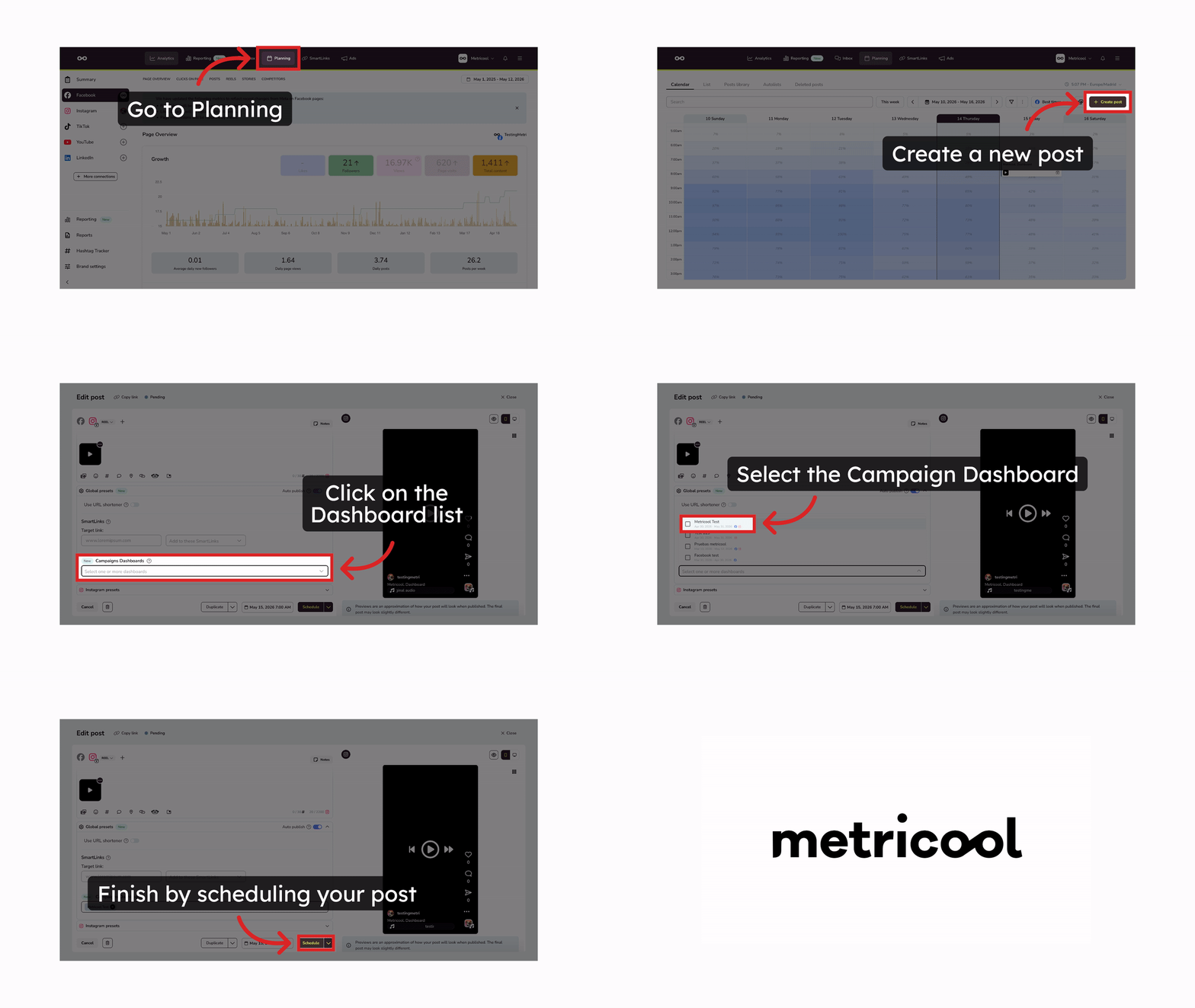
When composing or scheduling a post, you'll see a Campaigns Dashboards field in the Global presets section. Select one or more dashboards you've already created — the post will be associated with those dashboards and appear with metrics after publication and sync.
You must create the dashboard before scheduling the post.
Bulk add scheduled posts from the List view
You can add multiple scheduled posts to a Campaign Dashboard at once:
Go to Planning > List
Select the posts you want to add using the checkboxes
Click Bulk actions and choose Add to campaign dashboard
Review the selected content and click Next
Select or search for the target dashboard
Click Add
Each post is validated against the dashboard's networks, accounts, and date range before being assigned.
The dashboard must be created before you can add posts to it.
From Analytics
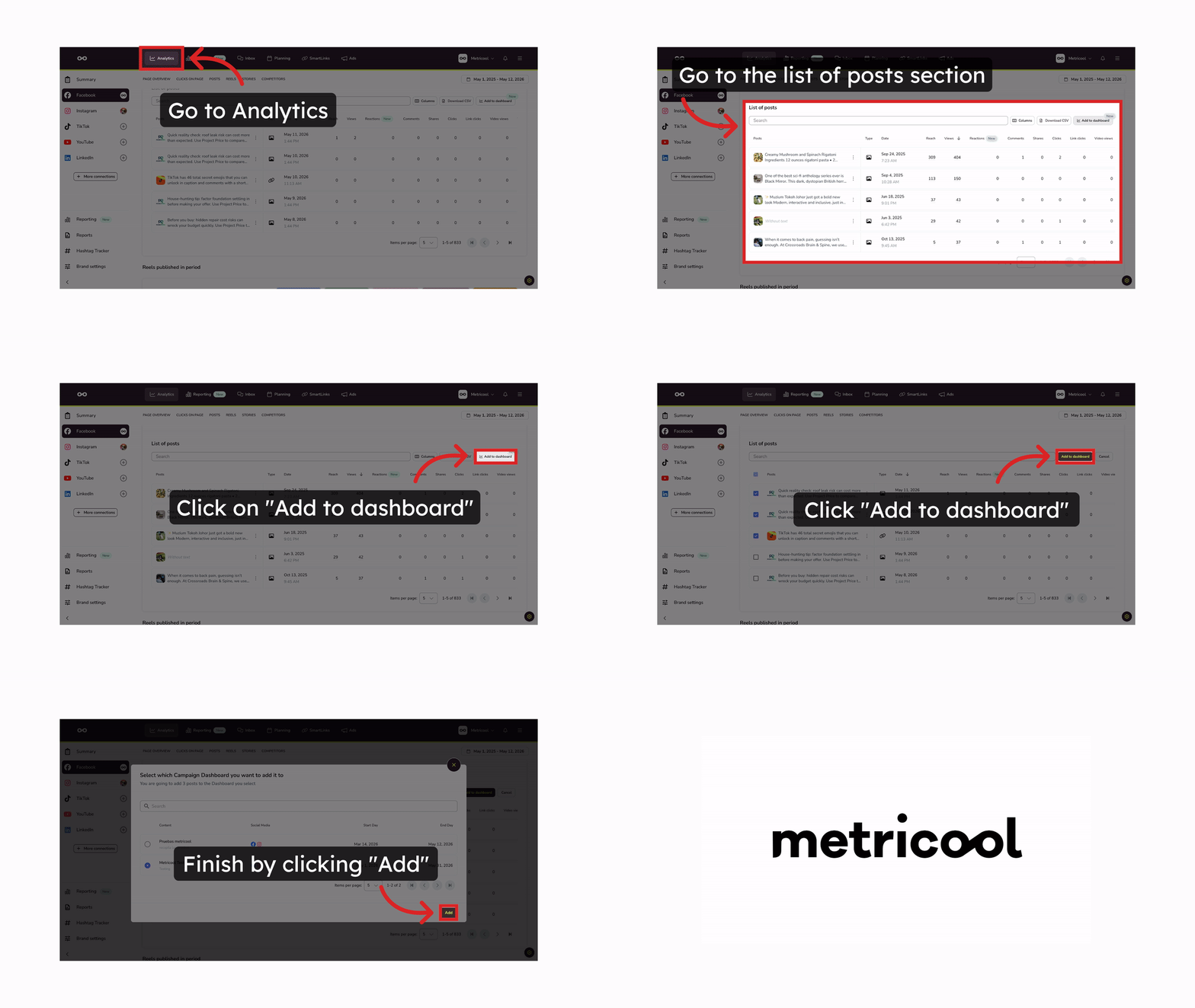
You can add published posts directly from the Analytics post list:
In Analytics, go to the post list
Click Add to dashboard
Select the posts you want to add
Click Add to dashboard to confirm
Choose which Campaign Dashboard(s) to add them to
Click Add
Syncing metrics
After your content is set, sync the dashboard to load the latest performance data. The status button shows one of three states:
Synchronized (green) — data is up to date
Desynchronized (orange) — needs syncing. Click to open the dashboard and trigger a new sync
Synchronizing — sync in progress
The dashboard header shows a Last update indicator with the date and time of the last sync — hover the ? icon for a quick explanation.
When sync completes, the dashboard generates:
A content summary with a chart
The Top 5 best-performing posts by social metrics
AI Insights (when the dashboard has at least 10 posts)
Data sync and AI Insights generation run as separate steps with separate progress indicators. If Insights generation encounters an error, a warning is shown and any previously generated insights remain visible.
Sync before any client presentation to make sure numbers and insights are current.
Understanding the dashboard
Content summary
An overview of all included content with a chart showing performance distribution across your campaign period and networks.
Best posts per network
Each network inside your Campaign Dashboard has its own Best posts section, showing the highest-performing content for that specific channel. This section appears when:
The dashboard includes more than one network
There are at least five organic pieces of content
The relevant metric is available for that network
Rank posts by views or interactions to focus on what matters most for your campaign goals.
Overall Top 5 best posts
The five highest-performing posts across all networks in the dashboard. You can switch the ranking metric between impressions and interactions depending on what matters most for the campaign.
AI Insights
Narrative insights generated automatically after each sync, covering:
Section | Content |
|---|---|
Executive summary | One narrative paragraph covering overall campaign performance |
Per-network cards | Performance, top post, detected pattern (when evidence is sufficient), recommendation |
Per-ads-platform cards | Investment efficiency, best result, improvement opportunity, recommendation |
Best posts cards | Common traits, dominant network/format, optional timing pattern, what to replicate |
Language: Determined from the campaign name and description. If those are inconclusive, Metricool uses the account owner's language.
Editing insights: Unlike other parts of the platform, AI Insights in Campaign Dashboards can be edited — adjust the text to fit your reporting voice before sharing with a client.
Insights are based solely on your campaign's data. No comparisons to other campaigns or industry benchmarks.
Sharing your dashboard
Click the Share button in the dashboard header to generate a public share link that gives clients a read-only view of the live dashboard — no Metricool account needed on their side.
A modal will open where you can:
Copy the link to share with your client or team
Disable the link at any time to revoke access
The shared link always shows the latest version of your dashboard. Any updates you make will be reflected when the recipient opens the link.
For now, shared links cannot include a custom logo. This feature will be available in a future update.
Use the Send feedback button in the dashboard header to share your thoughts about Campaign Dashboards directly with the Metricool product team.
Managing your dashboards
Once you've created your first dashboard, the list under Reporting > Campaigns Dashboards shows all your dashboards at a glance:
Column | Description |
|---|---|
Content | Campaign name |
Total Content | Number of posts included |
Created | Date the dashboard was created |
Start Day / End Day | The campaign date range |
Social Media | Networks included |
Status | Current sync status |
Click on any dashboard name to open it. Use the ⋮ menu on the right for two actions:
Edit content — add or remove posts from the dashboard
Delete dashboard — permanently remove the dashboard
The dashboard configuration (name, description, date range, and networks) cannot be edited after creation. If you need to change any of those settings, create a new dashboard and delete the current one.
Permissions
Access to Campaign Dashboards depends on the role assigned to each user within the brand.
There are two permission levels specific to this feature:
Permission | What they can do |
|---|---|
Full access | Create, edit content, sync dashboards, generate/revoke/copy share links |
View | See dashboards in read-only mode. The Share button is not visible |
These permissions are included in different combinations across Metricool's predefined roles (Manager, Editor, Content Creator, Analyst). You can also create custom roles with the exact combination your team needs.
To review or adjust roles, go to your brand settings.
Tips and best practices
Write a specific campaign name and description — the more precise, the better the automatic post suggestion
Keep the description client-facing — it shows up in the shared view, so write it as context for the report recipient
Include at least 10 posts to unlock AI Insights and pattern detection
Stay within the 90-day limit when setting your date range
Sync before presenting to make sure numbers and insights are up to date
Edit AI Insights when needed to align them with your reporting tone before sharing
Troubleshooting
I don't see AI Insights
Check that the dashboard has at least 10 posts and run a new sync. Per-network insights also require a minimum number of posts for that specific network.The suggested posts don't match my campaign
You can edit the post selection from the dashboard editor, but you cannot change the campaign name or description after creation. If the automatic suggestions are too far off, create a new dashboard with a more specific name and description, then add posts manually or from Analytics/Planner, and delete the old dashboard.The public link shows an error
The link may have been revoked or the dashboard deleted. Ask the dashboard owner to generate a new link.
FAQs
Is Campaign Dashboards a tagging or filtering system?
No. It's not designed to label or categorize posts for filtering purposes. It's a way to assign specific content to a campaign, analyze how that content performed together, and share the results.
Can I include content from multiple brands in one dashboard?
No. Each dashboard belongs to a single brand and can only include content from that brand. If you manage several brands in Metricool, you'll need a separate dashboard for each one.
What's the maximum date range for a campaign?
90 days.
Can I edit the campaign name, description, or date range after creating a dashboard?
No. The dashboard configuration (name, description, date range, and networks) cannot be modified after creation. If you need to change any of these settings, create a new dashboard with the correct configuration and delete the old one.
Can I edit AI Insights?
Yes. You can edit the generated text directly in the dashboard to adjust the tone or add context before sharing with a client.
Will the public link reveal internal information?
No. The shared view is read-only and shows only the campaign name, description, metrics, insights, and Top 5 posts. Internal UI controls are not visible.
Can I use Campaign Dashboards from the mobile app?
No. Campaign Dashboards is a desktop-only feature. The mobile app only includes Reports.
Can I add a post to multiple dashboards?
Yes. When adding from Analytics or the Planner, you can select multiple Campaign Dashboards at once.