
Recommended Option: Just one brand selected manually > All Data (AKA Intelligent connector)
This way, you select one brand, and the intelligent connector integrates all fields from all social networks into a single data source. You can also choose to manually select the available networks and options. (Note that the "Just organic (without ads)" option excludes metric and dimension groups from ADS but includes promoted data if the social network provides it).Blend brands statically based on a selection > add the brands.
This selection allows you to combine brands statically based on a selection.Blend brands dynamically based on a pattern > add the brands.
This selection allows you to combine brands dynamically based on a pattern.
What is Looker Studio and where to find the API Key / Token
Updated 4 months ago
Looker Studio is a tool that turns your data into fully customizable reports and dashboards.
Our connector includes access to all brands connected with Metricool and all their associated web/blog, social media and advertising platforms. The connector is available for Advanced and Custom plans.
Refer to the Quick Start Guide to learn the fundamentals of working with Looker Studio.
Where to find the access token and create the data source
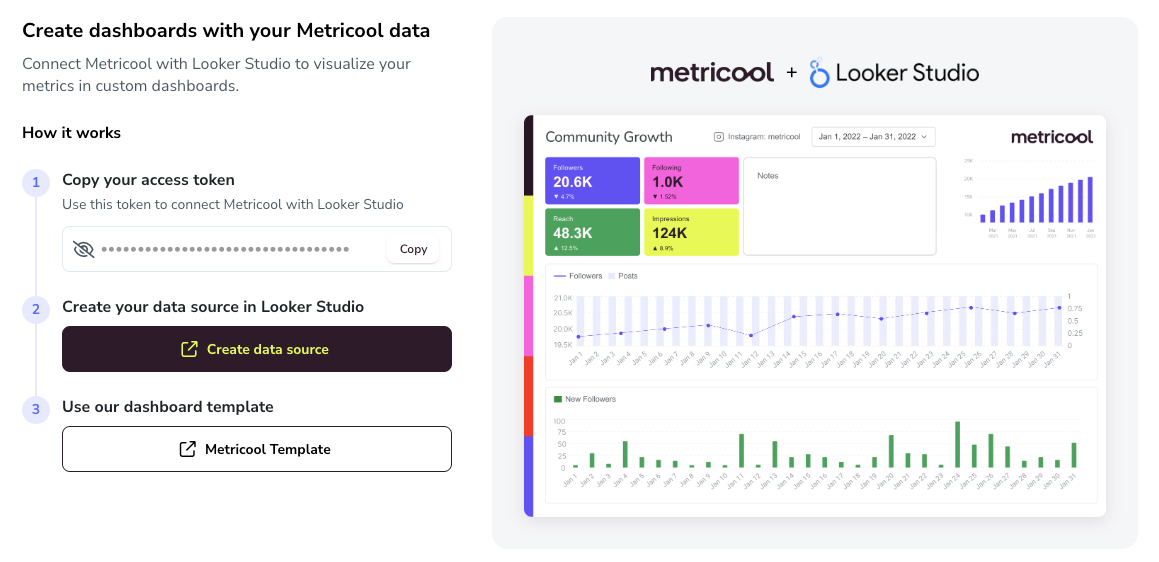
Go to Reporting > Looker Studio in the top menu. This section includes everything you need to connect Metricool with Looker Studio. Follow the steps below to copy your access token, create your data source, and use the Metricool report template.
1
Copy your access token
Click the Copy button next to your access token. Use this token to connect Metricool with Looker Studio.
2
Create your data source in Looker Studio
Click Create data source to start building your data source directly from Metricool. You only need to complete this step once.
3
Use our dashboard template
Click Metricool Template to select our pre-built report template for the Intelligent Connector. This saves you from creating the report from scratch. Watch this video to see how to create a new report with the template.
You can also find the token under Account Settings > API> Access token.
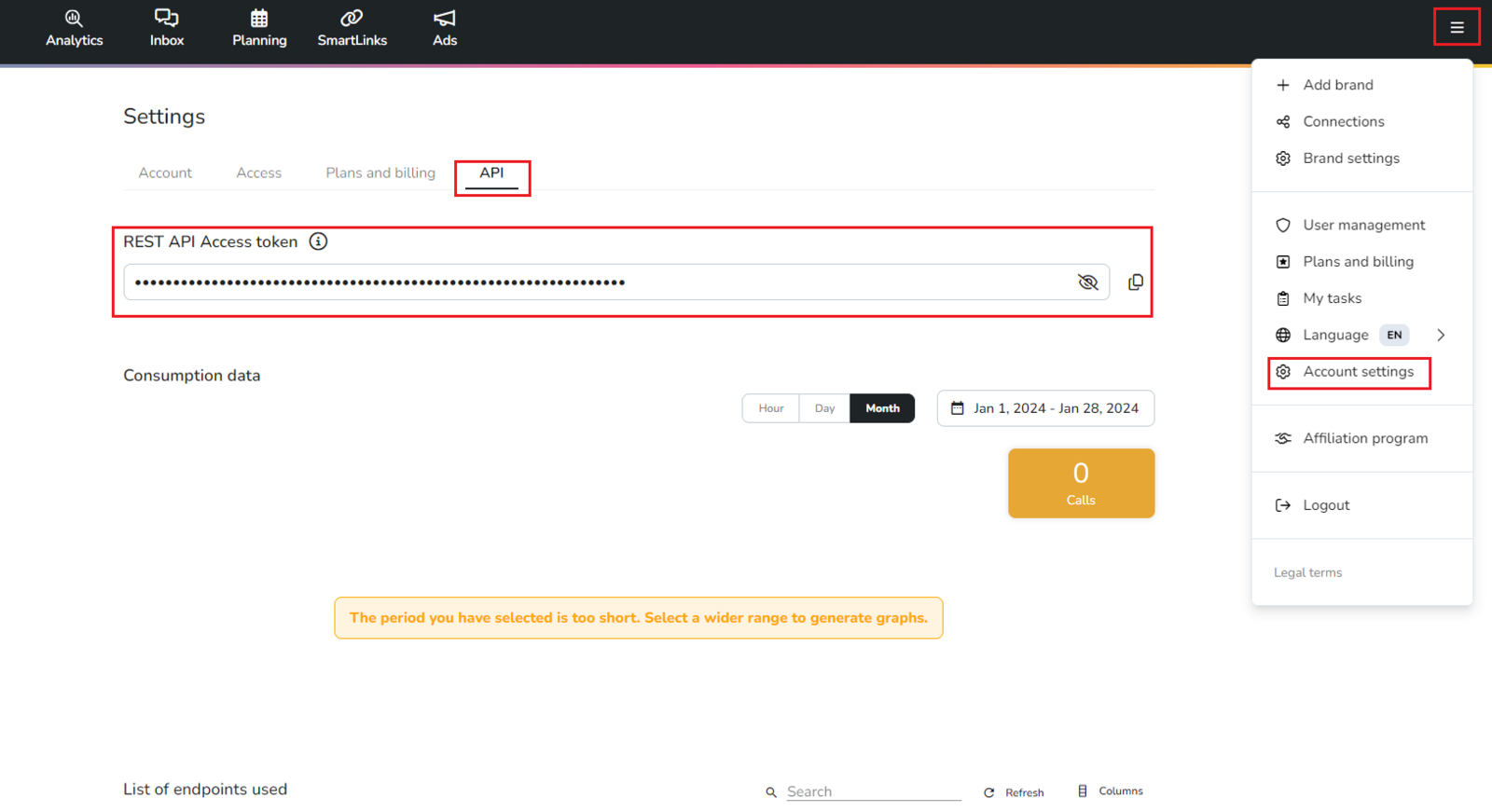
If you prefer to create the data source directly in Looker Studio, you need to copy the token and then go to the Metricool connector: https://metricool.com/go/dsc > authorize > Choose the account to go to Metricool > Grant access to Metricool > Insert API Token. You only need to do this step once.
There are several options available to create a data source in Looker Studio.
Data source options
Before finishing, you can also activate the option "Use the report template in new reports" to avoid creating the report from scratch.
Looker Studio Reports
If you want to create a report in Looker Studio using the Metricool connector, there are a few basic things you should know. We recommend checking out the article Getting started with your Looker Studio reports .
Resources for Looker Studio
Template to streamline your reports. Access it here.
In this link you have the list of fields available in our Looker Studio connector.
You can find more information about this feature in this tutorial.
Have questions or something not working as expected? Check out our Looker Studio: Frequently Asked Questions and Common Errors article
Was this helpful?
Was this helpful?