
The Metricool mobile app sends you push notifications for manual publishing: when a post needs to be finished manually, the notification downloads the content to your gallery, copies the text to your clipboard, and opens the social media app. Configure your devices under Planner > Notifications > My settings.
Types of notifications in Metricool
Updated 6 days ago
Metricool sends you notifications about your posts, approvals, publishing results, and account security through email and in-app. You control most of them from your notification preferences; some system emails are sent automatically.
Quick reference
Notification type | Description | Channel | Configurable |
|---|---|---|---|
New note on a post | A new note was added to a post. | Email, In-app | ✓ Yes, from preferences |
Mention in a note | Someone mentioned you in a note. | Email, In-app | ✓ Yes, from preferences |
Post approved | A post you scheduled was approved. | Email, In-app | ✓ Yes, from preferences |
Post rejected | A post you scheduled was rejected. | Email, In-app | ✓ Yes, from preferences |
Post published with warnings | A post published with warnings. | Email, In-app | ✓ Yes, from preferences |
Erroneous post | A post could not be published. | Email, In-app | ✓ Yes, from preferences |
Library post assigned | A library post was assigned. | Email, In-app | ✓ Yes, from preferences |
Social network disconnected | A social network connection expired or was disconnected. | Email, In-app | ✓ Yes, from preferences |
Monthly recap | Your monthly performance summary. | Email, In-app | ✓ Yes, from preferences |
Metricool Studio | A Metricool Studio view finished generating. | In-app | ✗ No, always on |
Recurring scheduling | Notifications about your recurring scheduling. | In-app | ✗ No, always on |
Manual publishing | A post needs to be finished manually. | In-app, Email, Push | ✓ Yes, from notification preferences and per brand from the planner |
Content approval | A post is sent for review. | ✓ Yes, per post | |
Failed payment | A subscription payment failed. | ✗ No | |
Email verification code (ads campaigns) | A verification code before completing a campaign. | ✗ No | |
Email verification code (new device or location) | A verification code before completing a login from a new device or country, if you don't have two-factor authentication enabled. | ✗ No | |
New sign-in notification | Confirms a login from a new device or location, with date, device, and approximate location. | ✗ No | |
Website disconnection | Your website was disconnected. | ✗ No | |
Free plan limit | You're close to the 20 post limit on the Free plan. | ✗ No |
Free plan limit notification: When you're close to reaching the 20 post limit on the Free plan, Metricool automatically sends you an email alert. This notification cannot be configured and is only sent to Free plan users.
Notification channels
Notifications reach you through three channels:
Email: notifications are sent to your email address.
In-app: notifications appear in the notification center inside Metricool.
Push: mobile push notifications for the manual publishing event.
The events in your notification preferences can each be set to in-app, email, both, or neither; the Manual post pending event also supports push. The Receive emails switch turns off the email notifications in your preferences in one step. Some automatic notifications are email only and cannot be turned off, and the always-on notifications are in-app only.
Notification center
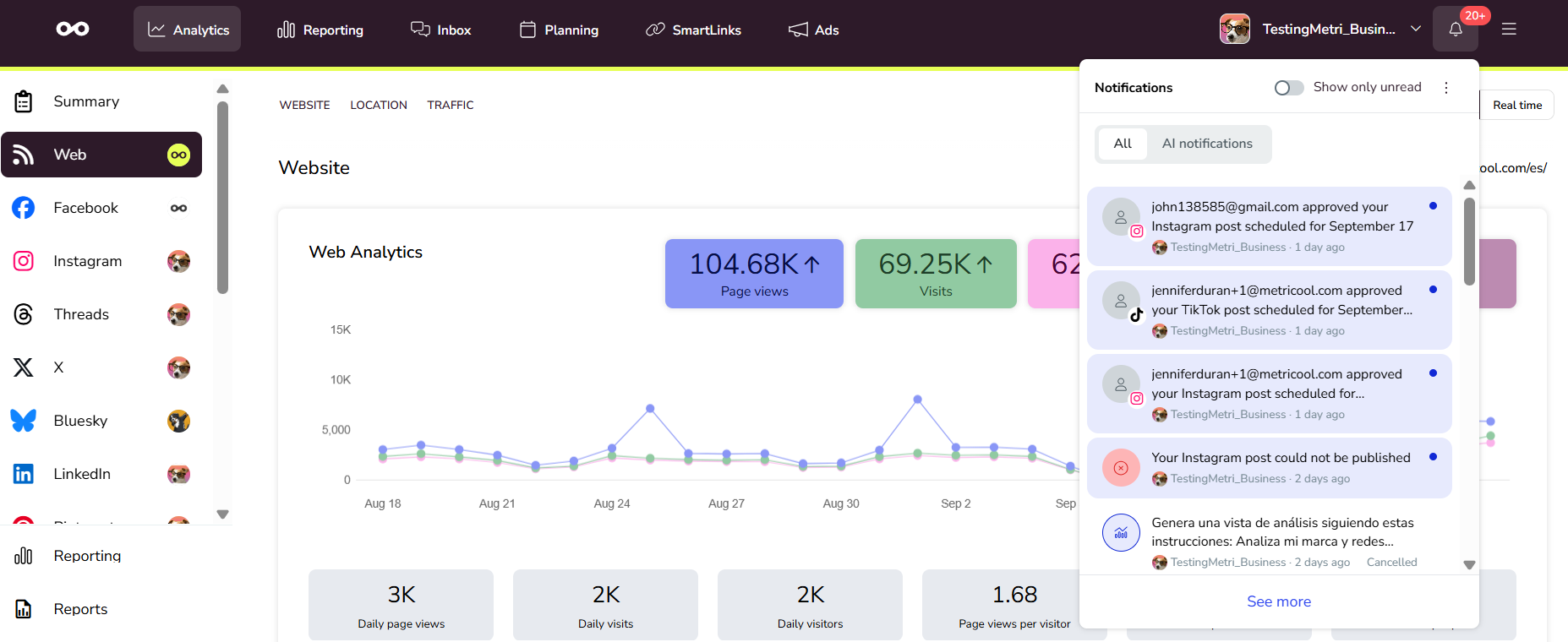
Open your in-app notifications from the bell icon in the top bar. The bell opens a dropdown panel with your notification feed.
The feed shows your in-app notifications from the last 30 days, including read or unread status, timestamps, notification details, and a link to the relevant content (the related post, or your connected accounts for social network disconnected alerts). Each notification shows the name of the brand it relates to, so if you manage multiple brands you can tell at a glance which one it is about.
Notifications from Metricool Studio, such as a view that finished generating, arrive in this same feed.
Use the filter at the top of the feed to view only AI notifications or All notifications.
The feed is paginated and shows your unread notification count. Mark an individual notification as read or unread, or use Mark all as read to clear the unread state for every notification.
Notifications are kept for 30 days, after which they are removed from the feed.
Notification preferences
Your preferences are global: they apply to every brand you participate in. You only receive a notification when you have the required permission in the brand where the event occurs. See User management, team roles, and permissions in Metricool for how permissions work.
Open your preferences from Account settings > Notifications: click the menu icon (☰) to open the side menu, select Account settings, then open the Notifications section. Agency accounts have the same screen. See Manage your notification preferences for the full steps.
For each event, select the In-app checkbox, the Email checkbox, or both; the Manual post pending event also supports push. You can change any event, including error and social network disconnected events.
Notification events
These events generate notifications from your preferences, and each is configurable per channel.
New note on a post: a new note was added to a post.
Mention in a note: someone mentioned you in a note.
Post approved: a post you scheduled was approved.
Post rejected: a post you scheduled was rejected.
Post published with warnings: a post published with warnings.
Erroneous post: a post could not be published. Any user with permission to schedule posts on the brand can receive this alert, each from their own notification preferences; it is not limited to the account owner and admins.
Library post assigned: a library post was assigned.
Social network disconnected: a social network connection expired or was disconnected.
Monthly recap: your monthly performance summary. You can activate it from Account settings > Notifications or from the Account tab (email only, lets you send it to a different address); see How to activate your monthly summary in Metricool.
Manual post pending: a post needs to be finished manually. Besides the users who can publish, the alert also goes to the emails and devices added in the planner notifications modal; see Manual publishing notifications below.
You only receive an event in a brand where you meet the minimum permission: view posts for New note on a post, schedule posts (or a higher permission) for approval, publishing, and erroneous post events, and manage connections for social network disconnected alerts.
Notifications for new notes on posts
Anyone with permission to view posts on a brand receives an in-app notification when a new note is added to a post, with a link straight to the post, provided they have in-app notifications turned on. When a note containing a new mention is saved, each mentioned user receives a notification with a preview of the note. This is the Mention in a note event, and you can configure it in your preferences.
Final clients of an agency's white label never receive this notification, regardless of the account owner's settings.
Always-on notifications
Metricool Studio and Recurring scheduling send in-app notifications that you can't turn off. They appear in your notification preferences marked Always on, so you can see them listed even though they have no checkboxes.
Types of notifications
Notifications you can configure
Manual publishing notifications
When Autopublish is off and a post needs to be finished manually (for example, Instagram Stories with mentions or links, or some TikTok videos), Metricool sends a notification at the scheduled time.
Push (recommended): Mobile notification that downloads the content to your gallery, copies the text to your clipboard, and opens the social media app.
Email: Message with the content and a link to publish.
In-app: Notification in your notification center.
Who receives it: two groups, added together:
Every user with permission to publish posts on the brand, through the channels they have on in their notification preferences (in-app, email, and push).
The emails and devices added in the brand's planner notifications modal, by email or push. This includes addresses that are not Metricool users.
If a user is in both groups, they get one email and one push, never duplicates. The planner notifications modal overrides the notification preferences: if someone turns the event off in their preferences but is still in the modal, they keep receiving it there, and the only way to stop it is to be removed from the modal. If the modal is empty, the alert goes to the users who can publish. Previously it went only to the brand's owner or the brand email (only for integrators' end customers). The brand's Slack destination also receives the event whenever it is turned on there, no matter who is in the modal.
A tooltip on this event in the notification preferences explains that the planner notifications modal overrides those settings, and the planner notifications modal shows an info text saying its emails and devices are added to the users who can publish, not a replacement for them. The notification is not sent to the Instagram account itself.
Each user configures their own modal recipients in My settings.
On Advanced or Custom plans with shared brands, the account owner can open My team to see the active devices and emails of all members. That tab shows who is configured; it does not mean the owner automatically receives every notification.
From My team, the account owner can disable a member's mobile device or email so that recipient stops receiving the notification through the modal. Devices and emails cannot be removed from this tab; members still add and manage their own recipients under My settings.
A device may appear with a default name such as iPhone or the device model if the phone name was not customized.
Modal notifications are tied to the configured email or device, not to brand access. A user can still receive them after losing brand access until that recipient is disabled or removed.
If a user has not enabled a mobile device or email under My settings, or if those recipients were disabled from My team, that user has no active recipient in the planner notifications modal. If they can publish on the brand, they still receive the event through the channels enabled in their notification preferences.
Setup: Planner > three dots (⋮) > Notifications > My settings.
See How to set up notifications for manual publishing and How to manually publish via notification for full details.
Content approval notifications
When you send a post for review, you can choose whether to send an email to the assigned reviewer with the content and buttons to approve or reject directly from the email.
Channel: Email only. Activated or deactivated when sending each post for review.
See How notifications work in post approval and How to send posts for review for full details.
Automatic notifications (not configurable)
These notifications are sent automatically by email and cannot be disabled from your notification preferences.
Failed payment notifications
If a subscription payment fails, Metricool sends you a warning email. The system retries the charge for several days, and if not resolved, your account automatically downgrades to the Free plan.
See Failed payments: Troubleshooting and FAQs for more details.
Email verification code (ads campaigns)
When creating Google Ads or Meta Ads campaigns from Metricool, a verification code is sent to your email as a security measure before completing the campaign creation. This code is required in the final step to confirm and send the campaign for platform review.
See Create ads campaigns from Metricool for full details.
Email verification code (new device or location)
When you sign in with your email and password from a device or country Metricool doesn't recognize, we email you a verification code to confirm it's you before granting access. This only happens if you don't have two-factor authentication enabled — if you do, you're asked for your authenticator app code instead, and this email code is not sent. Once verified, the device is saved as trusted for 30 days.
See Email verification code for new device or location for full details.
New sign-in notification
Every time you sign in from a new device or location, Metricool sends this informational email with the date, device, and approximate location of the sign-in. It's sent whether or not you have two-factor authentication enabled, and is separate from the verification codes above.
See Email verification code for new device or location for full details.
Website disconnection
If your website has not recorded any visits for 3 consecutive days, Metricool automatically disconnects it. You will receive an email explaining that the tracking code has not detected recent visits and that you need to reinstall it.
FAQs
What notifications can I receive on my mobile?
Can I disable error or payment notifications?
Error notifications (erroneous post, social network disconnected) are configurable from your notification preferences. Payment and billing emails are not part of the notification preference system and cannot be disabled from your preferences.
Can I turn off Metricool Studio or Recurring scheduling notifications?
No. These in-app notifications are always on, and your notification preferences list them marked Always on.
Can I change my notification preferences from an agency account?
Yes. Agency accounts have the same notification preferences screen, including the Receive emails switch, so you can choose in-app and email notifications for each event.
Do I receive notifications when my content is approved or rejected?
Yes. The Post approved and Post rejected events notify you when a post you scheduled is approved or rejected, for the channels you enable in your notification preferences.
Are there notifications for Inbox messages or comments?
No, Metricool does not send notifications when messages or comments arrive. You must check the Inbox manually from the web platform or mobile app.
How do I receive the Metricool monthly summary?
The monthly recap is an event in your notification preferences. Enable the Monthly recap event for the channels where you want to receive it.
Who gets the notification when Autopublish is off?
Two groups, added together: every user with permission to publish posts on the brand, through the channels each user enables in their notification preferences, and the emails and devices added in the brand's planner notifications modal, including addresses that are not Metricool users. If the modal is empty, the alert goes to the users who can publish. Check My settings for your own recipients. On shared brands (Advanced or Custom), the account owner can open My team to review members' devices and emails and disable any recipient so it stops receiving the notification.
Why am I suddenly receiving so many manual publishing notifications?
The Manual post pending alert now reaches every user with permission to publish posts on the brand, in addition to the emails and devices added in the planner notifications modal; previously it went only to the brand's owner. To stop receiving it, turn the Manual post pending event off in your notification preferences. If your email or device is still configured in the planner notifications modal, you keep receiving it there until that recipient is removed or disabled.
Can the account owner stop a team member from receiving publishing notifications?
Yes. On shared brands with an Advanced or Custom plan, the account owner can open My team and disable a member's mobile device or email. Disabled recipients stop receiving the notification through the planner notifications modal; a member who can publish on the brand still receives the event through the channels enabled in their notification preferences. Devices and emails cannot be removed from My team; members still add and manage their own recipients under My settings.
Why do I see a device named iPhone?
Metricool registers the device with the name set on the phone. If that name was not customized, the list can show a default label such as iPhone or the device model. That label identifies the Metricool app device, not the Instagram account holder.
Can I add multiple devices or emails for publishing notifications?
Yes, you can configure multiple mobile devices and email addresses in My settings.
Are notifications available on all plans?
Notification preferences are available on all plans (Free, Starter, Advanced, and Custom). The post approval system, including its notifications, is available on Advanced and Custom plans only.
Related articles
Was this helpful?
Was this helpful?