
WLA: About Clients, Roles, Brands and Teams
🏷️ Start working with your new Agency platform
💬 These are the remaining tabs in the White Label settings panel (following Route 1, explained here). We will analyze each of them in the paragraphs below.
🛠️📝🔐
👥 Roles
👩💻 Select the permissions you want your clients to manage, either by using a default role or by creating a new one (keep in mind that roles will only apply to users added from the "Clients" tab).
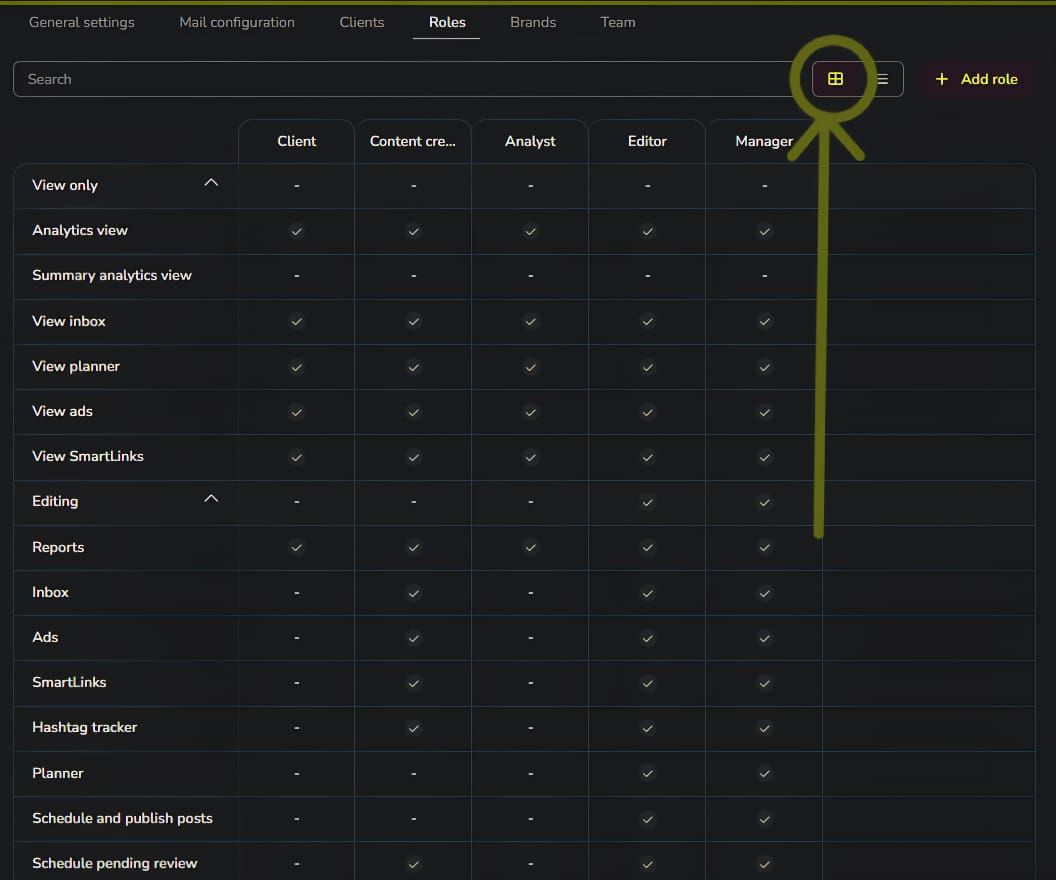
Check this tab in table view if you want to see the details of the default permissions:
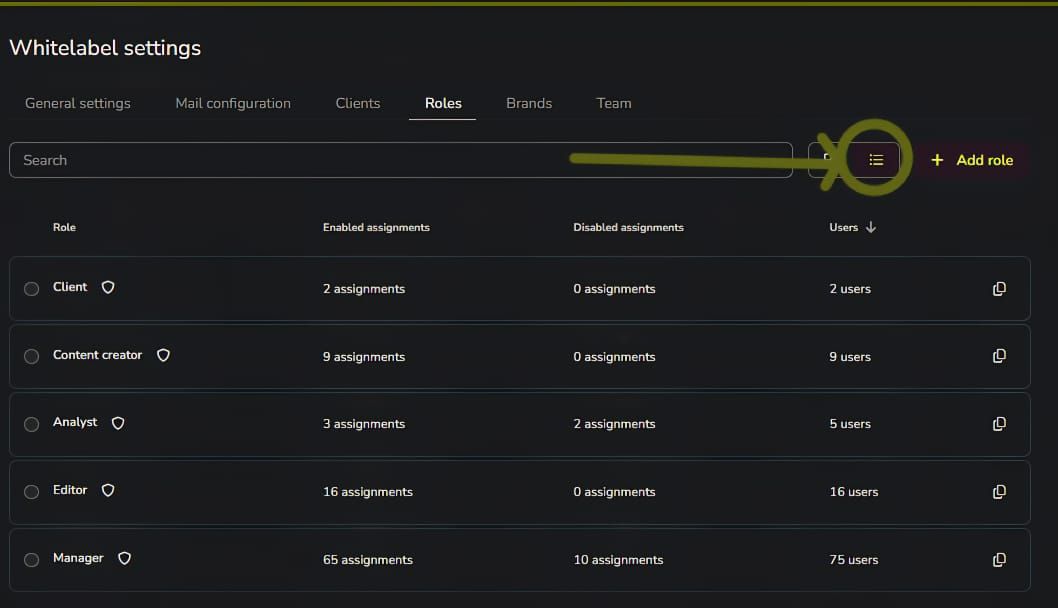
Check this tab as a list to get an overview of how many times each role has been used with your teammates or clients.
If you prefer to work with a Custom Role, click the + Add role button, and you will find the list of configuration options to assign. You can select them as you prefer, enabling Read-only, Edit, or a mix of both permissions per role.
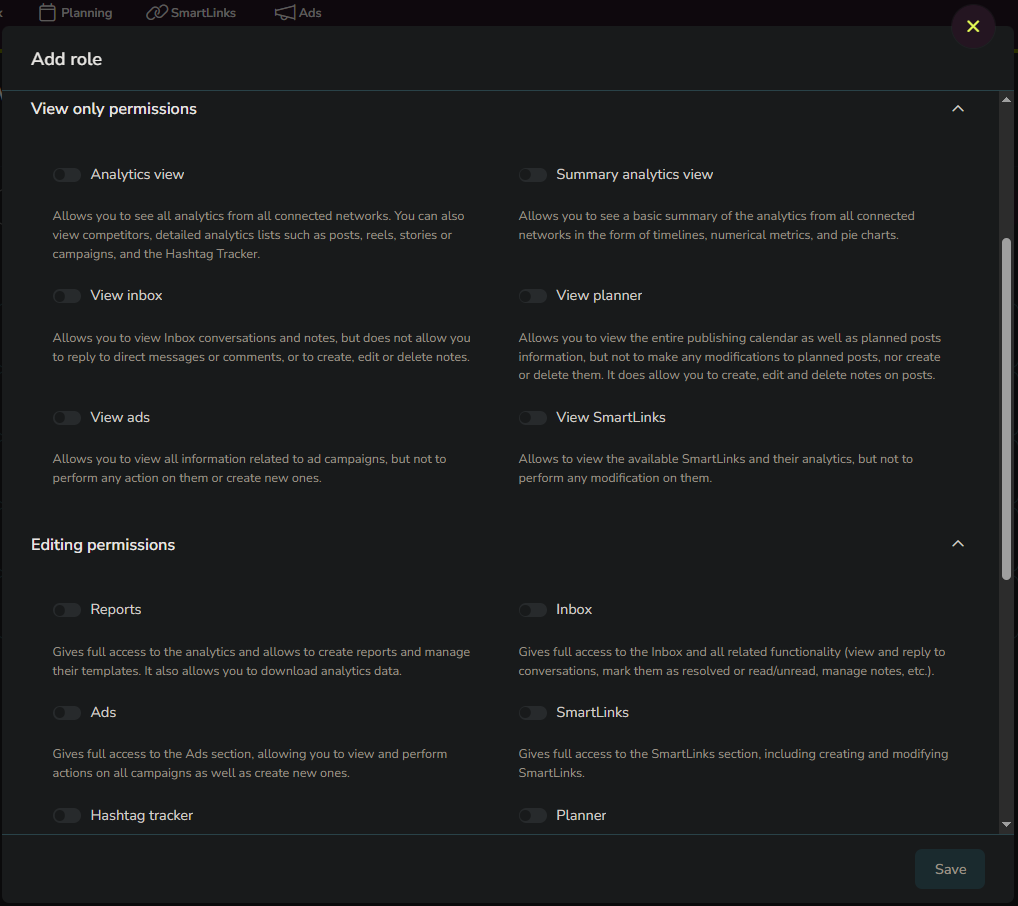
ℹ️ It is worth noting the "Management permissions" found at the end of this pop-up window. If you want to create a role that grants total access, only activate the "Brand" button (the rest can stay deactivated), and full access will be enabled, including management functions (for example, adding/deleting social media connections).
⚠️ Keep in mind that a user assigned from the Clients tab will not be able to add or delete brands under any type of role. The number of created brands can only be edited from the main account (where the payment was made) or by adding the user from the Team tab.
You can change the role assigned to a specific client or teammate whenever you need, so don't worry about errors or future changes.
🏢 Brands
👩💻 There are multiple ways to add a new brand. In this article, we cover how to do it from the White Label settings window (our admin panel), which is accessed by going to Menu > Whitelabel settings > Brands. You can also add new brands from the Connections panel (see how here). Whether you choose to add your brands from the White Label menu or from the Connections panel, you will be able to manage them to share them with your clients and assign them to your teammates.
If you are not familiar with what a Brand is, check the last reference of this article (to see the order of the articles, click here).
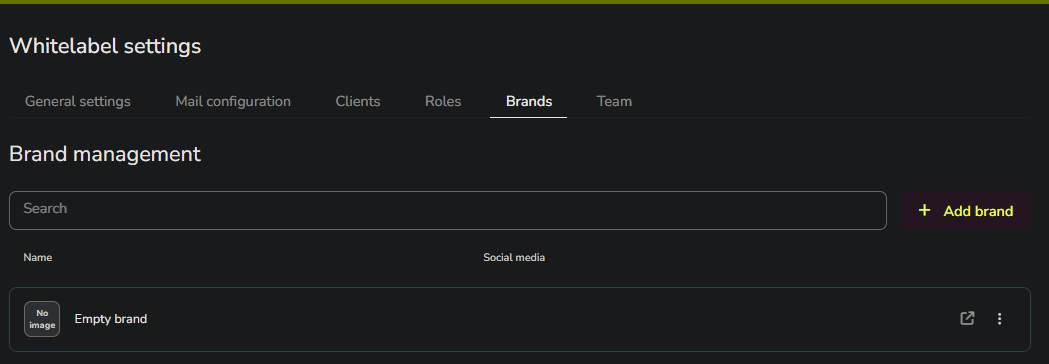
⚠️ Users added from the Teams tab must add brands through the White Label settings (Menu > Whitelabel settings) for them to be visible in your Agency; they cannot add brands from the Connections menu (remember they have a free account that only allows one brand).
⚠️ If you have access to shared brands from your paid White Label account—whether as an editor, manager, or any other role assigned through User Management (Menu > User Management)—you will not see them within your Agency White Label. You will only be able to work with and share brands created from your main account (the one from which the payment was made).
🙋♂️ Clients
👩💻 This is the tab where you add your clients. Each one is added via email, and the email characteristics will be those you configured in the "Mail configuration" tab (explained in detail here).
To add a new one, click the + Add client button. A pop-up window will ask for your new client's email > click "Assign brands" > select the brand(s) and the role for that client > click Continue > select whether you want to send the default or custom invitation message (written in the aforementioned mail configuration tab).
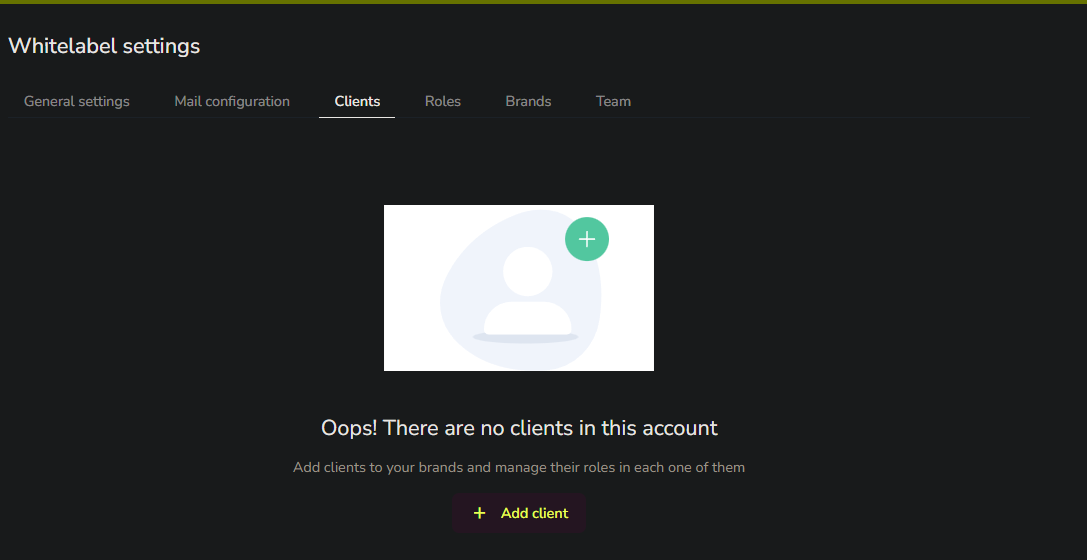
ℹ️ Note that it is not necessary for your clients to have an active Metricool account to be integrated into your Agency. If you want to know how your client will see and manage this process, take a look at the first reference.
ℹ️ Any of the roles you create can be assigned to users added from the Clients window; therefore, if you deactivated a feature in the role permissions, your client will not have access to the Connections panel (in case you wish to restrict this capability).
🤝 Teams
👩💻 Finally, the Teams tab lets you add teammates to help you manage your Agency. They won’t need a Metricool account to be part of your team, as a new account will be automatically created once they accept the invitation and set their password. If your teammate already has a Metricool account, you can still add them from the White Label admin panel to share these features with them.
There are two predefined roles for teammate management: Administrator and Manager.
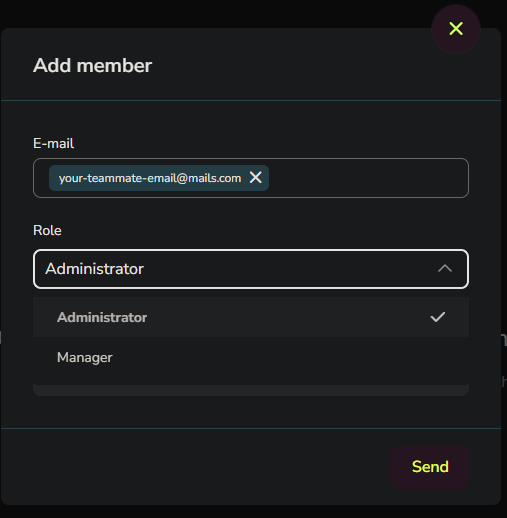
Administrators have access to the General Settings and Mail Configuration tabs, so they can customize them just like the account owner. They can also manage brands and clients.
Managers can only manage brands and clients.
After clicking the email invitation link you sent, they will start working in one of two ways:
If your teammate already has a Metricool account, they will be automatically redirected to the analytics dashboard with access to all your brands and the White Label panel (Menu > Whitelabel settings).
If your teammate does not yet have a Metricool account, a password setup window will appear, and a Metricool account will be generated automatically. The email to which you sent the invitation will be the username, and the new password set by your teammate will be their Metricool account password.
❗ Similarly, if you wish to add a team member with customized permissions for a specific brand, you can do so through the Clients window, as teammates added from the Team window automatically receive access to all of your brands.
ℹ️ You can find more information on how to add users in the second reference.