
How to add or delete brands to your account
Updated 4 weeks ago
Before connecting a different social account
Connecting a different social account to the same brand mixes historical data from both accounts. If you want to connect a different account, delete the brand first and create a new one. Free accounts cannot delete or replace their brand. To connect a different account, upgrade to a paid plan.
Add brands to manage multiple businesses, or delete a brand to free up a slot and connect different social accounts or ad platforms. Free accounts include one brand that cannot be deleted or replaced.
➕ How to add a brand
You can give the brand a name and image while you create it. Both are optional.
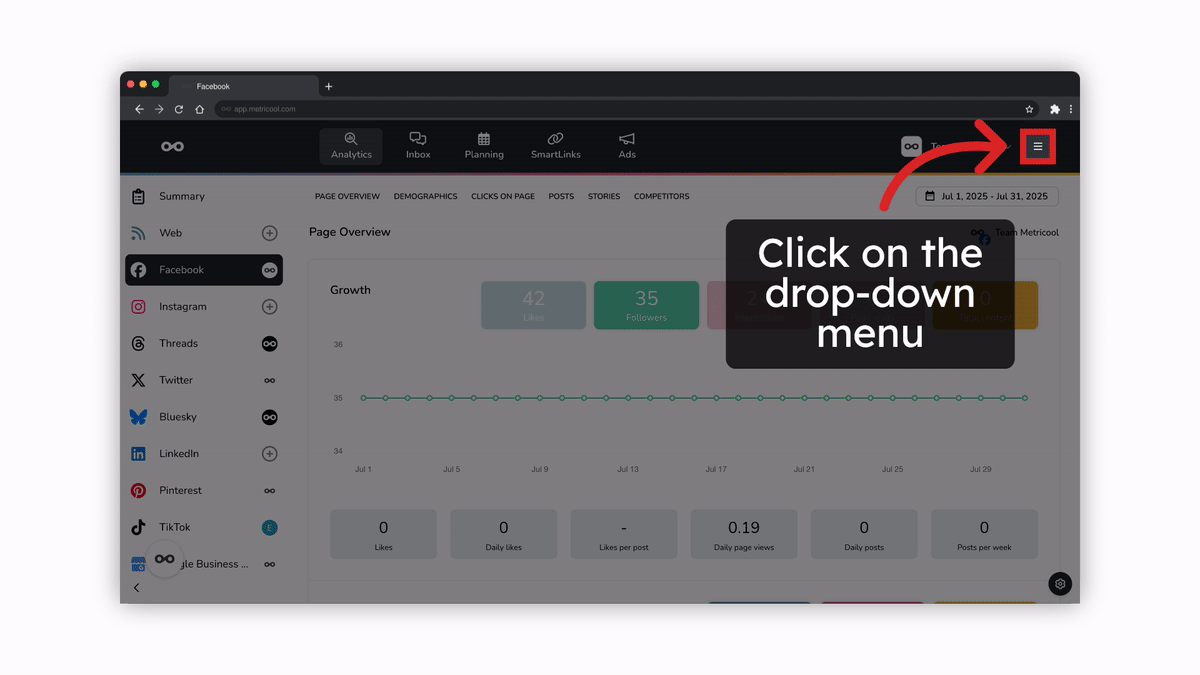
In the top-right menu, go to Connections and click the + Add button. You can also use the shortcut in the main menu.
To add an image, click Upload image and choose a PNG or JPG file. We resize it to 80×80 px.
To add a name, type it in Brand name. If you leave it empty, we name the brand when you connect its first account.
Click Create brand.
The new brand appears at the end of your list and is ready for you to connect its social networks. You can change its name and image anytime in Brand settings.
🗑️ How to delete a brand
If you need to move a brand to a different account instead of deleting it, brand transfers are possible by contacting our support team. Learn more about transferring brands.
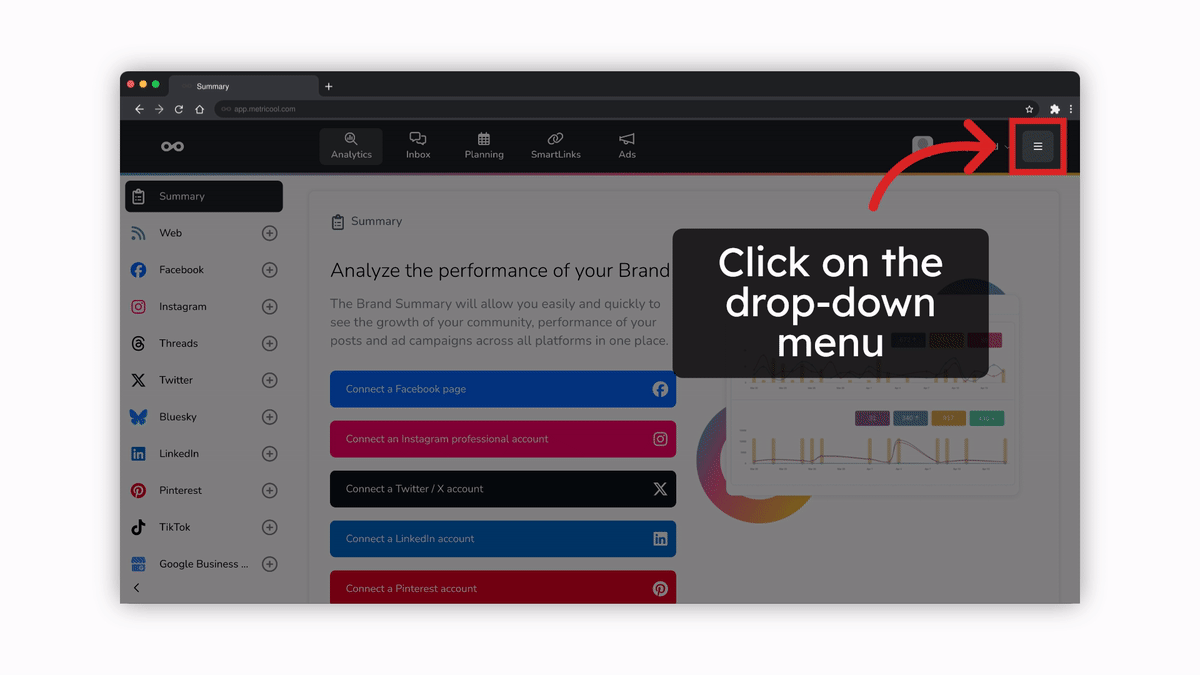
On the Connections page, click the three-dot icon next to the + Add button and select Delete brand.
If this is a shared brand someone else owns, the option is Leave brand instead. You will lose access to it, but the brand remains active in the owner’s account.
Click Confirm in the pop-up that warns the brand and its settings and data will be deleted from your account.
What happens to your data when you delete a brand
Deleting a brand frees up the brand slot for your plan, so you can create a new one. Not all data behaves the same way after deletion:
Historical metrics from connected social networks are linked to your social account, not to the brand itself. If you reconnect the same account to a new brand, your historical data remains available.
Planner posts and web or blog data are tied to the brand’s unique internal ID. Deleting a brand removes this data unless you restore the brand within the recovery window.
Scheduled posts will not be published while the brand is deleted.
Analytics sync stops during the deletion period. Some metrics, such as follower counts and Stories, can only be tracked while the brand is active and cannot be recovered for the deletion period. See which metrics are affected.
Collaborators with access to the brand immediately lose it, and their roles and permissions on that brand become inactive.
There is no archive option. Deletion is the only way to deactivate a brand.
Free vs paid accounts
On paid plans, deleting a brand removes it along with its settings and data, and you can create a new brand to connect different social media accounts or ad platforms. Free accounts include one brand that cannot be deleted or replaced.
Recover a deleted brand
Deleted brands can be recovered
If you deleted a brand by mistake or need to access it again, contact our support team. Brands can be fully restored within 45 days of deletion, including Planner content, settings, and data.
To restore a brand, you need an available brand slot in your current plan. Posts scheduled during the deletion period will still appear in the Planner after recovery, but they will not be sent retroactively.
Related articles