
WLI: Native Analytics dashboard UI customization
Updated today
This article should be consulted if a White Label for Integrators product is activated (learn more here)
Customizing Analytics dashboards in the iframe view
The following screenshots illustrate different steps for displaying the analytics dashboard in the iframe view. If you want to check this specific view, go to the menu > connections > White Label > copy either of the two links shown > open a new incognito tab (Ctrl+Shift+N for Windows/Linux; Command(⌘)+Shift+N for Mac) > paste the SSO/autoin link in the navigation bar.
All of them shall be requested through the live chat you have in the lower right corner of your screen when logged in to your master Metricool account
1. Original layout
This is the initial view without any customization. The next items can be hidden one-by-one, so you can mix and show bottoms as you consider necessary:
Live chat
Summary
Reports
Brand Settings
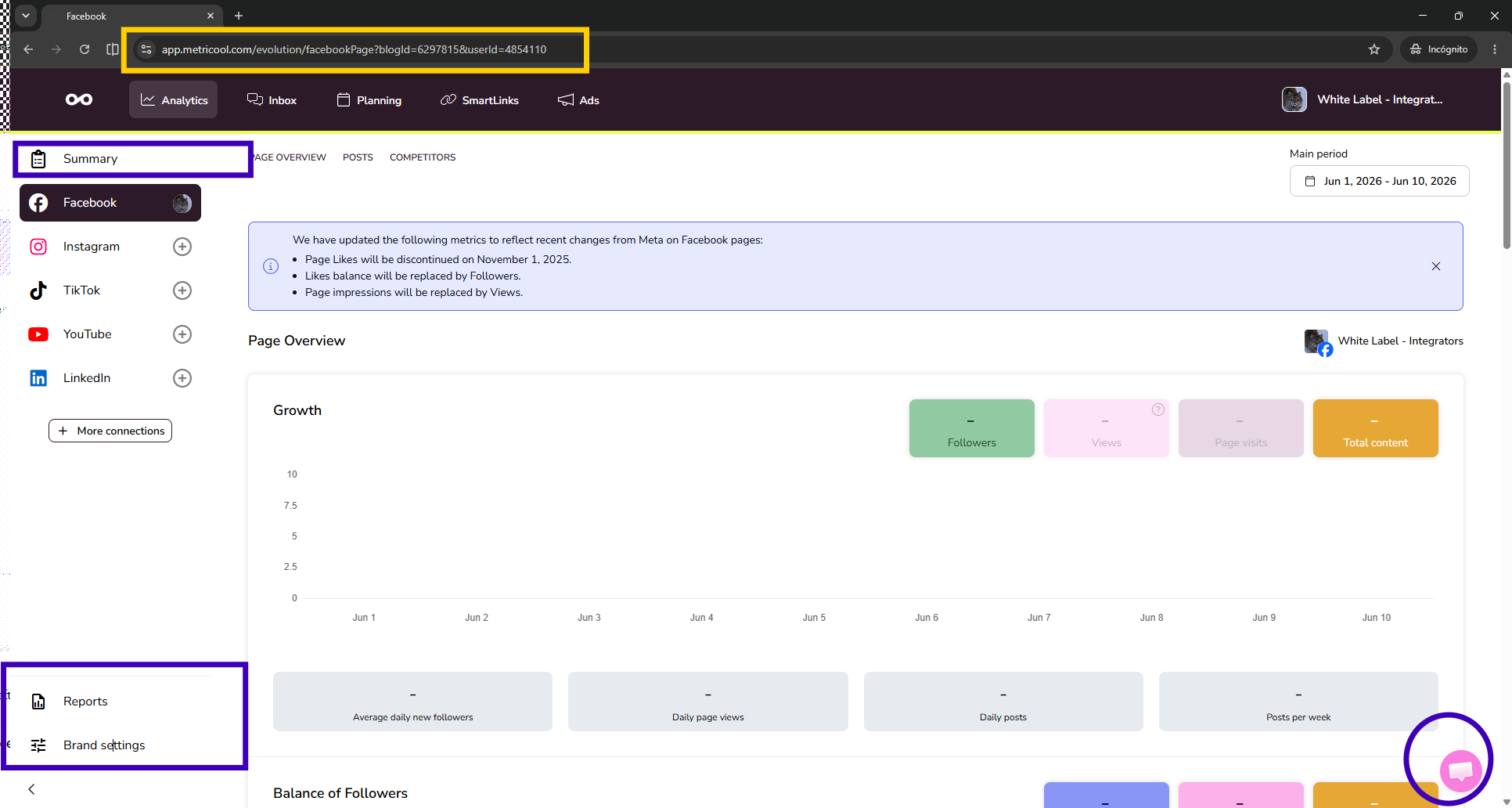
The live chat allows your clients to get in touch with the Metricool support team. Even if its hidden from the iframe view, you will have the live chat activated in your master and collabs Metricool accounts.
2. Read-only arrangement
If you disable the reports, brand settings, and the live chat button, your client will only be able to read the analytics for the connected platforms. The Summary can stay in this read-only arrangement, as it is part of the analytics and doesn't add any level of customization.
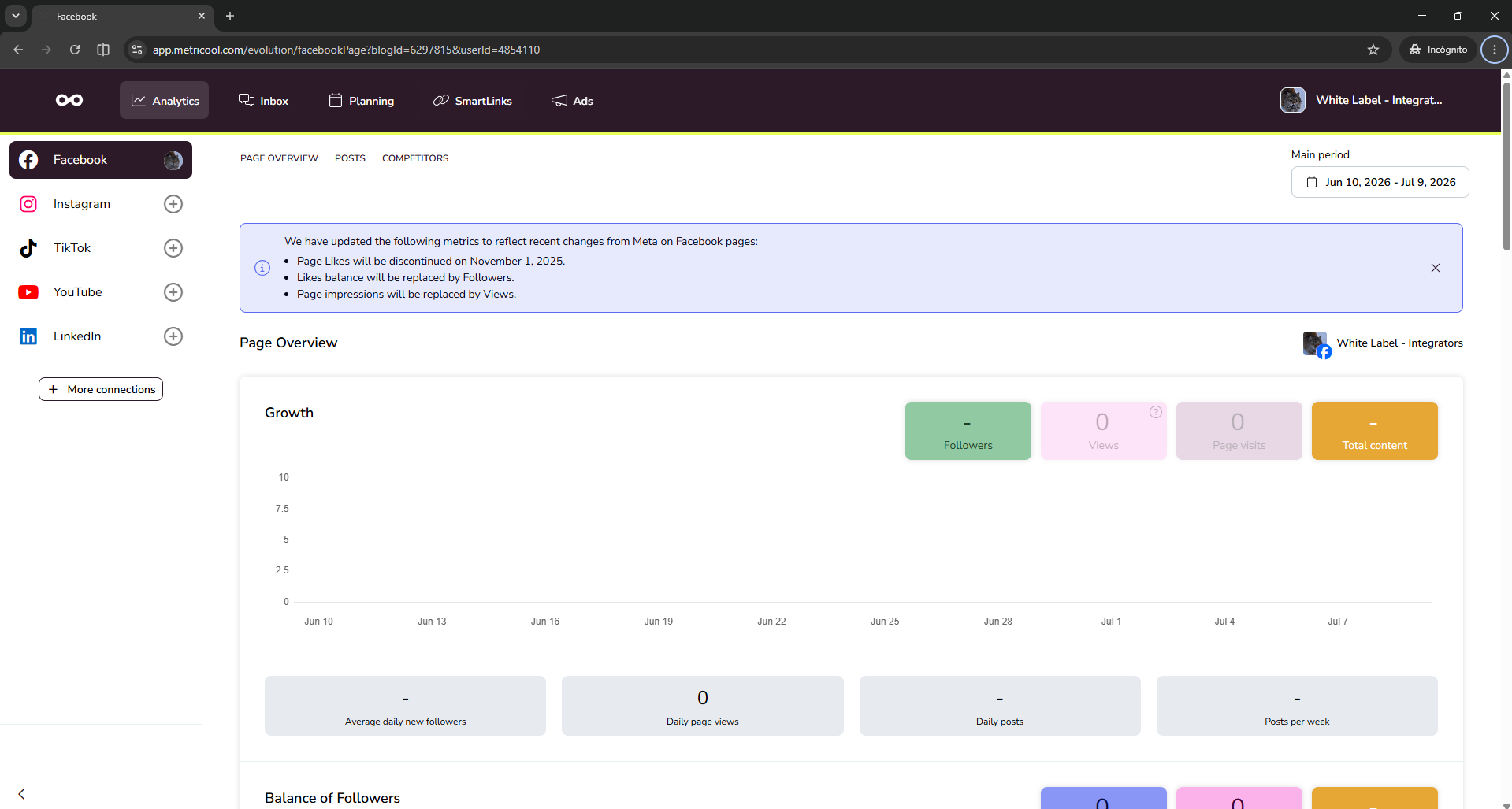
As you can see, Brand Settings, Reports, and the Live chat have been disabled below. This way, the Analytics interface allows your client to check the info only, not to create any reports or edit any brand characteristic.
3. With/without navigation bar
The next customization level is to hide the navigation bar partially or totally (learn about our terms here).
This level of customization is useful when you don't want to offer all the features available on Metricool. If, for example, you are interested only in the analytics and scheduling features, you can hide the remaining icons as it is shown below.
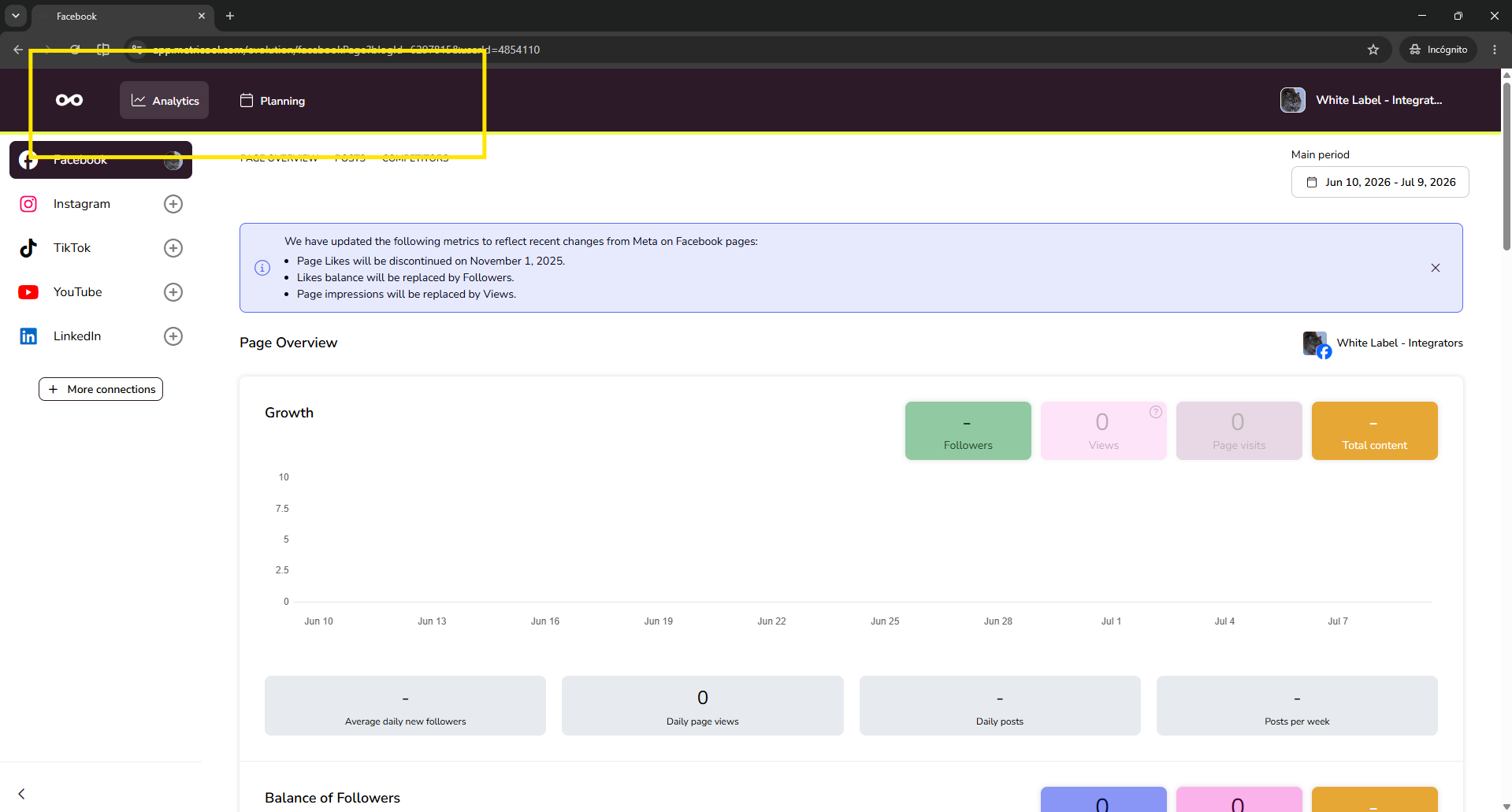
If you decide to hide the whole bar, you can redirect your clients to each of the features shown on it by using the redirection parameter. Please check the first and second references in this article for complementary info.
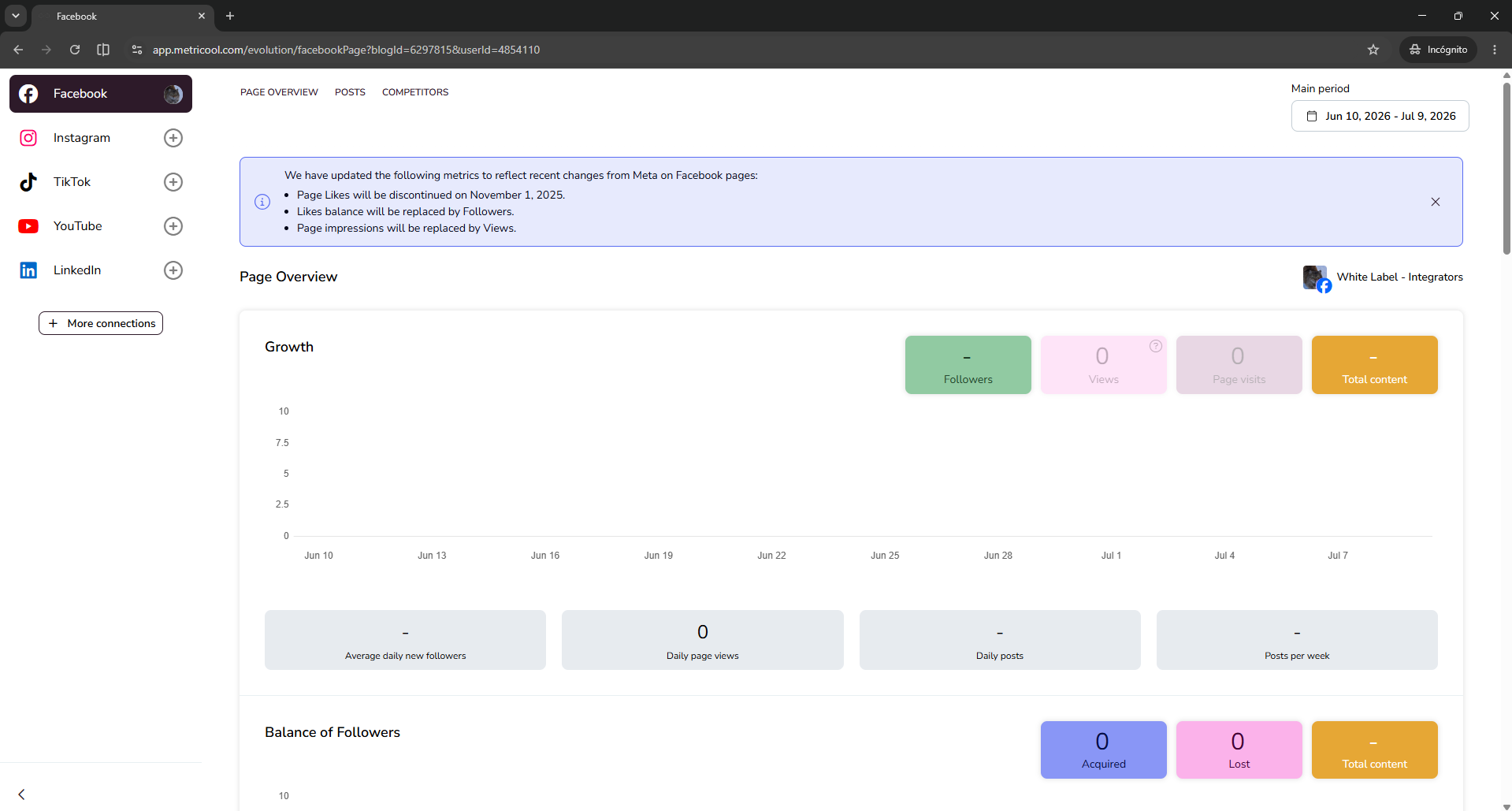
Navigation bar colors and the green line behind it cannot be customized.
Iframe customization of the Analytics dashboard
The next step in the Analytics customization path is to remove the social network not connected from the left-side menu.
This will be achieved by customizing the iframe directly with this parameter. Please consider that every social media account will be automatically displayed even if you don't add it in the iframe parameter.
All iframe customization should be developed on your end.
Additional Resources
✅ Buttons for redirections
✅ Iframe customization parameters
✅ Social media platforms connections