
Custom templates
Updated 3 weeks ago
Custom templates let you build reusable report layouts on an Advanced or Custom plan, customising the background, colors, pages, and logo of your reports. Templates are created per brand (they cannot be transferred to other brands) and are saved so you can select them each time you generate a custom report. You can create unlimited templates.
Custom templates are available on Advanced or Custom plans.
How to set up your templates
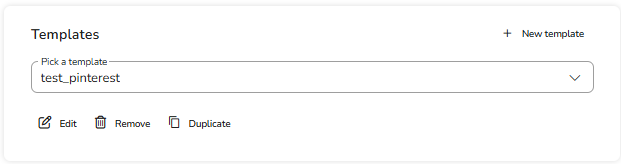
Go to Reporting > Reports in the top menu. In the Templates section, you can create a new template and customize it to fit your reporting needs. You can also edit, duplicate, delete, or use existing templates to generate reports.
Configure your template
Once created, the template is divided into three sections.
Pages & Sections
Click on the social networks you want to include to expand the menu and select the pages you want to add. Each section shows a counter with the number of selected pages (if no pages are selected, the counter will display 0, and the section icon will be gray, indicating it is inactive). You can also select or deselect all pages in a section with a single click.
Background & Logo
Configure the report's logo, the cover background, the background for the rest of the report, and the title.
Colors & Preview
Use this section to adjust the colors of your report and view the final result.
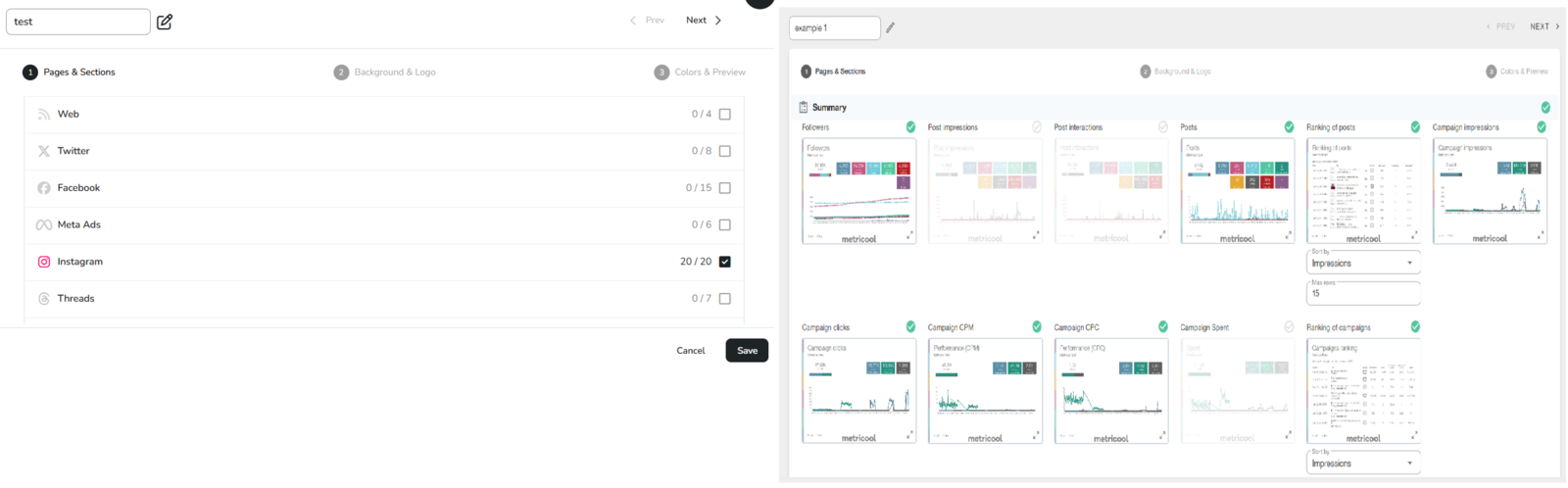
Image specifications
JPG format is recommended.
Logo: 600x86 px
Cover background: 1684x1190 px
Body background: 1684x1190 px
File size: max 1 MB
Related articles