
Create Google Ads campaigns from Metricool
Updated today
You can create Google Ads Search and Display campaigns from Metricool in Ads > Create campaign. The flow takes you through configuration, audience, keywords, ad design and budget, and the campaign is sent to Google for review once you confirm it with a code we email you.
To complete campaign creation, you must enter the verification code sent by email in the last step of the flow. Without the code, the campaign cannot be completed.
Before you start
Your Google Ads account is connected to Metricool. Connect it from Connections, following How to connect Google Ads to Metricool.
In shared brands, you have permission to create campaigns in that brand.
Create a campaign
Configure the campaign
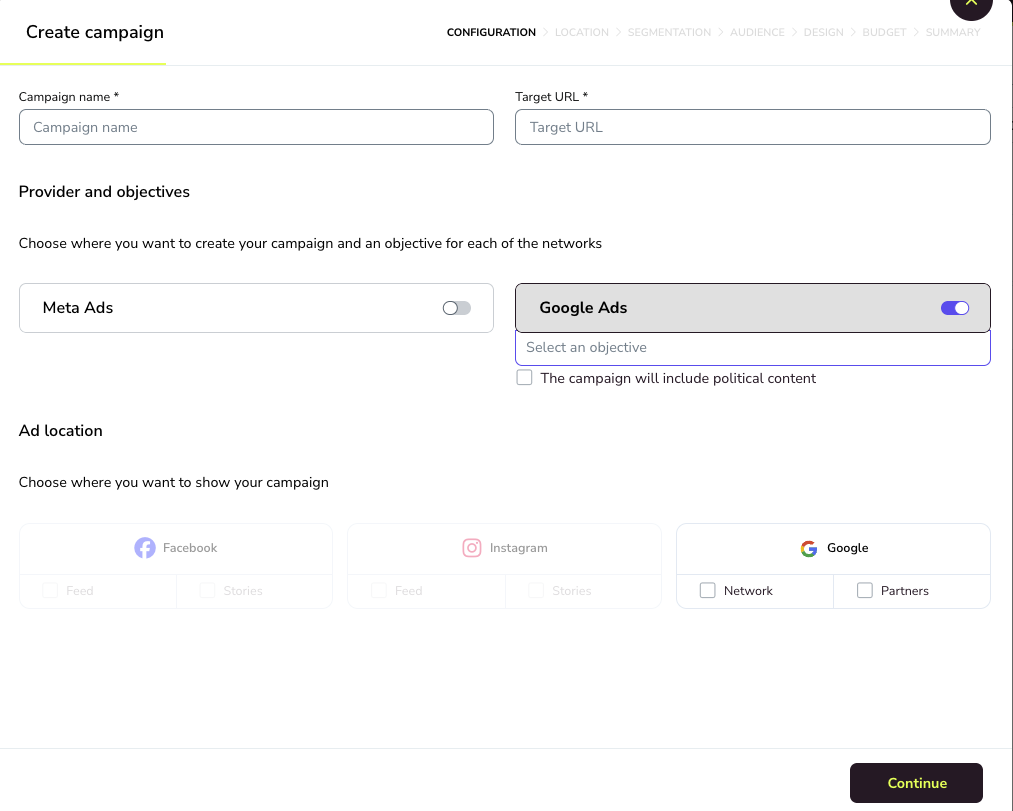
In Configuration:
Enter the Campaign name and the Target URL, the page people reach when they click the ad.
In Provider and objectives, turn on Google Ads and select the objective: Search (text ads in Google search results) or Display (image ads).
If your ads are about political topics, select The campaign will include political content. Google requires your account to meet certain conditions for political ads, and if it doesn't, the campaign is not published. Check the conditions in Google's political content policy.
In Ad location, select where the ads are shown on Google. With Search you can choose Network, Partners or both. With Display only Network is available.
Define who sees your ads
Location: select the countries where you want to show the ads.
Segmentation: choose the gender, the age range and the languages.
Audience: optionally add audiences and interests to reach people more likely to care about your offer.
Add keywords
In Keywords, add the searches you want your ads to appear for. This step is optional and you can add as many as you want, but we recommend between 10 and 30. We save them for your future campaigns.
Design your ads
The fields in Design depend on the objective.
Search ads are text only. Fill in:
Ad name, to identify the ad in Metricool.
Website URL, the page the ad links to.
Title 1, Title 2 and Title 3, the headlines Google combines in the ad.
Description 1 and Description 2.
Display ads combine text and images. Fill in:
Ad name, Business name, Website URL, Title (Google Ads) and Description.
Multimedia: two images, one horizontal (1.91:1) and one square (1:1). Both are required.
Logo: one square image (1:1).
The preview shows the Display ad in Google's different formats. Check the sizes in Image requirements for Display campaigns.
To add more ads to the campaign, click + next to the ad tab, or ⋮ > Clone to copy the current ad.
Set the budget
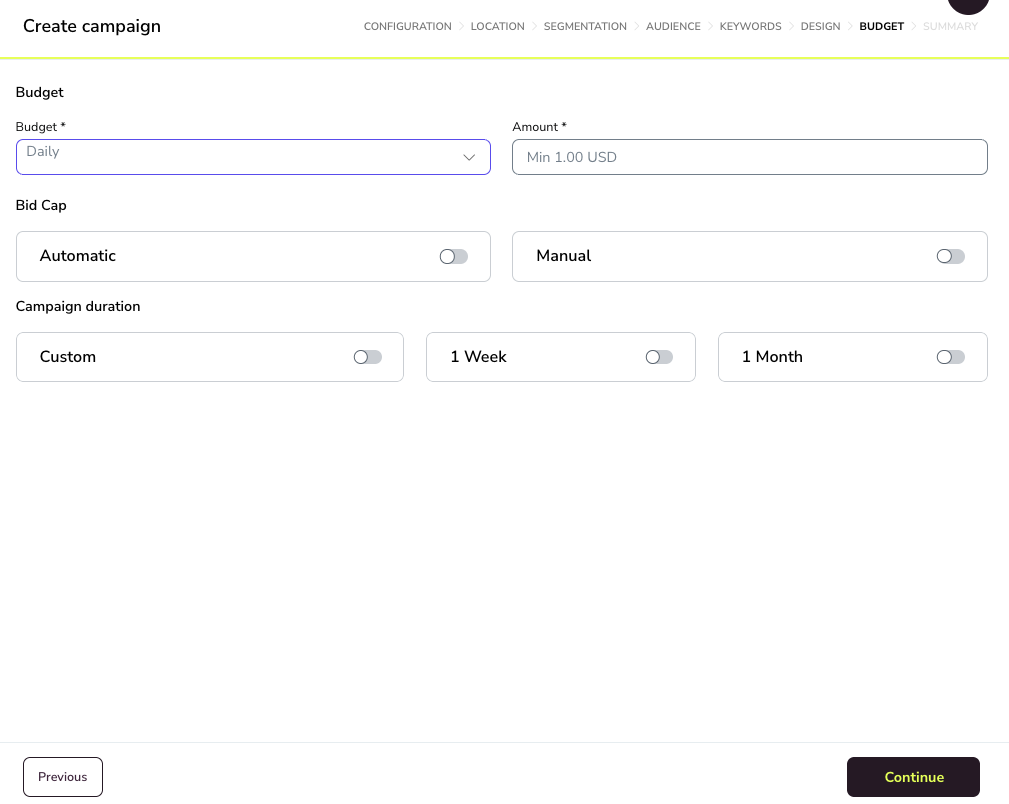
Budget: choose Daily or Lifetime and enter the amount. We show the minimum Google accepts.
Bid Cap: choose how Google bids for your ads.
Automatic: select the bid strategy, Target CPA (Google aims for a cost per conversion you set) or Maximize Conversions (Google aims for as many conversions as possible within your budget).
Manual: enter the Max CPC, the most you're willing to pay for each click. This field is required.
Campaign duration: choose 1 Week, 1 Month or Custom dates.
Review and confirm
In Summary, check each block. Use the edit icon on a block to go back and change it.
Click Create campaign.
In the Two-factor authentication window, enter the 8-digit code we sent to your email and click Yes, create the campaign.
The campaign is sent to Google for review and approval. If you click Cancel or don't enter the code, the campaign is not created.
Image requirements for Display campaigns
Display ads need two images and a logo. Videos are not supported.
Horizontal 1.91:1: recommended 1200 x 628 pixels (minimum 600 x 314)
Square 1:1: recommended 600 x 600 pixels (minimum 300 x 300)
Logo 1:1: recommended 256 x 256 pixels (minimum 128 x 128)
Google's full specifications are in Google Ads ad formats and sizes.
Manage a campaign after you create it
You can pause, reactivate or withdraw a campaign in Ads > Campaigns > Status.