
Create Meta Ads campaigns from Metricool
Updated today
You can create Facebook and Instagram ad campaigns from Metricool in Ads > Create campaign. The flow takes you through configuration, audience, ad design and budget, and the campaign is sent to Meta for review once you confirm it with a code we email you.

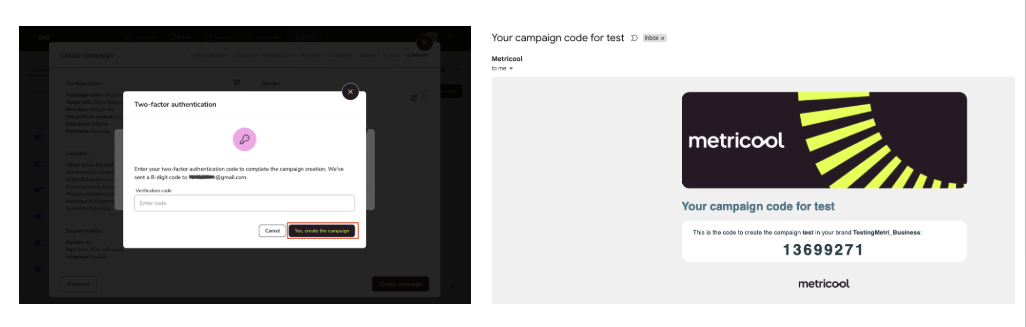
To complete campaign creation, you must enter the verification code sent by email in the last step of the flow. Without the code, the campaign cannot be completed.
Before you start
Most requirements are set up in Meta, not in Metricool. If one is missing, the campaign fails when you create it, after you've completed every step, so check them first.
Your Meta Ads account is connected to Metricool. Connect it from Connections, following How to connect Meta Ads to Metricool.
You have permission to create campaigns on that ad account in Meta. In Meta Business Manager, the ad account must be assigned to your profile, with full control or with partial access that includes the Manage campaigns permission. Only an admin of the Business Manager can give you this permission. See Meta Business Manager Permissions.
For Engagement, Leads or Sales campaigns, the Meta Pixel is set up in the ad account. The Pixel is a piece of Meta code installed on your website that records what people do after clicking your ad, such as visiting a page or buying. These objectives ask you to choose a pixel and a conversion event, so both must already exist in your ad account. Traffic campaigns don't need it. Install it with Meta's guide How to Set Up and Install a Meta Pixel.
To advertise on Instagram, your Instagram account is connected through Facebook. If it's connected with Instagram login, you can't select it for a campaign. See Access to Instagram from Metricool: connection types and differences.
In shared brands, you also need permission to create campaigns in that brand.
Create a campaign
Configure the campaign
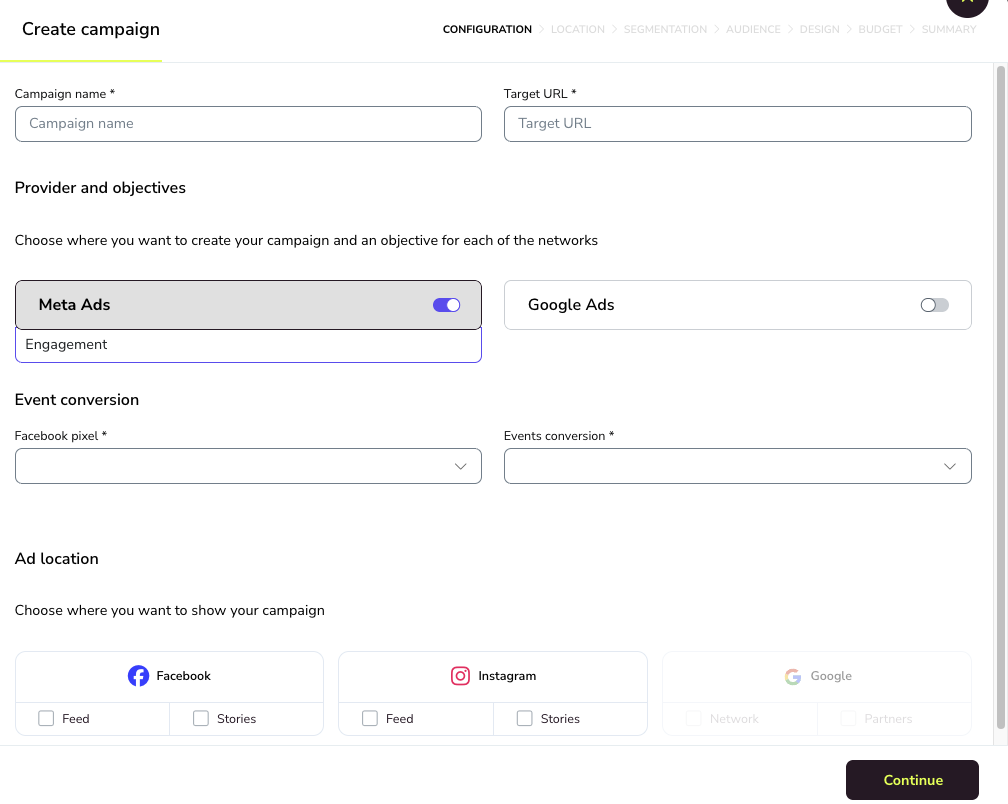
In Configuration:
Enter the Campaign name and the Target URL, the page people reach when they click the ad.
In Provider and objectives, turn on Meta Ads and select the objective: Traffic, Engagement, Leads or Sales.
In Ad location, select where the ads are shown: Feed or Stories, on Facebook, Instagram or both.
For any objective except Traffic, in Event conversion, select the Facebook pixel and the Events conversion you want Meta to optimize for.
Ad locations apply to the whole campaign, so every ad in it is shown in all the locations you select.
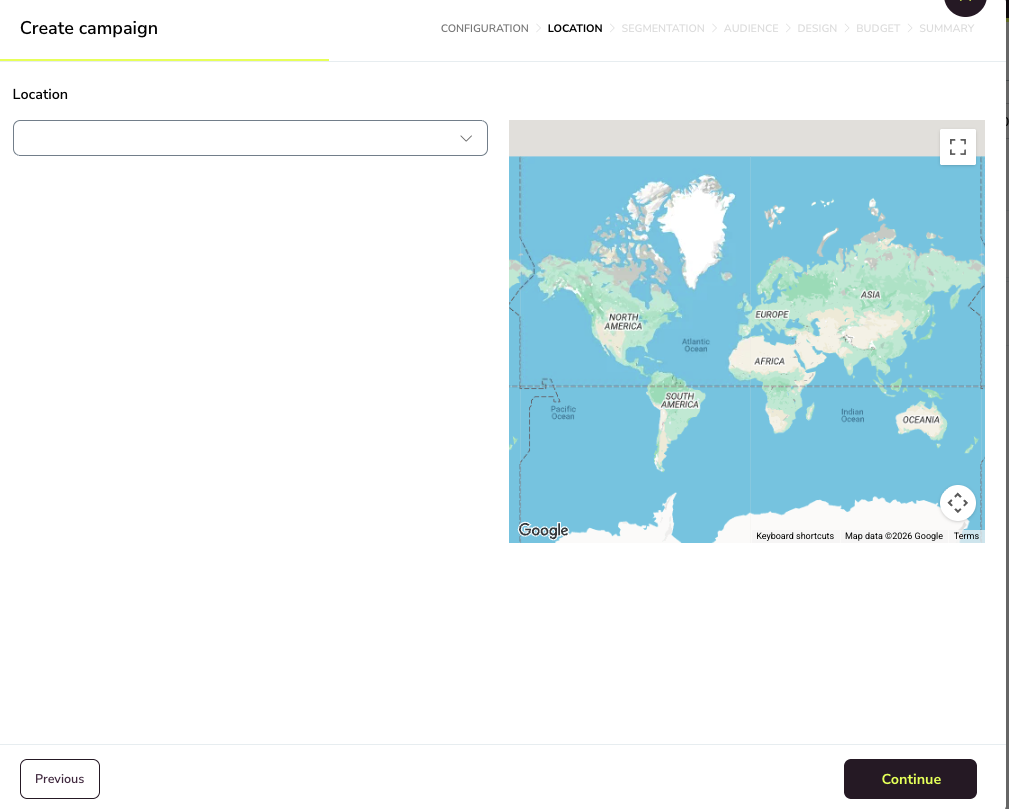
Define who sees your ads
Location: select the countries where you want to show the ads.
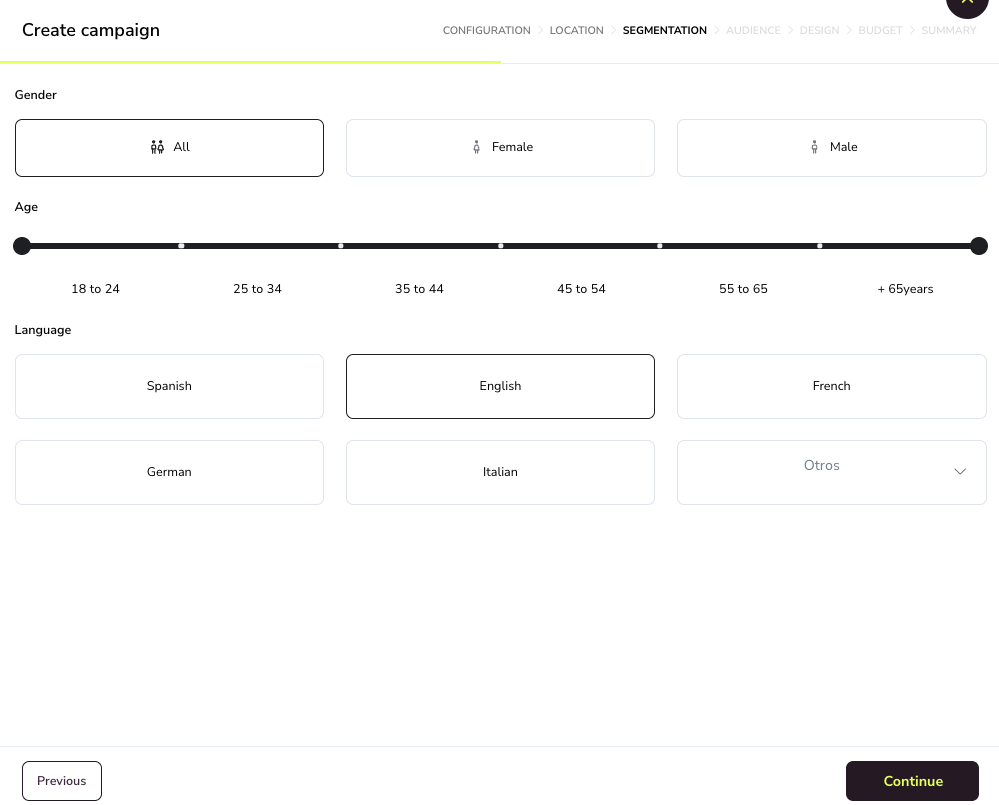
Segmentation: choose the gender (All, Female or Male), the age range (from 18 to over 65) and the languages.
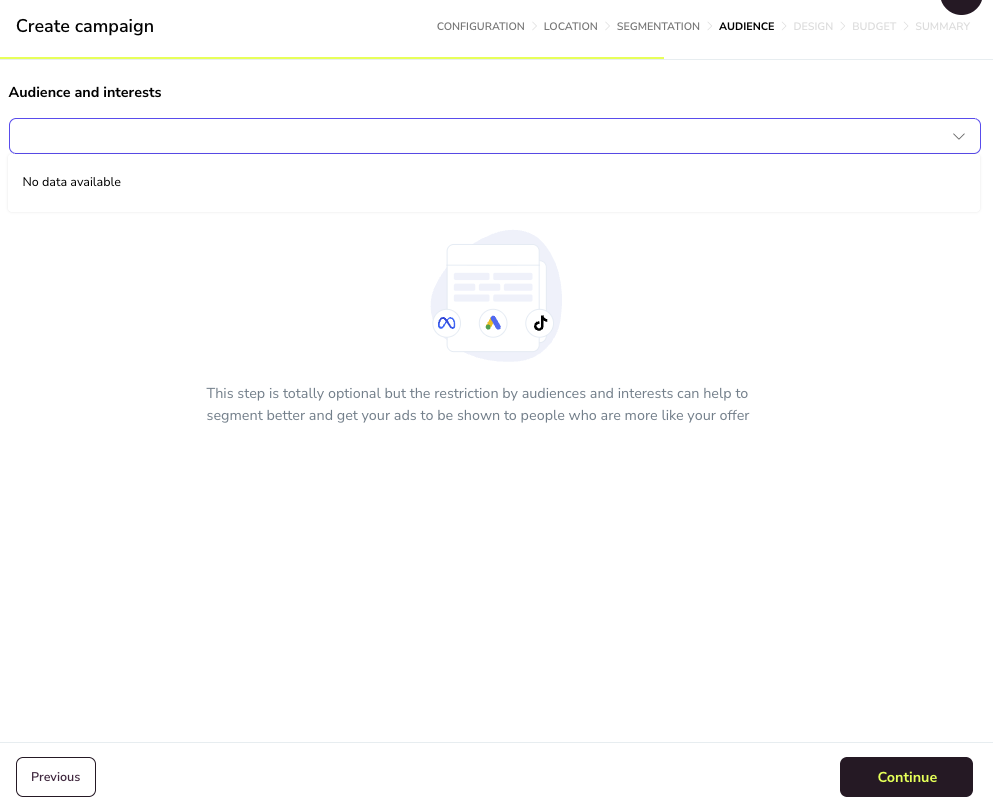
Audience: optionally add audiences and interests to reach people more likely to care about your offer.
Design your ads
In Design, fill in Ad name, Business name, Website URL and Description, and add one image under Multimedia.
Upload the image from your computer or an image bank, and adjust it with the image editor or Adobe Express from ⋯ on the image.
Click Generate preview to see the ad in each network and location you selected.
To add more ads to the campaign, click + next to the ad tab, or ⋮ > Clone to copy the current ad.

Set the budget
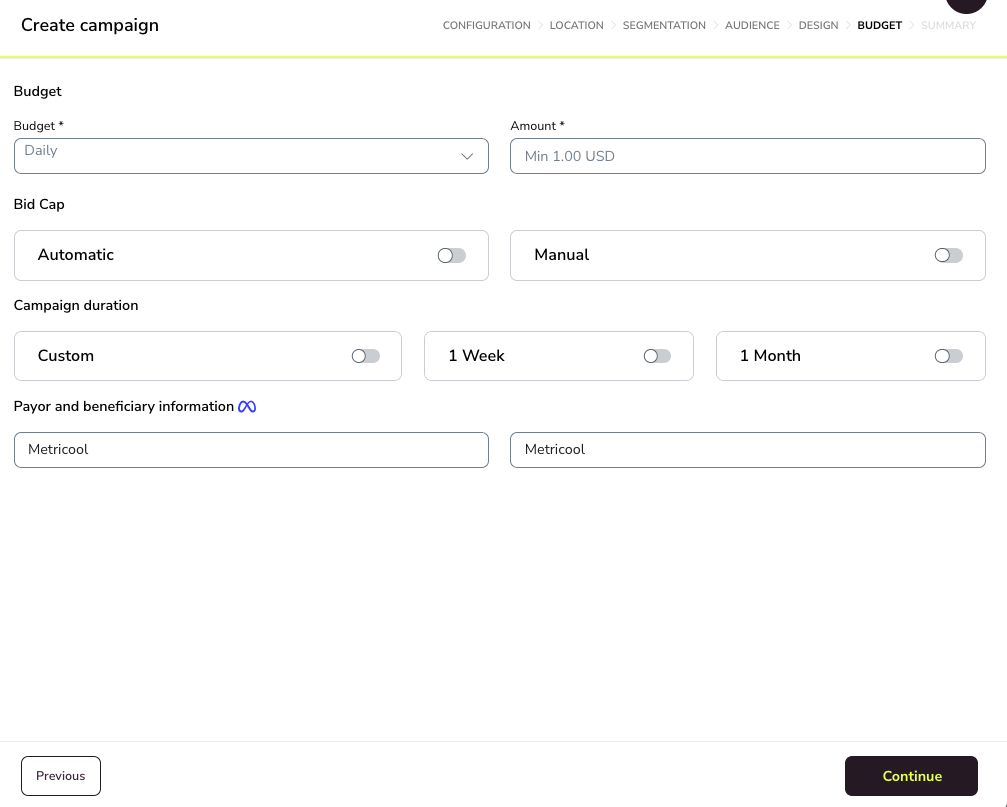
Budget: choose Daily or Lifetime and enter the amount. We show the minimum Meta accepts, usually 1 USD (see Meta's budget guide).
Bid Cap: choose Automatic or Manual.
Campaign duration: choose 1 Week, 1 Month or Custom dates.
Payor and beneficiary information: mandatory in the EU and associated countries (see Meta's details). If they are already set in your Meta Ads account, we fill them in, and we save your last entry for future campaigns. Outside the EU, enter any text to continue.
Review and confirm
In Summary, check each block (Configuration, Location, Segmentation, Budget and Design). Use the edit icon on a block to go back and change it, or the trash icon to remove an ad.
Click Create campaign.
In the Two-factor authentication window, enter the 8-digit code we sent to your email and click Yes, create the campaign.
The campaign is sent to Meta for review and approval. If you click Cancel or don't enter the code, the campaign is not created.
Use several images in a campaign: multiple ads, carousels and Stories
Each ad uses one image, and every ad is shown in all the ad locations of the campaign. To use several images, create several ads in the same campaign.
Add an ad: click + next to the ad tab. Each ad has its own name, texts and image.
Reuse an ad with another image: click ⋮ on the ad tab, choose Clone, and change the image in the copy.
Delete an ad: click ⋮ on the ad tab and choose Delete.
Change the image: click ⋯ on the image, choose Remove, and add the new one.
Carousel ads and a different image per ad location (for example, a 9:16 image only for Stories) are not available. For those, create the ad from Meta Ads Manager. If you try to add a second image to the same ad, the editor shows the error Cannot add more than 1 file(s).
Image requirements
Only images are supported. Videos can't be added to ads created from Metricool. Check the image specifications for each location in the Meta Ads Guide.
Manage a campaign after you create it
You can pause, reactivate or withdraw a campaign in Ads > Campaigns > Status. If campaign creation fails, see Meta Ads campaign errors and troubleshooting.