
No. Each dashboard belongs to a single brand and can only include content from that brand. If you manage several brands in Metricool, you'll need a separate dashboard for each one.
How to create a Campaign Dashboard and add content
Updated yesterday
Learn how to create a Campaign Dashboard in Metricool, review suggested content, and add posts from the Planner, List view, or Analytics.
New to Campaign Dashboards? Start with What is Campaign Dashboards?
Creating a Campaign Dashboard
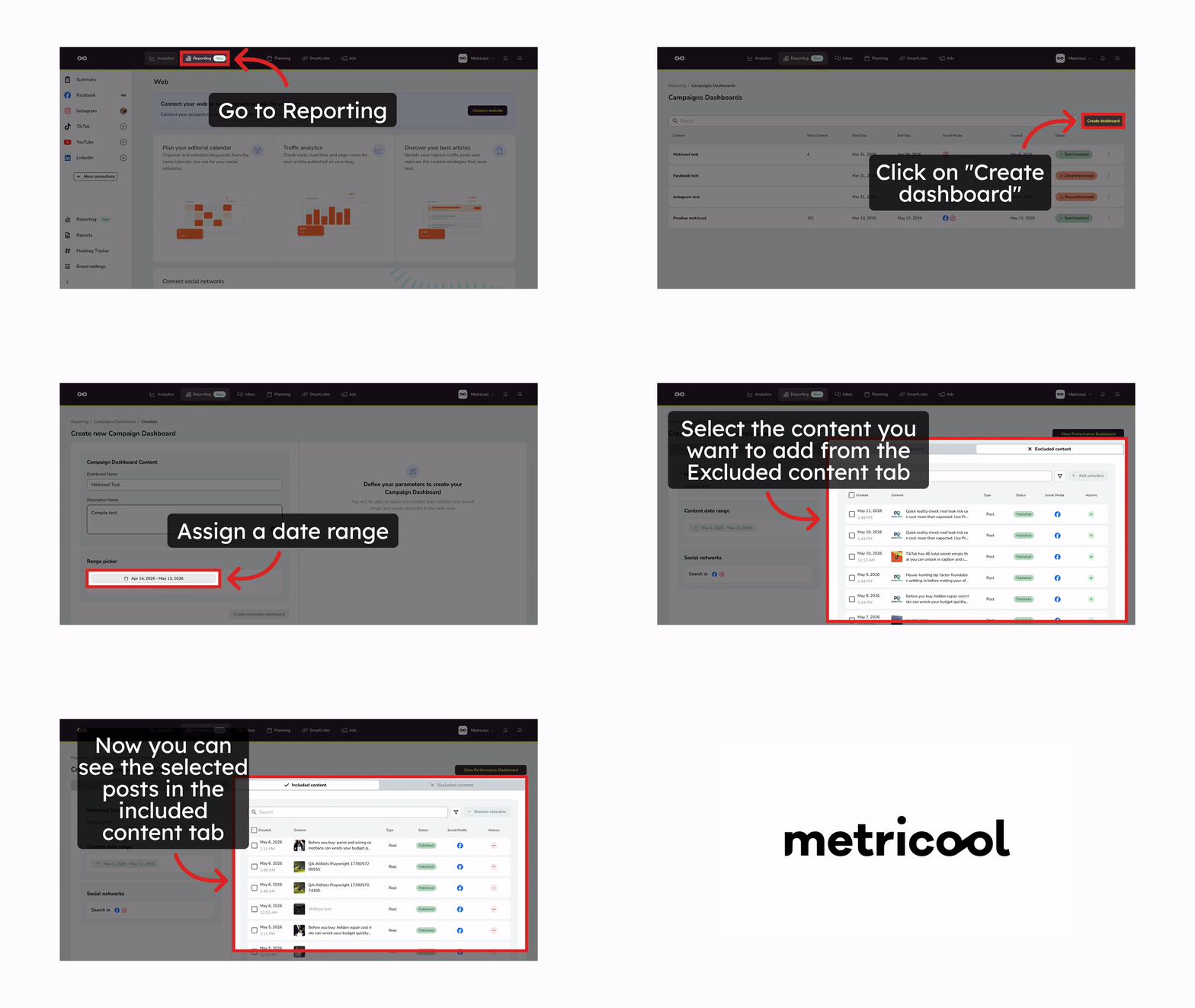
Go to Reporting > Campaigns Dashboards and click Create dashboard. Fill in:
Campaign name — required. Used to suggest relevant posts automatically, so make it descriptive and specific. Maximum 1,000 characters
Description — required. Shown in the shared client view — write it as a brief context note for whoever receives the report. Maximum 1,000 characters
Date range — defines which posts are eligible for inclusion. Maximum period: 180 days. You can change the dates after you create the dashboard
Social networks and ad platforms — select only the channels relevant to this campaign
Dashboard goals — optional. Set the results you want the campaign to reach (see the next section)
Once saved, you move to content selection.
Setting goals for your dashboard
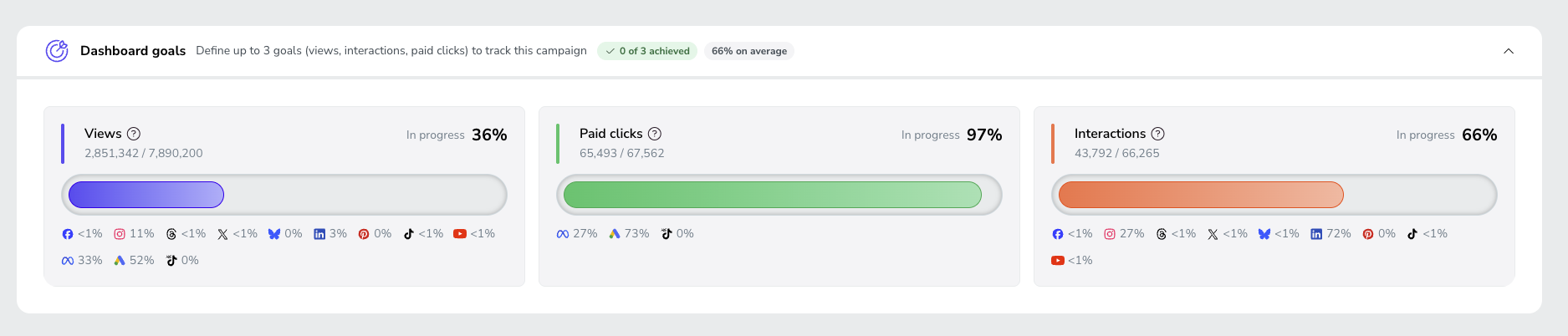
Add up to three goals in the Dashboard goals section of the creation form, and the dashboard shows a progress bar toward each one. All three are optional, so you can fill in only the ones that matter for your campaign.
Views goal — the total organic and ads impressions you want to reach
Interactions goal — the interactions you want to reach. Requires at least one connected organic network
Paid clicks goal — the clicks you want to reach on your ads. Requires at least one connected ads network
To change your goals later, click Edit content at the top of the dashboard. You can edit them as long as the dashboard is still active. If you skipped goals at creation, click Define goals in the Dashboard goals section to add them. To see how progress is displayed, read how to sync and understand your Campaign Dashboard.
Changing the dates of a dashboard
Edit the start and end dates when your campaign timeline shifts after you create the dashboard. Open the dashboard's edit screen and update the dates there.
You can't change the dates while the dashboard is syncing or being categorized, or once it has finished.
Reviewing the suggested content
Metricool automatically suggests relevant posts based on your campaign name and description. The editor shows two tabs: Included content and Excluded content. By default, the Included content tab shows "No content added to this dashboard yet" — you decide what to include.
Posts that match your campaign appear in Excluded content — check the ones you want to add and click Add selection
To remove posts from the dashboard, select them from Included content and click Remove selection
Use the search bar and filters to find specific posts quickly
If the suggested posts don't match your campaign, you can edit the post selection from the dashboard editor, but you cannot change the campaign name or description after creation. If the automatic suggestions are too far off, create a new dashboard with a more specific name and description, then add posts manually or from Analytics/Planner, and delete the old dashboard.
Instagram collaborative posts (Collabs) are included as dashboard content, so collaboration posts appear alongside your other campaign posts and performance data.
Adding posts from other areas of Metricool
You're not limited to adding content from the dashboard editor. There are two additional entry points.
From the Planner
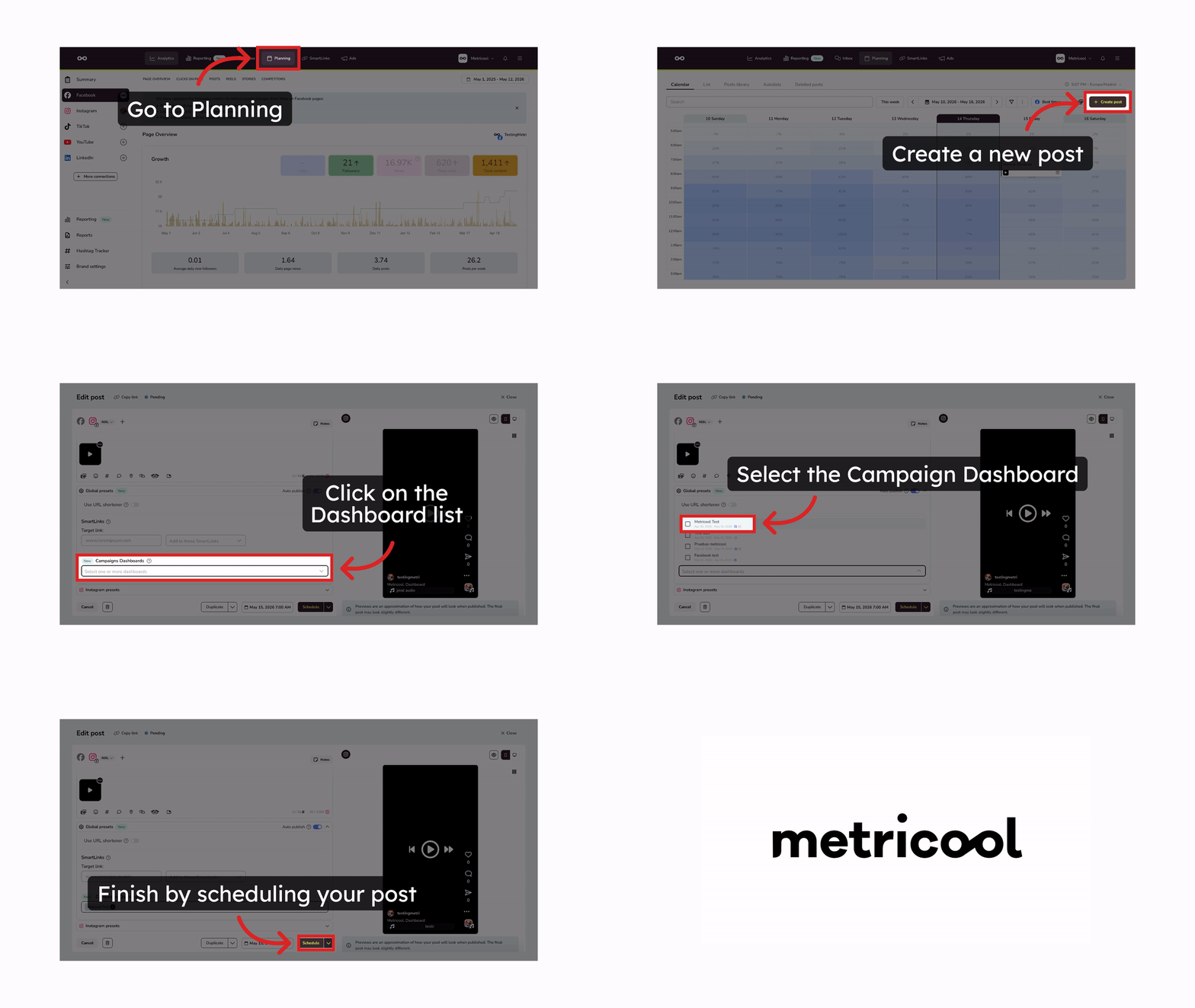
When composing or scheduling a post, you'll see a Campaigns Dashboards field in the Global presets section. Select one or more dashboards you've already created — the post will be associated with those dashboards and appear with metrics after publication and sync.
You must create the dashboard before scheduling the post, and the post's publish date must fall within the dashboard's date range — otherwise the post will show a validation error.
Bulk add scheduled posts from the List view
You can add multiple scheduled posts to a Campaign Dashboard at once:
Go to Planning > List
Select the posts you want to add using the checkboxes
Click Bulk actions and choose Add to campaign dashboard
Review the selected content and click Next
Select or search for the target dashboard
Click Add
Each post is validated against the dashboard's networks, accounts, and date range before being assigned.
The dashboard must be created before you can add posts to it.
From Analytics
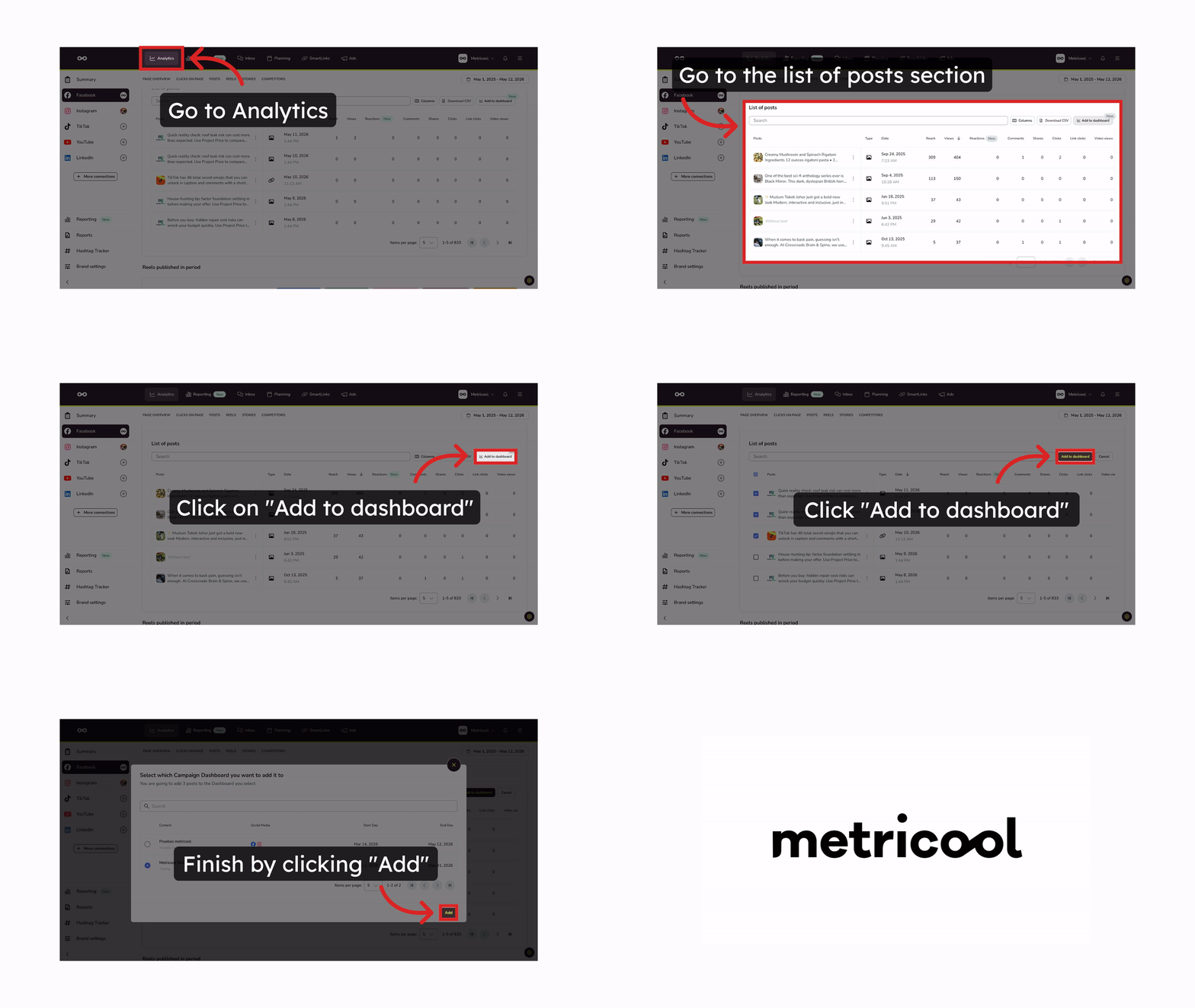
You can add published posts directly from the Analytics post list:
In Analytics, go to the post list
Click Add to dashboard
Select the posts you want to add
Click Add to dashboard to confirm
Choose which Campaign Dashboard(s) to add them to
Click Add
FAQs
Can I include content from multiple brands in one dashboard?
What's the maximum date range for a campaign?
180 days.
Can I edit the campaign name, description, dates, or networks after creating a dashboard?
You can edit the start and end dates from the dashboard's edit screen, unless the dashboard is syncing, being categorized, or has finished. The campaign name, description, and networks cannot be modified after creation. If you need to change any of them, create a new dashboard with the correct configuration and delete the old one. The dashboard goals are also editable: you can change them from Edit content while the dashboard is still active.
Is there a character limit for the campaign name and description?
Yes. The campaign name and the description each accept up to 1,000 characters.
Do I have to set dashboard goals?
No. Goals are optional, and you can set any combination of the three. If you don't set them when you create the dashboard, you can click Define goals in the Dashboard goals section of the dashboard. The Interactions goal needs a connected organic network, and the Paid clicks goal needs a connected ads network.
Can I add a post to multiple dashboards?
Yes. When adding from Analytics or the Planner, you can select multiple Campaign Dashboards at once.
Why do I get an error about the dashboard's end date when scheduling a post?
This happens when a post is linked to a Campaign Dashboard in Global presets, but its publish date falls after that dashboard's end date. Campaign Dashboards can only include content published within their date range. To fix it, change the post's date, remove the dashboard from the post, change the dashboard's end date, or create a new dashboard with an updated range.
Related articles
Once your content is added, sync and understand your Campaign Dashboard to pull the latest metrics and insights.
Was this helpful?
Was this helpful?