
How to share your Campaign Dashboard
Updated 2 months ago
Learn how to share a Campaign Dashboard with a public link for client reporting and set a custom logo.
Sharing your dashboard
Click the Share button in the dashboard header to generate a public share link that gives clients a read-only view of the live dashboard — no Metricool account needed on their side.
Shared link privacy — The public link is read-only and shows the campaign name, description, metrics, insights, Top 5 posts, and the complete list of published content with all its metrics. Internal UI controls are not visible. If the link shows an error, it may have been revoked or the dashboard deleted. Ask the dashboard owner to generate a new link.
A modal will open where you can:
Copy the link to share with your client or team
Disable the link at any time to revoke access
The shared link always shows the latest version of your dashboard. Any updates you make will be reflected when the recipient opens the link.
Custom logo for shared dashboards
Each brand can set a custom logo that appears in the header of public dashboards. This lets you present branded reports to clients with your agency or company logo instead of Metricool's default.
Logo inheritance: If no custom logo is configured, the dashboard inherits the brand header logo. Editing the logo requires Full Access to dashboards permission.
How to set your custom logo
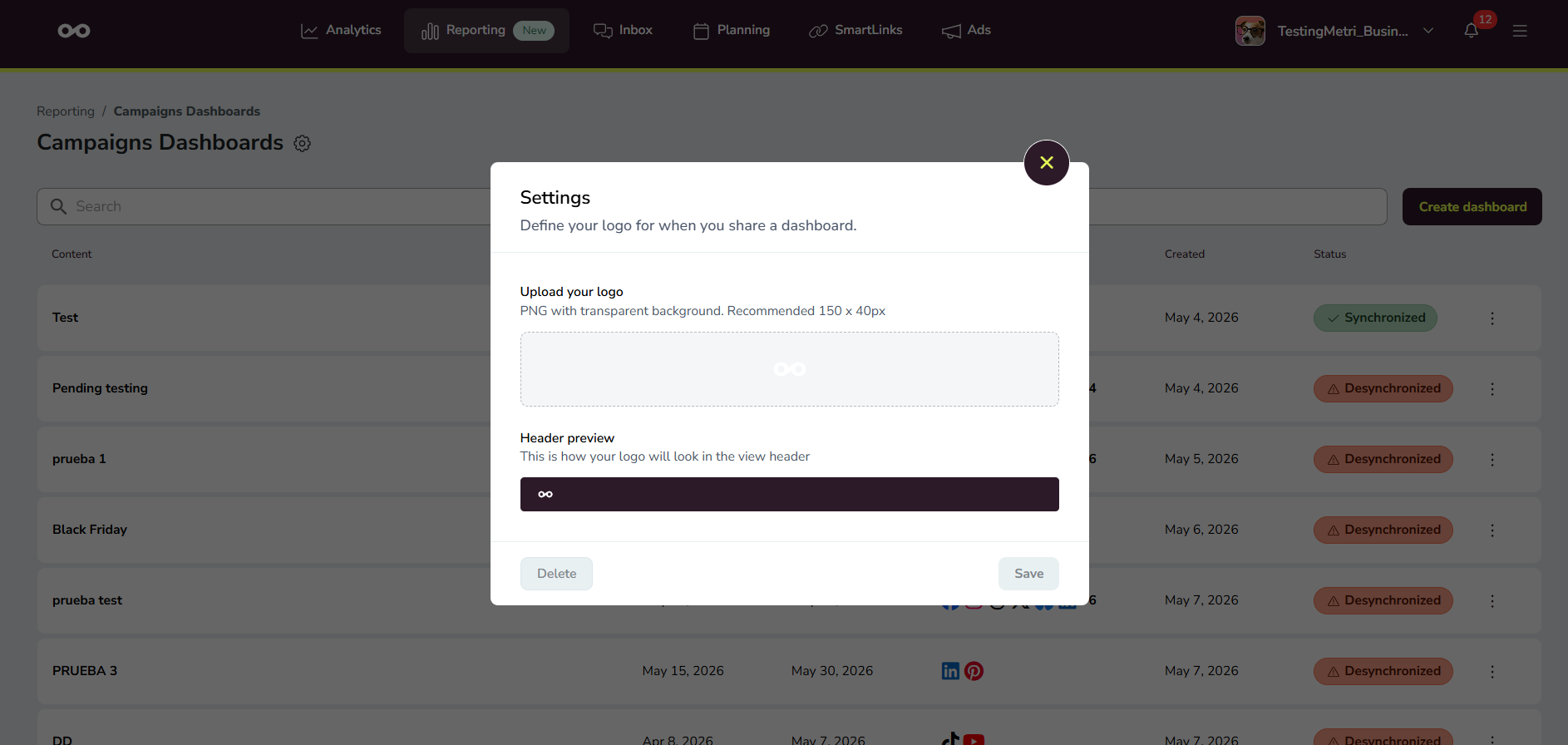
Go to Reporting > Campaigns Dashboards
Click the Settings button (gear icon) in the header
Upload your logo — use a PNG with transparent background, recommended size 150 x 40px
Preview how it will appear in the header
Click Save to apply
To remove a custom logo, open Settings and click Delete.
Use the Send feedback button in the dashboard header to share your thoughts about Campaign Dashboards directly with the Metricool product team.
Related articles
Learn how to create a Campaign Dashboard and add content to get started.