
Meta Business Manager Permissions
Updated 3 months ago
The videos and screenshots in this guide are in English only.
To connect Instagram or a Facebook Page to Metricool when the Page is managed in Meta Business Manager, you need the right access on three levels: the business portfolio, the Facebook Page asset, and the Instagram account asset.
Use this guide when Metricool does not list your Page, Instagram fails to connect via Facebook, or you need to confirm who can authorize the connection. Open Business Manager at business.facebook.com.
Skip this guide if you manage the Facebook Page directly on Facebook and do not use Business Manager. In that case, you only need the classic Page Admin role or full control on a new-experience Page.
Permissions Metricool needs
Metricool connects through Meta’s API using the Facebook profile that authorizes the brand. That profile must have enough access on every asset you want to connect.
Asset | Access required for Metricool |
|---|---|
Business account / business portfolio | Full or partial access |
Facebook Page | Full control (required). Classic Pages use the Admin role. |
Instagram account | Full or partial access |
Ad account (optional, for ads features) | Full or partial access, including Manage campaigns (ads) when you need ads |
Access to the business portfolio is not enough on its own. The Facebook Page asset must still show full control for your personal profile. Partial Page access blocks the Instagram-via-Facebook connection.
For Metricool’s Instagram connection, the Instagram account must also be a professional account (Business or Creator) and linked to the Facebook Page. See How to connect Instagram to Metricool and Linking Facebook to Instagram.
How Business Manager is structured
Meta Business Manager organizes access as Business account → People → Assets. The business account may appear as a business portfolio.
Business account / business portfolio: the container for the business. You need access here before you can manage Pages, Instagram accounts, and ad accounts inside it.
People: personal Facebook profiles invited to the business. Each person only manages the assets assigned to them.
Assets: the Facebook Pages, Instagram accounts, and Meta ad accounts that belong to the business.
The business portfolio status should be active, and the Page and Instagram account you want in Metricool must be associated as assets.
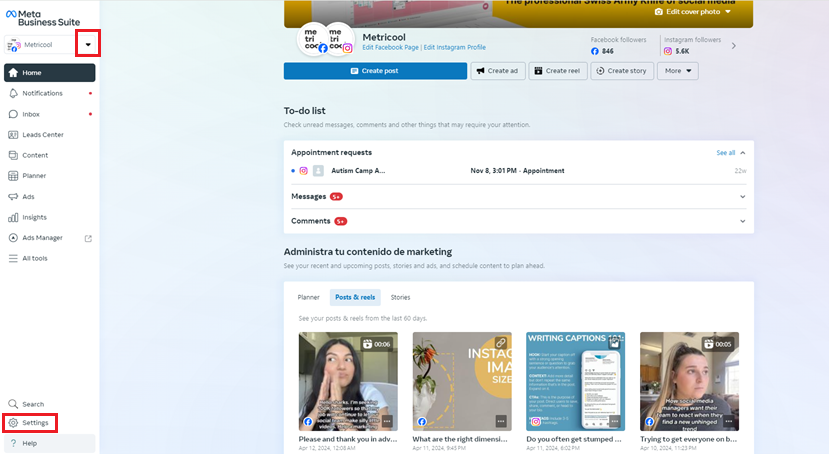
Check your permissions step by step
Verify the assets assigned to your personal Facebook profile before you connect or reconnect in Metricool.
Open Business Manager settings, or go to Settings → Users → People.
If you belong to more than one business portfolio, open the portfolio selector in the left menu and choose the portfolio that owns the Page and Instagram account.
Confirm the portfolio status is active.
In People, select your personal profile.
Review the assets assigned to you and the permission level on each one.
Confirm all of the following for the assets you will connect:
Facebook Page: full control (or classic Page Admin)
Instagram account: full or partial access
Both assets appear under your profile, not only under someone else’s
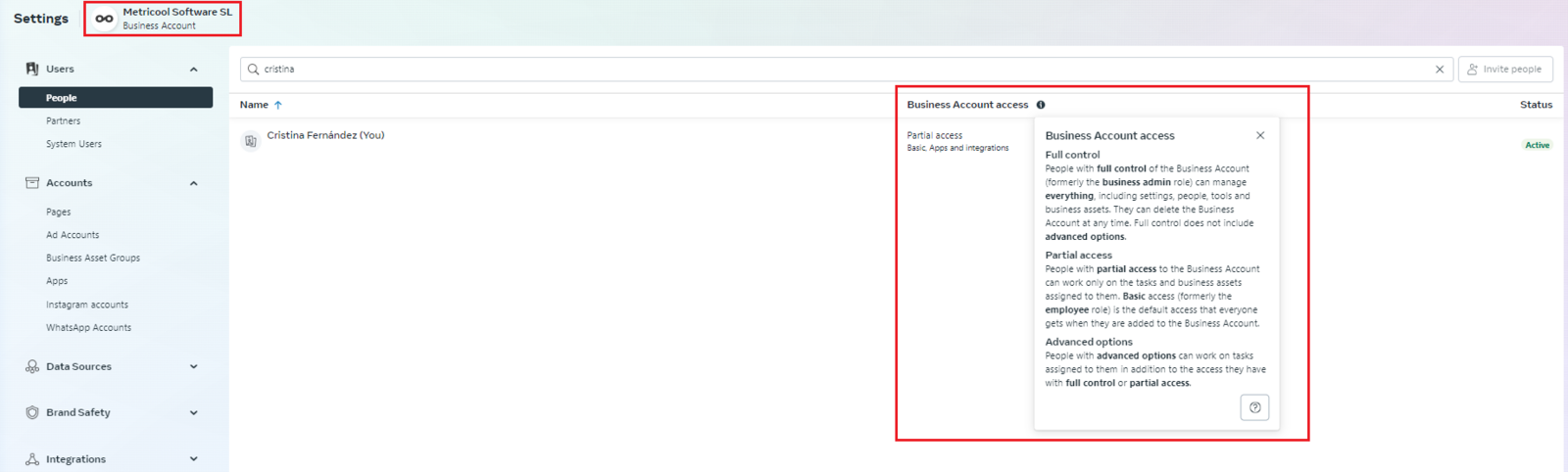
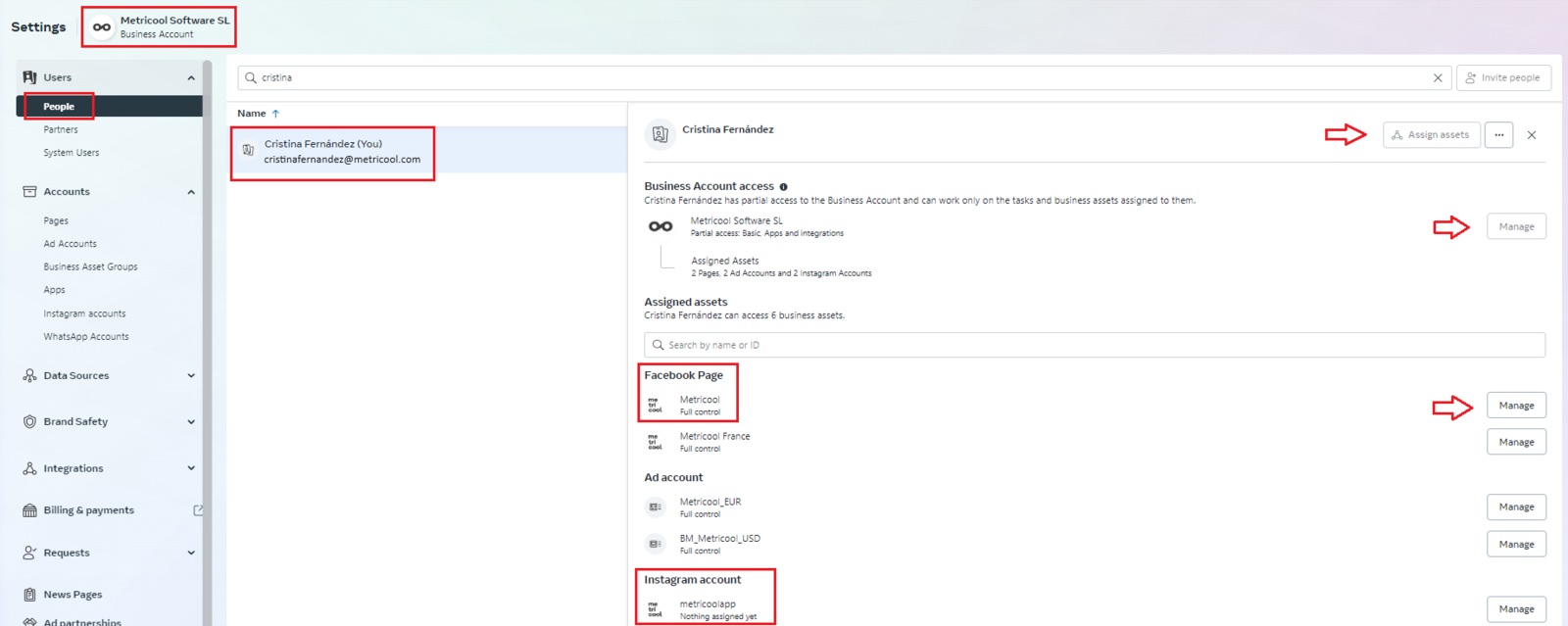
Depending on your role, you can add assets to a person and manage existing assets from the same settings area.
Fix missing or low access
If your profile does not show the Page or Instagram asset, or the Page shows less than full control, another business admin must grant access before Metricool can connect.
Ask a business admin to grant access
Someone with permission to manage people in the portfolio needs to:
Go to Users → People.
Select your profile, or invite you with Invite people if you are not in the portfolio yet.
Assign the Facebook Page with full control.
Assign the Instagram account with full or partial access.
Confirm both assets sit in the same business portfolio as the Page you will select in Metricool.
Meta’s help center covers adding a Page and an Instagram account to a business portfolio, and how to see your Facebook Page role or access.
Common access mistakes
You can open the business portfolio, but your profile was never assigned the Page asset.
You have partial access on the Page. Metricool needs full control on the Page asset.
The Instagram account is linked on Instagram, but it is not added as an asset in the same business portfolio as the Page.
You authorize Metricool while logged into a different Facebook profile than the one that holds full control.
Another admin previously connected the Page in Metricool, and that profile no longer has access.
After permissions look correct
When your profile shows the right assets and levels, return to Metricool and connect from the connections dashboard.
Log into Facebook with the same personal profile that has full control on the Page.
Connect the Facebook Page in Metricool and accept the permission prompts.
If Instagram is linked to that Page, it connects with the Facebook connection.
If a Page that used to work is stuck on an old admin, disconnect it in the connections dashboard (click the X next to the Page name), then reconnect with the profile that currently has full control.
If the connection still fails
Clear Metricool’s saved Meta authorization, then connect again with the correct profile.
Open Facebook Business Tools settings. If Facebook shows the new experience, switch to your personal profile first, then open that link again.
Find Metricool and remove it.
In Metricool, disconnect the Facebook Page from the connections dashboard.
Reconnect the Page and accept all permissions. A correctly linked Instagram account should connect with it.
If Instagram still fails after permissions and renewal, continue with How to connect Instagram to Metricool or Instagram disconnected? How to recover your connection.
For broader Meta portfolio management, see Meta’s help on Business Manager.
Related articles