
Up to 3 active runs per brand. You cannot launch another run until one of them finishes.
How to auto-tag content with AI
Updated today
AI auto-tagging applies one or several tags to the posts that match a prompt you write. You launch it from the Tags tab in Brand settings, and it covers three content types: posts in content analytics, competitor posts, and posts in the planner.
The feature requires the Advanced Analytics Add-on, which is available on paid plans. Without it, the auto-tag option opens an upgrade message instead of the setup.
Start an auto-tagging run
Before you start, have your tags ready, or create new ones on the fly inside the setup. The run adds all the selected tags to every post that matches your prompt.
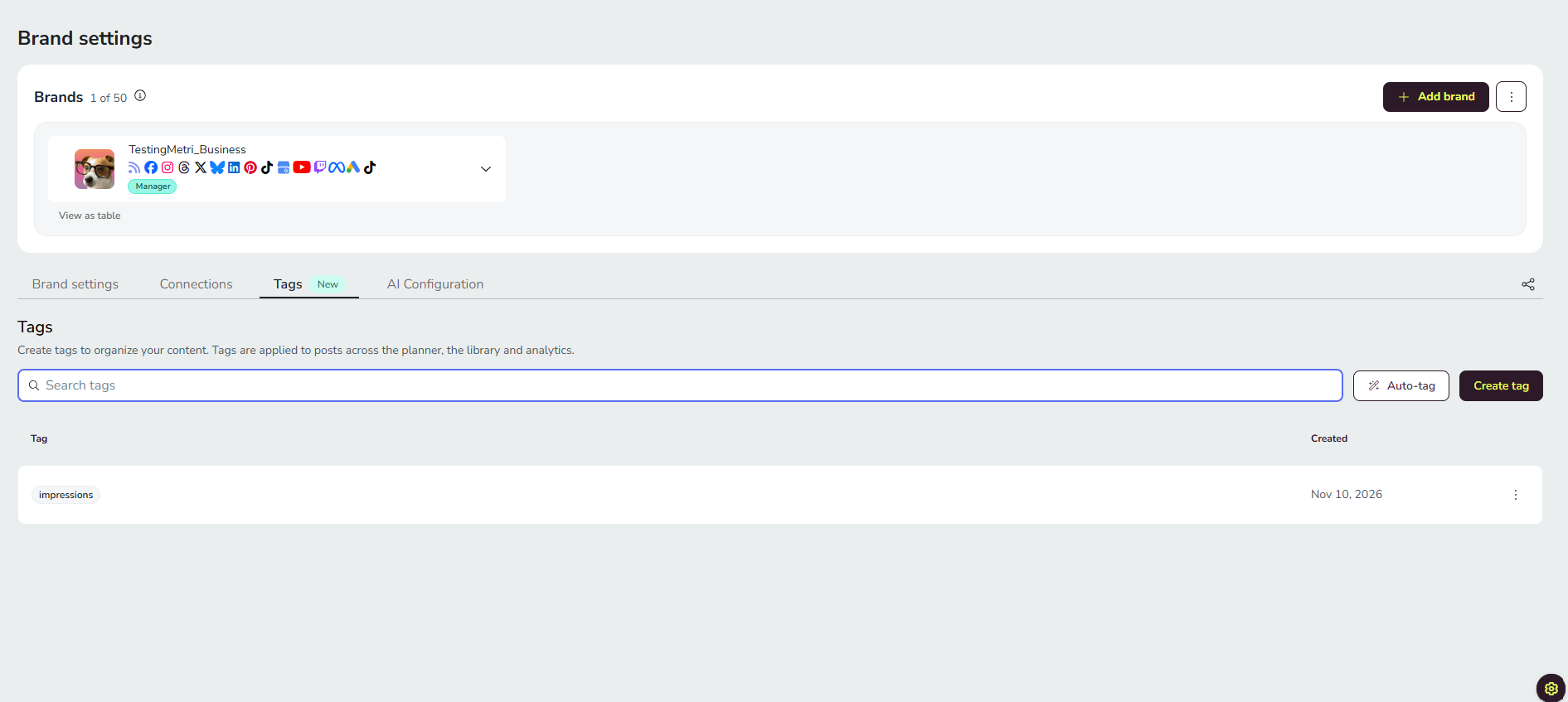
Click ☰ to open the side menu, go to Brand settings, and open the Tags tab.
Choose the auto-tag option. If your account does not have the Advanced Analytics Add-on, an upgrade message opens instead of the setup.
In the setup, choose the tags to apply: select one or several existing tags, or create new tags on the fly.
Choose the date range of the content to categorize, up to one year.
Choose the networks. All connected networks are selected by default.
Write the prompt that describes which posts to categorize.
Select the content types to include (multi-select): posts in content analytics, competitor posts, and posts in the planner.
Launch the run.
Permissions you need
You only need the permission of each content type you include in the run; brand management permission is not required.
Posts in content analytics and competitor posts require the Reports permission.
Posts in the planner require permission to create posts (at minimum, send to review).
If you lack the permission for a content type, its option appears deselected and locked, with a tooltip explaining why. At least one content type must be included to launch a run.
While the run is in progress
The run executes in the background, so you can keep using Metricool while it works.
A brand can have up to 3 active runs at the same time. You cannot launch another run until one finishes.
There is no cap on the number of posts analyzed per run.
Posts without text (for example, Facebook stories) are not analyzed.
The run is web-only for now: it is not available in the mobile app.
Notification and summary
Only the user who launched the run receives a notification, in the AI tab of the notifications popover, whether the run finishes or fails. Clicking the notification opens the summary screen.
When the run completes, the notification states the number of tagged posts per included content type.
When the run fails, it warns that the tagging could not finish.
The summary screen
Results are grouped by content type, and each user only sees the types they have permission for. For each post, the summary shows the text, the thumbnail, the date, the networks, and a status:
Tagged: the selected tags were added. If the post already had some of them, only the missing ones were added.
Not tagged, with a reason: the post would exceed the maximum of 20 tags, it already had all the selected tags, the post no longer exists (planner only), or the selected tags were deleted while the run was in progress.
Removed: the post was tagged and later undone from this screen.
Undo the tags a run added
Once the run has finished, you can undo what it tagged from the summary screen: remove the tags the run added from all the posts it touched, or only from the ones you choose.
Open the notification of the run in the AI tab of the notifications popover.
On the summary screen, remove in bulk the tags that run added.
Only what that run added is removed: never the tags the post already had, and in the planner never the tags its analytics post inherited when it was published. The summary is always saved, but for now it can only be opened from the notification.
Rules to know
The AI only adds the tags you chose. It never removes other tags.
It respects the maximum of 20 tags per post: if a post would exceed it, no tags are added to that post, and the summary says so.
Posts that already had all the selected tags do not count as tagged.
If a run fails, everything tagged up to that point is kept. You can view it and undo it from the summary.
Good to know
Requirement: the Advanced Analytics Add-on, available on paid plans.
Concurrent runs: up to 3 active runs per brand.
Tags per post: the maximum of 20 tags always applies, and the AI never adds tags beyond it.
Date range: up to one year of content per run.
Where it runs: web only for now, not available in the mobile app.
FAQs
How many auto-tagging runs can I run at once?
Are posts without text analyzed?
No. Posts without text, such as Facebook stories, are skipped.
Who can see the results?
Only the user who launched the run receives the notification and can open the summary screen. Within the summary, each user only sees the content types they have permission for.
Can I undo the auto-tagging?
Yes. Once the run has finished, you can remove in bulk, from the summary screen, the tags that run added. Tags the post already had are never removed.
Is it available in the mobile app?
No, auto-tagging is web-only for now.
Related articles
Was this helpful?
Was this helpful?