
Published posts can no longer be edited from the editor, tags included. The only way to change their tags is the bulk modification from the planner list. That bulk edit changes only the planner post: the analytics post keeps the tags it inherited when it was published.
How to apply and remove tags
Updated today
You apply tags with the same tag selector in every context: planner posts, Posts Library posts, and content analytics posts. A post can carry up to 20 tags.
Apply tags to an item
The tag selector works the same way everywhere, and its autocomplete shows the tags that already exist in your brand, so you always pick from one shared list.
Open the item's editor, or use the tag action from the list.
In the tag selector, type a tag name. Autocomplete shows the brand's existing tags as you type.
Select one or several tags.
Save the item.
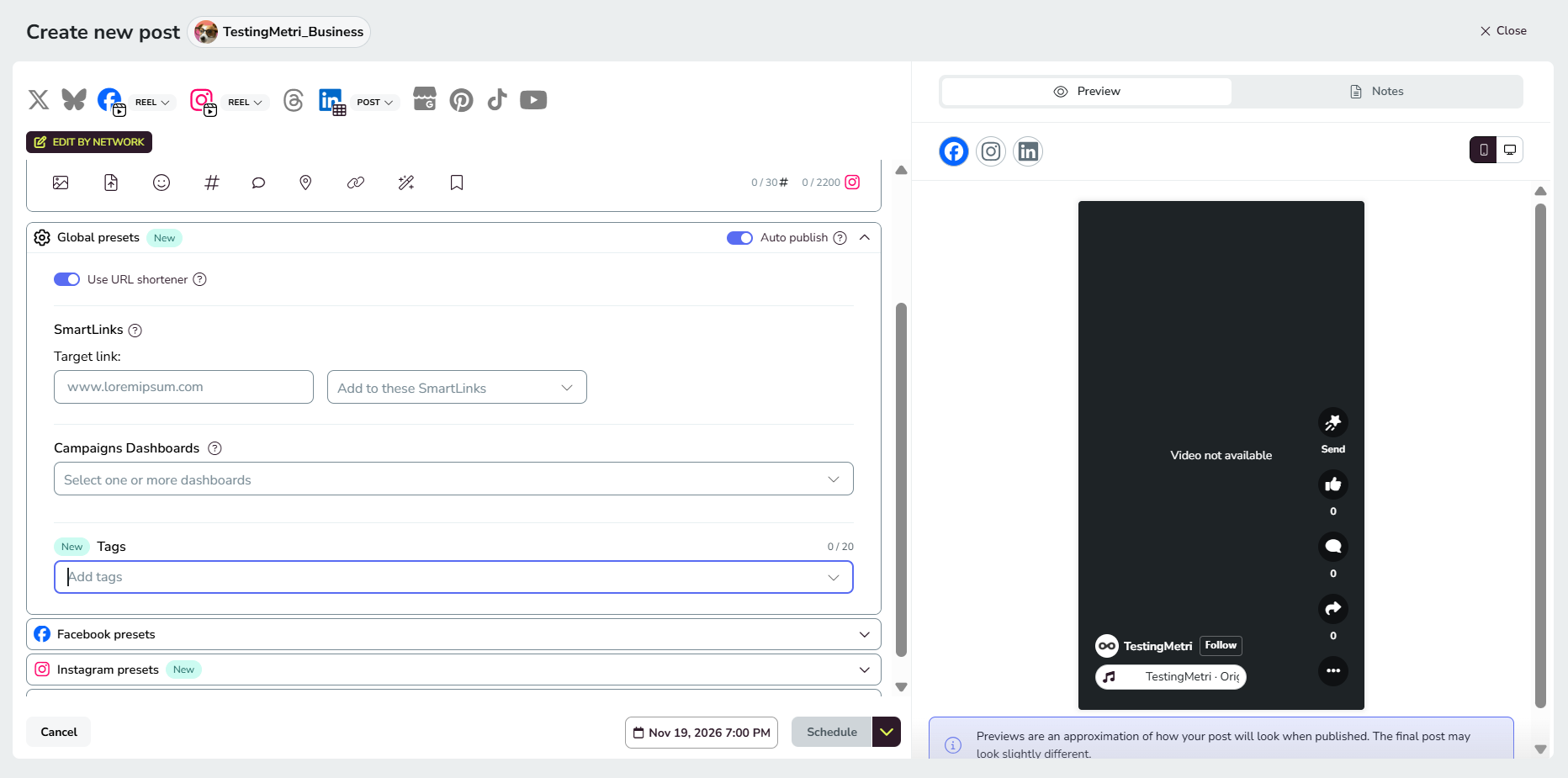
The selector blocks adding more tags once the post has 20.
Create a tag on the fly
If you type a name that does not exist in your brand, you can create the tag right from the selector. The new tag is created without a color; assign one later in Brand settings, as explained in How to create and manage tags.
Remove a tag from an item
Open the item and take the tag out of its tag selector, then save. Removing a tag from an item only affects that item: the tag still exists in the brand and stays on any other item that uses it.
Where you can tag
The tag selector is available in the planner, the Posts Library, and content analytics, but each surface has its own rules about when you can tag.
Planner posts
Tag a planner post from the post editor.
Once a post is published, it can no longer be edited from the editor, including its tags. Its tags can only be changed with the bulk modification from the planner list.
Posts Library posts
Tag a library post from the library post editor.
Content analytics posts
In content analytics you tag posts only through bulk modification from the list for now. How to tag posts in content analytics covers which posts you can tag and how to tag older ones.
Change tags on several items at once
From the planner, Posts Library, and content analytics lists you can change the tags of several items at once instead of opening them one by one.
Select the items you want to change in the list.
Open the bulk tag modification.
Preview the items that will be edited.
Choose the tags and the action: add or remove.
Apply the change.
Check the summary of what was modified.
Adding puts the chosen tags on top of the ones each item already has, without duplicates. Removing takes the chosen tags off the items that have them and keeps the rest untouched. If adding tags would take an item over 20 tags, that item is not modified and the summary says so.
In the planner, bulk editing works on any post, including published and failed posts. There are no restrictions in the Posts Library or in content analytics either.
Editing the tags of a published planner post does not change the resulting analytics post, as explained in How tags carry over when a post is published. If a post was sent for review, editing its tags does not change its status: it stays in review and does not need to be reviewed again.
Where tags are displayed
You can see an item's tags in the planner (list and calendar views), in the Posts Library (list and post detail), and in content analytics (published posts list and detail, including the competitor posts list). When an item has many tags, they are shown in a compact way with a counter for the rest. To show only the items with certain tags, see How to filter content by tags.
Good to know
Brand level: tags belong to the brand, so everyone working in that brand picks from the same tag list.
Tag list: you manage the full list of the brand's tags, their names and colors, in the Tags tab of Brand settings.
FAQs
Why can't I edit the tags of a published planner post?
What happens if an item already has 20 tags and I add more in bulk?
That item is not modified. The summary after applying tells you which items were left out for this reason.
If I remove a tag from a post, is the tag deleted?
No. Removing a tag from an item only affects that item. The tag still exists in the brand and on any other item that uses it. It only disappears from everywhere when someone deletes it from the brand, and then it is removed from every item that uses it, including analytics posts.
Related articles
Was this helpful?
Was this helpful?