
How to connect YouTube to Metricool
Updated 2 weeks ago
By connecting your YouTube channel to Metricool, you can:
Schedule and publish: we’ll walk you through it here.
Analytics: see how your channel is growing with insights like subscribers and views. Check out all the metrics here.
Inbox: reply to comments from videos and Shorts in one place. Full details here.
Competitors: analyze other channels in your space to improve your content. Learn how to connect them here.
To manage your YouTube channel in Metricool without issues, make sure you understand the connection requirements and permissions. Keep reading to learn how to connect your channel step by step.
How to connect your YouTube channel
This video is also available in Spanish.
Before you start
YouTube lets you set up your channel in two ways:
Through your personal Google account – there’s only one owner: the Google account that created the channel. Only that person can connect it to Metricool.
Through a brand account – if your channel belongs to a Brand Account, you can connect it to Metricool as long as you have the Primary owner or Owner role. Users with a Manager role can no longer connect the channel through the YouTube API.
Before connecting, make sure you have the required permissions on the YouTube channel .
Connect the channel
Access the connections dashboard.
Click on "Connect a YouTube channel" . A Google pop-up window will appear.
Log in to your Google email account (or select it if you are already logged in) and click continue.
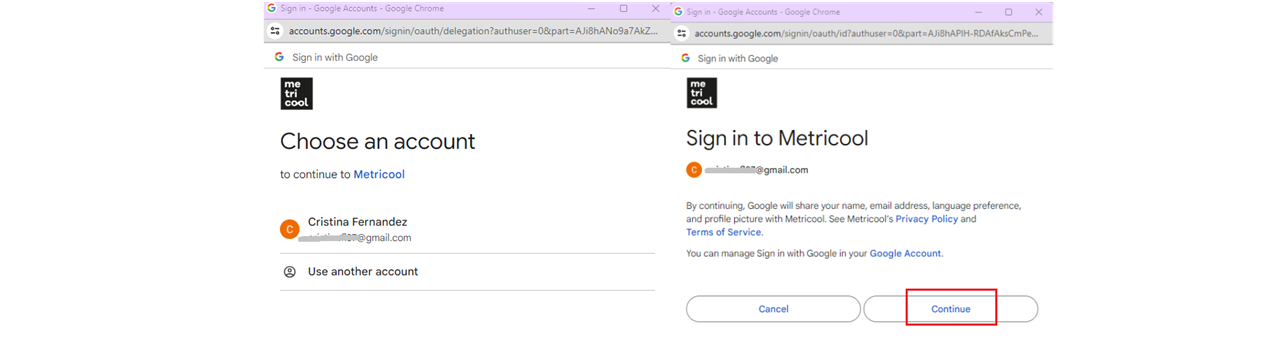
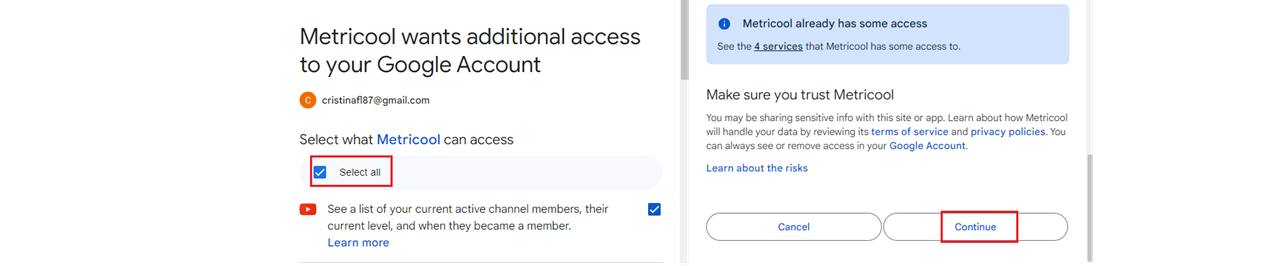
Grant permissions to Metricool, marking all permissions and click continue (at no time will Metricool make use of these permissions beyond the connection, analytics and content publication). The 7 permissions are listed below. If you have an account with a company domain, the permissions will already be accepted and you only have to click on allow.
A list will appear to select the channel. Click on the option you want to connect (if there is only one associated channel, it will connect automatically).
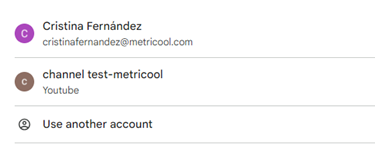
It is possible that the name of your main channel does not appear, but the email account is displayed, select it and the channel will be connected.
Permissions Google asks you to approve
When you connect YouTube, Google asks you to approve 7 YouTube permissions. Accept all 7 to complete the connection.
See a list of your current active channel members, their current level, and when they became a member
See, edit, and permanently delete your YouTube videos, ratings, comments and captions
View monetary and non-monetary YouTube Analytics reports for your YouTube content
Manage your YouTube videos
View your YouTube account
View YouTube Analytics reports for your YouTube content
Manage your YouTube account
We don't request access to Google Drive or other Google services when you connect YouTube. If you connected another Google integration to Metricool before, such as Google Drive, Google can also list those earlier permissions on the same screen. They come from the earlier connection, not from YouTube.
Trouble connecting your channel?
Please check out "I can't connect my YouTube channel".