
How to create a view in Metricool Studio
Updated 2 weeks ago
Looking for a general overview of Metricool Studio? Start here: What is Metricool Studio?
Choose between Step by step (formerly Guided mode) and Prompt from scratch (formerly Expert mode), then configure your view period, generate it, and review the results. This article covers the full creation flow from opening Metricool Studio to understanding your first generated view.
Where to find Metricool Studio
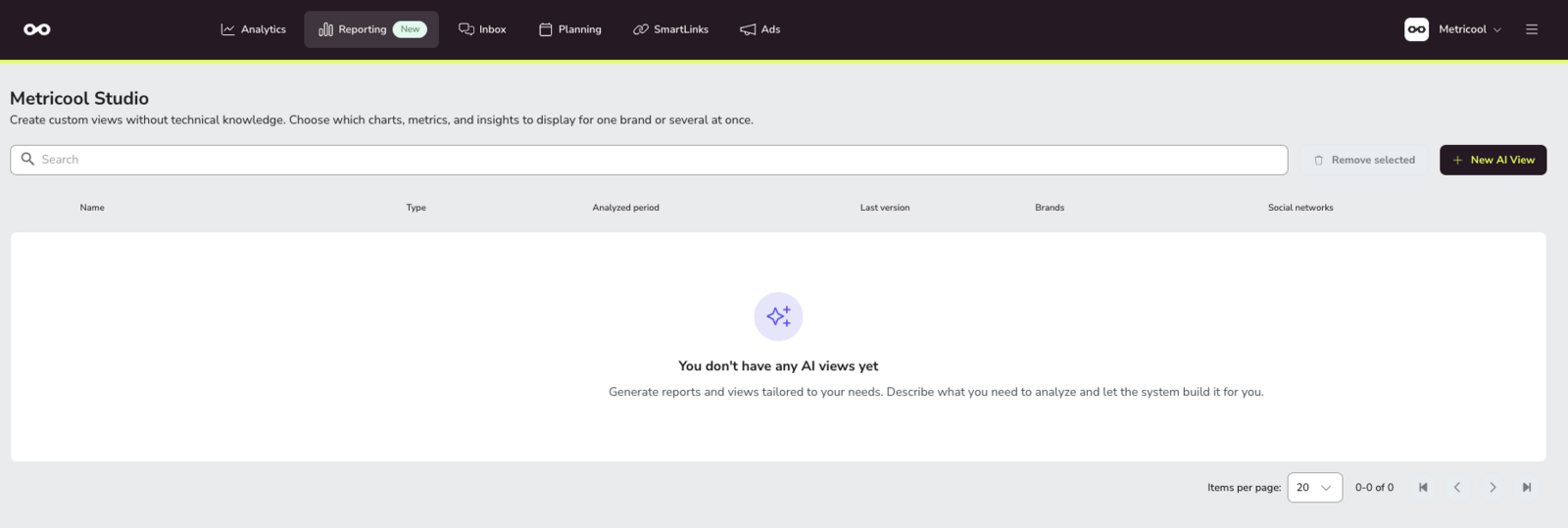
Metricool Studio is inside the Reporting section.
Log in to your Metricool account.
In the top menu, go to Reporting.
Click on Metricool Studio.
Metricool Studio is not available on mobile. Only Standard Reports can be accessed from the Metricool mobile app.
Choose a creation mode
Metricool Studio offers two ways to create a view. Pick the one that matches how clearly you already know what you want:
Step by step (formerly Guided mode) — Best when you want guided fields. Studio builds the prompt automatically from your selections. Use this for standard calendar or analytics views.
Prompt from scratch (formerly Expert mode) — Best when you already know the question you want answered. You write or paste a free-text prompt, or start from a Smart template. Use this for competitor analysis, best posting times, content ideas, and multi-period comparisons that Step by step does not handle.
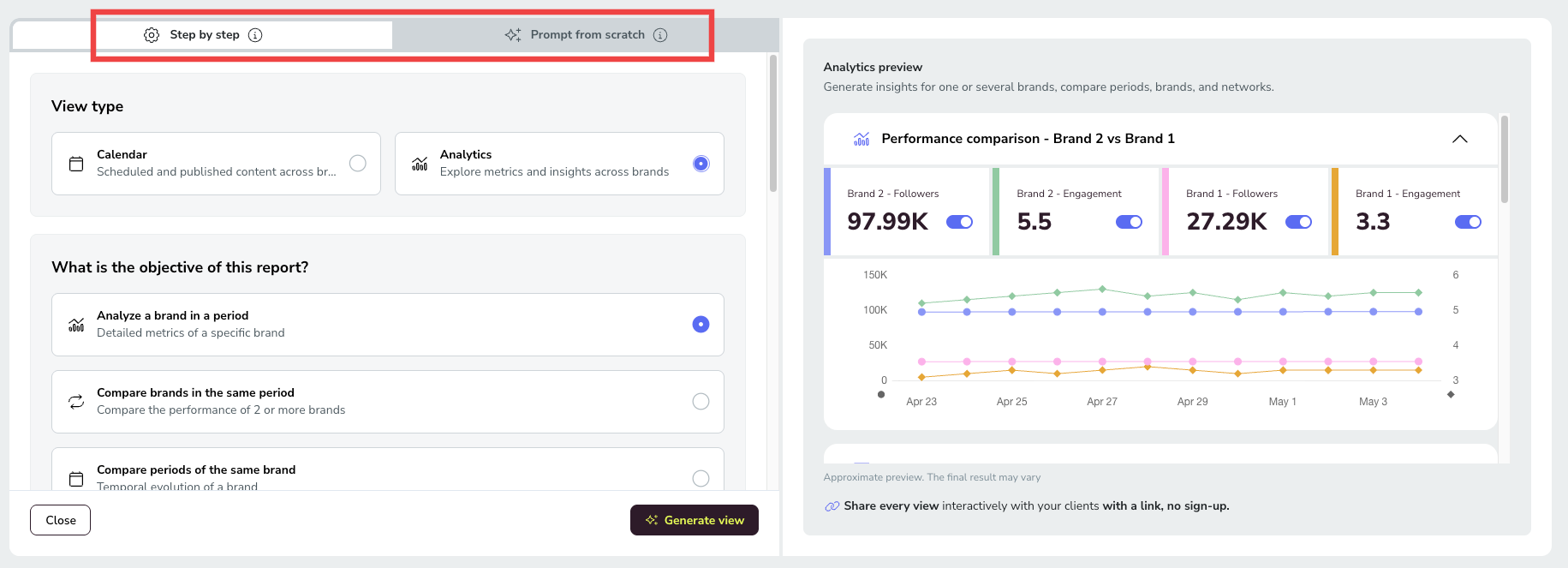
By default, Step by step opens when you create your first view. Switch modes with the Step by step and Prompt from scratch tabs at the top of the create view screen (also labeled Guided mode and Expert mode in some places). Metricool Studio remembers your choice and will open in that mode the next time you create a view.
Step by step
Step by step (formerly Guided mode) walks you through fields so Studio can build the prompt for you. Click Create new view in Metricool Studio, confirm the Step by step tab is selected, then choose your View type. The fields you complete depend on whether you pick Calendar or Analytics.
Calendar view
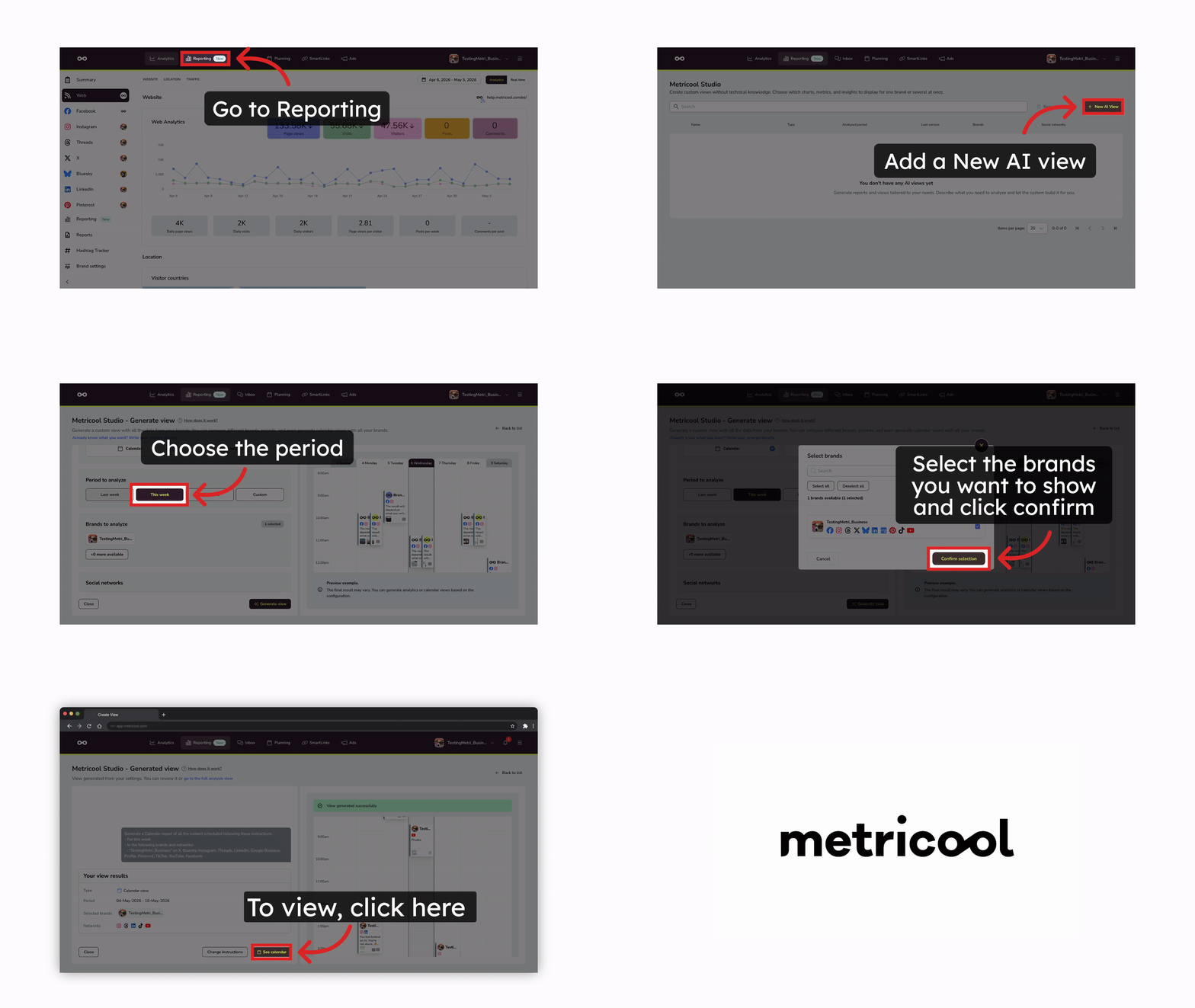
Calendar shows scheduled posts for one or more brands over a time period. Complete these fields:
Period to analyze — Select the time period:
Last week
This week
Next week
Custom (select specific dates)
Brands to analyze — Select one or more brands.
Social networks — Choose which networks to display (Instagram, Facebook, TikTok, LinkedIn, etc.).
Calendar views reflect whatever is in your Planner. Metricool Studio cannot exclude a specific social network from the calendar via prompt. To show only certain networks, apply the filter directly in the Planner before generating the view.
Analytics view
You can also generate comparison views directly from Analytics in one click. See the Generate comparison views from Analytics section below for the full steps.
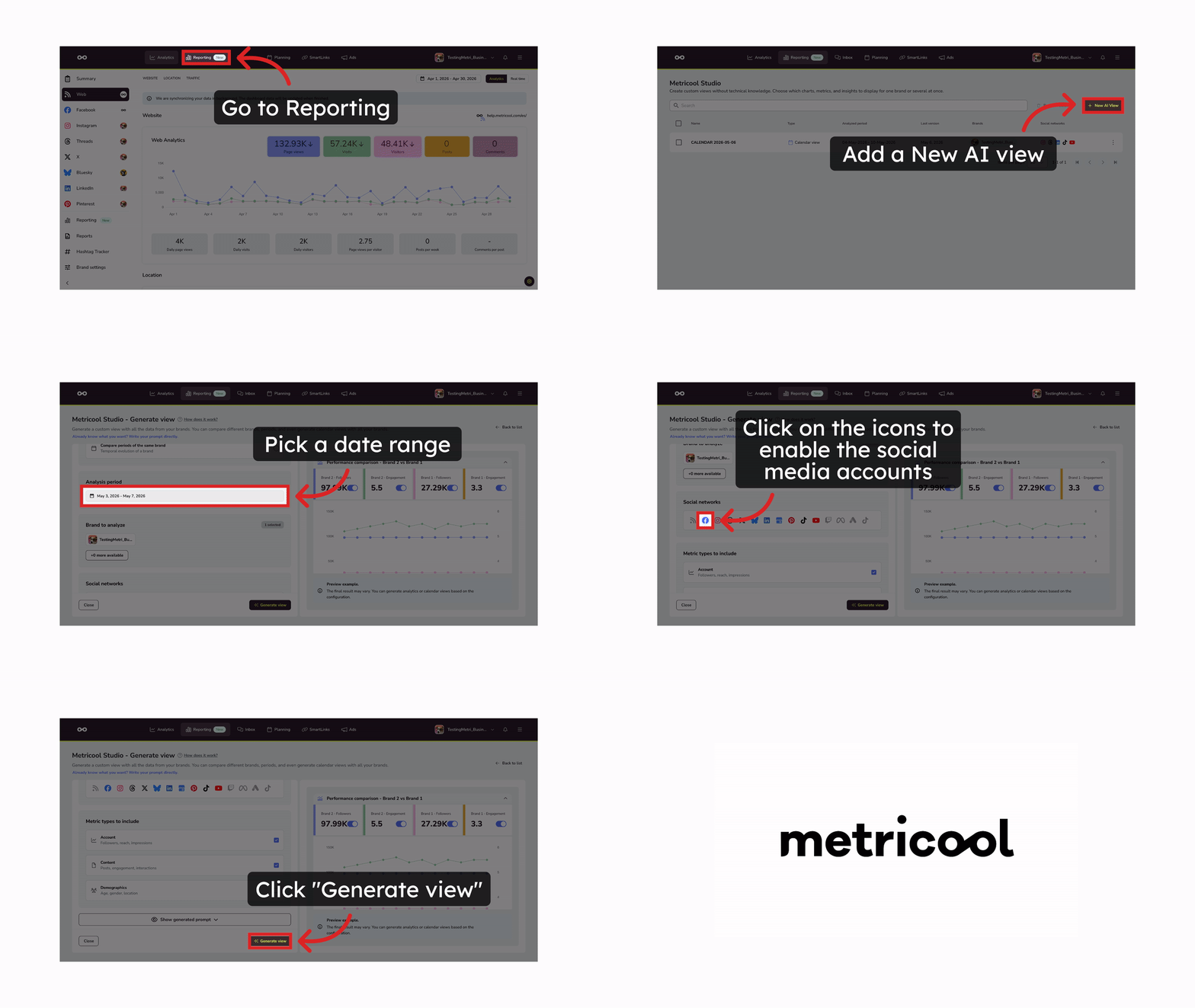
Analytics shows performance metrics and insights for one or more brands. Complete these fields:
What is the objective of this report? — Select the analysis objective:
Analyze a brand in a period — Detailed metrics of a specific brand.
Compare brands in the same period — Compare the performance of 2 or more brands.
Compare periods of the same brand — Temporal evolution of a brand.
Analysis period — Set the date range (maximum 3 months).
Brand to analyze — Select one or more brands.
Social networks — Choose which networks to include.
Metric types to include — Select metric types:
Account — Followers, reach, impressions.
Content — Posts, engagement, interactions.
Demographics — Age, gender, location.
Click Generate view to start the process.
You can optionally click Show generated prompt to preview the prompt Studio will use. If you manually edit the prompt, the fields above will be disabled and AI will interpret your text directly.
If you manually edit the prompt, the step-by-step fields will be disabled and will not affect the prompt.
Prompt from scratch
Prompt from scratch (formerly Expert mode) gives you a text input where you write a prompt directly, or start from a built-in Smart template.
In Metricool Studio, click Create new view.
Select the Prompt from scratch tab (formerly Expert mode). You may also see this as Expert mode or as "Already know what you want? Write your prompt directly."
Choose how to build your prompt:
Write a prompt from scratch
Type your prompt directly in the text area. Include these five dimensions for better results:
Dimension | Example |
|---|---|
Brand(s) | Brand A, Brand B |
Networks | Instagram, TikTok, LinkedIn |
Time period | Feb 1–28, 2026 or "this week" (max 3 months) |
Metrics | Followers, reach, engagement, top 5 posts by views |
Visualization type | Line chart, table, text block with conclusions |
The more specific you are across all five dimensions, the better your view will be. If you leave any dimension undefined, Studio will make assumptions.
Prompt helper bar
When you write a prompt from scratch, a bar under the text field shows what a complete prompt includes: brand, networks, period, and chart or text type. As you type, Studio detects each element in real time and marks it green with a preview of what it found — the brand logos, the network icons, and the resolved date range.
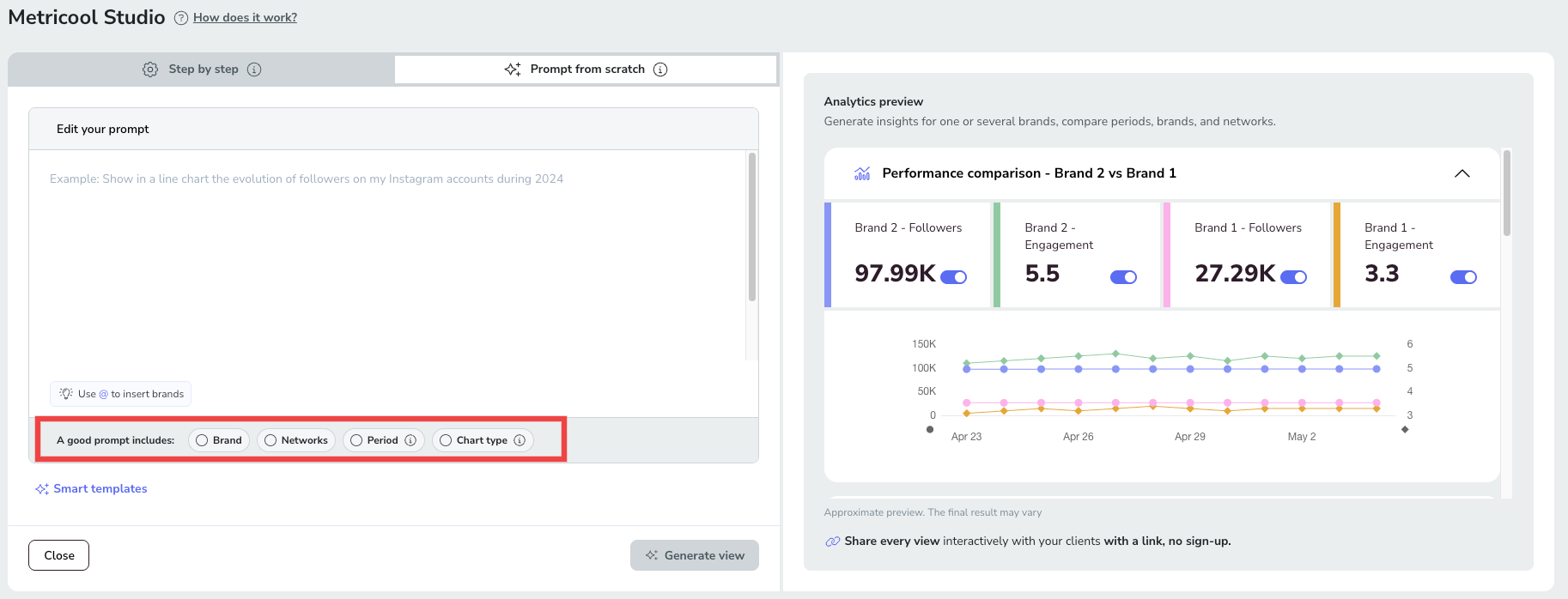
If you click Generate view with an element missing, the missing item is highlighted, a notice appears, and the button changes to Generate anyway. You're never blocked, just guided. The quality of the generated view depends heavily on how complete the prompt is, so include all four elements for the best result.
Example prompt:
Pull all reels from January 2026 through the end of February 2026 with the reach and views metrics from my Brand A account. Based on the top-performing ones, suggest 5 new reel ideas to create soon.Brand autocomplete: When writing your prompt, type @ to open a menu with your available brands. This is available on web only.
Prompt length limit
A prompt can be up to 15,000 characters long. When you reach 90% of the limit (13,500 characters), a character counter appears so you can see how much room is left.
If you go over the limit, the counter switches to an error state and you can't generate the view until you shorten the prompt. Pasted text that already exceeds the limit is kept in full and is not trimmed, and the counter shows the error so you know to cut it down.
Use Smart templates
Click ✨ Smart templates to browse pre-built templates organized into two categories:
Analytics — Performance reports, brand comparisons, and metric analysis.
Calendar — Scheduled content views and publishing calendars.
To use a template:
Click ✨ Smart templates.
Select the Analytics or Calendar tab.
Search or browse the available templates.
Click Insert into prompt → on the template you want.
Edit the prompt to replace placeholder values (brand name, network, period). Type @ to quickly select a brand from the menu.
Click Generate view to start the process.
Analyze SmartLinks in Metricool Studio
Metricool Studio analyzes your SmartLinks reliably, on their own or combined with a social network such as Instagram. Studio identifies SmartLinks fields consistently, so it locates and uses your SmartLinks data faster and more reliably.
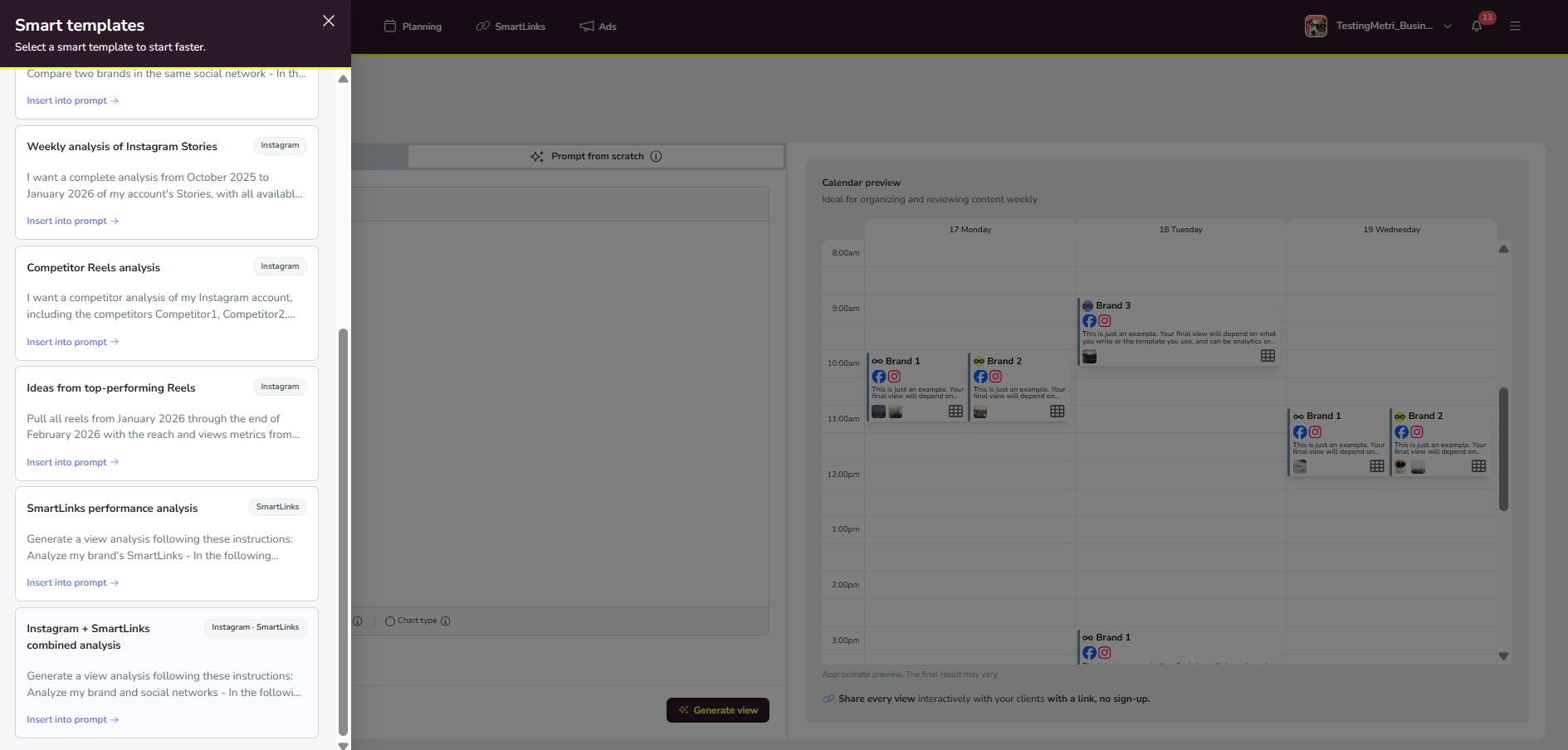
Smart templates include ready-made options for SmartLinks analysis. Open ✨ Smart templates and choose a template such as SmartLinks performance analysis or Instagram + SmartLinks combined analysis, then click Insert into prompt → and Generate view.
Create comparison views from Analytics
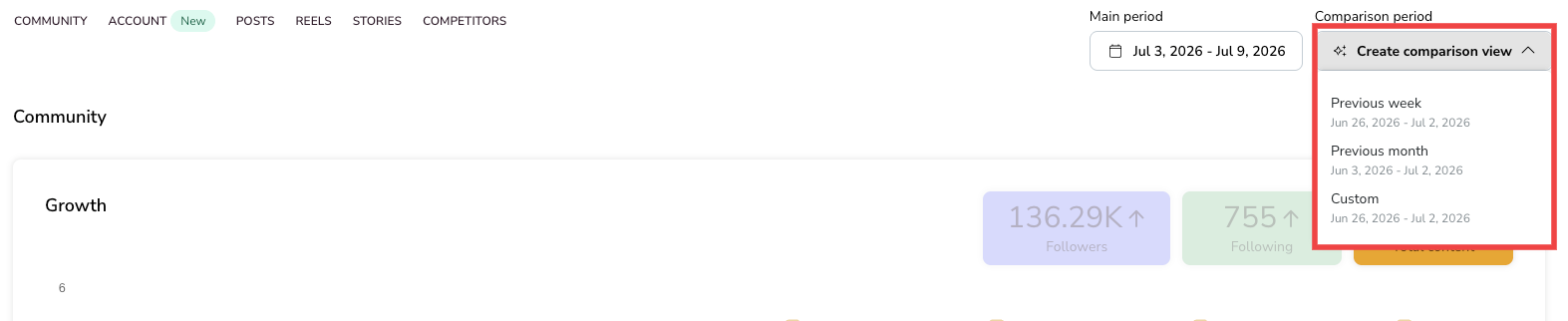
The Create comparison view dropdown in the Analytics header creates a ready-made comparison view in Metricool Studio with one click.
In Analytics, open the Create comparison view dropdown in the header.
Select a comparison range:
Previous week
Previous month
Custom range
Click the option to generate the Metricool Studio comparison view.
Metricool Studio opens in a new tab and generates a view based on your selection. This does not change what you see in the main period in Analytics. The view is saved to your view list, and you can share, export, or regenerate it like any other view.
The comparison view shows the change for each metric compared with the selected period, making it easy to identify increases and decreases.
Fixed periods vs. relative periods
When choosing a time period, you have two options:
Fixed period (e.g., "Feb 1–28, 2026") — Use this for one-time views. The data stays tied to those exact dates.
Relative period (e.g., "this week", "this month") — Use this for views you'll reuse or share with clients. The URL stays the same, and you can refresh the view to update the data. No need to resend it every week.
Rule of thumb: Will you open this view again? If yes, use a relative period. If it's a one-off, use a fixed date.
This matters especially if you plan to reuse or share this view with a client — see How to share and export views.
Track view generation
The generation process runs in the background, so you can continue working in Metricool or close the window.
Check the bell icon in the top menu to see the status:
Pending — The view is still being generated.
Finished — Click Review to open the completed view.
If a generation fails, you'll receive a notification. Click the notification to open the affected view directly, so you can diagnose and fix the problem.
Review the generated view
Once Metricool Studio processes your request, your view will include a combination of:
Line charts — performance over time (followers, reach, interactions)
Bar charts — totals and comparisons across brands or periods
Pie/donut charts — distribution (demographics, network breakdown)
Tables — post-by-post detail, top content lists
Combined line + bar charts — similar to standard Metricool analytics views
Text blocks — executive summaries, conclusions, content ideas, and recommendations
Studio decides which combination to use based on your prompt. The more specific you are about visualization types, the more control you have over the result.
Want to adjust an insight's wording or a chart title? That happens after the view is generated — see How to manage and edit views.
Top content cards
Answers opened from the Explore insights shortcut in Analytics can use a dedicated top content visualization: cards for your best performing pieces, each with the post thumbnail, title, and key metrics (engagement, views, reach, saves). The top content cards are only available through Explore insights — they do not appear in Step by step or Prompt from scratch views, nor in custom views and versions.
Related articles