
How to manage and edit views in Metricool Studio
Updated 2 weeks ago
Looking for a general overview of Metricool Studio? Start here: What is Metricool Studio?
Rename, duplicate, share, and remove views from the list. Edit chart titles and insights, sort analytics tables, and resolve common access issues. This article covers every management and editing action available after a view has been generated.
View list columns
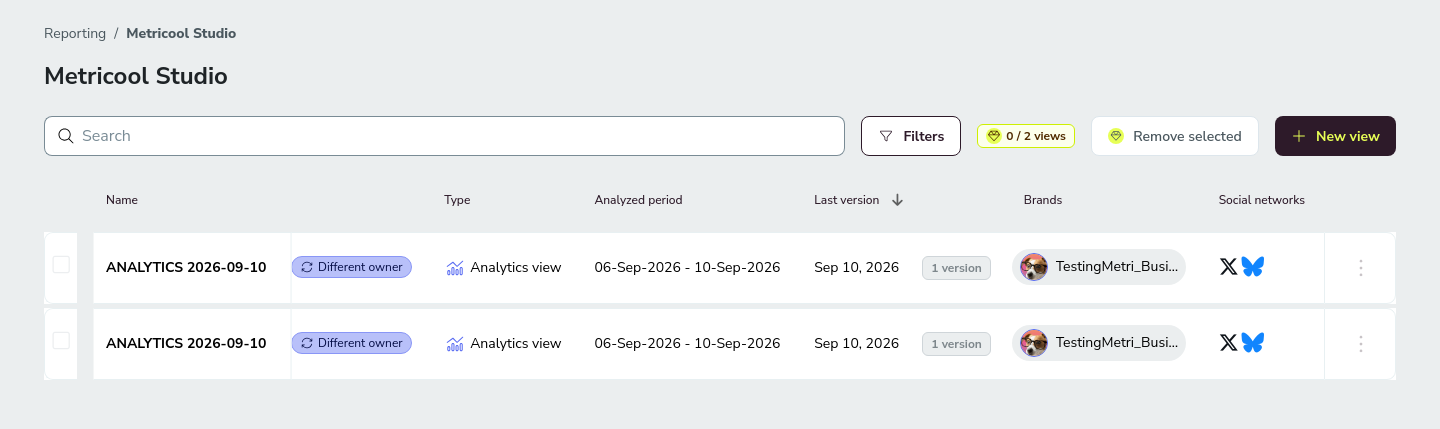
The main Metricool Studio screen lists every generated view with the following columns:
Column | What it shows |
|---|---|
Name | The view name. Click to open it. |
Type | Analytics view (metrics and performance) or Calendar view (scheduled content). |
Analyzed period | The date range the view analyzes (e.g., 04-May-2026 - 06-May-2026). |
Last version | Date of the last update or generation of the view. |
Brands | The brands included in the view. |
Social networks | Icons of the social networks analyzed (Instagram, Facebook, TikTok, LinkedIn, etc.). |
Filter and sort the view list
As your number of views grows, narrow the list to find the view you need. Filters open in a side panel on the right of the list.
The listing supports filtering and column sorting.
Filter — by view type, brand, social network, or public link.
Sort — by any column in the listing.
Combine filters — apply several filters at once and keep using the text search.
Different owner badge
Some views display a badge with the text Different owner. This indicates the view belongs to another account. You can see it in your list, but you don't have full access because it includes brands or data that aren't available in your current account.
Can't open a view you see in the list? This is usually a brand-permission issue — see Metricool Studio limits, data, and permissions.
Actions from the three-dot menu
From the three-dot menu on each view row, you can:
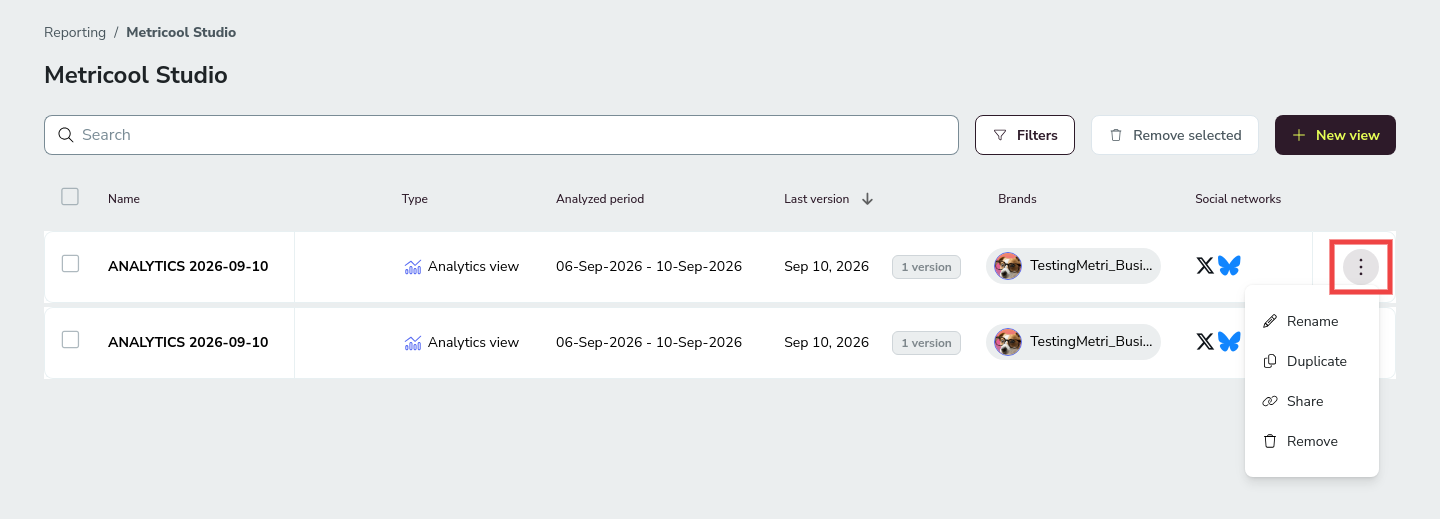
Rename — Change the view name to something descriptive, like "Client X — May Performance." You can also rename directly from inside the view by clicking the title. Only the view's creator can rename it.
Duplicate — Create a copy of a view. Useful when you want to reuse the same structure for a different brand or time period. Change only what's necessary — it's faster than starting from scratch and keeps your views consistent.
Share — Generate or copy a public link to the view. You can toggle Customize with your logo and upload your logo (PNG with transparent background, recommended 150 × 40px), just like when sharing from inside the view.
Remove — Delete views you no longer need. Without the Advanced Analytics Add-on, deleting one of your 2 views is how you make room for a new one. Confirm the deletion when prompted.
You can also open a view by clicking its name, and from inside the view you can rename it, refresh it with the latest data, or share it with a public link.
Edit chart titles and insights
After a view is generated, you can customize the report by editing chart titles and insights text blocks directly within the view. This lets you adjust the wording to match your reporting style or client needs without regenerating the entire view.
Insights text blocks include a formatting toolbar with bold, italic, and lists — the same toolbar available in the planner — so you can format the AI-generated text instead of accepting it as-is. Chart titles support plain-text editing only.
Any changes you make to these elements are saved in the view and will appear in shared links and PDF exports.
Other chart data and structure are generated by AI and cannot be manually edited. If you need different metrics or visualizations, create a new view with an updated prompt.
Edit permissions
Editing chart titles and insights is limited to the view creator. Other team members can see the updated text, but only the creator can modify it.
Creating brand-new text blocks from scratch is not supported in this version. You can only edit the text blocks and insights that the AI has already generated.
This is a content-edit permission, separate from brand-level access permissions. See Metricool Studio limits, data, and permissions for who can access a brand's data.
Sort and search within analytics tables
When you open an analytics view, the data tables support sorting and search:
Sort by any column — Click any table header to toggle ascending or descending order.
Search by brand name — Use the search bar inside each table to jump directly to a specific brand without scrolling through rows.
This is useful when you're analyzing multiple brands or content types and need to compare performance quickly.
Practical tips
An empty table isn't a bug. If Metricool Studio returns an empty table, it most likely means there's no data for that metric in that period. Check in Analytics before reporting it as a problem.
Duplicate instead of rebuild. If a view works well, duplicate it and change only what's different (brand, period, network). This keeps your views consistent and takes seconds instead of minutes.
Related articles