
How to share and export views in Metricool Studio
Updated 2 months ago
Looking for a general overview of Metricool Studio? Start here: What is Metricool Studio?
Share views with public read-only links, customize them with your logo, export to PDF, and control internal team access. This article covers every sharing and export option available for Metricool Studio views.
Public read-only links
Anyone with a public link can open and explore the view — they don't need a Metricool account.
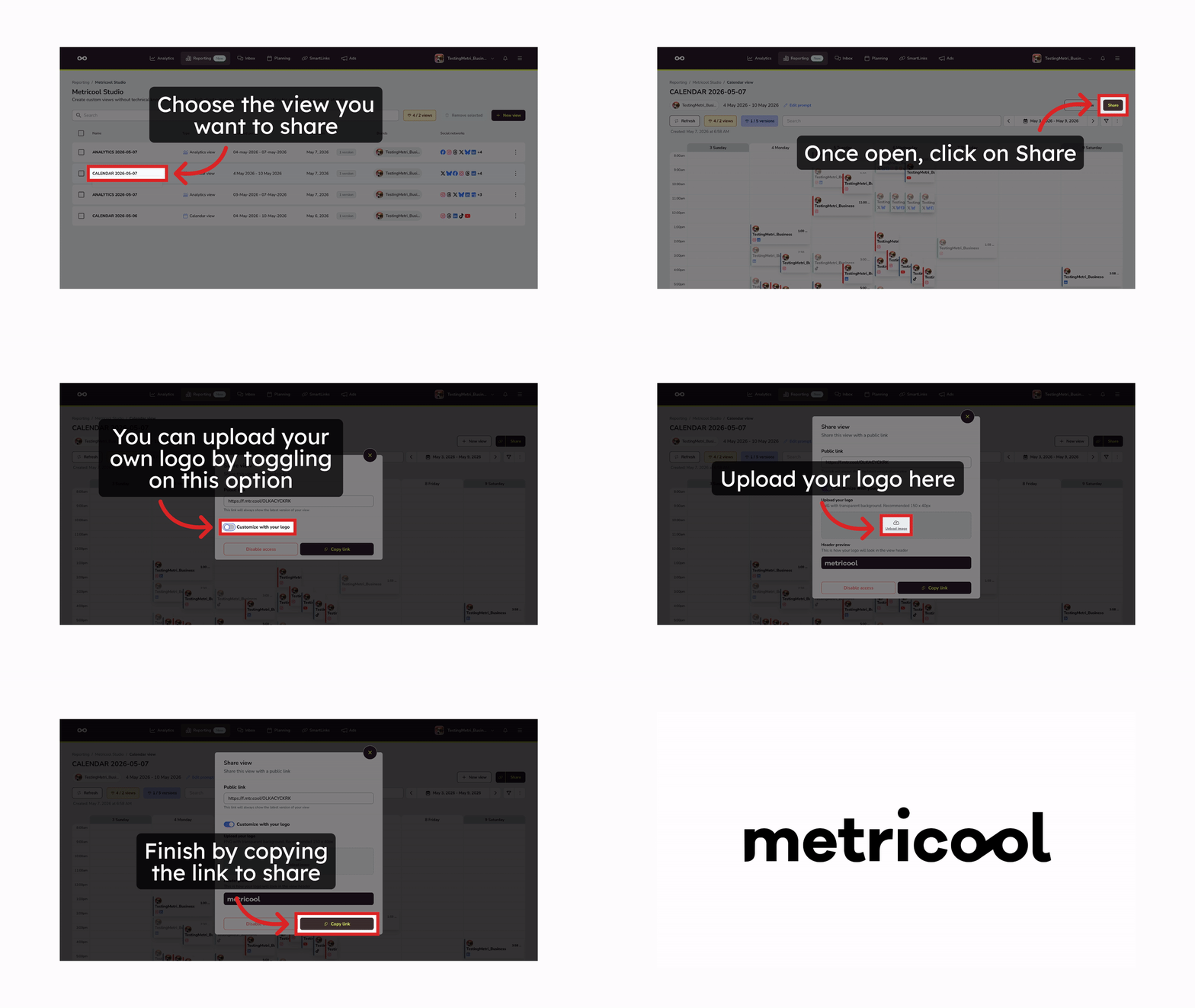
Open the share dialog from the Metricool Studio list or from inside the view:
From the list, open the three-dot menu (⋮) on the view row and select Share.
From inside the view, click the share button.
(Optional) Toggle on Customize with your logo and upload your logo:
File format: PNG with transparent background
Recommended size: 150 × 40 px
Upload behavior: the header preview shows how it will appear. Uploading a new logo overwrites the current one automatically.
Click Copy link and share it.
By default, the Metricool logo appears the first time you share. Once you switch to a custom logo, your choice is saved locally — future shares will use your logo automatically, though you can change it anytime.
The view is read-only. People with the link can view it but cannot edit it or access other parts of your account.
If the view uses a relative period, you can refresh the view to update the data. Your client opens the same URL — no need to resend it. Learn how to choose a period type when creating your view → How to create a view.
To revoke a link: Open the view, click the share button, and click Disable Access. Once disabled, the link will stop working and anyone who has it will no longer be able to access the view.
Hide charts and text from public links
Hide individual charts or text blocks so clients and stakeholders see only what you choose to expose. Hidden elements stay visible in your own working view.
Open the Metricool Studio view you want to share.
For each chart or text block, toggle the visibility option to include or exclude it from the public link.
When an element is hidden, it remains visible to you inside Metricool but will not appear for anyone accessing the view through the public URL. You can toggle visibility back on at any time.
Export to PDF
PDF export is available for Analytics views only, not for Calendar views.
To download an analytics view as a PDF, click Share → Export to PDF. A download button also lets you save the view as a PDF in one click, so you have a static, shareable version of the report.
Internal access
Team members with access to the same brand(s) and the Reporting section can view and manage Metricool Studio views. What they can do depends on your account's permission settings.
Related articles