
It is available on the Advanced and Custom plans.
How to send posts for review with Metricool's approval system
Updated last month
Metricool's approval system lets you send posts to teammates or clients for review before they go live. You can assign internal collaborators or external reviewers by email, set how many approvals are required, and track the status of each post from the calendar or your task list.
This feature is available on the Advanced and Custom plans. It is also available in the mobile app.
Before you start
Make sure your account and team are set up for approvals:
You need an Advanced or Custom plan.
The person sending posts for review needs a role that includes editing permissions, such as Admin or Editor.
Reviewers are typically assigned the Client role, which has view permissions and can approve or reject posts.
Users with the Content Creator role must send all posts through the approval system before they can be published.
You can also add external reviewers by email, even if they do not have a Metricool account.
For more details on roles and permissions, see User Management.
How to send a post for review
In the side menu, go to Planning and create the post you want to schedule.
Click Send for review instead of scheduling the post directly.
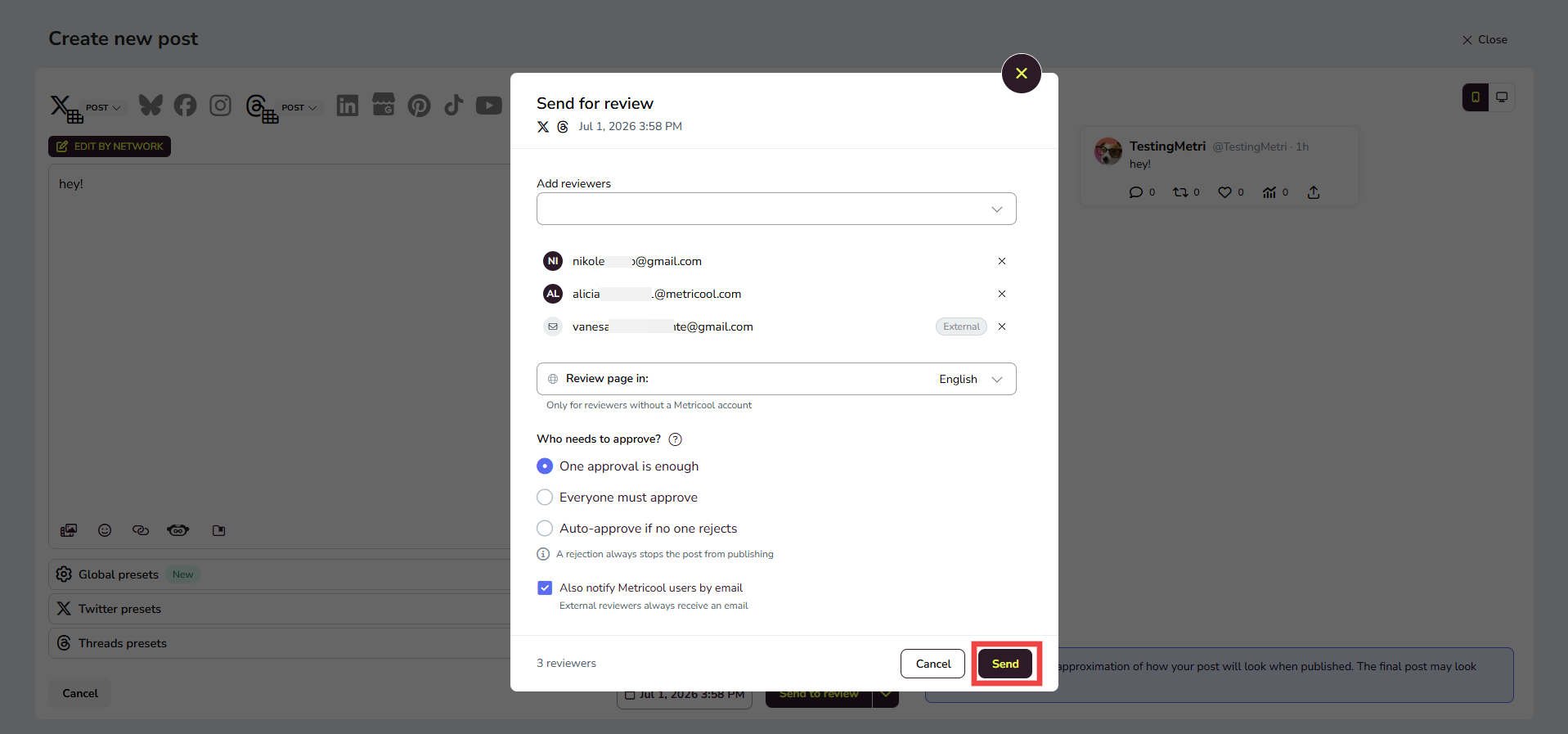
In the Send for review modal, choose your reviewers:
Start typing a collaborator's name to select an existing team member.
Or type an email address to add an external reviewer.
You cannot add an email that already belongs to a collaborator in the same brand.
White-label end users can only add external reviewers by email.
Choose the approval criteria for the post. See the next section for the exact options.
A rejection always stops the post from publishing.
Choose the language for the reviewer portal. This only applies to reviewers without a Metricool account.
Choose whether to notify reviewers by email using the Send email notification toggle. This applies to both Metricool users and external reviewers. If you disable it, no email is sent to any reviewer, but the post still appears in the reviewer portal or Review requests.
Click Send. The post is added to the calendar with a Pending review status.
If you edit a post after sending it for review, you must send it again for approval. The previous review is reset.
Choose your approval criteria
The approval criteria determine how many reviewers must approve the post before it can be published. Rejection always blocks publication, regardless of the rule you choose.
Criteria | What happens |
|---|---|
One approval is enough | The post is published if at least one reviewer approves it and no one rejects it. |
Everyone must approve | Every assigned reviewer must approve the post. If even one does not approve or rejects it, the post will not be published. |
Auto-approve if no one rejects | The post will be published as long as no one rejects it. No explicit approval is needed. |
A rejection always stops the post from publishing.
What happens after you send
Once a post is sent for review, its status is visible on the calendar and in task lists:
Pending review (yellow): The post is waiting for one or more reviewers to act.
Approved (green): The post has met the approval criteria and is queued for publication at the scheduled time.
Rejected (red): A reviewer rejected the post. It will not be published.

Reviewers can take action in two ways:
From the reviewer portal, if they do not have a Metricool account. The email they receive contains a link to the portal, where all posts assigned to them for that brand are grouped.
From Review requests in Metricool, if they have an account.
When you send a new post to a reviewer who already has pending posts for the same brand, the new post is automatically added to their existing portal. The reviewer will see it the next time they open the portal — you don't need to resend the link.
When multiple reviewers are assigned, the post stays in Pending review until enough approvals are received or until one reviewer rejects it. You can click the post on the calendar to see the detailed status for each reviewer.
For detailed instructions on how reviewers approve or reject, see How to approve or reject a scheduled post in Metricool.
Reviewer comments and feedback
Reviewers can leave a comment on any post, whether they approve it or not, and you see the comment in real time. This lets a reviewer suggest a small change without rejecting the post, so the post can stay on track to publish while the conversation stays inside the portal instead of moving to email or chat.
Separating feedback from the decision shortens review rounds: a reviewer who only wants a tweak can comment instead of rejecting, and a rejected post always means the reviewer wants it blocked from publishing. To read a comment, open the post from the calendar or your task list and check its notes.
What to do if your post is rejected
If a reviewer rejects your post, you can find the rejection note (if they left one) in two places:
Check your email: Metricool automatically sends you an email when your post is rejected. If the reviewer left a note, it will be included in the email.
View in Metricool from Review requests:
Go to Main menu (☰) > Review requests.
Click the Rejected tab.
Click on the "Rejected" badge or the pencil icon on the post row.
A preview will open. Click View configuration.
The post editor opens showing the "Rejected" status. Click on Notes to see the rejection note (if any) and other post events.
You can also find rejected posts from the Calendar:
Go to Planning > Calendar.
Filter by Rejected status.
Click on the post to open it.
Click on Notes to view the rejection note (if any) and post events.
After reviewing the feedback, you can edit the post and Send for review again to restart the approval process.
Send multiple posts for review at once
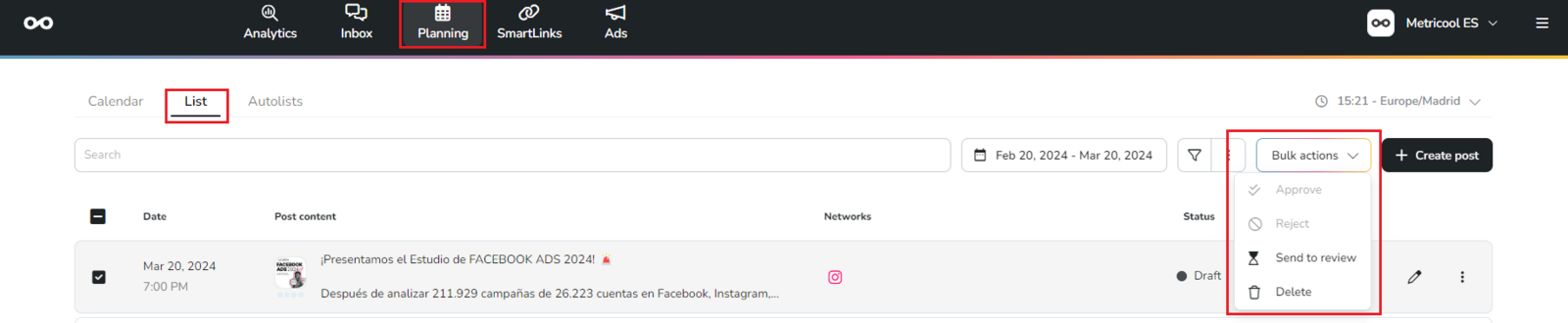
You can send several posts for review in one action from the list view:
Go to Planning > List.
Select the posts you want to send for review.
Click Bulk actions and choose Send for review.
Choose the reviewers and approval criteria, then confirm.
You can also use Bulk actions to approve or reject multiple posts that are assigned to you, or delete pending posts from the calendar. You cannot delete posts that have already been published from the calendar — you must delete them directly from the social network.
FAQs
Which plans include content approval?
Is a Metricool account required for reviewers?
No. Reviewers without a Metricool account receive an email with a link to the reviewer portal, where they can approve or reject posts. Each email links to the same portal for that brand, grouping all pending posts in one place.
Is there a difference between sending a review request to a Metricool user and an external email?
There is no difference in how the review is executed, but there is a difference in notifications:
If the email belongs to a Metricool account, you can send posts for review in bulk and the reviewer receives a single email notification.
If the email does not belong to a Metricool account, an individual email is sent for each post, but every email links to the same reviewer portal where all posts for that brand are grouped.
Can I enable or disable email notifications for reviewers?
Yes. The Send email notification toggle controls whether reviewers receive an email when a post is sent for review. This applies to both Metricool users and external reviewers added by email. If you disable it, no email is sent to any reviewer — the post still appears in the reviewer portal or My Tasks, but without an email notification. The brand owner can resend the email later from the portal preview if needed.
What happens if I edit a post after sending it for review?
You must send it again for approval. The previous review is reset.
What happens if a post is not approved before its scheduled time?
If a post is still pending approval at its scheduled time, and has not yet been approved or rejected, Metricool applies a grace period of 3 hours. During the grace period, the post still appears in Review requests and the reviewer portal, and can be approved and published normally. After the grace period, the post disappears from Review requests and the portal, and remains unapproved — it will not be published.
Where can I manage content reviews?
If you have a Metricool account, you can approve or reject posts from Review requests. If you do not have a Metricool account, you review posts from the reviewer portal using the link in the email you receive.
Can I manage posts in bulk?
Yes. Under Planning > List > Bulk actions, you can approve, reject, and send for review in bulk.
Can I send posts for review from the mobile app?
Yes, content approval is also available on the mobile app.
What happens if more than one reviewer is assigned and one already approves the post?
Even if the setting is "One approval is enough," the post will still show up as pending in every reviewer's review list. Each reviewer can approve or reject independently.
Can a reviewer reject a post that has already been approved by someone else?
Yes. All reviewers can approve or reject the post at any time, no matter what the others have done.
What happens if one reviewer rejects the content but others approved it?
Rejection always takes priority. If even one reviewer rejects it, the content will not be published, even if all the others approved it.
Why is the post still showing in my review requests if another reviewer already approved it?
Because all assigned reviewers are allowed to take action. The system is designed to give everyone a chance to review the content.
Related articles
Was this helpful?
Was this helpful?