
Yes. You receive an email with a link to the reviewer portal, where you can approve or reject posts. No login needed.
How to approve or reject a scheduled post in Metricool
Updated 2 weeks ago
If you've been assigned to review a post, you can approve or reject it from the reviewer portal (if you don't have a Metricool account) or from Review requests (formerly My Tasks, if you do). Both paths let you check the content and act in a few clicks.
There are three ways to review posts:
From the reviewer portal, without needing a Metricool account. You receive an email with a link to a portal that groups all posts assigned to your email address for a single brand.
From Review requests in Metricool, if you have an account (any plan works).
From Planning > List using bulk actions, if you have a Metricool account and want to review multiple posts at once.
The reviewer portal is a per-brand page. If you review posts for multiple brands, you'll receive a separate email with a separate portal link for each brand. The portal does not combine posts across brands.
Good to know
If you don't have a Metricool account, you review posts from the reviewer portal. You receive an email with a link to the portal each time a post is assigned to you. All emails for the same brand link to the same portal, where every post assigned to you appears in one list. New posts sent to you for the same brand are automatically added to the same portal — no need for the brand team to resend the link.
If you have a Metricool account, you review posts from Review requests. You may also receive an email if the creator enabled email notifications, but you can always act from Review requests.
If you reject a post, it is automatically cancelled and won't be published, even if other reviewers approved it.
You can change your decision after approving or rejecting. If you rejected a post, you can still approve it later from the same portal.
You can leave a comment on any post, whether you approve or reject it. Comments are visible to the brand team in real time.
When rejecting from Review requests, the note field supports rich text and @mentions, so you can format your note and tag a teammate, who gets a notification if they have notifications enabled. Notes left from the reviewer portal don't support mentions.
If the post is edited after being sent for review, the creator must send it again. The previous review is reset.
If a post is still pending approval at its scheduled time, Metricool applies a grace period of 3 hours. During that time the post still appears in Review requests and the reviewer portal, and can be approved and published normally. After the grace period, the post disappears from the portal and Review requests and remains unapproved. This grace period only applies to posts that have not yet been approved or rejected.
How to review a post from the reviewer portal
The reviewer portal is a dedicated page where external reviewers can see all posts assigned to their email for a single brand, approve or reject posts individually or in bulk, and switch between list and calendar views. No Metricool account is needed.
You access the portal through a link in the email notification you receive when a post is assigned to you. Each email links to the same portal for that brand, so you can use any email to access all your pending posts.
Access the portal
Open the review email
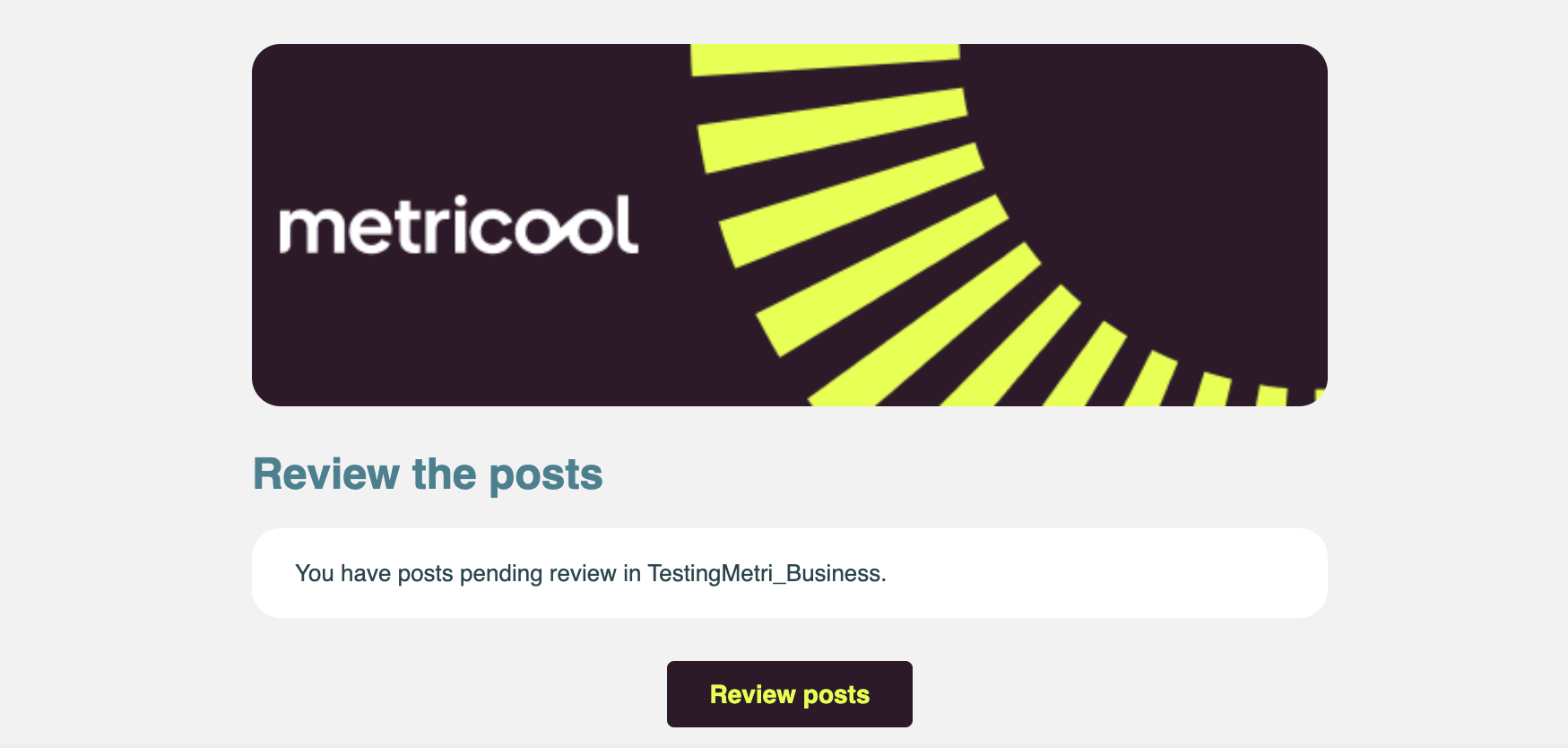
Check your inbox for an email from Metricool about a post pending review. Click Review posts inside the email to open the reviewer portal.
View your pending posts
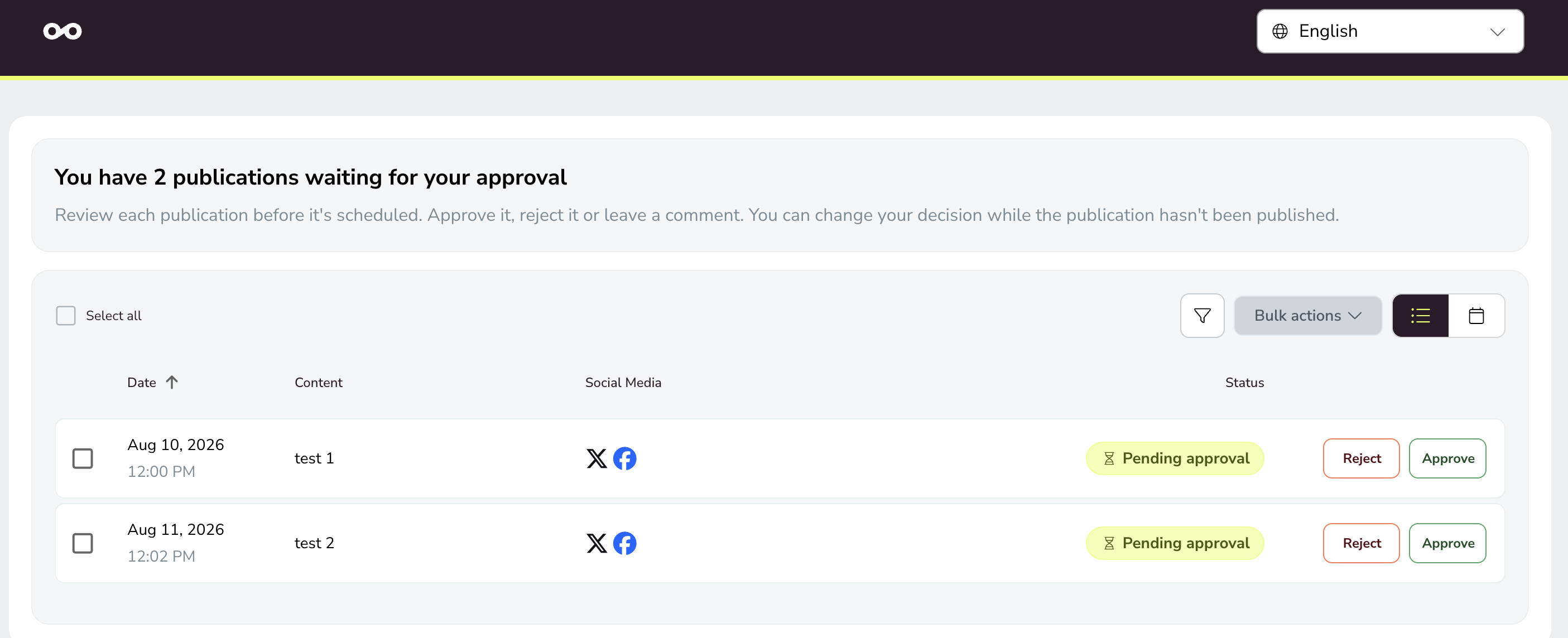
The portal opens in list view, showing the posts assigned to your email for that brand that are pending your review. Each post displays its content information, social network, scheduled date, and current status: Pending review, Approved, or Rejected.
Review and act on a post
Open a post
Click any post in the list to open its preview. You'll see the post text, image or video (if any), social network, and scheduled date and time.
Choose an action: approve or reject
From the individual post preview, click Approve or Reject. If you reject, you can add a note explaining why. You can also leave a comment on any post, regardless of whether you approve or reject it. Comments are visible to the brand team in real time.
If you reject a post, it won't be published, even if others approve it.
Approve or reject multiple posts at once
You can act on several posts in one operation directly from the portal's list view:
In the list view, select the posts you want to act on.
Click Approve to approve all selected posts, or Reject to reject them.
If you reject, enter a single note that applies to all selected posts.
Switch between list and calendar view
The portal offers two viewing modes:
List view (default): shows all posts in a list with their status and content information.
Calendar view: shows posts on a timeline, helping you visualize when each post is scheduled.
Toggle between the two views at any time from the portal.
Filter posts by status
Use the status filter to narrow down the list:
Pending: posts with no decision made.
Approved: posts you've already approved.
Rejected: posts you've rejected.
By default, the portal shows only the posts that are pending your review. If you've already chosen a filter, it stays as you set it.
Change the portal language
Use the language selector in the portal to change the display language at any time. The language set when the review request was sent is the initial language, but you can change it from within the portal.
Change your decision after acting
If you rejected a post and later change your mind, you can approve it from the same portal. If you approved a post and want to reject it instead, you can also do so. The most recent action takes effect.
What happens if the portal link expires
The portal link contains a security token that expires after 72 hours. If your link has expired or you access the portal without a valid token:
The system automatically sends a new tokenized link to your email address.
The portal shows a message informing you that a new link has been sent.
The previous token is revoked when a new one is generated.
You don't need to contact the person who assigned you the post to get a new link. The portal handles token renewal automatically.
How to review a post from Review requests
If you have a Metricool account, you can review posts assigned to you directly from Review requests — no email required.
If you have pending tasks, you'll see a visual indicator in the menu next to Review requests.
Log in to your Metricool account using your usual credentials.
Go to Review requests
Click the menu icon (☰) to open the side panel, then select Review requests.
See your assigned posts
You'll see a list of all posts assigned to you. Click the one you want to review.
Review the content
You'll see a preview of the post: text, image or video, social network, and scheduled date.
Choose whether to approve or reject
Approve: the post is marked as approved and moves to the next status based on the review criteria.
Reject: the post is marked as rejected. You can leave a note if needed, with rich text formatting and @mentions to tag a teammate.
If any reviewer rejects the post, it will not be published.
Confirm your action
You'll see a notification confirming your decision.
How to review posts in bulk from Planning
If you have a Metricool account, you can review multiple posts at once from the planning section.
You can only bulk review posts that were assigned to you for approval.
Log in to Metricool and go to Planning > List.
Select the posts you want to review.
Click Bulk actions.
Choose either Approve or Reject.
What happens after you review a post
The outcome depends on how many reviewers were assigned and the criteria the creator selected:
Approval rule | What happens |
|---|---|
No reviewer required | The post is published as long as no one rejects it. |
At least one reviewer | It is published if at least one reviewer approves and none reject it. |
All reviewers | Everyone must approve. If one rejects, it won't be published. |
You can see the updated status right after your decision. If there are more reviewers, the post stays pending until all decisions are made.
Brand owner: preview a reviewer's portal and resend emails
As a brand owner or user with Send for review permission, you can preview how a reviewer sees the portal and resend the review email if they can't find their link.
Preview a reviewer's portal
Open a post that has been sent for review from the calendar or list.
Click the "pending review" indicator on the post. This opens a popover showing the assigned reviewers and their emails.
Click a reviewer's link to open their portal in read-only preview mode.
In preview mode, a banner identifies the reviewer's email and indicates that it's a preview. You can see all posts assigned to that reviewer for that brand — both pending and approved, following the same logic as the Review requests page — but you cannot approve, reject, or take any review action. The interface prevents it.
Resend the review email
From the preview banner, you can resend the review email to a reviewer if they lost the link or didn't receive it. Resending is subject to two conditions:
You can resend once every 5 minutes per reviewer. A tooltip shows the countdown of seconds remaining before you can resend.
Resending is only available if there is at least one post pending review for that reviewer. If no posts are pending, the resend option is disabled and a tooltip explains why.
The language you see in preview mode does not affect the language the reviewer sees. The reviewer's language is set when the review request is sent from the modal, or when the reviewer changes it from within the portal.
The popover and portal preview are only available on desktop in this version. Sending posts for review works the same on the mobile app as before, but the popover and preview with the resend option are not available on mobile.
FAQs
Can I review a post without a Metricool account?
Can I reject a post even if someone else approved it?
Yes. Rejection always takes priority: if one reviewer rejects the post, it won't be published, even if all others approved it.
Can I change my decision after approving or rejecting?
Yes. From the reviewer portal, you can approve a post you previously rejected, or reject one you previously approved. The most recent action takes effect.
What happens if my portal link has expired?
The token in the portal link expires after 72 hours. If you access the portal with an expired or missing token, the system automatically sends a new tokenized link to your email and shows a message on screen. The previous token is revoked. You don't need to contact the brand owner to get a new link.
I review posts for multiple brands. Do I see them all in one portal?
No. Each portal link shows posts for one brand only. You'll receive separate emails with separate portal links for each brand where you have posts to review.
Can the brand owner approve or reject posts on my behalf from the preview?
No. The preview mode is read-only. The brand owner can see how many posts you have assigned and resend the review email, but cannot approve or reject posts for you.
Is there a list of all anonymous reviewers for a brand?
No. In this version, there is no central management panel for anonymous reviewers. You can see each reviewer's assigned posts from the popover on posts sent for review, but there is no dedicated list of all external reviewers for a brand.
Related articles
Was this helpful?
Was this helpful?