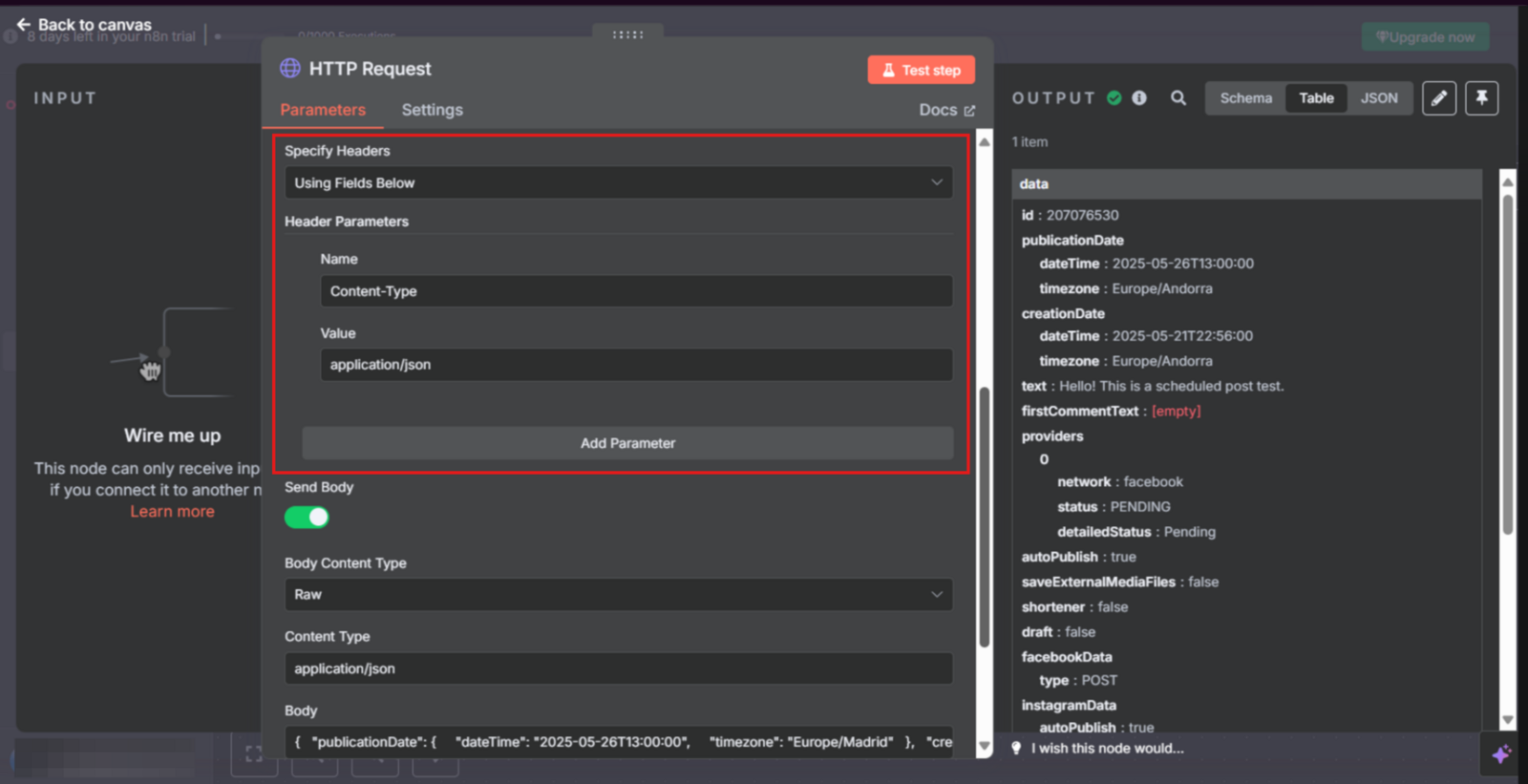
Include your Metricool account token in the request header as:
X-Mc-Auth: YOUR API TOKEN
Also include:
Content-Type: application/json
Your request must include both blogId and userId parameters.

Updated 3 months ago
Use this guide for common Metricool API setup questions and errors when working with tools such as n8n, Make, Zapier, or Postman.
These answers cover authentication, IDs, dates, endpoints, media, and tools that are not listed in the table.
Include your Metricool account token in the request header as:
X-Mc-Auth: YOUR API TOKEN
Also include:
Content-Type: application/json
Your request must include both blogId and userId parameters.
Tool | Where to place the token ( | Requires | Useful tips |
|---|---|---|---|
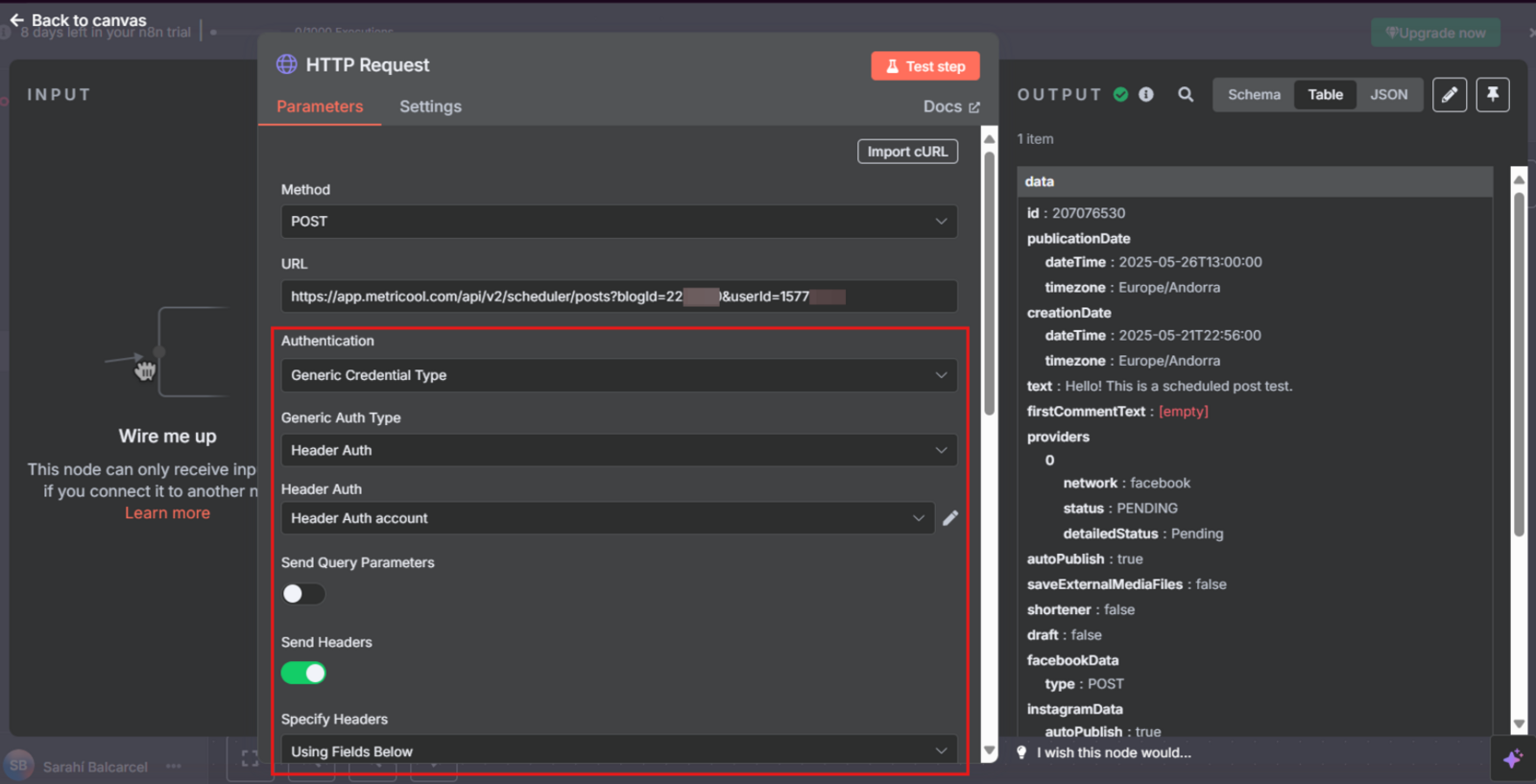
n8n | In credentials: Header Auth | ✅ | Use “Generic Credential Type” + “Header Auth”. You can reuse across nodes. |
Make | In HTTP module: Headers section | ✅ | Use a custom HTTP module or the official Metricool one. |
Zapier | In “Webhooks by Zapier”: Headers section | ✅ | Add the header in the advanced Webhook setup. |
Postman | In the request’s Headers tab | ✅ | Perfect for manual testing. |
You have two options:
From the Metricool URL
When you access a brand in your account, you will see a URL like this. Copy the number after blogId; it identifies each brand. The number after userId identifies your account. For a dedicated walkthrough of the account ID, see How to find your Metricool user ID.
https://app.metricool.com/evolution/web?blogId=00000&userId=0000000Via API
Call this endpoint. It returns a list of all the brands you manage or that have been shared with you. Each entry includes its corresponding blogId:
https://app.metricool.com/api/admin/simpleProfiles?userId=YOUR_USER_IDUse ISO 8601, including timezone. Example:
"publicationDate": {
"dateTime": "2025-07-23T10:00:00",
"timezone": "Europe/Madrid"
}Some Metricool API endpoints are not listed in the PDF documentation. You can obtain them by inspecting your browser.
Follow the full guide in How to get an endpoint step by step. That article includes a video tutorial.
Yes. First upload the media to Metricool and get a mediaId, then reference it in your post. Media links must be public and must not expire. Call the normalize endpoint so the file is hosted on Metricool’s servers.
Yes. Any tool that allows HTTP requests with custom headers can be integrated with Metricool’s API.
Use these fixes when a request is rejected or a post is scheduled without media.
This error means the token is not being sent correctly or does not have access to the brand (blog) you are trying to post to.
✅ Fix
Double-check you are using the correct token from your Metricool account.
Make sure it is placed exactly as shown in the table above.
Confirm the blogId and userId belong to your account.
n8n example:
This means the media was not handled correctly before the API request.
✅ Fix
Make sure the media link is public and does not expire. Private or temporary URLs are skipped.
Include the mediaId in your post. Without it, the post is scheduled without media.
Before calling https://app.metricool.com/api/v2/scheduler/posts, normalize the media URL with a GET request to:
https://app.metricool.com/api/actions/normalize/image/url?url=<URL_OF_YOUR_MEDIA>This hosts the file on Metricool servers when needed and returns a valid URL you can turn into a mediaId.
Use the returned mediaId in your post:
"media": {
"mediaId": "ID_OF_MEDIA"
}