
Schedule and Post on Pinterest
Updated 2 months ago
Posting on Pinterest
Pinterest is currently aiming to simplify the publication of its content, so we are in a period of change in this social network. As shown in the image, the new formats will be two: image and video.

This means that the formats of organic pins, including idea pins, have been reduced and unified into two formats: image pins and video pins. For organic pins published through on-site publishing, multi-page pins will no longer be available. Instead, multi-image, multi-video and mixed media pins are merged into a single video.
Full details can be found in their documentation : Changes to Pin creation
Format types in Metricool
From Metricool you can schedule and publish content through standard Pins and the new format, including an image or video.
"Use new pin format" isn't the same as Rich Pins — it's Pinterest's unified pin format that merges Standard and Idea Pins, letting you mix images, video, music, and stickers in one pin. It also makes the pin eligible for promotion later as an Idea Ad, though you still need to tag the paid partnership and promote it from Pinterest Ads Manager directly on Pinterest.
Promote on Pinterest
After publishing content through Metricool, you will be able to promote your posts from Pinterest. Note that you will only be able to promote with the original format that you have previously configured. See the Pinterest ads guide for more details.
How to schedule
By default the "standard pin" option will be selected, to change it, you will need to enable "use new pin format". This selection will be saved for the following posts, however you will be able to disable it at any time.
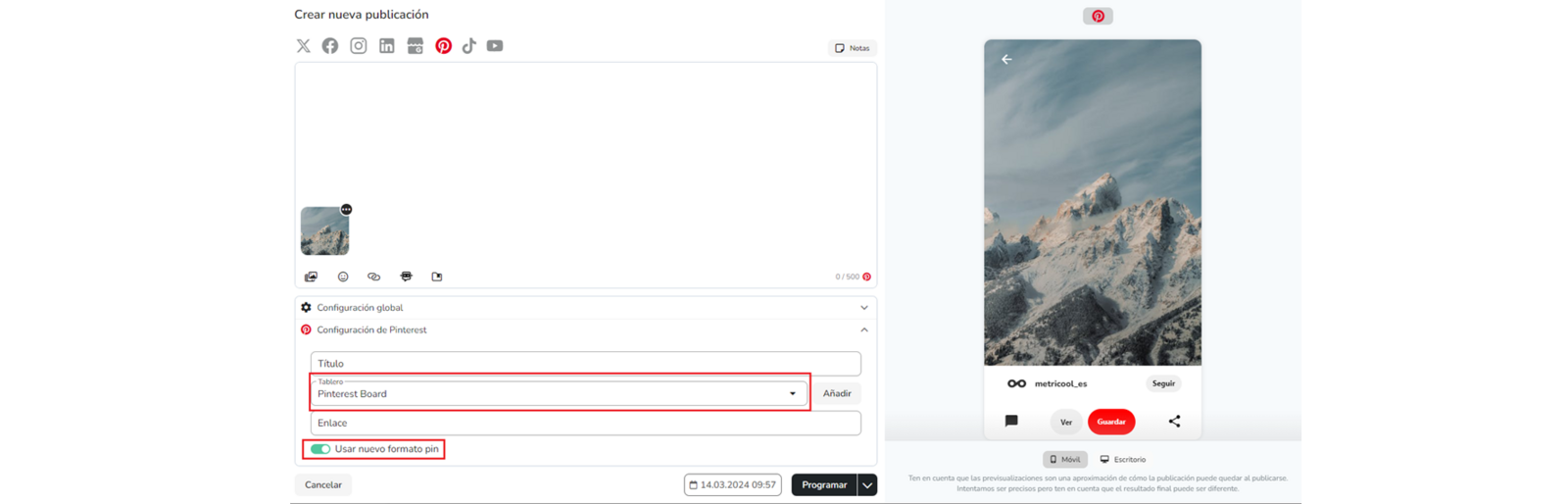
To schedule content, go to the Scheduling tab in the top menu and follow these steps :
Click "+ Create new post" and select Pinterest .
Upload the image or video file (you will be able to select a still from the video as the cover).
Add your text (up to 800 characters).
Global settings : you can enable the URL shortener and select SmartLinks.
Pinterest settings. Select or create the board where you want to include your pin. Optionally you can add a title and include a link.
Select the time and day and save the post.
Remember to activate "use new pin format" (option recommended by Pinterest) if you no longer want to post with the standard pin format.
For more details, see the article "How to schedule content from the calendar".
Rich Pins
Rich Pins add extra details like price or recipe ingredients to a pin. Pinterest adds this automatically by reading special information on your website's page (technically, Open Graph or Schema.org markup) — there's nothing to turn on in Metricool. This works the same whether you publish from Metricool or directly on Pinterest.
Pinterest checks your website again (crawls it) each time someone saves the pin, so the title or description it shows can come from your website instead of what you entered in Metricool. To make your pins eligible, your website needs this information added to its pages — usually done by whoever manages your website (a developer or your website platform), not inside Metricool. See Pinterest's Rich Pins guide for what's needed for each pin type.