
Schedule and post on Google Business Profile
Updated 3 weeks ago
There are two types of content that can be scheduled in Google Business Profile (formerly Google my Business) from Metricool:
Post: to publish an update on your Google Business Profile, with text and, optionally, an image or a video.
Photo: you can add a photo, but it would not be possible to add text.
Good to know
Content: posts (updates) and photos.
Media: 1 image or 1 video per post.
Character limit: 1,500 per post.
Not available: mentions, alt text, first comment, location and cover image. If you need any of them, schedule the post and finish it manually in Google Business Profile.
Autolists: the photo content type (a single photo without text) can't be shared from the Autolist section.
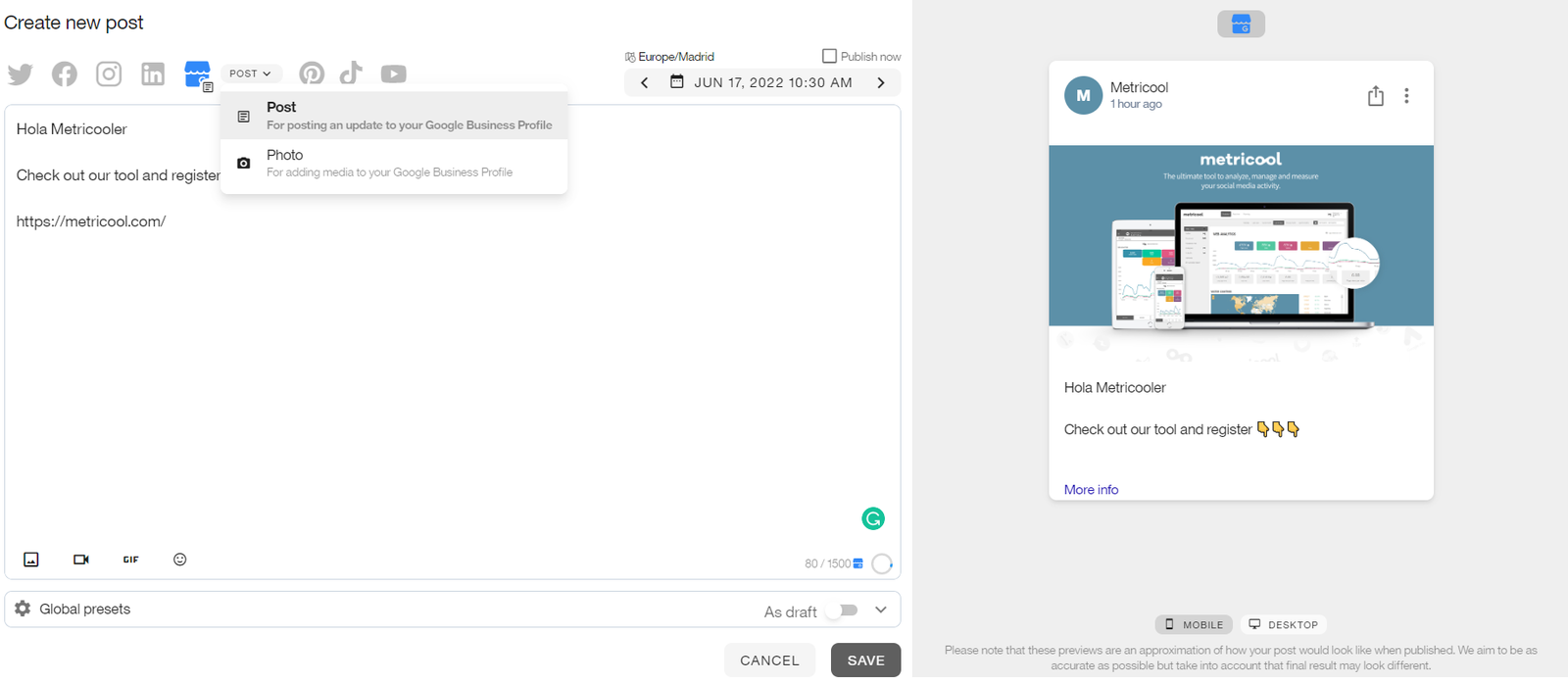
How to schedule a Google Business Profile post
To schedule a post, go to the Planning tab in the top menu and follow these steps:
Click "+ Create new post" and select Google Business Profile.
Choose the Post content type.
Add your text (up to 1,500 characters).
Optional: add a link or upload an image or a video.
Select the time and date and save the post.
What you can add to a post
Text only.
Text + link (don't forget that the URL has to start with http://): It will be published with the text, a button that will redirect users to the link, and with the featured image associated to the link.
Text + Image: Post with image.
Text + Video: Post with video. The video requirements apply. This also works when scheduling in batch with a CSV file: add the public URL of the video in the same column you use for images, and use the same post type as for a post with an image.
Adding a video to a Post is currently available on the web version of Metricool only, not in the mobile app.
Text + Link + Image: Post with image and "More info" button. In this case, the featured image associated with the link is not previewed.
Please note that:
The button text is not editable. The same text will always appear: "More info".
You must add text if you want to publish a link.
How to schedule a photo
Use the Photo option when you only want to add a photo to your Google Business Profile, with no text. If you want to publish an update with a caption, or to include a video, use a post instead.
Click "+ Create new post" in the Planning tab and select Google Business Profile.
Choose the Photo content type.
Attach or drag the photo file.
Select the time and date and save.
For more details, refer to the article "How to schedule content from the calendar"
Media requirements
Image specs
Format: JPG or PNG
Max size: 5 MB
Minimum resolution: 250x250 px (720x720 px recommended)
Video specs (posts)
Format: MP4, MOV or GIF
Max size: 75 MB
Duration: up to 30 seconds
Minimum resolution: 720 px
You can check the requirements for all networks in Publishing Requirements for Images and Videos.
Related articles