
Why does my scheduled post show an incorrect time?
Updated 3 months ago
If your scheduled posts display an unexpected time—even though your Metricool timezone and computer timezone are set correctly—the issue is caused by a mismatch between your system clock and your browser's time settings. This typically happens when your Windows or Mac system time is not properly synced with the browser's internal time settings.
Check the active timezone in the planner
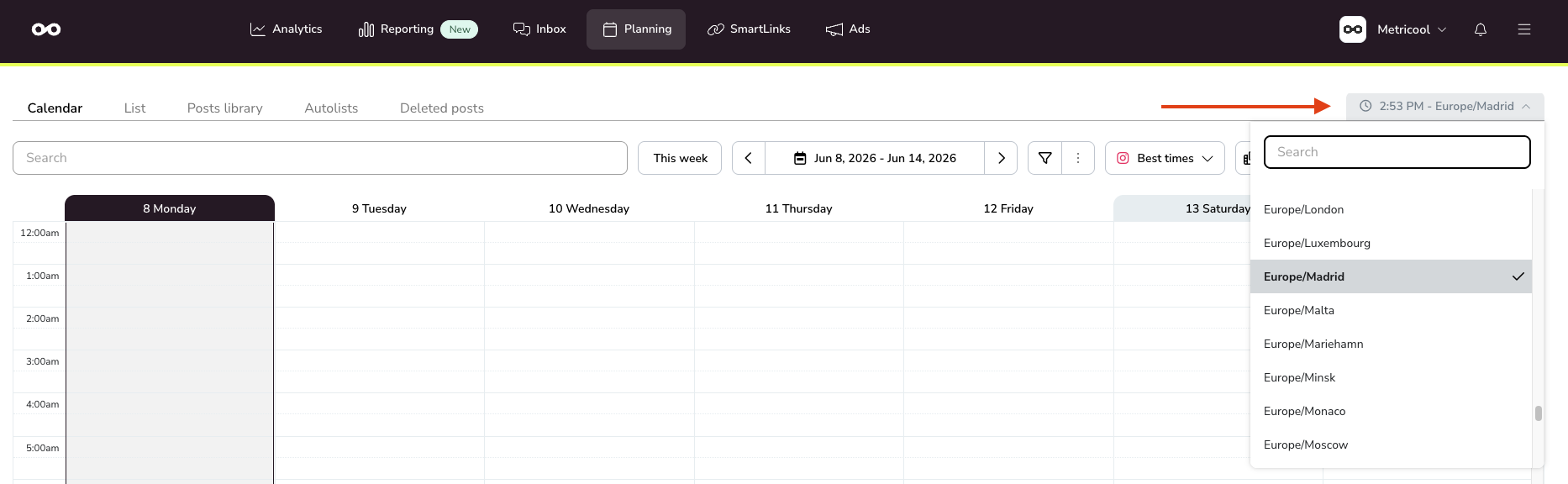
When you schedule a post, the planner always uses the timezone shown next to the current time at the top of the calendar. By default, this is the timezone from your Account Settings, but each brand can have its own timezone configured in the planner.
Open the planner and look at the timezone shown next to the current time at the top
If it is not the one you expect, open the dropdown next to the current time and select the correct timezone for that brand
Check your browser's time settings
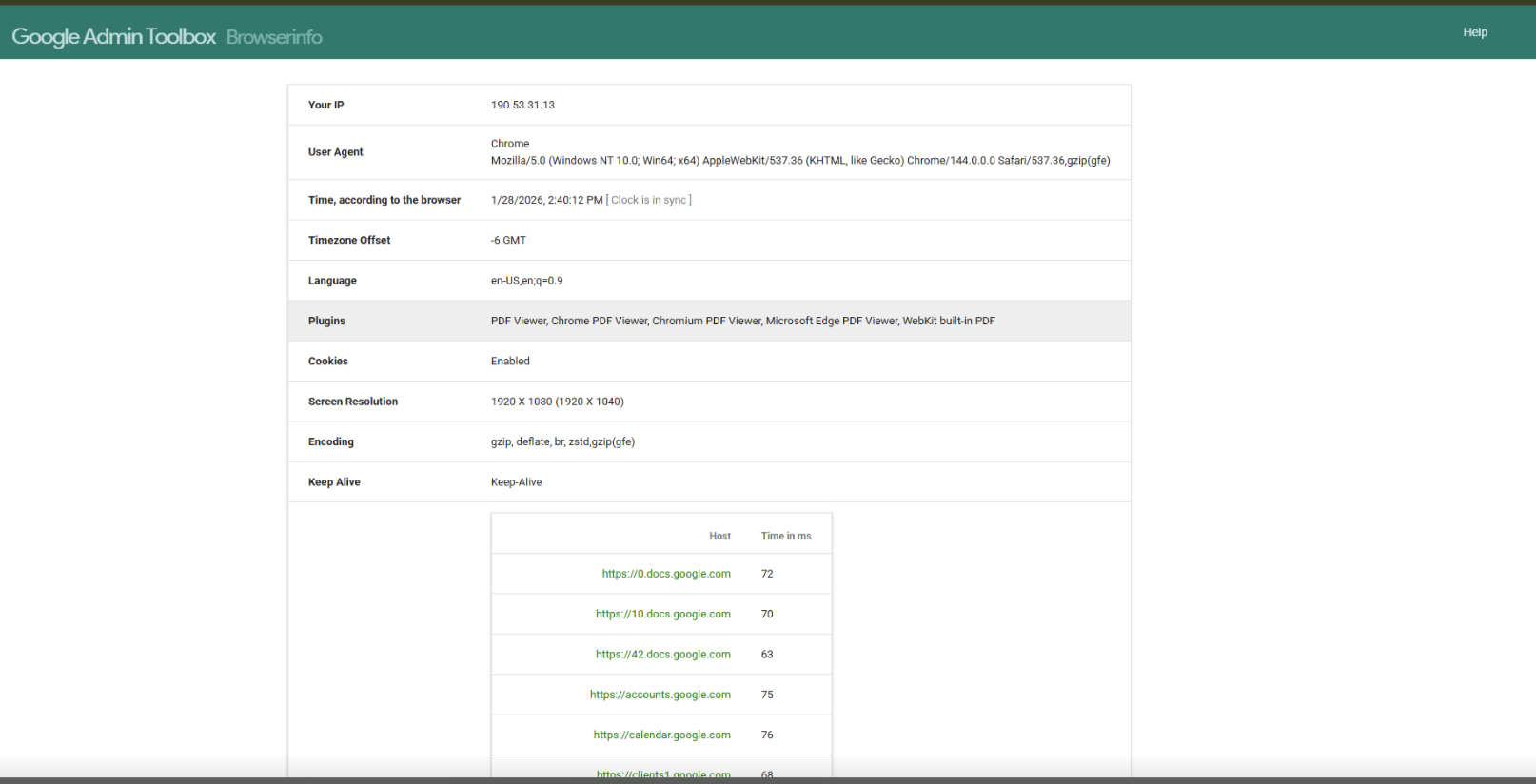
Your browser may have a time setting that doesn't match your operating system's clock. Use Google's Browser Info tool to verify:
Look for the Time section, which shows the time according to your browser and indicates if your clock is in sync
Compare the displayed time with your system clock
If there's a discrepancy, your browser time is not synchronized correctly
Sync your system clock
To fix the time mismatch, synchronize your system clock with an internet time server.
On Windows
Right-click the clock in your taskbar and select Adjust date/time
Toggle Set time automatically to On
Click Sync now under "Synchronize your clock"
Restart your browser and check the time again
On macOS
Open System Settings > General > Date & Time
Enable Set date and time automatically
Select a time server from the dropdown (default: time.apple.com)
Restart your browser and verify the time
Clear browser cache
After syncing your system clock, clear your browser cache to ensure the updated time settings take effect:
Chrome: Settings > Privacy and security > Clear browsing data
Firefox: Settings > Privacy & Security > Cookies and Site Data > Clear Data
Safari: Settings > Privacy > Manage Website Data > Remove All
After completing these steps, refresh Metricool and verify your scheduled posts now show the correct time in your timezone.