WLI: Account Customization
Updated 4 weeks ago
🔗 Account Customization
You can customize your logo by going to the Menu > Account Settings > White Label (from the integrator's main account). Don't forget to save changes.
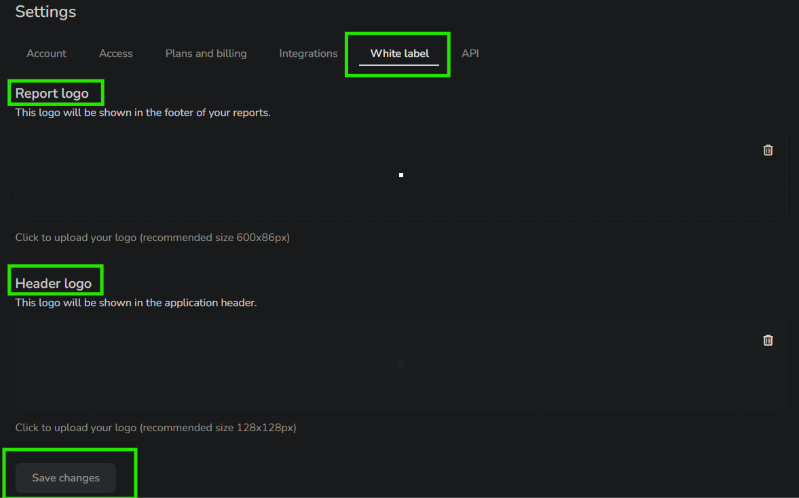
Also there, you'll find the logos for the reports section and your account header.
Interface Customization
Request any of the following changes via our live chat, and they will be applied immediately:
Enable/disable live support chat
You can hide the live support chat bubble in the lower-right corner of your screen when browsing Metricool, if needed.
Hide completely/partially Metricool's navigation bar
Located at the top of your screen once you log in to Metricool, this menu lets you move between Metricool's main features.
We have dedicated a whole article to explaining in detail the different levels of customization it offers (you can find more info there).

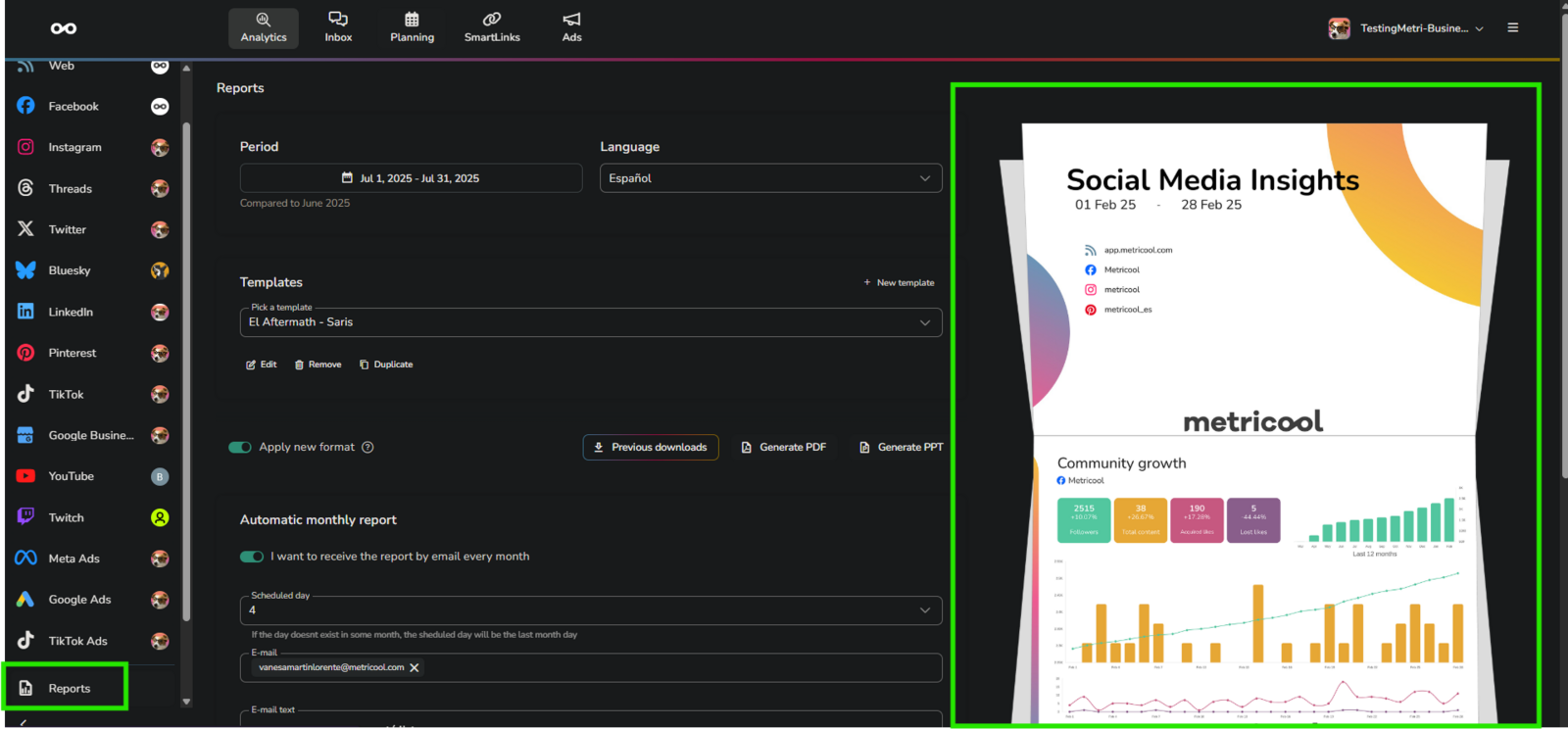
Change the preview image
You can provide the image (412x755 px) directly from a web server, and we'll update the image preview in the report section; it must be an image URL.
If you change the image location after providing the URL, it will break in the Metricool interface.
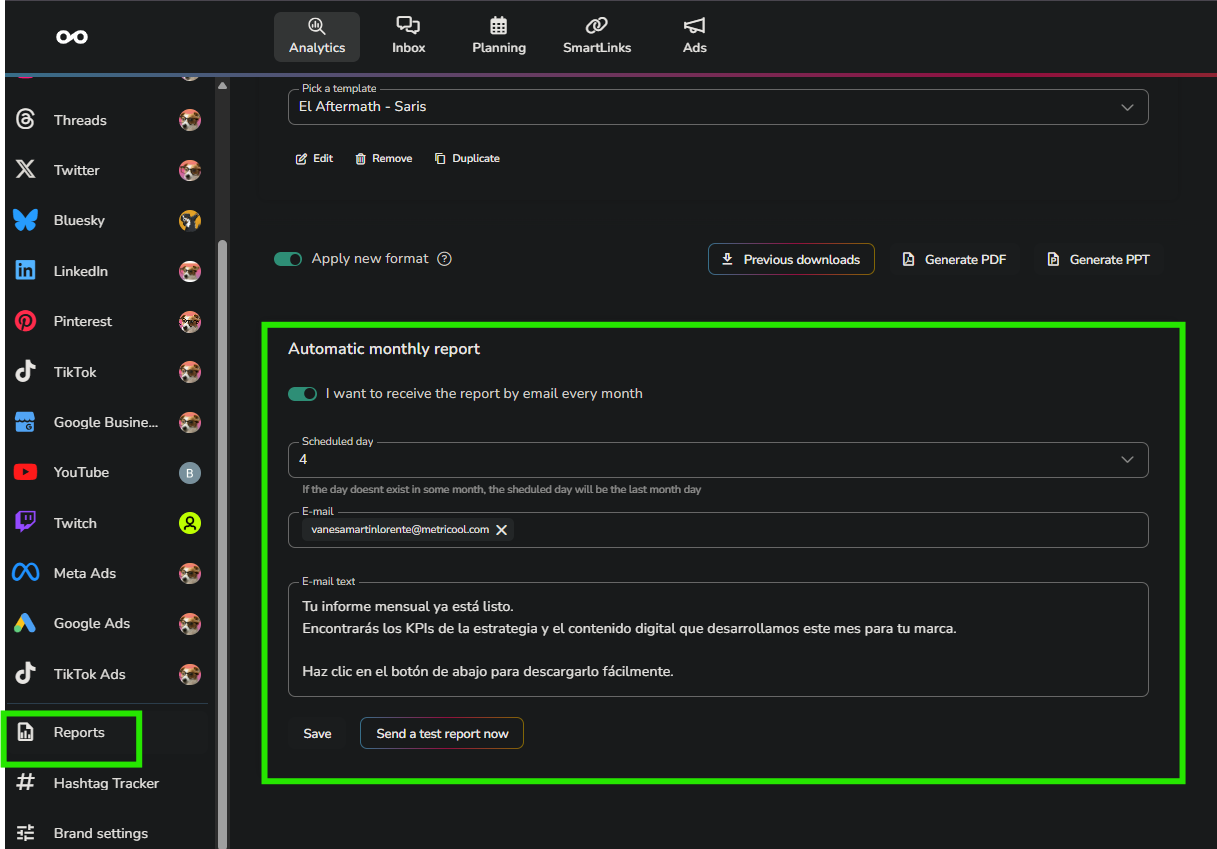
Hide the monthly reports section
Located at the bottom of the reports window.
Changing the main colors
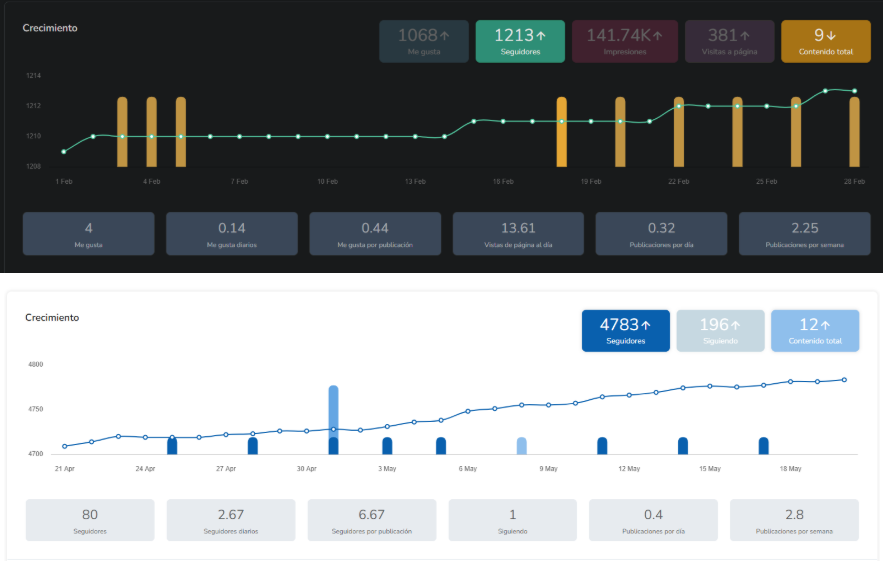
You have 13 colors to modify the text boxes and the historical graph line (time-history) displayed in the Metricool Analytics dashboard.
The color format must be hexadecimal (e.g., #B61F24 for the color red)
Send us the list of colors you want to add, and remember you can specify fewer than the 13 total if your brand has fewer colors.