
WLI: Integration Methods
Updated 2 months ago
🔗 iframe, API, or iframe + API
You have three methods for integrating Metricool as a White Label into your product.
Please note this feature is available exclusively for CUSTOM plans (see our pricing here).
1. Via iframe integration
This is the simplest and fastest integration method, recommended by our technical team.
It allows you to implement White Label in your system, web portal, or application without technical complications and in a short time. In this scenario, as the integrator, you generate an iframe in each of your end clients' accounts to display Metricool's graphical interface within your product, thereby integrating its functionality.
This process must be automated on your end, in accordance with your product's infrastructure.
Executing the iframe
After your client creates a username and password in your tool's authentication system, you can automate the assignment of an iframe which source (src) can be found by going to the menu > Connections > White Label.
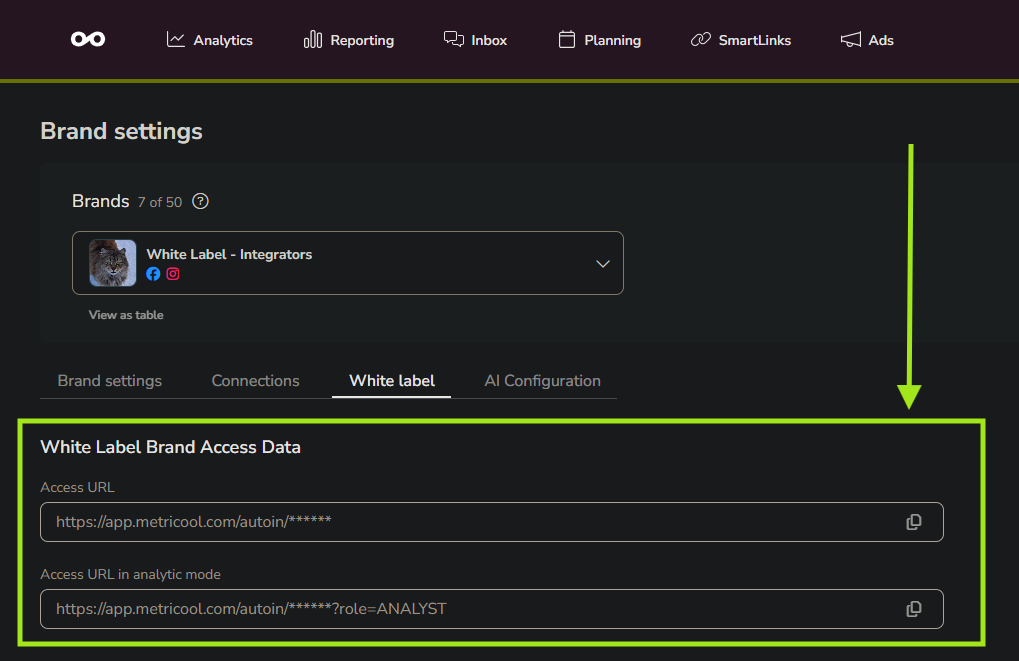
In the window above, you find two links: one for editing access and another for analyst mode (observer-only).
Please note that these links vary depending on the brand you are viewing (the brand identification -blogId- make them differ).
You can also access them via API calls, which we will explain shortly.
Prevent mixing up accounts
Open your master Metricool account and the iframe view in different browser.
Tip: You can display the iframe view in an incognito tab (Ctrl+Shift+N for Windows/Linux; Command(⌘)+Shift+N for Mac) .
E.g: how it looks applied:
<iframe
        src="https://app.metricool.com/autoin/SMSDESPAINHTMLLAPLACEAQDDXCJVYL?redirect=planner"
        referrerpolicy="origin"
        allow="camera; microphone"
        sandbox="allow-same-origin allow-scripts allow-popups allow-forms"
        style="width: 100%; height: 800px; border: 0; display: block;">

    </iframe>
As with any other iframe, you can customize it with parameters to better format and integrate it into your platform.
The example above includes the parameter redirect for illustration purposes. Find all details at references below.
2. Using API calls
Before diving in to the API method, and completing the iframe explanation before, you can obtain automatically the iframe autoin link through API calls by using a Get type request:
https://app.metricool.com/api/admin/profile?blogId=&userId=&refreshBrandCache=falseFind our complete API documentation with everything you need to know here.
Diving into the API integration
Performed via API, this method allows a total merger within your platform, as you manage both, visual and functional design.
However, it does not offer Metricool's entirety functionalities and its limitations are determined by the information you can get from our API.
We emphasize it's not possible to create the social networks connections workflow by using API calls directly.
Is also a slower process, with more effort required compare to the iframe integration but is commonly used for exporting all available functionallities on Metricool to a diferent tool, e.g., databases or CRMs (Customer Relationship Management).
This modality allow you to manage multiple brands through token automations. You can find this token, which we will further refer to as userToken, by navigating to the menu > Account Settings > API.
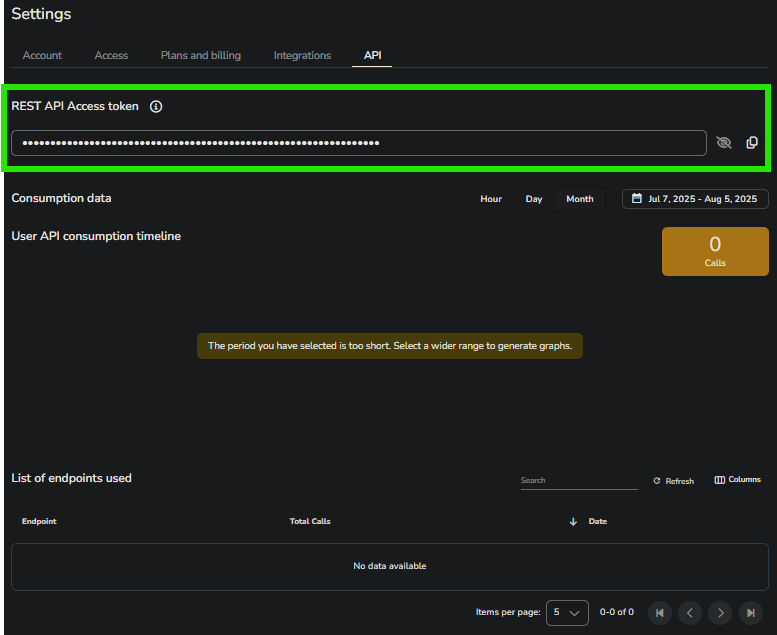
We talk in detail about how to properly work with our API documentation in the last reference of this article.
3. iframe + API
This is the must required integration type we received. It is used to have a deeper customization to be shown in your product.
If you want to create your own buttons for redirecting your customers to specific items of our core features, you can start by customizing this navigation bar according to your needs. You can check all levels of iframes UI customization in reference 3.
After this, you can redirect your clients in different ways, which are listed in reference 4 of this article.