
Your code has expired, so we can't send a new one from this screen. Go back with the arrow or reload the page, then log in again. We send you a new code.
Email verification code for new device or location
Updated 2 weeks ago
To protect your account, Metricool sends a verification code to your email when a login is detected from a new device or a different country. This additional security layer helps prevent unauthorized access to your account.
This is not the same as two-factor authentication (2FA). If you don't have 2FA enabled, Metricool sends this email code automatically when it detects a new device or location. If you do have 2FA enabled, you won't get this email code — you're asked only for the code from your authenticator app instead. Either way, you'll receive the new sign-in notification email described below once you're in. See Difference from two-factor authentication (2FA) below for the full comparison.
When is the code sent?
Metricool sends a verification code to your email when:
You sign in from a new device that hasn't been used before
You sign in from a different country than usual
This applies to logins with email and password, including from the mobile app.
If you have two-factor authentication enabled, this email code is not sent. You're asked only for the code from your authenticator app when signing in from a new device or location.
Changing your login email doesn't send a code either. See the FAQs in Manage your account settings.
How the verification process works
Enter your credentials
Log in with your email and password as usual.
Security alert screen
If Metricool detects a new device or location, you'll see a screen asking you to verify your identity. The screen shows only the first and last characters of your email address
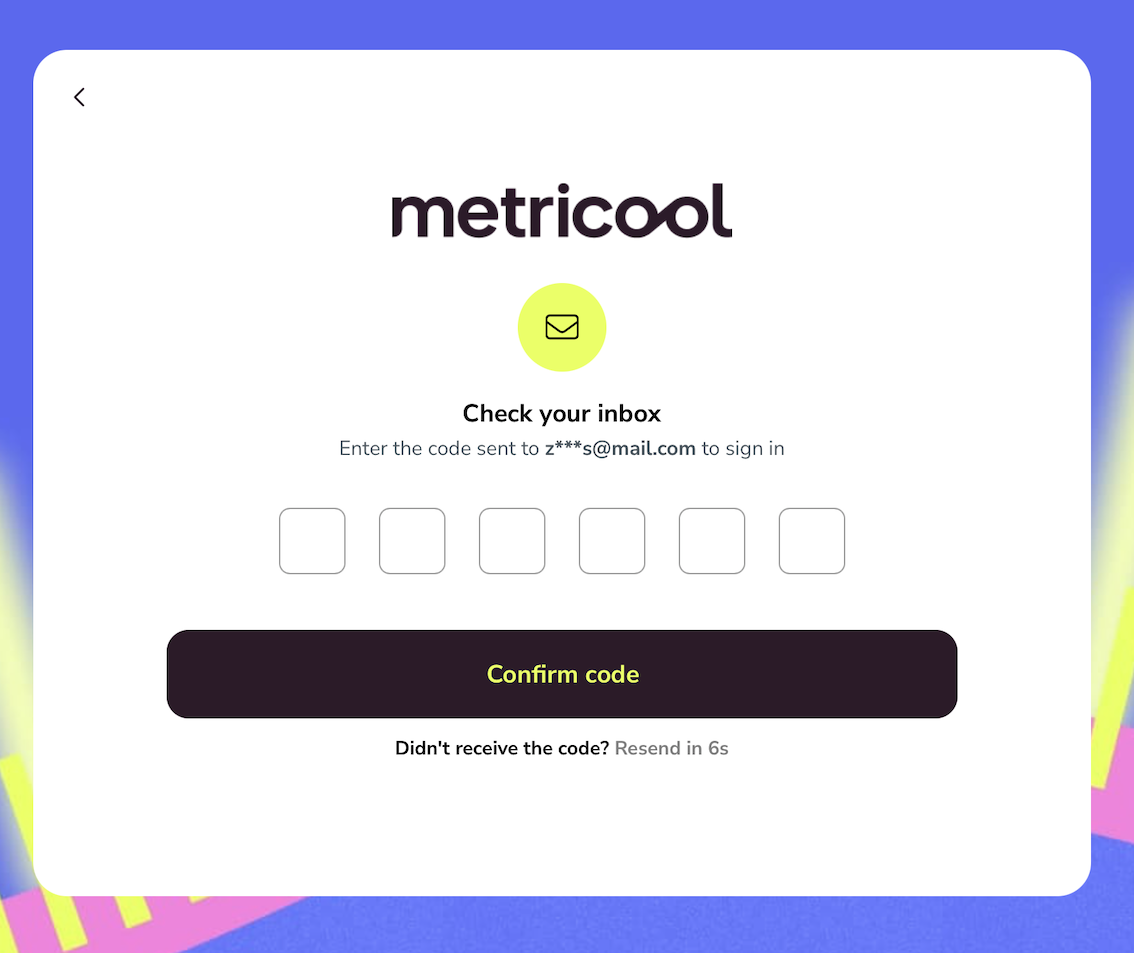
Check your inbox
Look for an email from Metricool with a 6-digit verification code. The code expires in 10 minutes.
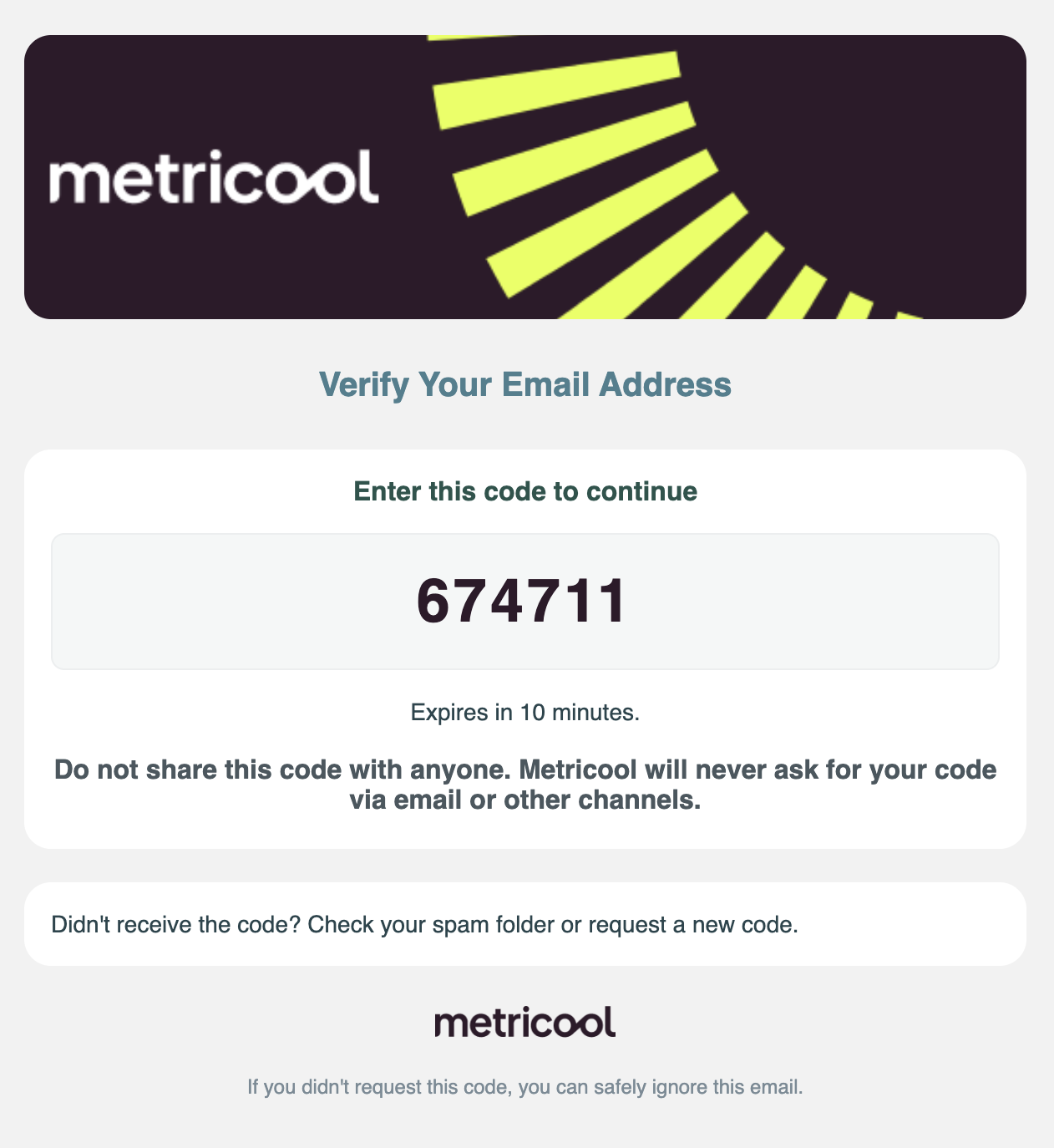
Enter the code
Type the 6-digit code on the verification screen and click Confirm code.
Access your account
Once verified, the device is saved as trusted for 30 days and you'll access your Metricool dashboard. You won't be asked for a new code from this device or location again during that period.
What the notification email includes
When a new sign-in is detected, you'll also receive a security notification email with details about the login attempt. This notification is sent every time you sign in from a new device or location, whether or not you have two-factor authentication enabled:
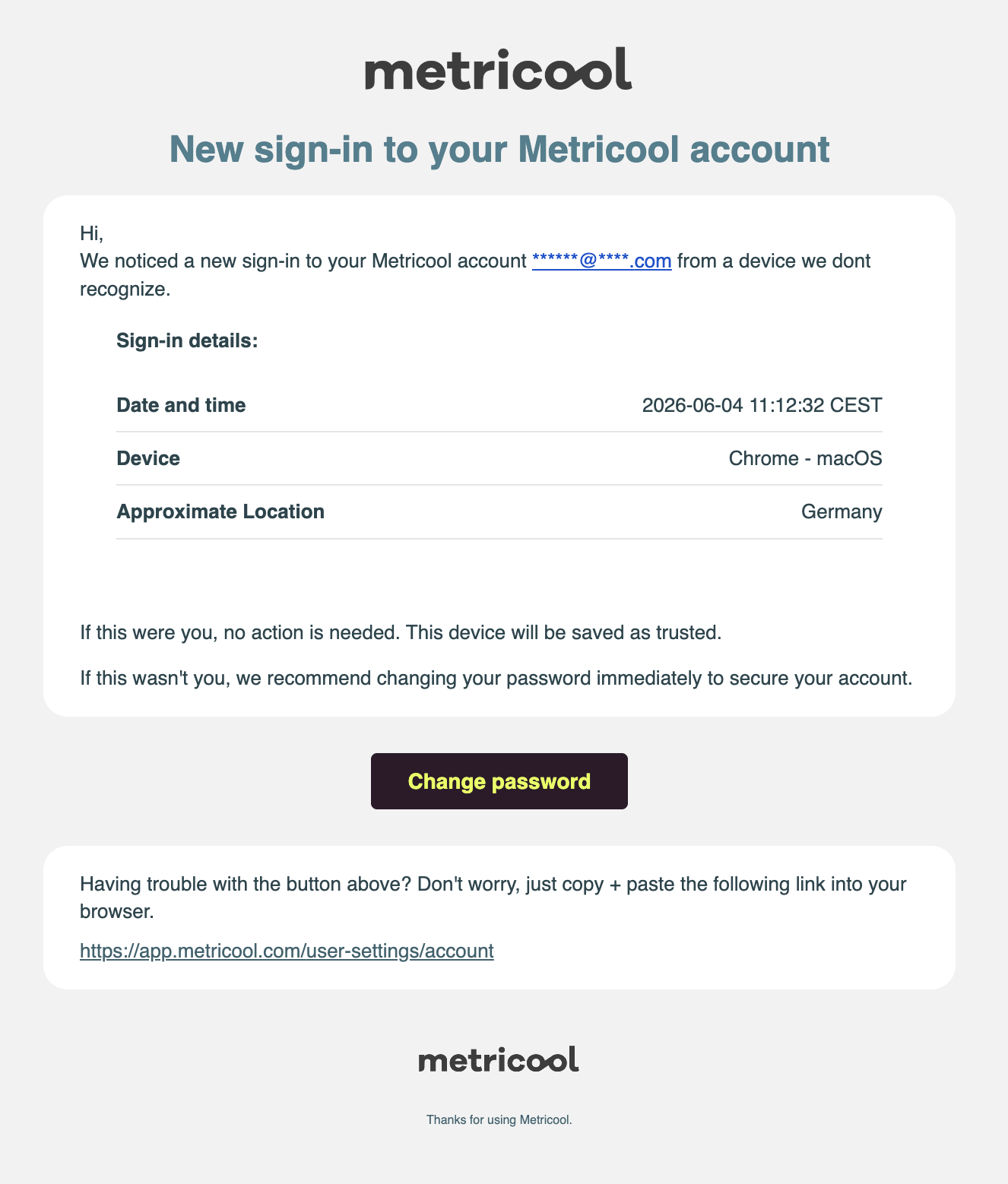
Date and time of the sign-in
Device used (for example: Chrome - macOS)
Approximate location (country)
If you recognize the activity, no action is needed. If you don't recognize it, change your password immediately from your account settings.
What to do if you don't receive the code
Check your spam or junk folder — the email might have been filtered
Wait a few minutes — email delivery can sometimes be delayed
Request a new code — click "Didn't receive the code? Resend" on the verification screen. You can request a new code every 30 seconds.
Verify your email address — make sure you're logging in with the correct email
Add us to your safe senders: add [email protected] to your safe senders list, and don't mark any Metricool email as spam. Marking our emails as spam can block future emails to your address.
If you don't receive the code after multiple attempts, contact Metricool support for assistance.
If the code is rejected or the screen shows an error
Only the code from your most recent email works, and every code expires 10 minutes after we send it. Find your case below.
I clicked Resend and got "There was an error"
The screen says "The entered code is incorrect"
Each time you log in or click Resend, we send a new code and the previous ones stop working. Open the most recent email from Metricool, copy the code, and paste it into the verification screen. Don't log in again or click Resend in between. If more than 10 minutes have passed since that email, go back or reload the page and log in again to get a new code.
I can't see the digits when I type the code on my phone
Copy the code from your most recent email and paste it into the verification screen instead of typing it.
If you didn't request the code
If you receive a verification code but didn't try to log in, someone else may be attempting to access your account. Take these steps:
Do not share the code with anyone. Metricool will never ask for your code via email, phone, or other channels.
Change your password immediately from Account Settings > Access or using the link in the notification email.
Close active sessions to sign out from other devices. See How to close active Metricool sessions.
Difference from two-factor authentication (2FA)
Email verification code (this feature) | Two-factor authentication (2FA) |
|---|---|
Sent automatically when new device or location detected | Requires manual setup in Account Settings |
Code sent to your email | Code generated by authentication app |
Cannot be disabled | Can be enabled or disabled |
Applies to email and password logins | Applies after entering credentials |
Not sent if you have 2FA enabled | Replaces the email code when enabled |
If you have two-factor authentication enabled, signing in from a new device or location does not trigger this email code. You're asked only for the code from your authenticator app. You'll still receive the new sign-in notification email described above, since that email is informational and isn't affected by 2FA.
To learn more about the optional two-factor authentication, see Metricool Two-factor authentication.
Related articles
Was this helpful?
Was this helpful?