No. Two-factor authentication is linked to an authentication app on your phone, not to a phone number.
To activate it, install an authentication app, scan the QR code shown in Metricool, and enter the verification code generated by the app.

Updated 3 weeks ago
Two-factor authentication (2FA) is a double-security system for accessing your Metricool account. By default it is disabled, so you must activate it manually.
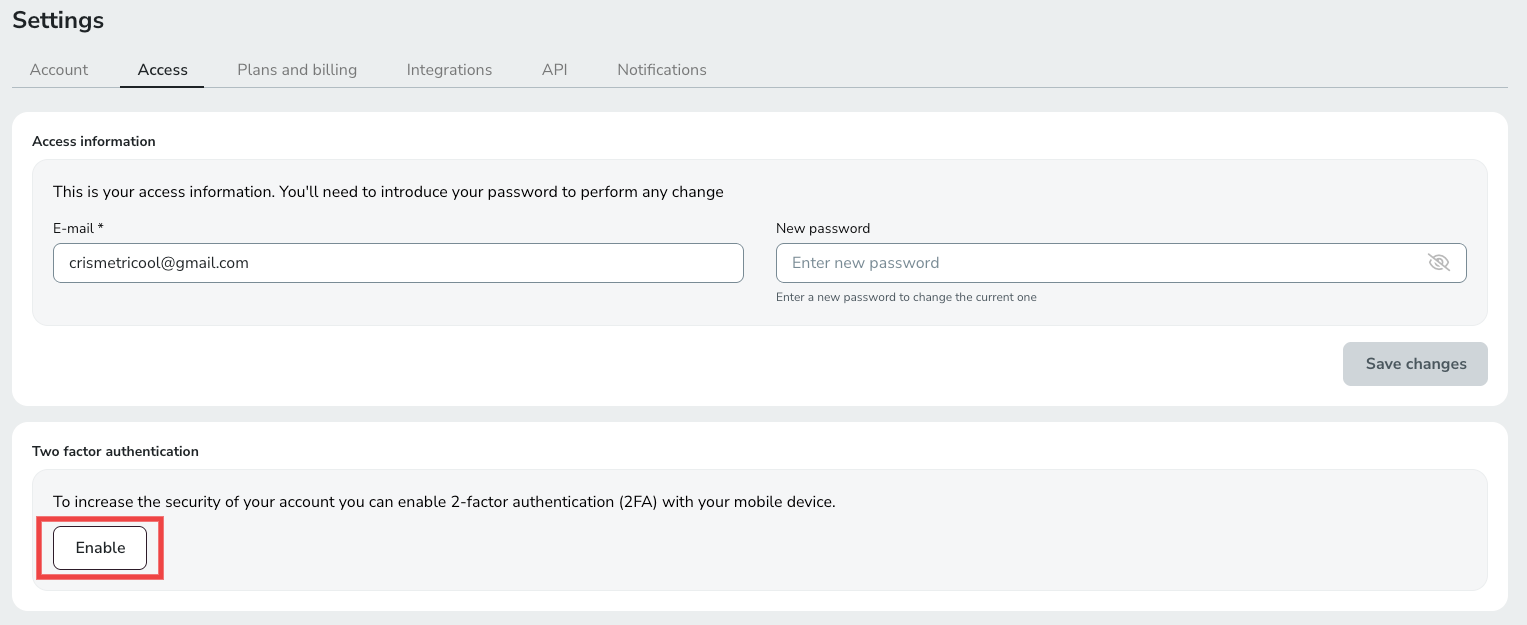
In Metricool, go to the top right menu > Account Settings > Access and click Enable next to Two-factor authentication. A setup window opens with four steps.
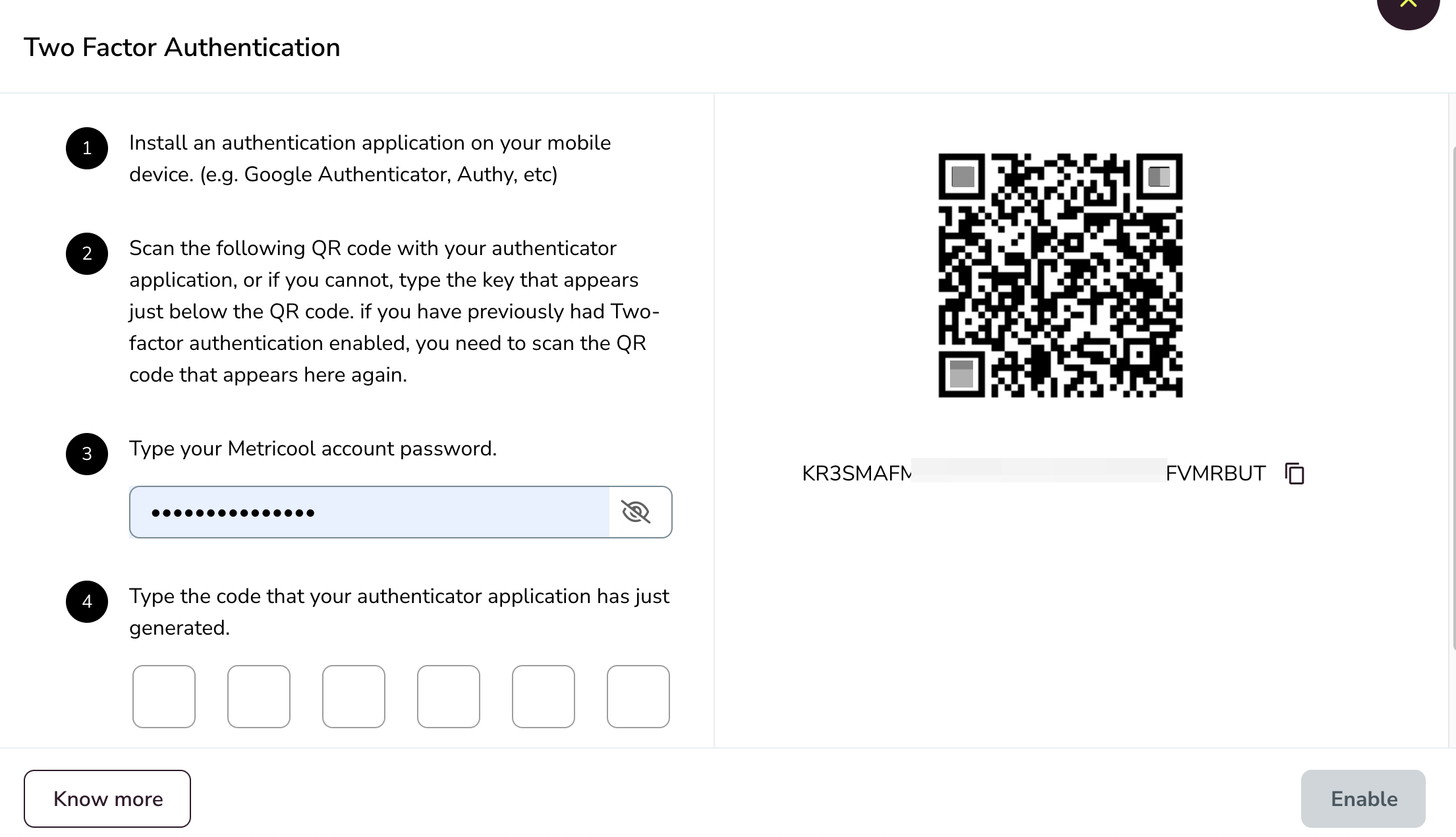
Scan the QR code
Open your authentication app and scan the QR code shown in the window. If you can't scan it, type the key that appears below the QR code into the app instead.
If you had two-factor authentication enabled before, scan the new QR code shown here: the previous one no longer works.
Type your Metricool password
Enter the password you use to log in to Metricool.
Type the code from your app
Enter the 6-digit code your authentication app has just generated and click Enable within 30 seconds. From then on, Metricool asks for a code from the app every time you log in.
The first thing to do is to log in with your email and password, as usual.
A second pop-up window will appear where you must enter the code you previously configured.
You can disable this option at any time in the Account Settings. You will be asked to confirm your password and authentication code.
If you want to activate it again, you will have to delete the Metricool account from the authentication app and do the activation process again.
No. Two-factor authentication is linked to an authentication app on your phone, not to a phone number.
To activate it, install an authentication app, scan the QR code shown in Metricool, and enter the verification code generated by the app.
If you change phones, you need to set up your authentication app again with your Metricool account.
If you disable and reactivate two-factor authentication, delete the Metricool account from the authentication app and repeat the activation process.
No. Two-factor authentication only works with codes generated by your authentication app. If you lose access to the app, contact us so we can disable it after verifying you're the account owner.
If you can't get a code from your authentication app (for example, because you lost your phone or changed it without moving the app), you can't disable two-factor authentication yourself, because disabling it requires your password and an authentication code.
Our support team can disable it for you once they verify that you are the account owner:
Contact us through the support chat or write to [email protected] from the email address registered in your Metricool account.
Tell us you've lost access to your authentication app and need two-factor authentication disabled.
If we need to confirm that you control that email address, we'll ask you to reply from it or to share a screenshot of a recent email from Metricool.
Once we verify ownership, we disable two-factor authentication. You can then log in with your email and password and activate it again from Account Settings > Access whenever you want.
We'll never ask for your password or your authentication codes.
No. The verification code is generated by your authentication app.