
How to clear browser session data (local storage) for Metricool
Updated 5 months ago
How to clear browser session data (local storage)
This guide shows you how to perform a full cleanup of all session data stored in your browser for Metricool. This advanced procedure removes cookies, local storage, and session storage, helping you fix mixed session issues when managing multiple brands or social media accounts.
Important: This procedure will log you out of all active Metricool sessions and delete saved session data. Make sure you have your credentials ready to log back in after completing the process.
When you need this advanced cleanup
Unlike clearing your browser cache, this advanced cleanup is required when:
You manage multiple brands in Metricool and sessions are getting mixed between different clients
The wrong social media accounts connect automatically when trying to add new connections
You frequently switch between different accounts on the same social networks (for example, multiple Instagram or Facebook accounts)
You see mixed data between different brands or accounts in your dashboard
You already cleared the cache but the issue persists
Incognito mode works fine, but your regular browser still shows problems
Why does this happen? Your browser stores session information in three locations: cookies, local storage, and session storage. When managing multiple brands or social media accounts, these stored credentials can overlap and mix, causing automatic connections to the wrong accounts.
Advanced cleanup step-by-step
Log out of Metricool
Go to https://app.metricool.com/logout to log out of all active sessions.
Wait until the logout is complete and you see the login screen.
Open the browser’s developer tools
In Google Chrome, Firefox, or Microsoft Edge
Use any of the following methods:
Press F12
Press Ctrl + Shift + I (Windows/Linux) or Cmd + Option + I (Mac)
Right-click anywhere on the page and select “Inspect” or “Inspect Element”
In Safari
You’ll need to enable the Develop menu first:
Go to Safari > Preferences (or Settings in recent versions)
Click the Advanced tab
Check the option “Show Develop menu in the menu bar”
Close the preferences window
Then press Cmd + Option + I to open the Web Inspector
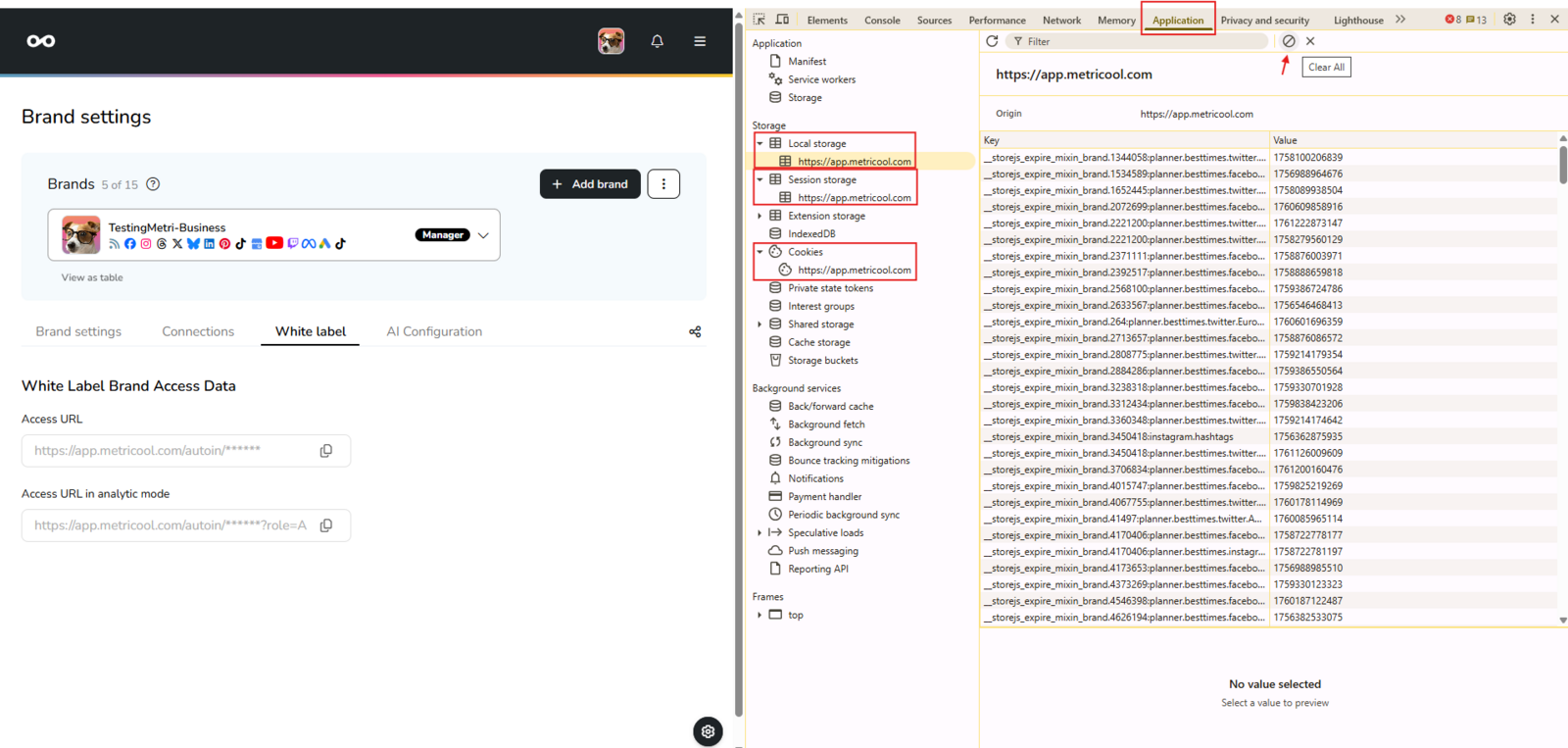
Check: You should see a new panel appear at the bottom or on the side of your browser with tabs labeled "Elements", "Console", "Network", "Application", etc.
Access the storage tab
In the developer tools panel, find and click the appropriate tab depending on your browser:
Chrome and Edge:Application tab
Firefox:Storage tab
Safari:Storage tab
You’ll see a sidebar on the left with several storage categories.
Can’t find the tab? If you don’t see “Application” or “Storage,” look through the available tabs. In some cases, it might be under additional options (shown as » or ⋮).
Clear Local Storage
In the sidebar of the Application/Storage tab, find and expand the Local Storage section.
Click on https://app.metricool.com.
In the right panel, you’ll see a table listing all stored data (key-value pairs).
To delete all data, do one of the following:
Option A: Right-click anywhere in the data panel and select “Clear” or “Clear All”
Option B: Select all items by pressing Ctrl+A (Windows/Linux) or Cmd+A (Mac), then press Delete
Option C: Click the delete icon (usually shown as a 🚫 or 🗑️ icon) at the top of the panel
Expected result: The Local Storage panel for app.metricool.com should now be completely empty, with no entries in the table.
Clear Session Storage
In the same sidebar, expand the Session Storage section.
Click on https://app.metricool.com.
You’ll see session storage data in the right panel.
Right-click anywhere in the panel and select “Clear” or “Clear All.”
Expected result: The Session Storage panel for app.metricool.com should now be completely empty.
Clear Cookies
In the sidebar, find and expand the Cookies section.
Click on https://app.metricool.com.
You’ll see a detailed list of all cookies stored, with columns like Name, Value, Domain, Path, Expires, etc.
To delete all cookies:
Option A: Right-click anywhere in the list and select “Clear All” or “Clear All from app.metricool.com”
Option B: Select all cookies with Ctrl+A (Windows/Linux) or Cmd+A (Mac), then press Delete
Final check: At this point, all three sections (Local Storage, Session Storage, and Cookies) for app.metricool.com should be completely empty. This confirms you have deleted all session data from your browser.
Close the developer tools and the browser
Close the developer tools panel:
Press F12 again, or
Click the X in the corner of the panel
Then close all browser windows and tabs.
Make sure the browser is completely closed:
Windows: Open Task Manager (Ctrl+Shift+Esc) and verify that no browser processes are still running
Mac: Fully quit the browser by pressing Cmd + Q (closing the red window button is not enough)
Wait 5–10 seconds to ensure all processes have finished.
Important: It’s crucial to fully close the browser, not just the window. On Mac, closing the window doesn’t end the application. Use Cmd + Q to quit completely.
Restart the browser and log in again
Open a new browser window
Log in to your Metricool account with your usual credentials
The system will treat this as a completely new session
Additional troubleshooting
The problem persists after following all steps
If you’re still experiencing mixed sessions after completing the procedure:
Try a different browser: Download and install another one (for example, if you use Chrome, try Firefox or Edge)
Update your browser: Make sure you’re using the latest version available
Disable extensions: Some browser extensions can interfere with session management. Temporarily disable all extensions and try again
Check session management extensions: If you use extensions like “SessionBox” or similar to handle multiple accounts, they may be causing conflicts
I can’t find the Application/Storage tab
If you can’t find the right tab in the developer tools:
Look for similar names like “Storage” or “Application”
Make sure your browser is up to date
In some browsers, tabs might be hidden — look for » or ⋮ icons to reveal more options
I deleted the data but it reappears
If the data comes back after deletion:
Ensure you fully closed the browser after deleting the data
Make sure no other Metricool tabs or windows were left open in the background
Close all browser windows, not just the active one
Tips to prevent mixed session issues
If you regularly manage multiple brands or client accounts, follow these best practices to avoid issues in the future:
➡️ Use different browsers for different clients
Dedicate one browser per client or group of brands:
Chrome for Client A
Firefox for Client B
Edge for Client C
This way, each browser keeps its own completely separate session data.
➡️ Create separate browser profiles
Chrome and Edge allow you to create independent profiles:
In Chrome: Click your profile icon (top right corner) → “Add” → Create a new profile
Give it a meaningful name (for example, “Client – Brand Name”)
Use each profile exclusively for one client or brand group
Each profile will have its own sessions, extensions, and settings
Tip: Profiles are more convenient than using multiple browsers because you can quickly switch between them without closing the app.
➡️ Clean regularly
Perform this full cleanup at least once a month if you manage multiple brands
Set a monthly reminder for preventive maintenance
Consider doing it each time you switch clients or projects
➡️ Log out from social networks after connecting
After connecting social media accounts in Metricool, log out of those networks in your browser
This prevents unwanted session data from being saved
Especially important for Facebook, Instagram, and Google
➡️ Use incognito mode for quick tests (with caution)
If you need to temporarily connect a specific account without affecting your regular sessions, use incognito mode
Incognito mode doesn’t save cookies or session data after closing the window
However, it’s not a permanent solution for managing multiple brands
Limitation of incognito mode: While it’s helpful for quick tests or temporary connections, it’s not practical for daily work with multiple brands. Using separate browser profiles or browsers is a more efficient long-term solution.