
Flows on Instagram
Updated today
Create a Flow from Planning → Flows by selecting + New Flow, choosing a template, and configuring the editor steps. Each template defines a trigger and a reply sequence.
Before you start
You need a connected professional Instagram account, the Edit Flows permission, and—for Comment → DM—a Facebook Page linked to the Instagram account. See What are Flows? for the full requirements.
Create a Flow
In Planning → Flows, select + New Flow.
In the modal, use the menu on the left to filter templates by network (All flows or Instagram), choose an Instagram template, and select Use template to open the editor.
In the editor, enter the Flow name.
Configure the trigger and each step in the sequence (some steps are optional and use a toggle).
Set Delay duration on steps that support it to space actions out — the unit can be seconds, minutes, or hours, and the maximum send delay is 24 hours.
Review the mobile preview on the right. When it is ready, activate the Flow, or save it as a draft to finish later.
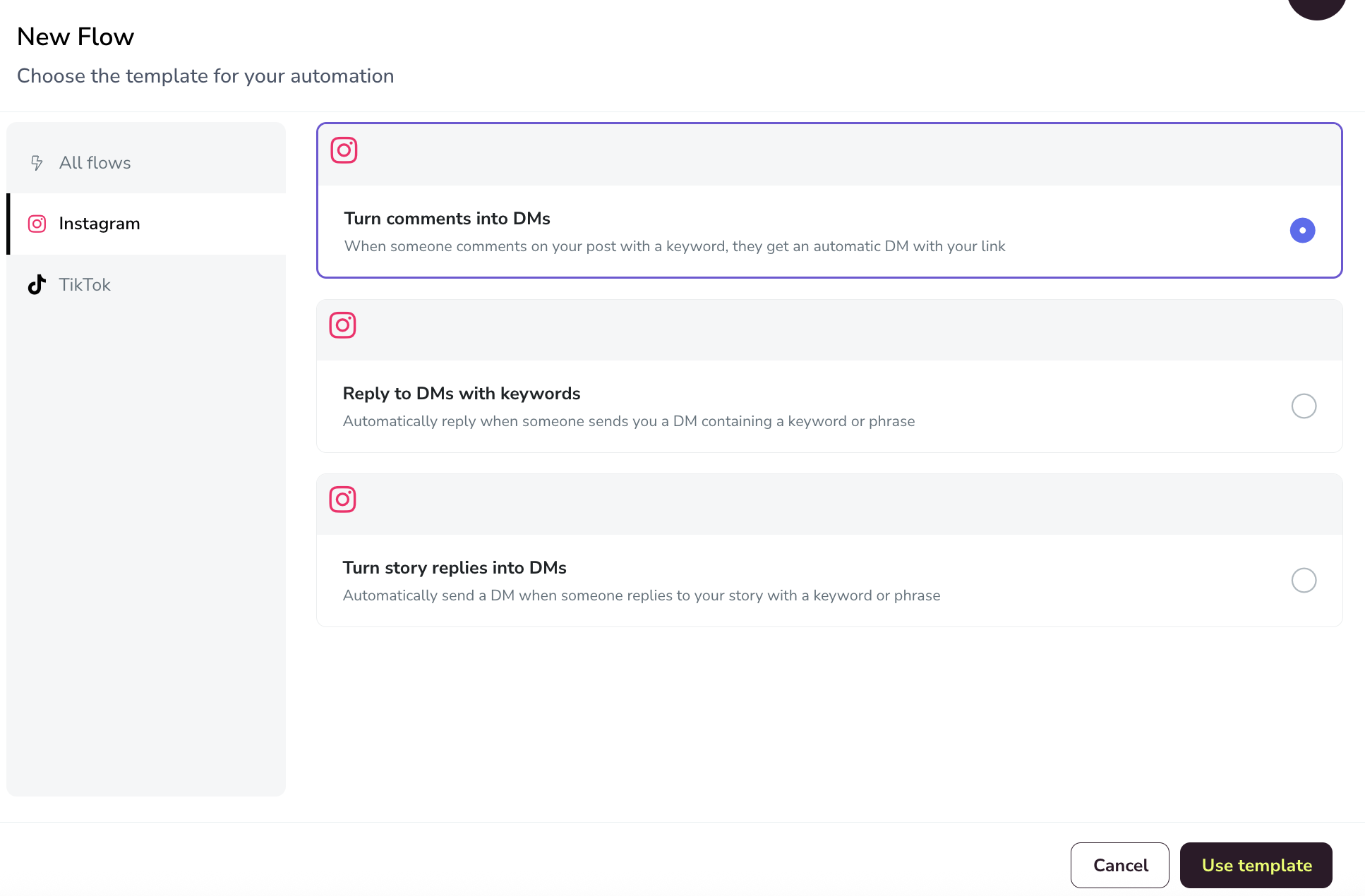
Available templates
Flows uses Instagram templates that define the trigger and the reply sequence. In the New Flow modal, choose Instagram in the menu on the left to see them. Filters also include Comment → Reply.
Template | Trigger | What it does |
|---|---|---|
Turn comments into DMs | Someone comments on your post | They get an automatic DM with your link |
Reply to DMs with keywords | Someone sends you a DM containing a keyword or phrase | Automatically replies to the DM |
Turn story replies into DMs | Someone replies to your story | Automatically sends a DM |
Configure Turn comments into DMs
This Flow turns comments into a DM sequence: first a DM asking the user to reply, then a message with the link.
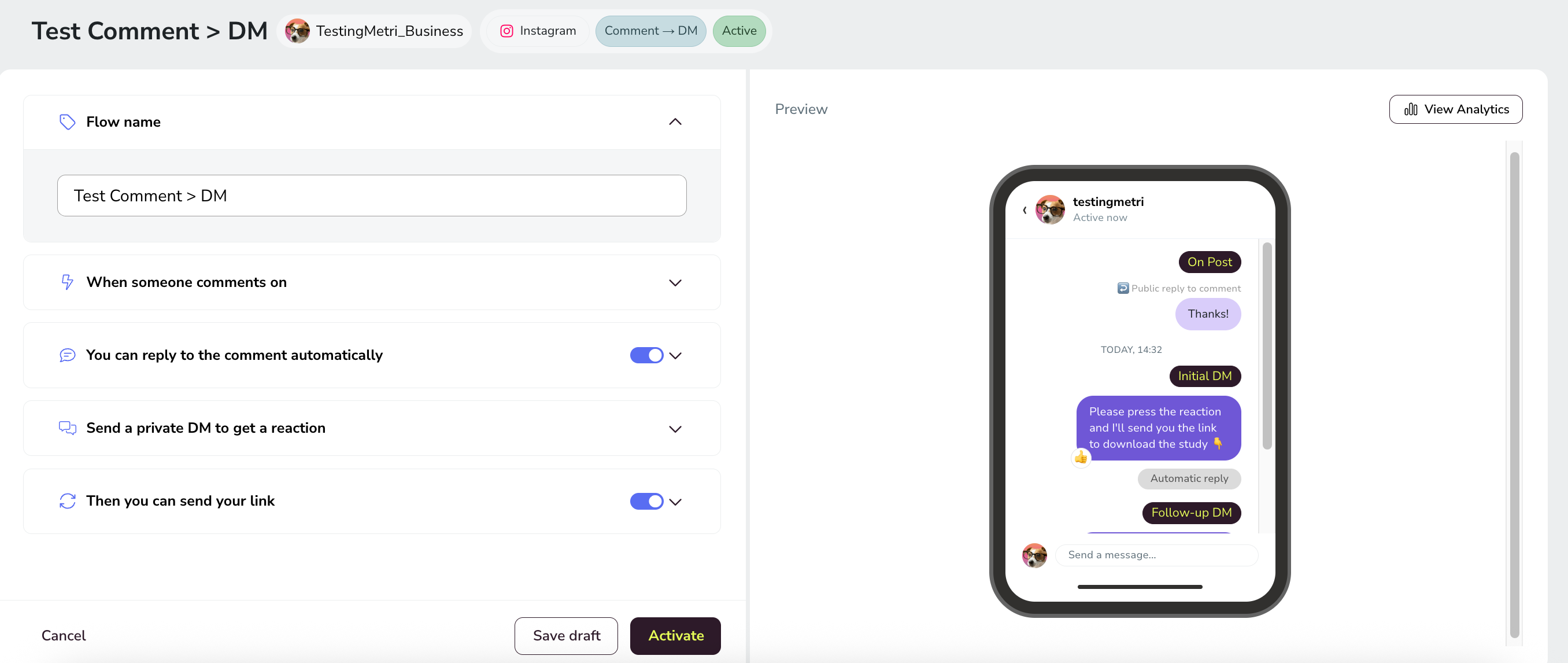
1. Name and trigger
The first block sets the name and which comment starts the automation.
Enter the Flow name.
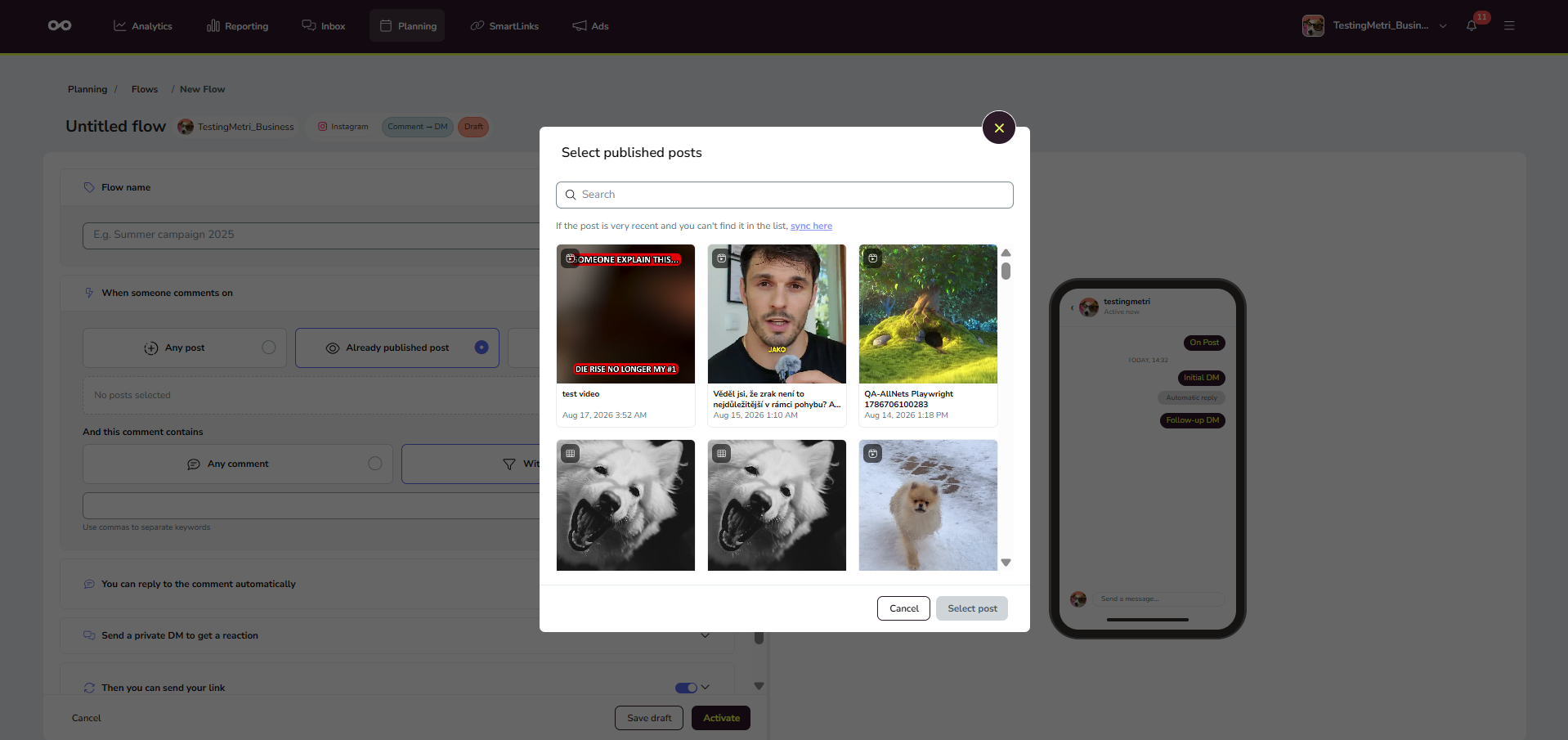
Under When someone comments on, choose the post scope:
Any post — any publication
Already published post — a post that is already live
Planner post — a post from the planner
Under And this comment contains, choose Any comment for every comment, or With keywords to trigger only on specific keywords. Separate keywords with commas. Matching rules are explained in How keyword matching works, below.
This Flow only evaluates comments on feed posts and Reels, even with Any post selected as the scope. Comments on stories and on boosted posts (ads) never trigger it; see Flows limits, restrictions, and permissions for the full list of restrictions.
When you select published content, the selector loads recently published posts, reels, and stories straight from the social network on demand. Analytics remains the default source, and content already assigned to an active automation for the same brand stays unavailable so two automations never compete for the same publication. If a post is very recent and you can't find it in the list, use the sync option to load it.
2. Public comment reply (optional)
Under You can reply to the comment automatically, you can reply publicly to the comment before the DM.
Turn the step on or off with the toggle.
Set Delay duration — maximum send delay is 24 hours.
Enter replies under Replies (up to 3 variations; one is chosen at random). Limit: 300 characters. For example: Thanks!
3. First DM to get a reply
Under Send a private DM to get a reaction, you send the first private message. This DM accepts text only (no links) and asks the user to send a text reply.
Turn the step on or off with the toggle.
Set Delay duration.
Enter the text in DM text. Limit: 1,000 characters. For example: Reply YES and I'll send you the link to download the study 👇
Asking the user to reply acts as a double opt-in and opens Meta's 24-hour window to send additional content and links. Instagram only reopens the window on an actual reply, not on a reaction, so write the DM text so it asks for a reply.
4. Follow-up DM with a link
Under Then you can send your link, define the second DM. It sends when the user replies to the first DM.
Instagram's 24-hour window for sending the follow-up resets with every new message the user sends, and Flows counts the window the same way.
Turn the step on or off with the toggle.
Set Delay duration — maximum send delay is 24 hours.
Enter the follow-up DM text. Limit: 1,000 characters. For example: Here you have the link. Thanks! 👍
Complete Button text (for example: Get it!) and Link (a URL, for example https://metricool.com/).
A delay on each step spaces the sequence so it does not fire all at once and feels less like a bot. Maximum delay is 24 hours.
Configure Reply to DMs with keywords
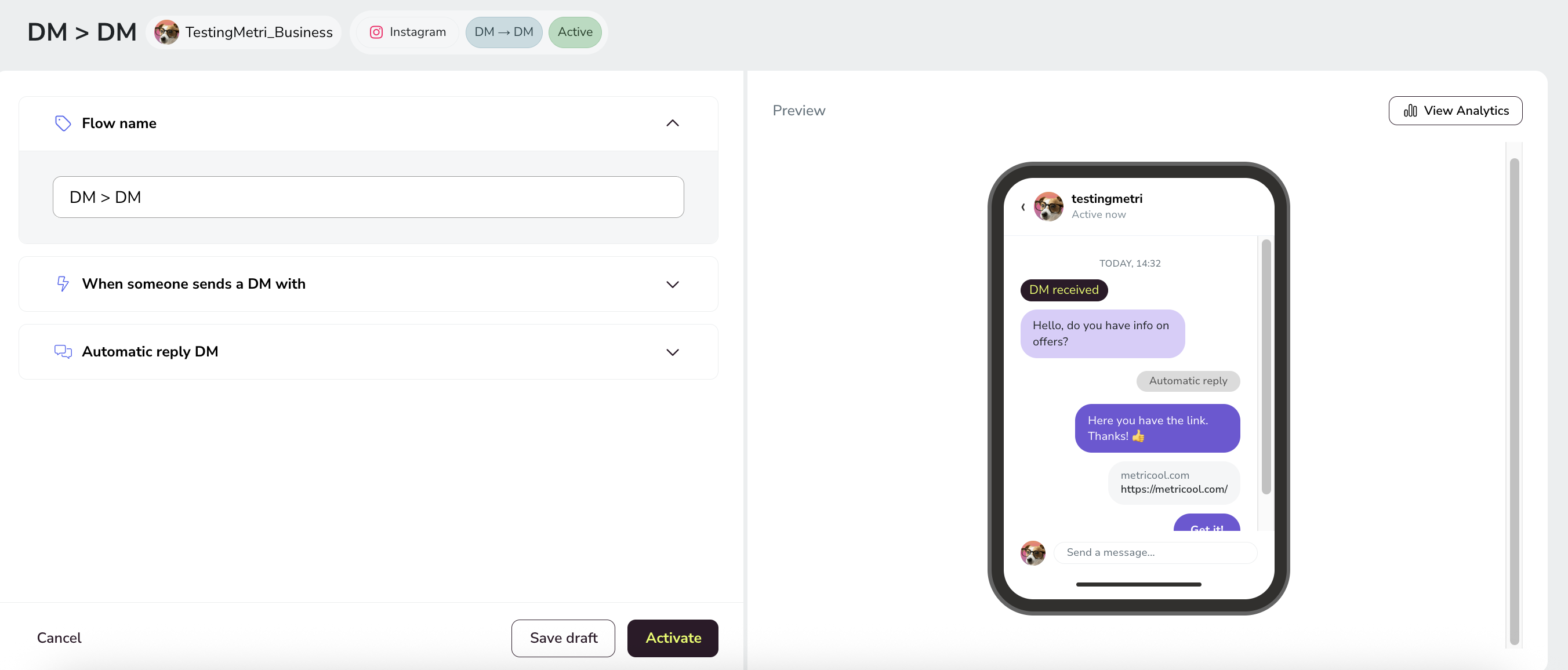
When a DM arrives, Metricool sends an automatic DM reply. A link can be included in the reply DM.
Trigger
Enter the Flow name (for example: DM > DM).
Under When someone sends a DM with, choose what triggers the Flow. In The DM contains, select Any DM or With keywords (separate keywords with commas; see How keyword matching works, below).
Automatic reply DM
Under Automatic reply DM, define the reply message.
Set Delay duration — the unit can be seconds, minutes, or hours, and the maximum send delay is 24 hours.
Enter the reply text. Limit: 1,000 characters. For example: Here you have the link. Thanks! 👍
Complete Button text (for example: Get it!) and the optional Link (a URL, for example https://metricool.com/).
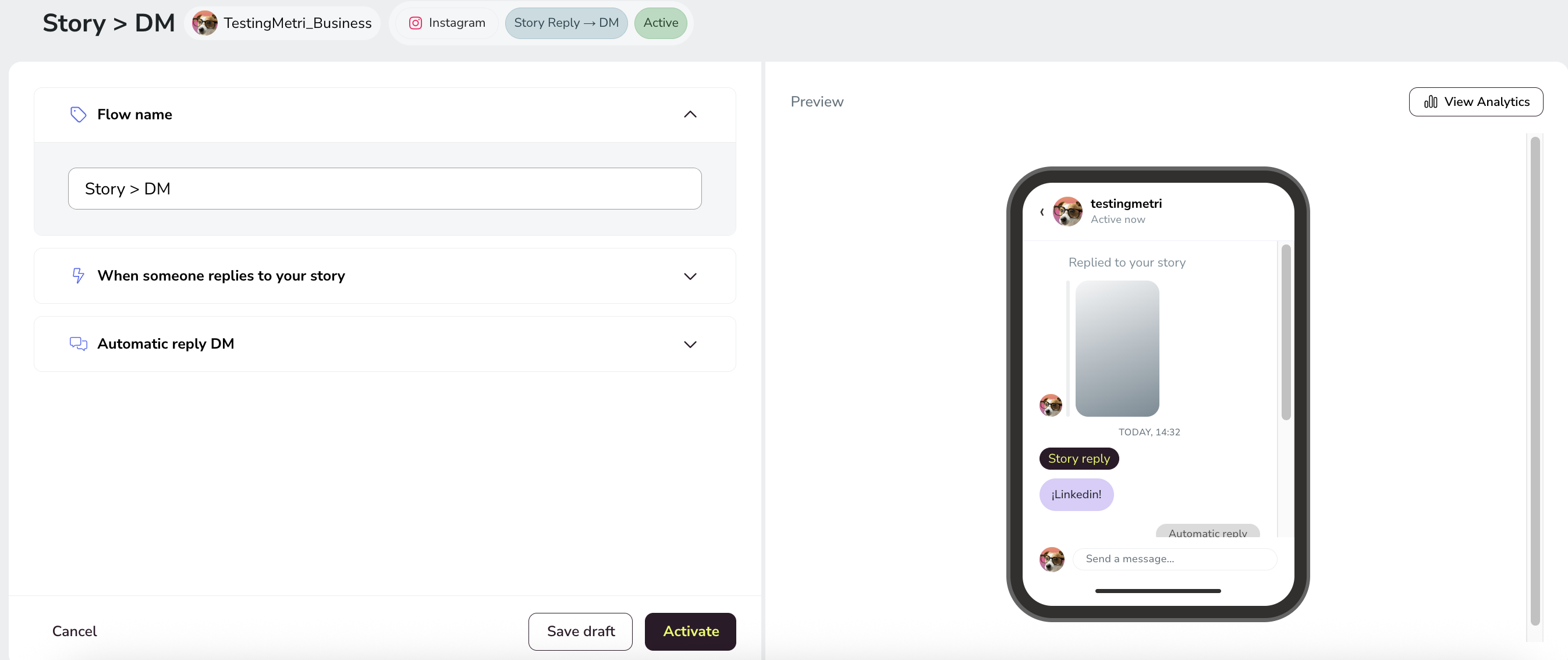
Configure Turn story replies into DMs
When someone replies to a story, Metricool sends an automatic DM with text and an optional link.
Trigger
Enter the Flow name (for example: Story > DM).
Under When someone replies to your story, set the Story scope: Any story, or Scheduled story and select the posts that trigger the Flow.
Under Word or reaction (optional), choose Any reply or With word or reaction (separate keywords with commas; see How keyword matching works, below).
Automatic reply DM
Under Automatic reply DM, define the reply message.
Set Delay duration — the unit can be seconds, minutes, or hours, and the maximum send delay is 24 hours.
Enter the reply text. Limit: 1,000 characters. For example: Here you have the link. Thanks! 👍
Complete Button text (for example: Get it!) and the optional Link (a URL, for example https://metricool.com/).
It does not fire on Close Friends replies or story likes: only text and emojis trigger the Flow.
How keyword matching works
These rules apply to every keyword field in Instagram Flows: comments, DMs, and story replies.
Capitalization doesn't matter. "Info" and "info" match the same comments.
Accents do matter. "guía" and "guia" are different keywords, so add both spellings if your audience writes it both ways.
Any keyword is enough. The Flow starts when the message contains at least one of your keywords, even inside a longer word. For example, "info" also matches "information".
Because a keyword can match inside other words, choose terms specific enough to avoid triggering the Flow by accident.
Additional resources
📹 How to Automate Instagram DMs from Comments with Metricool — EN · ES · FR · DE
📝 Instagram Automated Replies for Comments, DMs, and Stories - Check language availability using the article selector
Related articles