
Flows on TikTok
Updated 6 days ago
TikTok Flows automate comment moderation and replies. Create them from Planning → Flows by selecting + New Flow and choosing a TikTok template. TikTok Flows require a TikTok Business account connected to Metricool.
TikTok Flows require a Business account. Comment-based Flows are available globally; the DM → DM Flow is coming soon and will be available only in the United States.
Before you start
TikTok Business account connected to Metricool
User permission Edit Flows enabled
See What are Flows? for the general Flows overview and requirements.
Create a TikTok Flow
In Planning → Flows, select + New Flow.
In the modal, use the menu on the left to filter templates by network (All flows or TikTok), choose a TikTok template, and select Use template to open the editor.
In the editor, enter the Flow name.
Configure the trigger and the action step.
Review the mobile preview on the right. When it is ready, activate the Flow, or save it as a draft to finish later.
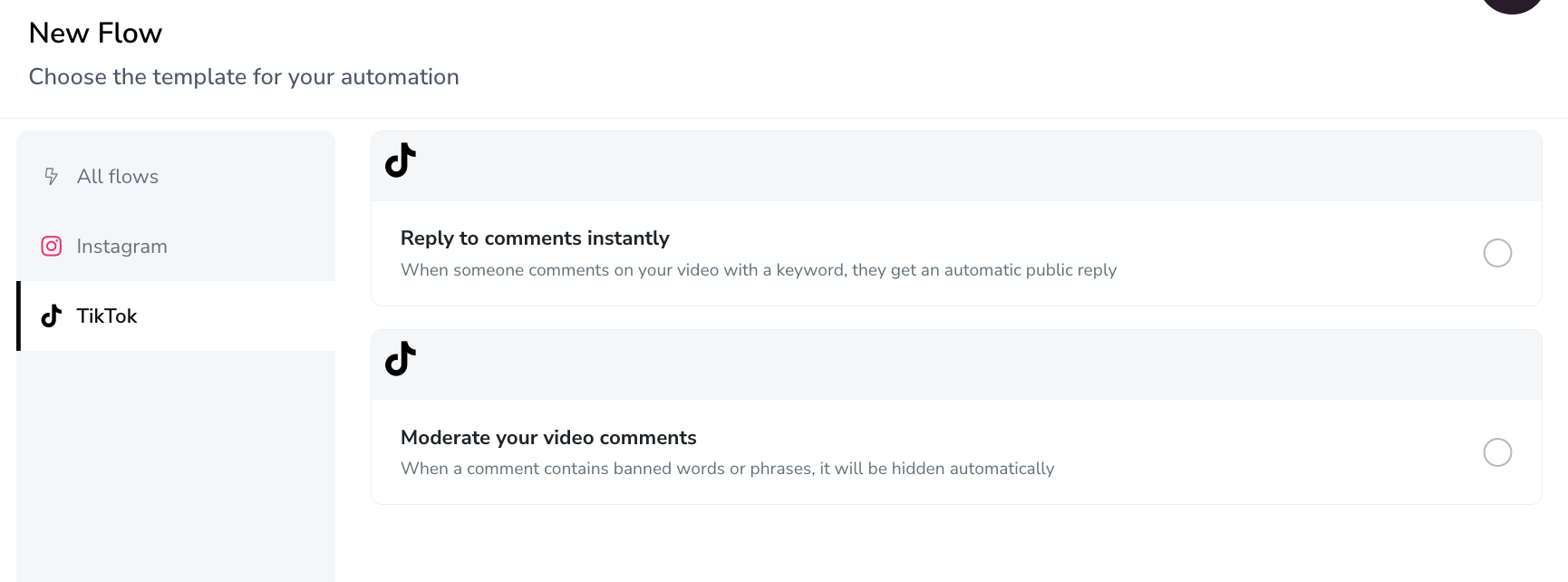
Available templates
TikTok offers two Flow templates, plus a DM Flow that is coming soon. Comment-based Flows are available globally.
Template | Trigger | What it does | Availability |
|---|---|---|---|
Moderate your video comments | Someone comments on your video | Comments with banned words or phrases are hidden automatically | Global |
Reply to comments instantly | Someone comments on your video with a keyword | They get an automatic public reply | Global |
DM → DM | Someone sends a DM | Sends an automatic DM reply | Coming soon |
Configure Moderate your video comments (Comment → Hide)
This Flow automatically hides comments that contain banned words or phrases.
1. Name
Enter the Flow name (for example: Hide comments with banned words).
2. Scope of videos
Under Scope of videos, choose which videos the Flow applies to:
Any video — every video
Published video — a video that is already live
Scheduled video — a video from the planner
For Published video or Scheduled video, select Select posts and choose the posts that trigger the Flow. The selector loads recently published posts straight from the social network on demand, and content already assigned to an active automation for the same brand stays unavailable so two automations never compete for the same publication. If a video is very recent and you can't find it in the list, use the sync option to load it.
3. Keywords
Under And this comment contains, enter the banned words or phrases that hide the comment. Separate keywords with commas. For example: Balón. Matching rules are explained in How keyword matching works, below.
Hidden comments are not deleted. They are hidden from public view on your post.
Configure Reply to comments instantly (Comment → Reply)
This Flow automatically posts a public reply when someone comments on your video with a keyword.
1. Name
Enter the Flow name (for example: Test reply a comment).
2. Scope of videos
Under Scope of videos, choose which videos the Flow applies to:
Any video — every video
Published video — a video that is already live
Scheduled video — a video from the planner
For Published video or Scheduled video, select Select posts and choose the posts that trigger the Flow. If a video is very recent and you can't find it in the list, use the sync option to load it.
3. Trigger keywords
Under And this comment contains, choose Any comment or With keywords, and enter the keywords that trigger the reply. Separate keywords with commas. For example: Bien!, Bien, Muy bien!, Muy guay!. Matching rules are explained in How keyword matching works, below.
4. Public reply
Under Public reply, define the automatic reply.
Set Delay duration — the unit can be seconds, minutes, or hours, and the maximum send delay is 24 hours.
Enter the Reply text. Limit: 150 characters. For example: Gracias! 😘
The reply is published as a public comment. Links are shown as plain text and are not clickable.
Configure DM → DM
When a DM arrives, Metricool sends an automatic DM reply. This template is coming soon and not available yet.
The DM → DM Flow is limited to 10 automated messages. Once the limit is reached, the Flow stops sending until the limit resets.
How keyword matching works
These rules apply to every keyword field in TikTok Flows.
Capitalization doesn't matter. "Bien" and "bien" match the same comments.
Accents do matter. "balón" and "balon" are different keywords, so add both spellings if your audience writes it both ways.
Any keyword is enough. The Flow starts when the comment contains at least one of your keywords, even inside a longer word. For example, "info" also matches "information".
Because a keyword can match inside other words, choose terms specific enough to avoid triggering the Flow by accident.
TikTok-specific restrictions
Comment-based Flows (Moderate your video comments and Reply to comments instantly) are available globally.
The DM → DM Flow is coming soon. It will be available only in the United States — not in the EU or UK.
A TikTok Business account is required. Personal accounts cannot use Flows.
A post cannot have two active automations.
For the full list of character limits, API restrictions, and permissions across all networks, see Flows limits, restrictions, and permissions.
Related articles