
How to manage Flows
Updated 6 days ago
Manage your Flows from the list in Planning → Flows: search, filter, run bulk actions, or use the row menu to edit, pause, clone, or delete.
Open the Flows list
In Planning, open the Flows tab. The list shows every automation with summary metrics, and the toolbar lets you search, filter, run bulk actions, or create a Flow.
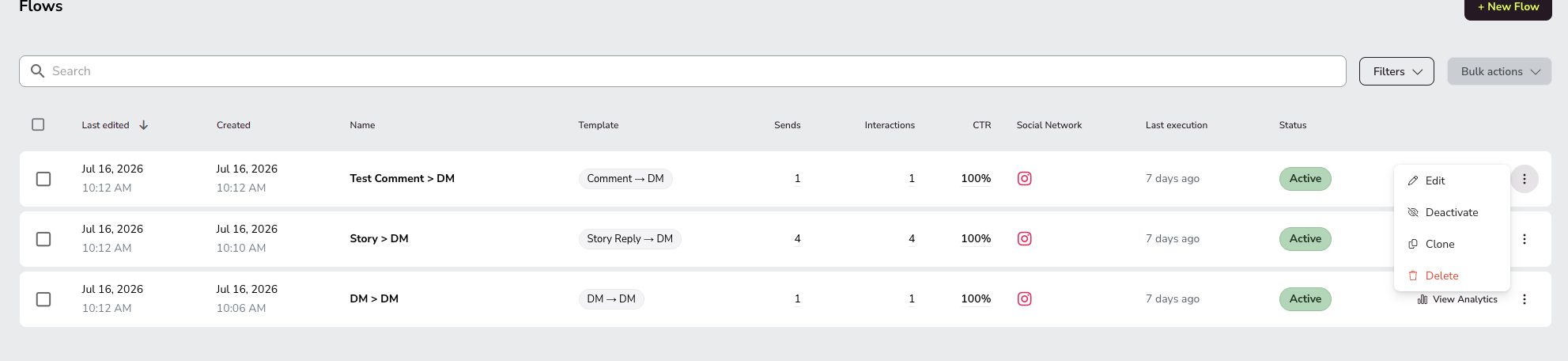
At the top of the list you can:
Use the Search field to find Flows by name
Open Filters to narrow the list
Use Bulk actions on selected rows
Select + New Flow to create an automation
Column | What it shows |
|---|---|
Last edited | Date and time of the most recent change to the Flow's setup. This is different from Last execution, which shows when the Flow last ran |
Created | Date and time you created the Flow |
Name | Flow name |
Template | Template used (for example, Comment → DM) |
Sends | Times the automation has fired |
Interactions | For Comment → DM: clicks on the reaction button or replies to the first DM. For DM → DM and Story Reply → DM: a click on the link, with unique clicks tracked per flow |
CTR | Interaction rate (interactions / sends). For DM and Story Reply flows, an interaction counts only when the person clicks the link |
Social Network | Network the Flow runs on (Instagram, TikTok, or X) |
Last execution | Last time the Flow ran |
Status | Current state (Active, Inactive, or Draft) |
Each row also includes View Analytics and a three-dot menu for row actions.
Filter the list
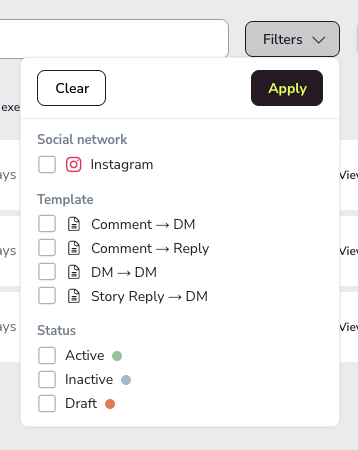
Open Filters, choose the options you need, then select Apply. Use Clear to remove all filters.
Filter | Options |
|---|---|
Social network | Instagram, TikTok, X |
Template | Comment → DM, Comment → Hide, Comment → Reply, DM → DM, Story Reply → DM, Auto DM, Auto Repost + Unpost, Comment to DM |
Status | Active, Inactive, Draft |
Bulk actions
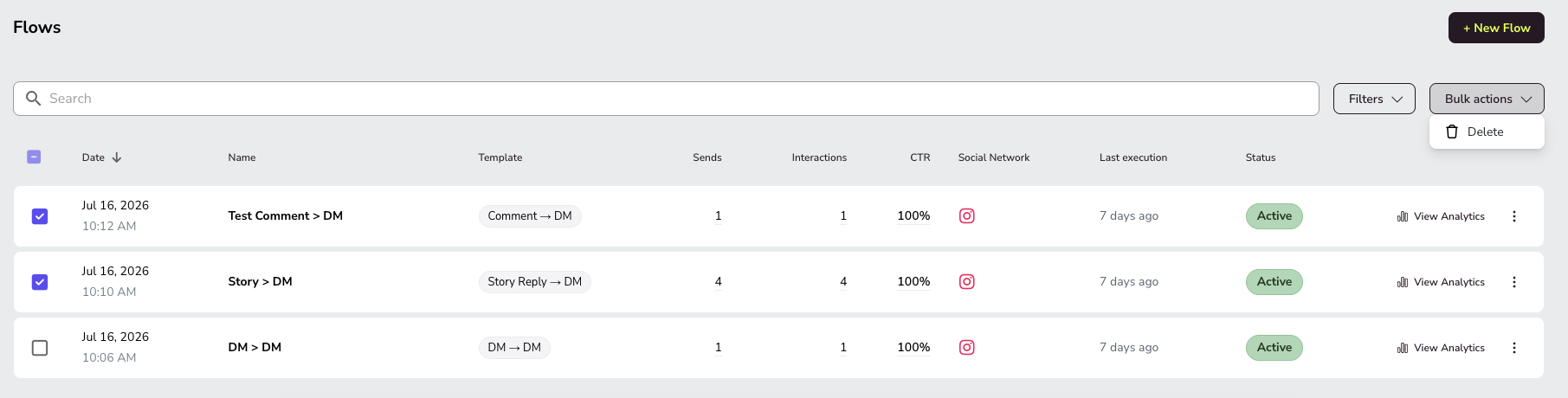
Select one or more Flows with the checkboxes on the left, open Bulk actions, and choose Delete to remove the selected automations.
Row menu actions
From the three-dot menu on each row you can edit, pause, clone, or delete the Flow.
Action | Effect |
|---|---|
Edit | Opens the Flow editor. Hidden for users without editing permissions |
Deactivate | Pauses the automation (Inactive status) |
Clone | Creates a copy of the Flow |
Delete | Deletes the Flow |
Automation statuses
Each Flow can be Active, Inactive, or Draft.
Status | Meaning |
|---|---|
Active | Runs normally |
Inactive | Paused manually (for example, with Deactivate) |
Draft | Does not run. Also moves to this status if the social network connection is lost, with a visible warning |
Related articles