Import Content from Canva to Your Posts
Updated last month
Canva is a design tool that connects directly to the Metricool Planner, so you can access, export, and attach your designs without leaving the platform.
The integration with Canva is available on paid plans. Check the main differences between Free and paid plans here.
Exporting directly from Canva follows a different flow and may behave differently. See Two ways to bring Canva content into Metricool for more details
Connect Canva to Metricool
To add your content from Canva when planning, you first need to connect your Canva account to Metricool by following these steps:
Go to Planning (top menu).
Click on the multimedia icon and select Canva.
Click on Connect and complete the process, allowing the required permissions for Metricool.
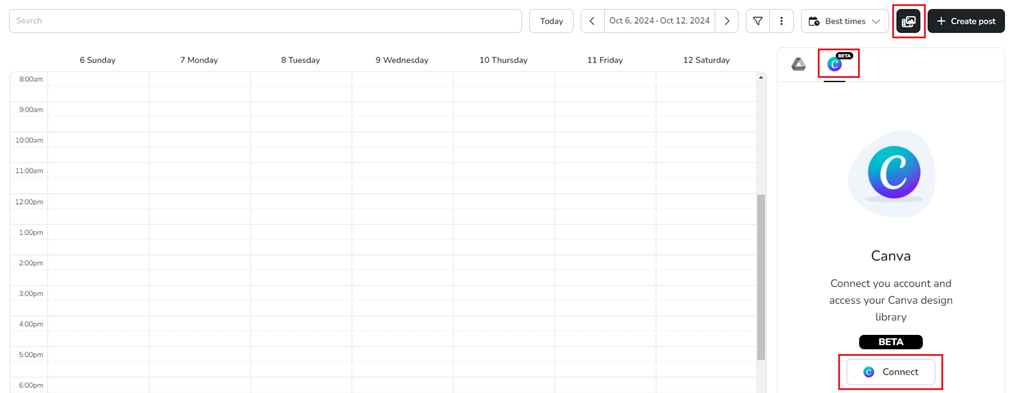
After connecting your account, you will be able to access your Canva files, and there is also a search tool available.
Supported formats are: jpg, pdf, png, pptx, gif, and mp4.
Add Content from Canva
When searching for shared files from Canva, you may need to type the full file name for it to appear in the results. This depends directly on the Canva API and cannot be modified from Metricool.
You have two options to attach content from Canva to your posts:
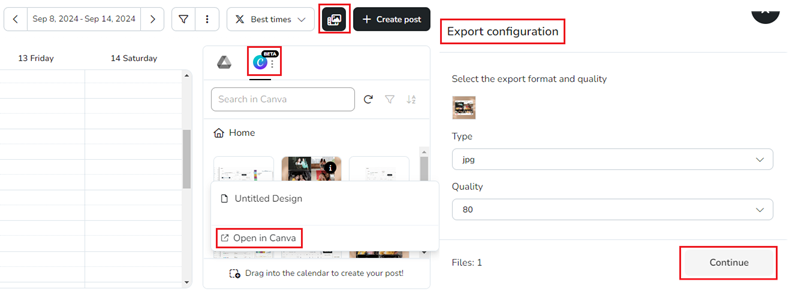
Multimedia Storage — Click on the multimedia icon, locate the file (you can use the search tool) and drag it directly to the calendar. Configure the export by selecting the format and quality of the file. Finish by clicking continue.
Click on the information icon to see the file name and open the design in Canva.
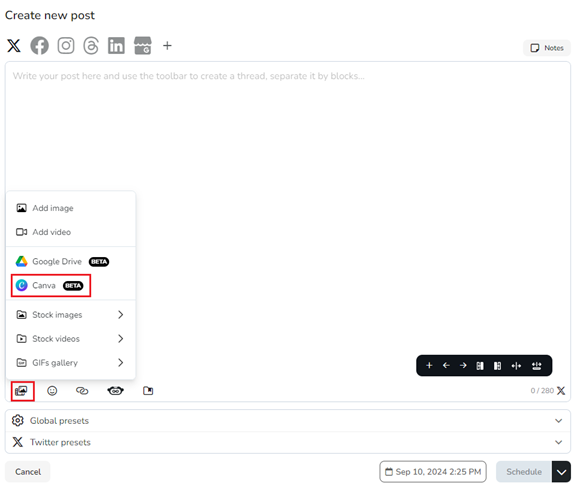
Creating a New Post — Click on the image icon and select Canva from the dropdown menu. Locate the file using the search tool or folders. Select the file and click accept (also available when creating a post from an autolist).
The session may expire; click retry to restore the connection.
📄 Multi-page designs
Export as Image: Select which pages to include.
Export as Video: All pages are combined into a single MP4 or GIF in sequence.
Two ways to bring Canva content into Metricool
From the Metricool Planner — Access your Canva files directly from the calendar or post editor. Supports multi-page designs and full format selection.
From Canva — Metricool is available as an export option in Canva's Share/Export flow. In Canva, click Share, then More options, and select Metricool to send your design to the Planner. Choose the brand you want to send the design to, then schedule a post in your Planner or publish it directly. This export currently supports single-image designs only; videos and carousels aren't available for exporting. This flow is controlled by Canva and may have limitations.
Manage your Canva connection
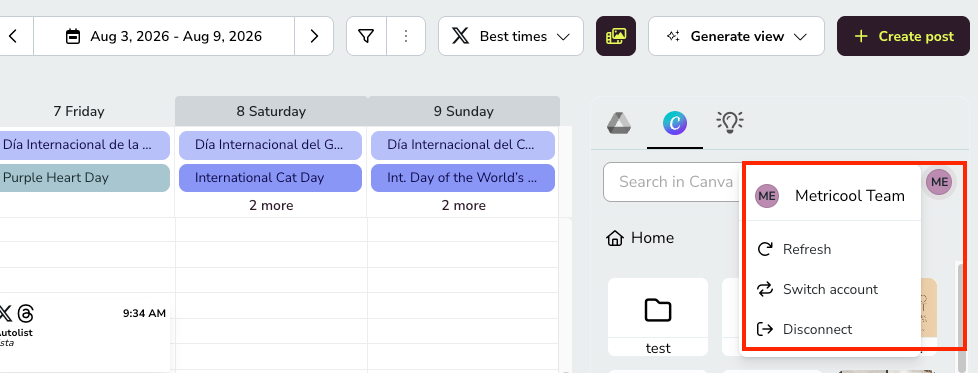
To manage your Canva connection, click on your account avatar next to the Canva icon. From there you can:
Refresh — Reload the connection if your files are not loading correctly.
Switch account — Connect a different Canva account.
Disconnect — Remove the current Canva account from Metricool.
One Canva account per Metricool account
You can only have one Canva account connected at a time, and it's shared across all brands in your Metricool account — it's not possible to link a different Canva account to each brand. If you switch Canva accounts, the change applies to every brand, and your previous session will be logged out in the browser.