
Edit images and videos while scheduling your content
Updated 3 months ago
This editor works for both images and videos. From the Metricool planner, you can edit either type of content while scheduling:
Once in the planning section, click on "Create New Post"
Choose the social network where you want to publish the content and add the images/videos.
Hover over the image or video you want to modify and click on the three dots.
Click on 'Edit image/video'. Metricool will open a new window to modify the image/video to your liking.
Once you have made all the changes, click on 'Save'.
Image editing options
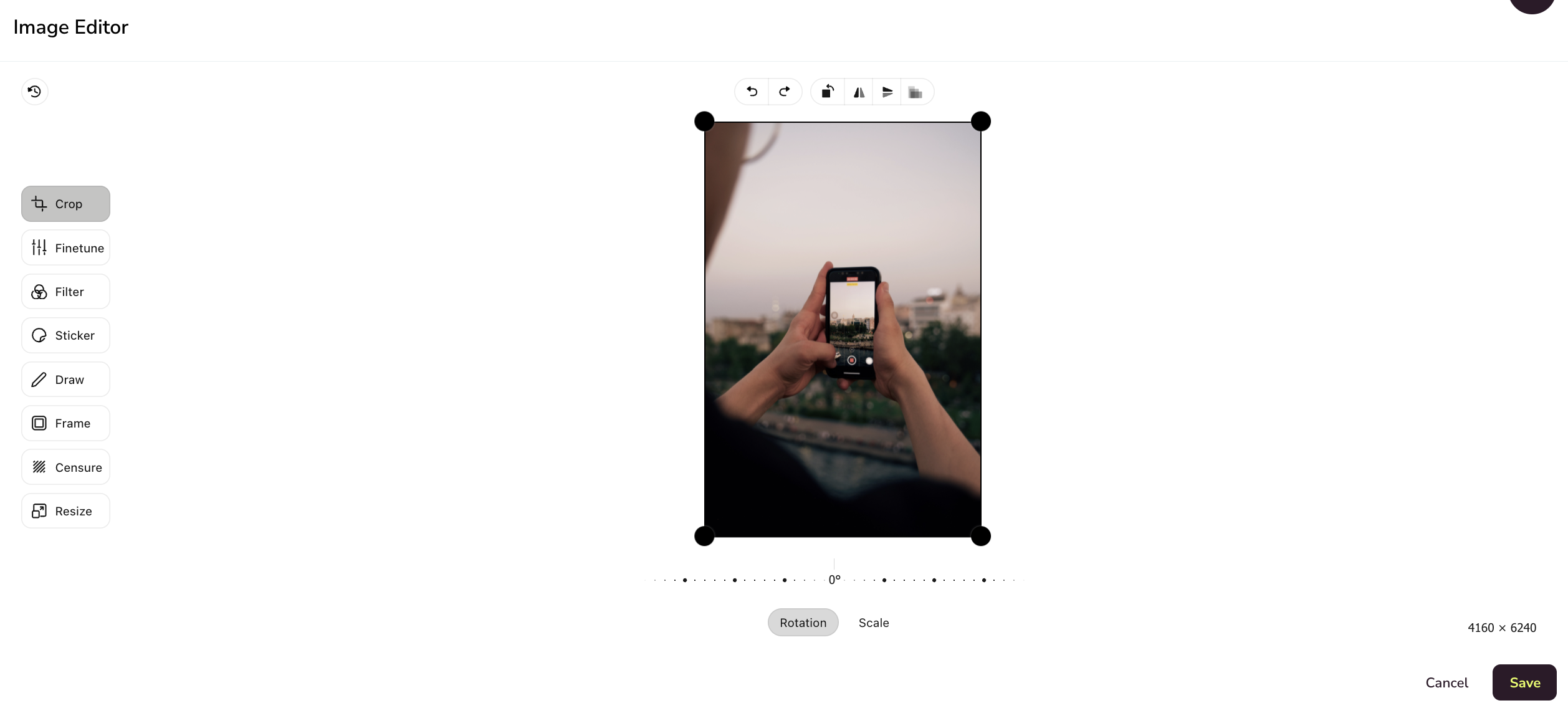
Crop: Crop the image to the size you need, set the aspect ratio to fit a specific size (for example an Instagram Story), or rotate, zoom or flip it.
Finetune: You can modify all aspects related to the image. Brightness, saturation, exposure, temperature, gamma, sharpness or vignette.
Filter: Chrome, cold, noir, rust, sepia, blue, etc.
Sticker: Emojis, logos and images that you can upload from your computer and add to your image.
Draw: Sharpie, arrow, line or rectangle mode to take advantage of the different shapes, add text or choose the line width. If you need to erase to start again.
Frame: Add a frame to your image with multiple editing possibilities. Give it color, choose the size, zoom, make it with rounded edges or even repeat the frame to create a totally different image.
Censure: This option allows you to blur, pixelate or censor part of an image.
Resize: Change the image dimensions. The output size selector offers the same ratios as the crop tool (1:1, 1.91:1, 16:9, 4:3 and more): pick one and the width and height fill in automatically with the ratio locked. Type pixels by hand to switch the selector back to custom. Click the lock to keep the aspect ratio while typing custom dimensions.
Ratios never enlarge an image beyond its original size, and changing to a different ratio crops from the center.
Video editing options
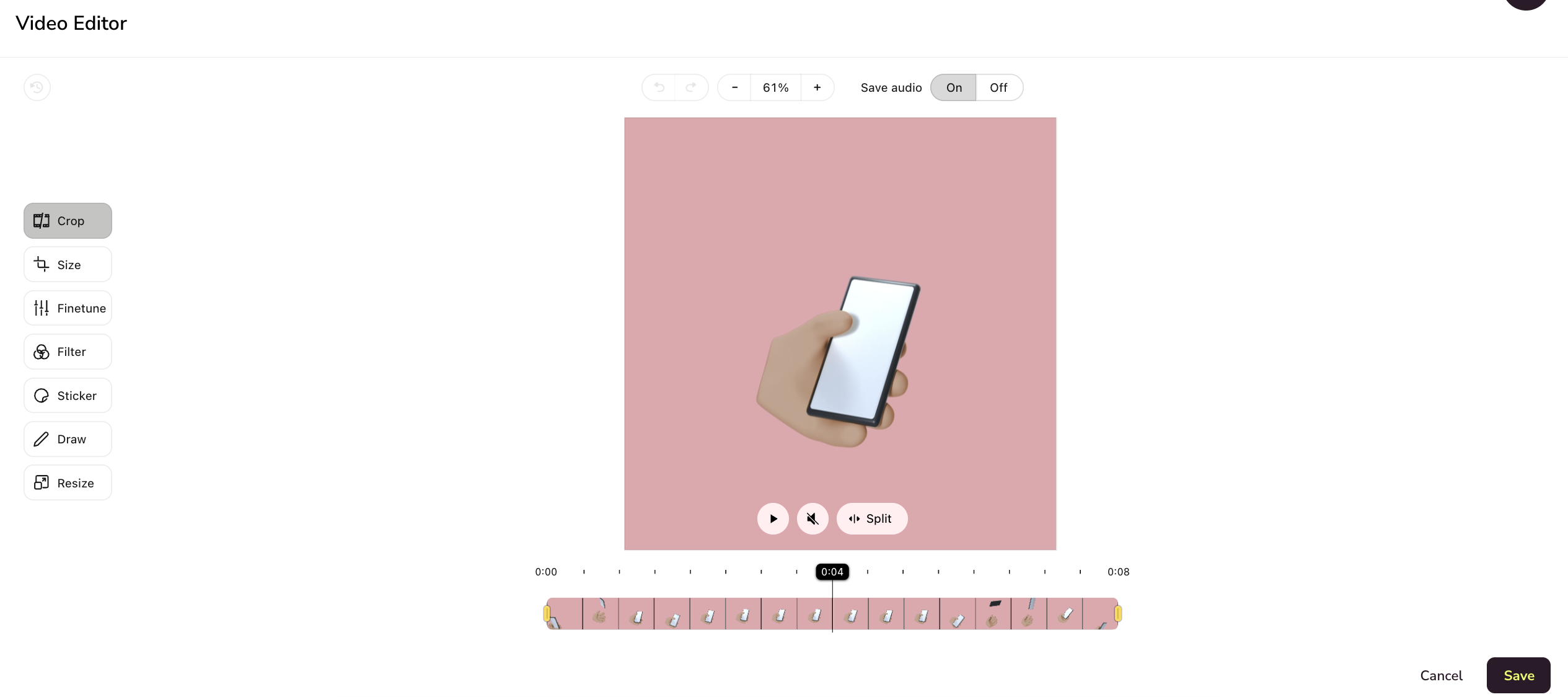
Audio on save: Activate or remove audio by pressing ON/OFF.
You can mute the audio while editing the video.
Split/merge: select the fragment you want to split or merge.
Crop: In the first option, you can trim the duration of the video and also split it.
Size: Crop the video to the size you need, set the aspect ratio to fit a specific size (for example an Instagram Story), or rotate, zoom or flip it.
Finetune: You can modify all aspects related to the image. Brightness, saturation, exposure, temperature, gamma, sharpness or vignette.
Filter: Chrome, cold, noir, rust, sepia, blue, etc.
Sticker: Emojis, logos and images that you can upload from your computer and add to your image.
Draw: Sharpie, arrow, line or rectangle mode to take advantage of the different shapes, add text or choose the line width. If you need to erase to start again.
Resize: Change the video dimensions. The output size selector offers the same ratios as the crop tool (1:1, 1.91:1, 16:9, 4:3 and more): pick one and the width and height fill in automatically with the ratio locked. Type pixels by hand to switch the selector back to custom. Click the lock to keep the aspect ratio while typing custom dimensions.