
How to connect Metricool's MCP with Claude
Interface screenshots are shown in English.
Metricool's MCP works with Claude Desktop, Claude.ai, and Claude Code so you can manage brands, analytics, and posts from Claude with natural language. Metricool is listed in Claude's Connectors Directory: connect it once from Claude Desktop or Claude.ai and the connection applies to your account across both, plus Claude for iOS and Android. Claude Code connects separately over HTTP from the CLI.
For other clients, see How to connect Metricool's MCP. For plan limits that still apply after you connect, see MCP limits and plan requirements.
Claude compatibility
Use this matrix to confirm which Claude surface you can connect and what each one requires.
Claude surface | Supported in Metricool docs | Requirements | Connection method |
|---|---|---|---|
Claude Desktop and Claude.ai | Yes | Available on Claude Free, Pro, Max, Team, and Enterprise. Free can use only one connector at a time. One connection covers both surfaces. | Settings → Connectors → Browse connectors → search Metricool, or open the Metricool listing directly |
Claude Code | Yes | Claude Pro or Max, plus Claude Code installed from the product page | CLI: |
Metricool MCP works with any Metricool plan, including Free. Your Metricool plan limits still apply. Claude Free's one-connector limit and Claude Code's Pro/Max requirement come from Anthropic, not from Metricool billing.
Before you start
Have these ready:
A Metricool account on any plan, including Free
Claude Desktop, Claude.ai, or Claude Code — Claude Code needs Pro or Max and installation from Claude Code
Production MCP URL:
https://ai.metricool.com/mcp— only needed for Claude Code or the manual fallback for Claude Desktop
Review Claude's privacy policy before authorizing access to your Metricool account.
What the MCP can do
Once you connect the MCP, Claude can use these tools in your Metricool account, within your plan limits:
Brands: view the configuration of your brands.
Analytics: see which metrics are available and query their data, including the analytics of your connected ad accounts.
Planner: view your scheduled posts, check the best time to post, create and edit scheduled posts, and create posts for review or send them for review.
The permissions screen you see when you authorize the connection describes the general access the app receives over your account, which is broader than what the MCP can do. Inbox messages, post comments, Smartlinks, Google Business Profile reviews, autolists, Canva or Drive files, and the management of Ads campaigns (the Ads tab) are not available through the MCP at the moment. You can still query the analytics of your connected ad accounts.
Authorizing the connection grants broad access similar to signing in directly. Only authorize tools you trust. Disconnect Metricool from Claude when you want to revoke access.
Connect Claude Desktop and Claude.ai
Metricool is listed in Claude's Connectors Directory, so you can connect it in a few clicks without editing any configuration file. Connect from either surface — the connection is tied to your Claude account, not the app.
This method does not need your Metricool API key. Clicking Grant access authenticates with Claude's OAuth flow. An API key is only required if you use the manual mcp-remote fallback below and choose header authentication instead of OAuth there.
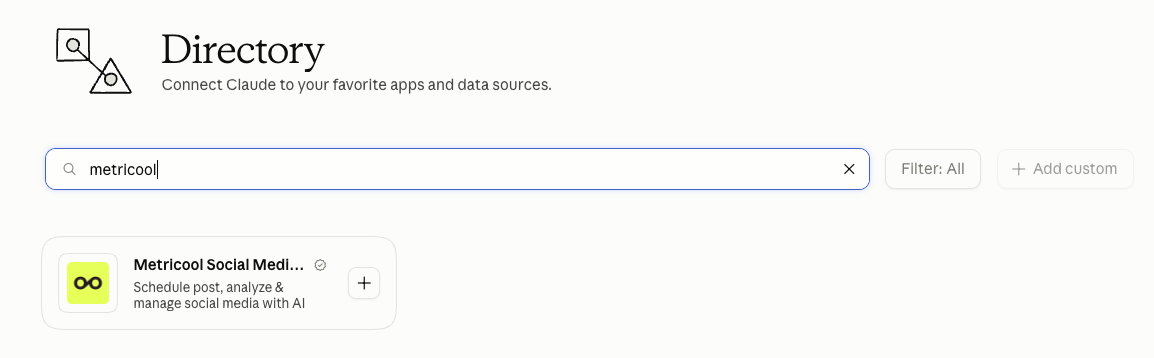
Open Settings, go to Connectors, and click Add → Browse connectors to open the directory — or skip straight to the Metricool listing.
If you opened the directory, search for Metricool.
Can't find Metricool in Connectors? Connect it manually with mcp-remote
This is a fallback for exceptional cases only, not the standard connection path. If the directory listing isn't available yet for your region or Claude plan, connect Claude Desktop manually with mcp-remote instead.
Open Settings from your profile, then open Developer and click Edit config under Local MCP servers to open the Claude Desktop config file.

Add this configuration:
{
  "mcpServers": {
    "metricool-mcp": {
      "command": "npx",
      "args": [
        "-y",
        "mcp-remote",
        "https://ai.metricool.com/mcp"
      ]
    }
  }
}
This OAuth configuration does not need an API key. To authenticate with an API key instead of browser OAuth, use this configuration:
{
  "mcpServers": {
    "metricool-mcp": {
      "command": "npx",
      "args": [
        "-y",
        "mcp-remote",
        "https://ai.metricool.com/mcp",
        "--header",
        "X-Mc-Auth: <METRICOOL_API_KEY>"
      ]
    }
  }
}
Save the file and restart Claude Desktop.
If you used the OAuth configuration, complete browser authorization when prompted. The API key configuration skips the browser step.
Start a chat and confirm Metricool appears as connected under Connectors.
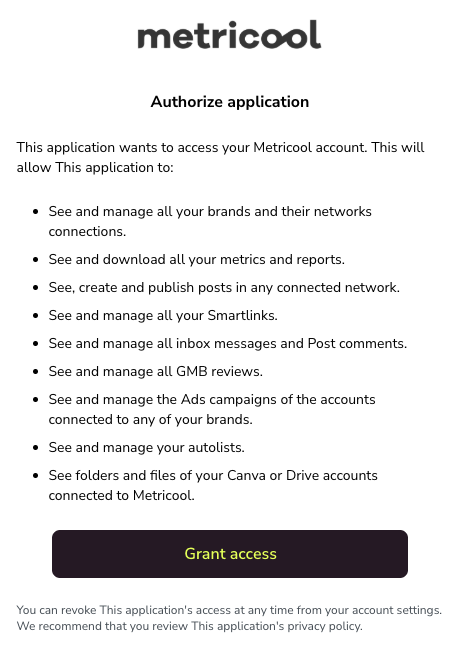
Click the + next to the result, or open the Metricool listing and click Connect to Claude. Both open the same authorization screen.
If you signed up for Metricool from Claude, an extra step before this screen invites you to connect a social network.
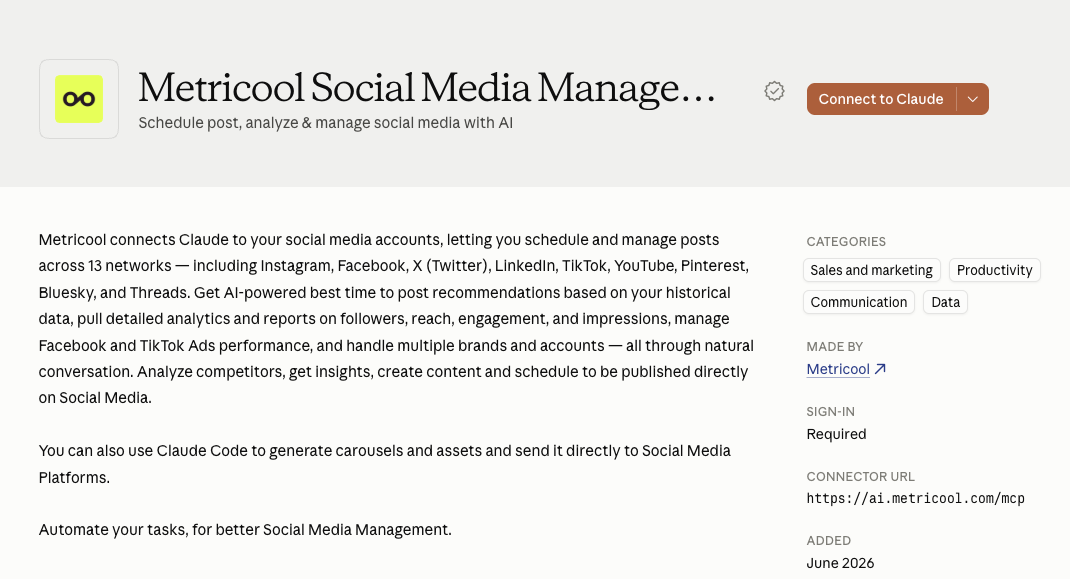
Review the requested permissions and click Grant access.
Confirm Metricool shows as Connected.

After Claude is connected, see Metricool's guide on managing social media with Claude for prompts and workflows.
Disconnect Metricool
Open Settings → Connectors, click the three-dot menu next to Metricool, and choose Disconnect.
Connect Claude Code
Claude Code requires a Pro or Max subscription and installation from the Claude Code product page before you can add Metricool.
Install Claude Code from Claude Code.
In the terminal where you use Claude Code, run:
claude mcp add --transport http metricool https://ai.metricool.com/mcpStart Claude Code with
claude.
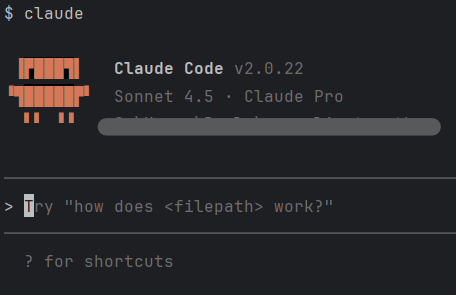
Run
/mcp, select Metricool, and choose Authenticate when prompted.
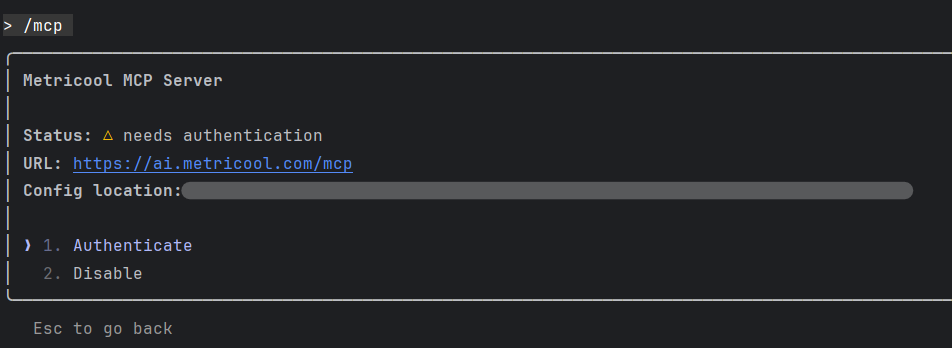
Authorize Metricool in the browser and click Grant access.
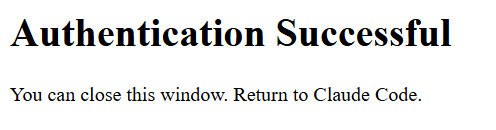
Return to Claude Code. Metricool MCP is connected.

If Claude will not connect
Common Claude failures include Free already using another connector, and Claude Code missing Pro/Max. Work through those fixes in I can't connect to Metricool MCP.
Additional resources
📹 Claude for Social Media: Automate Your Reports with This Skill — EN · ES · DE
📹 6 Social Media Tasks You Can Automate with Claude Cowork — EN · ES · FR · DE
📹 How to Connect LinkedIn to Claude — ES
📹 How to Connect Meta Ads to Claude + 32 Things to Ask — EN
📝 Meta Ads in Claude: analyze campaigns, spot fatigue, and skip the pivot tables - Check language availability using the article selector
Related articles