
How to manage your calendar in Metricool
Use the tools in Planning to review your content calendar more easily. You can move between dates, set the time zone, filter posts, and change how the calendar is displayed.
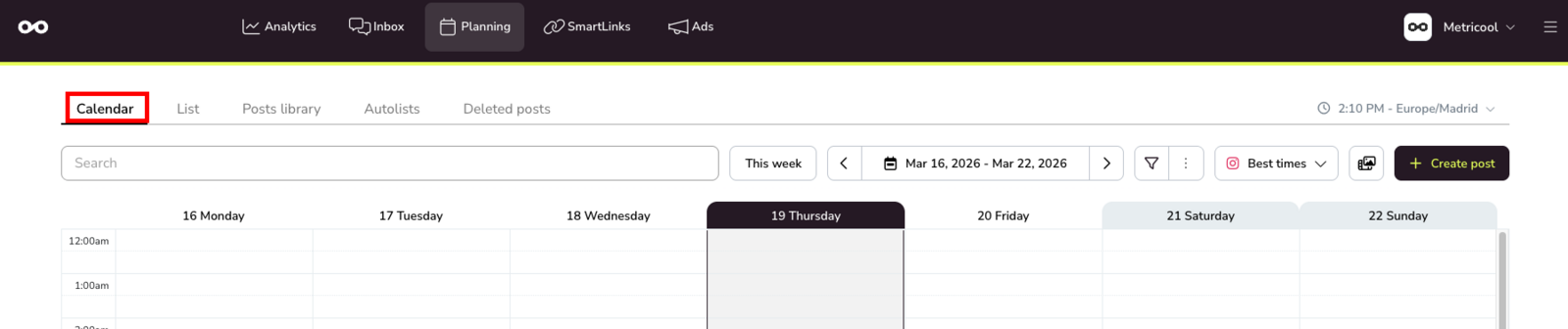
Move through the calendar
Use the date controls at the top of the planner to move through your content calendar.
Click the arrows to move to the previous or next period.
Use This week to return to the current week.
Click the date range to open the calendar selector.
Set the time zone
The planner shows the active time zone next to the current time. Review it before scheduling if you manage content for different brands or regions.
By default, Metricool uses the time zone from your account settings. You can change it from the dropdown next to the current time in Planning. If your city does not appear, choose the nearest major city in the same time zone.
Choose the first day of the week
The first day of the week also affects how the calendar is displayed, but this setting is managed from your account settings instead of the planner toolbar.
Open the ☰ menu (top right corner)
Go to Account Settings.
Within the Account tab, in Preferences, open First day of the week
Select Sunday or Monday.
Click Save changes.
This setting changes the weekly calendar layout across your planner view for all brands in your account.
Publication statuses
When you view your calendar or filter by publication status, you'll see posts in different states. Here's what each status means:
Status | Description |
|---|---|
Published / Sent | Published: The post has been successfully published and is visible on the social network. Sent: The post is marked as sent when autopublish is disabled. This status only applies to Instagram and TikTok. Metricool has sent a notification to your mobile device or email so you can complete the publication manually in the native app. |
Pending | The post is scheduled and waiting for the publication time. |
Draft | The post is saved as a draft and has not been scheduled yet. You can edit or schedule it later. |
With errors | The post failed to publish. Check the error message in the post details for more information. See Frequent posting errors & troubleshooting for help. |
From autolist | The post was automatically created from an autolist. Autolists allow you to schedule recurring content or import posts from RSS feeds. See Schedule content from an Autolist for more details. |
Published with warnings: In some cases, a post may be published successfully but without some additional elements. For example, an Instagram post might publish without all collaborators, or a TikTok post without some configured settings. When this happens, the post appears as Published in the calendar, but you'll see a warning message in the post details explaining which elements couldn't be applied. This is uncommon and usually occurs due to API limitations or permission issues.
The Sent status indicates that the post requires manual action. When you receive the notification, the media files are downloaded and the text is copied to your clipboard. You then complete the post from the Instagram or TikTok app. For more details, see How to manually publish via notification.
Tips for sent posts
If you want a post to publish automatically instead of requiring manual action, duplicate the post and enable the Autopublish toggle. This works for content that meets the autopublishing requirements.
Some content cannot be autopublished due to API limitations—for example, Instagram Stories from creator accounts, or posts with features like trending music, links, or interactive stickers. In these cases, manual publishing via notification is the only available option.
Approval statuses are part of the content approval system, which is available on Advanced and Custom plans. For more information, see How to send posts for review with Metricool's approval system.
Filter your calendar
Use filters when you want to focus on a specific part of your content plan.
In Planning, click the filter button.
Select the filters you want to apply.
Click Apply.
The filter panel opens vertically. Scroll to see all available options.
Filter by social network
Select which social networks to display in your calendar. Some networks allow you to filter by post type:
Network | Post type filters |
|---|---|
X (Twitter) | Post, Poll |
Post, Reel, Story | |
Post, Reel, Story, Trial Reel | |
Threads | Post, Ghost |
Post, Poll | |
Google Business Profile | Post, Photo |
YouTube | Video, Short |
Networks not listed above do not have post type filters. When you select them, all content for that network is shown.
Use Select all at the top of the RR.SS. section to quickly select or deselect all networks.
Other filters
You can also filter the planner by:
Publication status: Published/Sent, Pending, Draft, With errors, From autolist
Approval status: Pending review, Approved, Rejected (available on Advanced and Custom plans)
Notes: Posts with notes, Posts with unread notes
Use the search bar to find a specific post faster.
When filters are active, the filter button shows a number with the total active filters.
Change Calendar view
Calendar view changes the planner period. You can switch between these views:
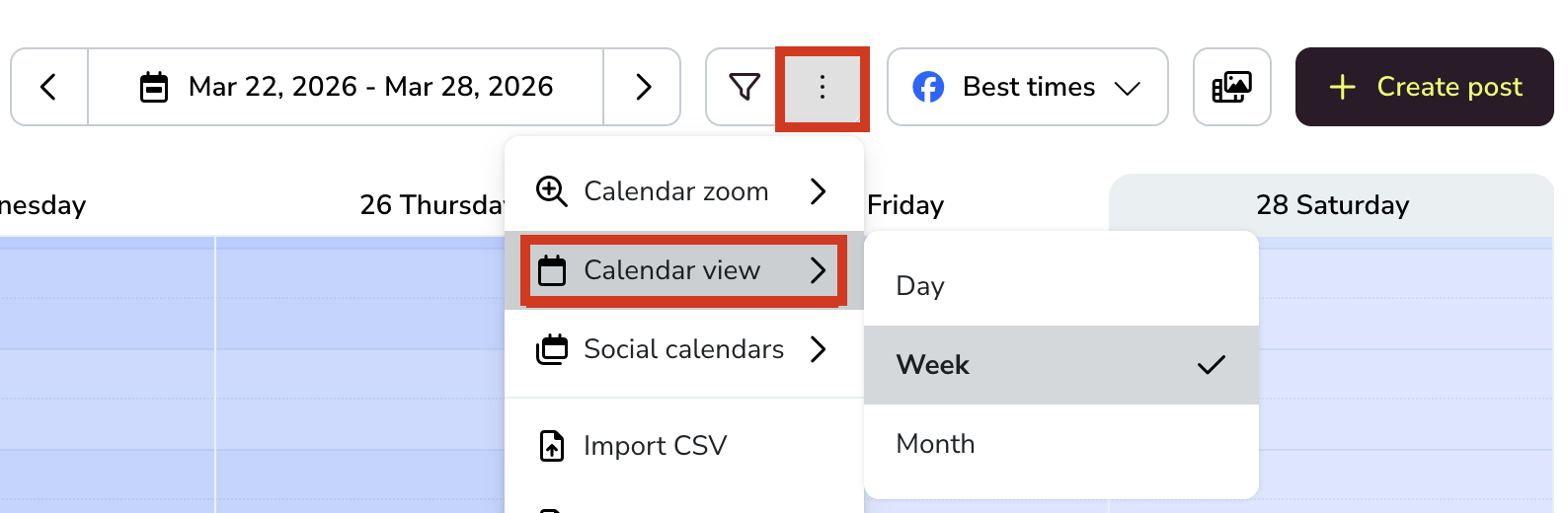
Day: focus on one day only.
Week: review your weekly plan.
Month: see a broader monthly view.
Open Planning.
Click the three dots menu.
Click Calendar view.
Select Day, Week, or Month.
Use Calendar zoom
Calendar zoom changes the visual density of the planner.
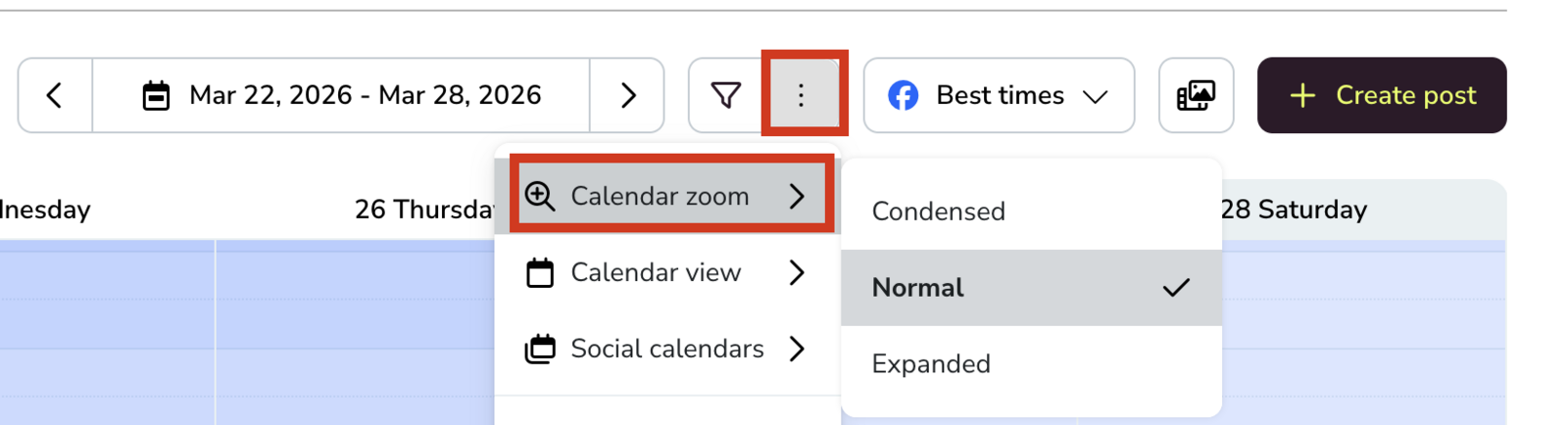
Condensed: shows more content in less space.
Normal: keeps the default balance for daily use.
Expanded: gives each calendar block more space.
Open the three dots menu in Planning.
Click Calendar zoom.
Select Condensed, Normal, or Expanded.
Use other planner tools
You can access additional calendar functions from the three dots menu:
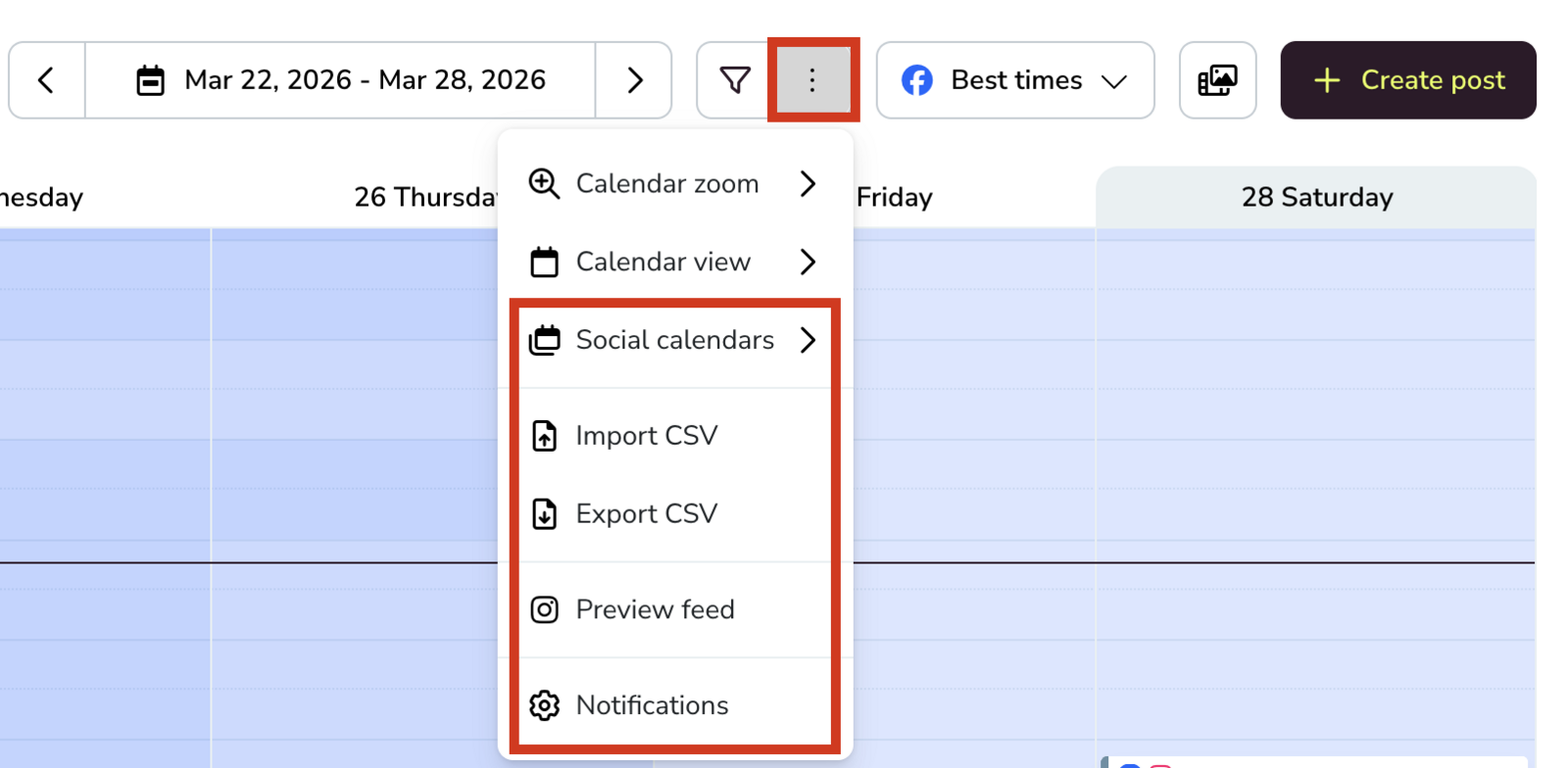
Social Calendars: show highlighted dates and imported calendars in your planner.
Import CSV: import posts in bulk from a CSV file.
Export CSV: export your planned content.
Preview feed: check how your Instagram grid will look before publishing.
Notifications: manage planner notifications.
The toolbar can also show other shortcuts, such as the media icon for services like Canva or Google Drive, depending on your plan.
If you want to create and schedule a post, see How to schedule content from the calendar.