Optimize your scheduling

How to create posts with Metricool’s AI Text Generator

Generate Posts with Your AI Assistant

The AI text generator in Metricool lets you create text proposals for your posts directly from the platform.
Based on the information you provide, the tool generates a text that you can review, adjust, and adapt before scheduling or publishing it.
This feature is available in the calendar and in autolists.

⚙️ Optimize your AI results in Metricool: Set up prompt customization so the writing style better fits your brand.

AI Assistant Credits

Depending on the type of plan, you will have a certain number of monthly credits:

  • FREE: 5 credits per month.

  • STARTER: 20 credits per brand per month.

  • ADVANCED: 35 credits per brand per month.

  • CUSTOM: 20 credits per brand per month (customizable).

The differences between the FREE and premium plans are available here

FAQs about AI Credits

How do AI credits work?
Each time you generate content with the AI assistant, credits are consumed based on the number of tokens needed to process your request. Tokens represent the units of text (words, characters) that the AI processes to generate your content. More complex or longer generations require more tokens, which means more credits are consumed.


Can I add more credits to my plan?
Currently, it is not possible to purchase additional credits. Your monthly credit allocation depends on your plan. If you need more credits, consider upgrading to a higher plan.


Do unused credits carry over to the next month?
No, credits reset at the beginning of each billing cycle. Make sure to use your monthly allocation before it resets.


How to Create Your Text with AI?

  1. You have two options to create content using AI:

  • From the calendar: Go to planning, click on create a new post, and select the robot icon in the lower bar of the text box.

  • From Autolists: Go to planning, then to autolists, and create or access an autolist. Then, in the list content, click on Add post with AI.

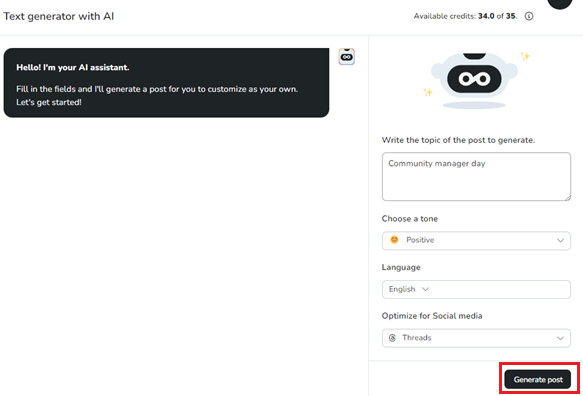
  1. Enter several words about what you want to talk about in the text box. For example, "Community Manager Day".

  2. Select the tone for your text, according to the type of communication you want to create in the post (Formal, Informal, Creative...).

  3. Select the language.

  4. Optionally, select a social network to optimize your text according to the chosen network.

  5. Click on generate post.

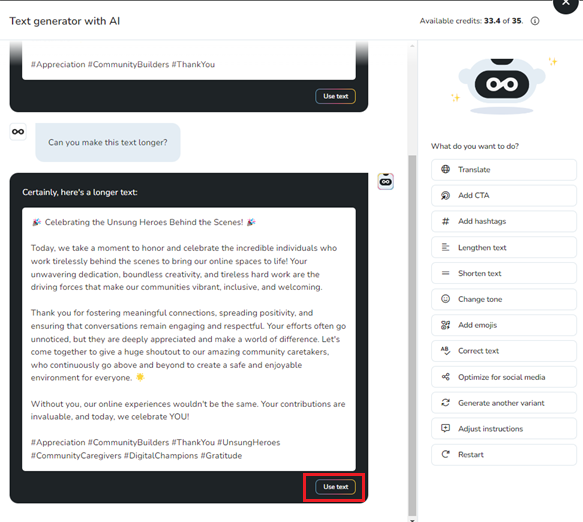
  1. Optionally, customize the generated text (add hashtags, lengthen or shorten the text, add CTA...) and click use text in the final version.

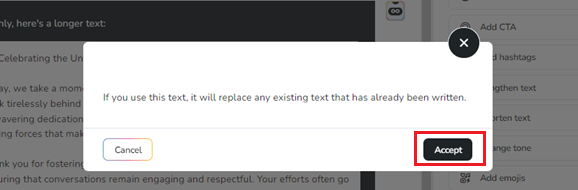
  1. Finally, click accept to create your post.

Create threads

The AI text generator assistant also allows you to create threads:

  • When creating a new post, you should select X (Twitter) or Threads (or both).

  • Once you complete the configuration and generate the text, the "Convert to thread" option will appear.

  • Five posts will be generated, click on "Use thread" and save your post in the calendar.

Want to know more about this tool and see some examples of how it's used? Check out our Blog

Was this helpful?