
Instagram account type: requirements and how to switch
Updated last month
Metricool only supports professional Instagram accounts — Business and Creator. Personal accounts cannot be connected to Metricool. Having a professional account is the first step, but depending on how you connect, you may also need a linked Facebook Page and the correct permissions. See Do I need a Facebook Page to connect Instagram? to check which connection method applies to you.
There are three Instagram account types:
Personal
Creator
Business
Note that only Business accounts can autopublish Instagram stories.
Switch account type
If you have an Instagram professional account, you can change your Instagram account from business to personal at any time. If you switch back to a personal account, all your insights, including content and ads insights, will be permanently removed and cannot be recovered. You'll also lose access to Meta business tools like Meta Business Suite and Ads Manager.
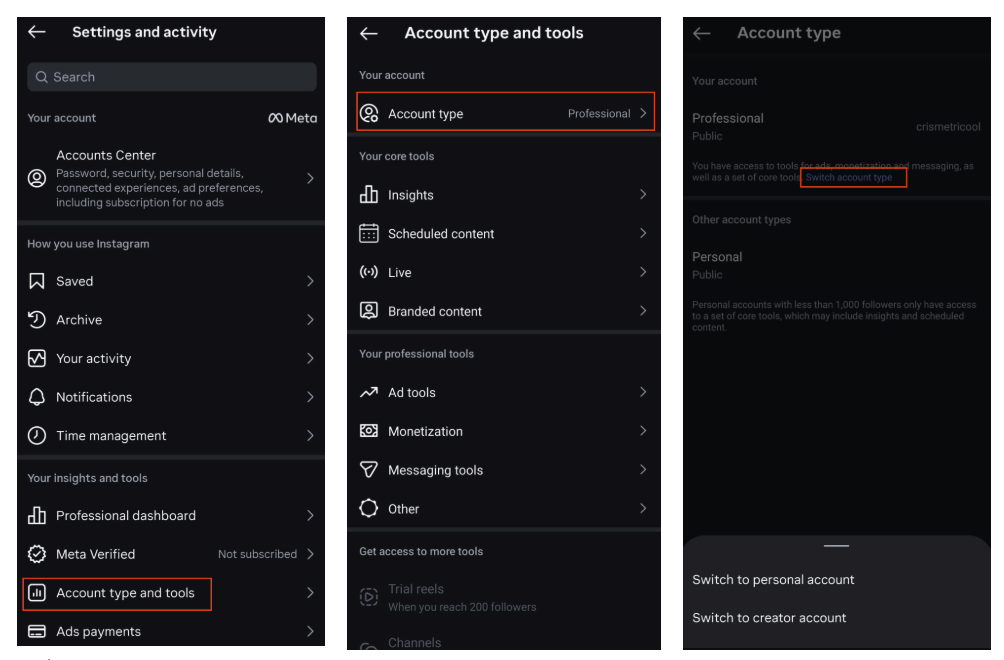
If you already have a professional account (Business or Creator)
You can see what type of Instagram account you have and switch it from the Instagram mobile app or from a web browser.
Mobile app
Tap your profile picture in the bottom right to go to your profile.
Tap the three horizontal lines for more options in the top right.
Tap Account type and tools.
Tap Account type.
Tap Switch account type.
Select the available option under Switch to (this will vary depending on your current account).
Web browser
Log in to Instagram at instagram.com.
Click the three horizontal lines (More) in the bottom left.
Click Settings.
Under the For professionals section, click Business tools and controls.
Click Switch account type and select the available option (this will vary depending on your current account).
These steps belong to Instagram, not Metricool, so the menus and wording may change over time. If they don't match what you see, check Instagram's own guide here.
If you have a personal account
You can switch to a professional account (Creator or Business) from the Instagram mobile app or from a web browser.
Mobile app
Tap your profile picture in the bottom right to go to your profile.
Tap the three horizontal lines for more options in the top right.
Scroll down to find Account type and tools.
Tap Account type and tools.
Tap Switch to professional account.
Complete the setup.
Web browser
Log in to Instagram at instagram.com.
Click the three horizontal lines (More) in the bottom left.
Click Settings.
Under the For professionals section, click Switch to professional account.
Complete the setup.
For more information, check Instagram Help Center here.
Connecting more than one Instagram account
Each brand in Metricool connects one Instagram account. To manage several Instagram accounts, add a separate brand for each one; free accounts include a single brand that cannot be replaced, so connecting more accounts requires a paid plan with additional brand slots. See How to add or delete brands to your account for the steps.
Still can't connect?
If your Instagram account is already Business or Creator but you still can't connect, check the section for your connection method:
You can connect Instagram in two ways: via your Facebook profile (recommended, more features) or directly with your Instagram username and password (limited features).
If you connect via Facebook
Verify the Facebook Page link. Meta requires your Instagram account to be linked to a Facebook Page. In the Instagram app, go to your profile → Edit Profile → under Business Public Information confirm the correct Page is linked. See Linking Facebook to Instagram for detailed steps.
Check your Facebook Page role. The connecting Facebook profile must be an Admin (Classic Page) or have Facebook access with full control (New Pages experience). Lower roles like Editor or Moderator do not grant enough access.
Check Business Manager permissions (if applicable). If the Page is managed through Meta Business Manager, both the Page and the Instagram account must be added as assets to your personal profile. The Page needs full control; the Instagram account needs at least partial permission.
If the above are correct and it still fails, revoke Metricool from Facebook Business Tools settings, disconnect the Page in Metricool's connections dashboard, and reconnect. For the full setup, see How to connect Instagram to Metricool.
If you connect via Instagram credentials
This method does not require a Facebook Page or Facebook permissions. If it still fails:
Confirm your Instagram username and password are correct.
Remove Metricool from Instagram: Settings and privacy → Website permissions → Apps and websites, then retry.
Try in an incognito or private browser window to rule out a browser extension or cached session interfering with the login.
For specific error messages and fixes, see I can't connect Instagram to Metricool.
The direct Instagram login connection has fewer features and can be less stable than the Facebook connection method. For a comparison, see Instagram connection types and differences.