
How to duplicate posts
From the planner, you can duplicate existing posts individually or in bulk, either within the same brand or across multiple brands.
Duplicate posts within the same brand
Use this option when you want to re-schedule past or failed posts without recreating them.
Duplicate a single post within the same brand
From the planner, select the post you want to duplicate.
Click Duplicate.
The composer opens with the duplicated content. Edit the content if you want to make changes.
Adjust the date and time as needed.
Finish as usual: schedule, save as draft, publish now...
Duplicate multiple posts in bulk within the same brand
In the planner list view, select the posts you want to duplicate.
Click Bulk actions and select Duplicate.
Adjust the date and time for each post in the selected list.
Choose Duplicate as draft or Duplicate and schedule.
If some posts have validation errors when you choose Duplicate and schedule, only those posts are saved as drafts. The rest are scheduled normally.
To edit a post before confirming, click the open icon to access it in a new tab, make your changes, and finalize the post from that tab.
Click Understood to confirm the duplication.
Duplicate posts across brands
Use this option when you want to reuse content across brands you manage. You can duplicate a single post or multiple posts in bulk.
Duplicate a single post to another brand
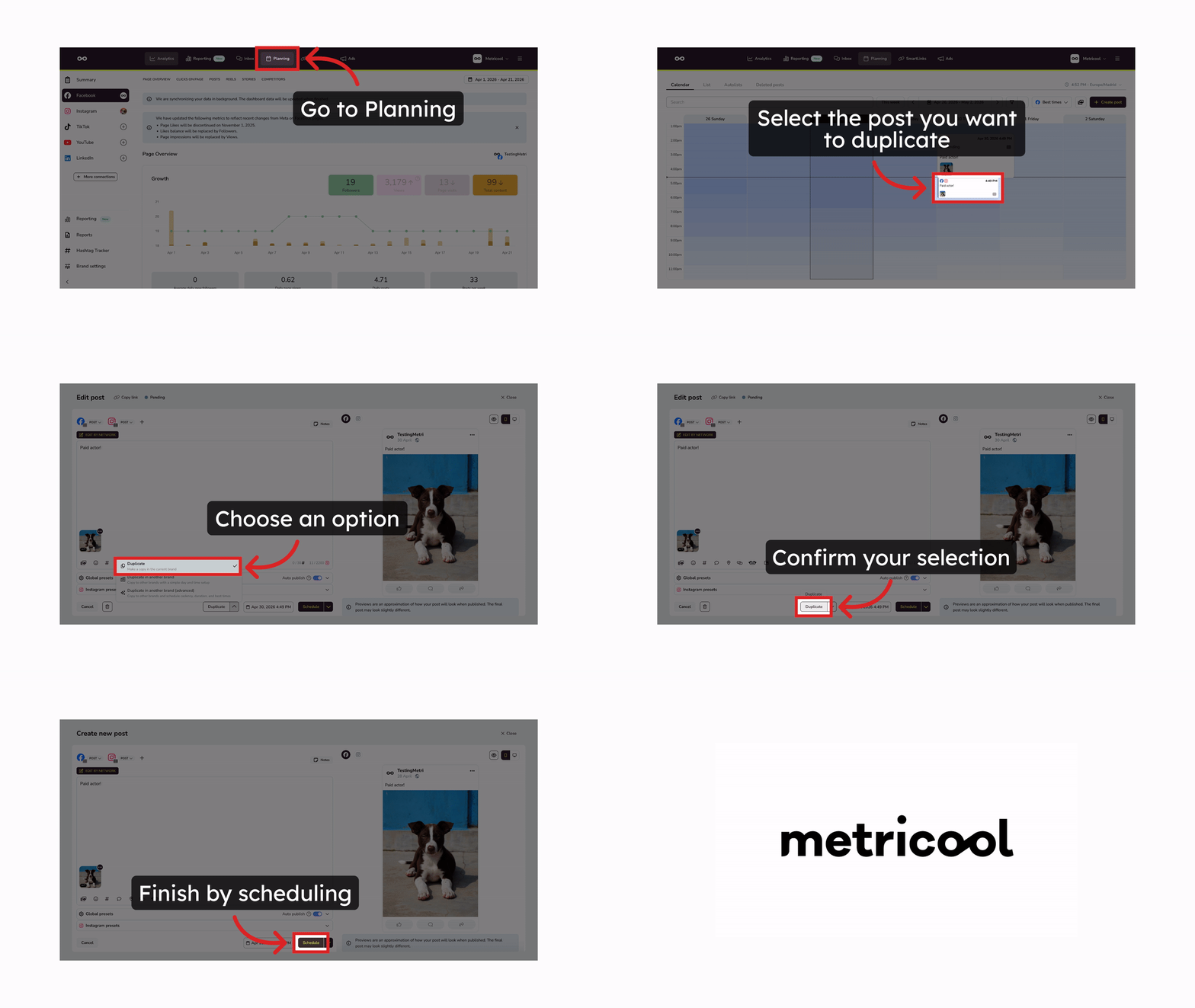
From the planner, select the post you want to duplicate.
Click Duplicate to another brand.
Select the destination brands.
Adjust the date and time and click Duplicate.
To edit the content before confirming, click the open icon to access the post in a new tab, make your changes, and finalize the post from that tab.
Click Understood to confirm. If you finalized the post in the new tab, this step is not necessary.
Duplicate multiple posts in bulk to another brand
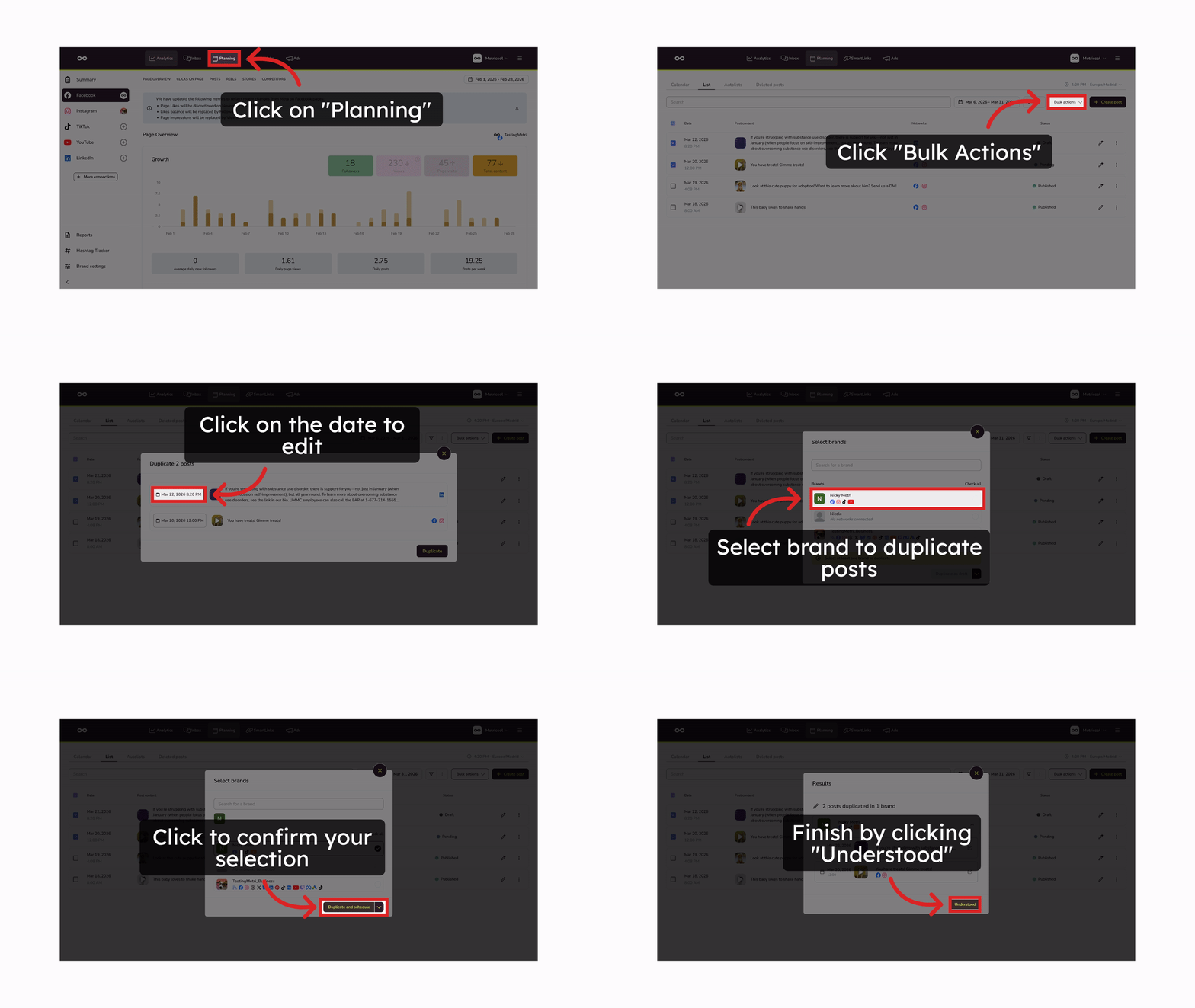
In the planner list view, select the posts you want to duplicate.
Click Bulk actions and select Duplicate to another brand.
The selected list will be displayed. Adjust the date and time for each post.
Click Duplicate to confirm.
Select the destination brands and click Duplicate.
To edit a post before confirming, click the open icon to access it in a new tab, make your changes, and finalize the post from that tab.
Click Understood to confirm.
Important notes
You can only duplicate posts that have already been created.
You can duplicate as draft or duplicate and schedule.
If you open a post from the open icon, editing and finalizing is done in a new tab, independently from the duplication process.
You can also edit the duplicated post later from the planner of the destination brand.
If the selected brands use a different time zone, the post keeps the original date and time without automatic adjustments.
Import posts in bulk with a CSV
For large volumes of content, you can duplicate and schedule posts across multiple brands by importing a CSV file. Use one row per brand where you want to publish the content.