
The channel is private and the Metricool app isn't in it, or it was removed. Type /invite @Metricool in the channel, then click Test connection.
Send brand notifications to Slack
Updated today
Connect Metricool to Slack and each brand can post its alerts (approvals, failed posts, expired connections and more) to the Slack channel you choose. Everyone in that channel sees them, whether or not they have a Metricool account.
You set this up once per brand, in two parts: connect your Slack workspace to your organization, then choose a channel and the events to send for each brand. Slack notifications work alongside your personal notification preferences. They don't replace or change them, so you still get your emails and in-app notifications.
Before you start
Slack notifications are available on paid plans that include 5 or more brands. They aren't available on the Free plan, AppSumo, Vendasta, or other plans with fewer than 5 brands.
To connect or disconnect a Slack workspace, you need the Manage brands permission in the organization.
To create, edit, pause, or delete a brand's Slack destination, you need the Manage brand permission on that brand. You can only choose from workspaces already connected to the organization.
You need a Slack account that is allowed to install apps in the workspace.
Free Slack workspaces can have up to 10 installed apps. If your workspace already has 10, remove one before you install the Metricool app.
Connect a Slack workspace
Connect a workspace once and every brand in your organization can use it. You can connect several workspaces, for example your agency's own and a client's.
Go to Organization management > Integrations. If you belong to more than one organization, select the organization first.
Click Connect with Slack.
Choose the Slack workspace and accept the permissions the Metricool app asks for.
The Metricool app asks for permission to send messages, to post in public channels without being added to them, and to see the list of channels (public ones, and private ones where the app has been added). The workspace then appears in the list with the person who connected it and the date.
Workspaces that need admin approval
Some Slack workspaces require an administrator to approve every new app. In that case, Connect with Slack sends a request to your Slack administrator instead of installing the app, and Slack tells you inside Slack when it's approved or rejected.
Until you come back with a finished connection, the workspace shows as Pending and you can't pick it for a brand. After the administrator approves the app, click Connect with Slack again to complete the connection. You can also discard a pending connection from the same screen.
Send a brand's notifications to a Slack channel
Each brand has one Slack destination: a channel plus the events sent to it. Several brands can send to the same channel, and every message names the brand it comes from.
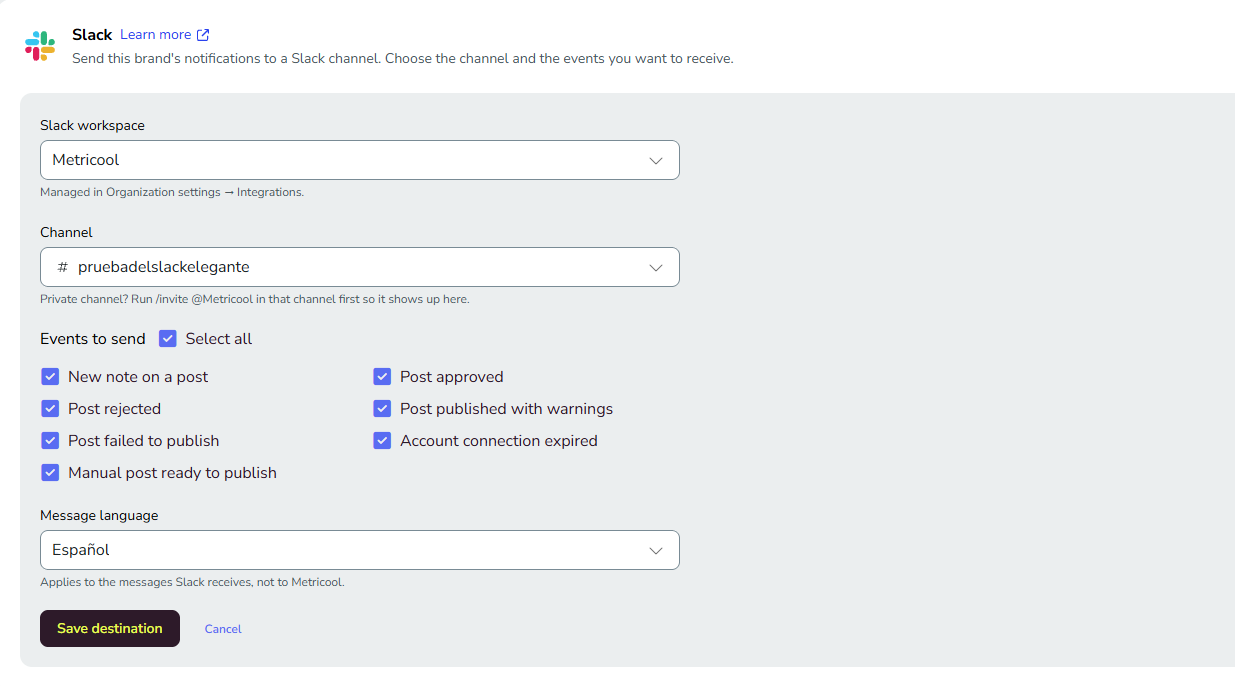
Open the brand's settings and go to the Integrations tab.
In the Slack section, choose the Workspace. If none are connected, a user with the Manage brands permission needs to connect one first.
Choose the Channel. Use the search box to find it in large workspaces. The list includes public channels and the private channels where the Metricool app has been added.
Select the Events to send. All are selected by default.
Choose the Language of the messages. It defaults to your own language.
Save the destination.
When you save, Metricool posts a welcome message in the channel to confirm it works. To check the connection at any time, click Test connection, and Metricool sends a test message to the selected channel.
Use a private channel
Metricool can post in any public channel without an invitation, but it needs to be added to private channels. In the private channel, type /invite @Metricool.
Change a destination
You can edit, pause, or delete the destination at any time. To send a brand's notifications to a different channel, edit the existing destination. Pausing keeps all the settings and stops messages until you resume.
Notifications you can send to Slack
Choose any combination of these seven events for each brand.
Event | When Metricool sends it |
|---|---|
Post approved | A reviewer approves a post. |
Post rejected | A reviewer rejects a post. The message includes their comment. |
New note on a post | Someone leaves a note on a post. The message includes the note. |
Post published with warnings | A post is published, but the social network returned warnings. |
Erroneous post | A post couldn't be published. The message includes the reason from the social network when available. |
Manual post pending | A post is ready for you to publish manually. |
Social network disconnected | The connection to a social account expired or was disconnected. |
For what each event means in Metricool, see Types of notifications in Metricool.
What a Slack message includes
Metricool sends one message per event, as soon as the event happens, in the order the events occur. Messages are informational: you can't approve, reject, or reply from Slack.
The brand name and image, and the social network with the account name.
What happened, and who did it when it applies. If a user hasn't set a profile name, Slack shows the part of their email before the @, so full email addresses are never shown in the channel.
A preview of the post: the first lines of text and a thumbnail of the first image. For videos, the thumbnail only, because Slack doesn't play them inside the message.
The publication date and time of the post.
A View in Metricool button that opens the post, or the connected accounts screen for a disconnected social network. People without access to the brand see the login or no-access screen.
Disconnect or delete a Slack workspace
Disconnecting pauses everything and can be undone, while deleting removes the setup for good. Both are in Organization management > Integrations, and both need the Manage brands permission.
Action | What happens |
|---|---|
Disconnect | Metricool stops sending to that workspace. Every destination keeps its channel, events, and language, and shows an error. Reconnect the workspace and everything works again as before. |
Delete | Metricool removes the connection and all its destinations. You can't undo it. If you connect the workspace again, you need to set up each brand's destination again. |
Both actions ask you to confirm and list every affected brand and channel. If any brand has a destination in the workspace, you also type DELETE in capital letters to confirm a deletion.
Deleting or disconnecting in Metricool doesn't uninstall the app from Slack. If you uninstall the app from Slack itself, the connection fails for every Metricool organization that uses that workspace, not only yours, and each of them needs to reconnect.
Fix Slack notification errors
When a destination can't send, it shows Error in the brand's Slack section with the reason and the fix, and Metricool stops trying to send to it. Metricool also emails and sends an in-app notification to the organization owner and to every user with the Manage brands permission, including when the destination is paused. You can turn these alerts off in your notification preferences. Metricool doesn't alert you about errors you cause yourself, such as disconnecting the workspace or a failed Test connection.
Metricool isn't in this channel
The channel is archived
Unarchive the channel in Slack or choose another channel for the brand. After you unarchive it, click Test connection, because the destination keeps showing as archived until you do.
The channel no longer exists
Edit the destination and choose another channel.
Slack doesn't allow posting in the channel
A channel or workspace setting blocks the app, for example a read-only channel, a thread-only channel, or an administrator restriction. Check the channel's permissions in Slack or choose another channel.
The connection to the workspace was lost
The app was uninstalled from Slack or its authorization was revoked. This affects every destination that uses the workspace. Go to Organization management > Integrations and reconnect it. Your destinations keep their settings and resume sending.
Metricool needs additional permissions in Slack
A Slack administrator limited the app's permissions, or the app needs new ones. Reconnect the workspace and accept the permissions. If a Slack security policy blocks the app, ask your Slack administrator to review it.
Messages arrive late or a warning about limits appears
Free Slack workspaces can limit how many messages arrive in a short time. Metricool shows a warning in the brand's Slack section, doesn't send an email, and keeps retrying. If Slack has a temporary problem, Metricool also retries for several hours before it drops the message.
Limits to know
Each brand has one Slack destination.
Messages are informational only, with no approval or reply actions in Slack.
If your organization moves to the Free plan, Metricool stops all Slack sending and keeps your connections, so sending resumes when you upgrade again.
If you delete a brand and later recover it, its Slack destinations come back with the same settings. If the channel changed in the meantime, it's treated like any other sending error.
Slack notifications aren't available for white label and integrator end clients.
Related articles
Was this helpful?
Was this helpful?