
Scheduling content with links
What is it?
When you publish a post with a link included, you can opt to have the link previewed or you can leave the link in the text and add your own photo.
For the link to be detected correctly by the social media channels, the link must always start with HTTPS.
Types of publication with a link
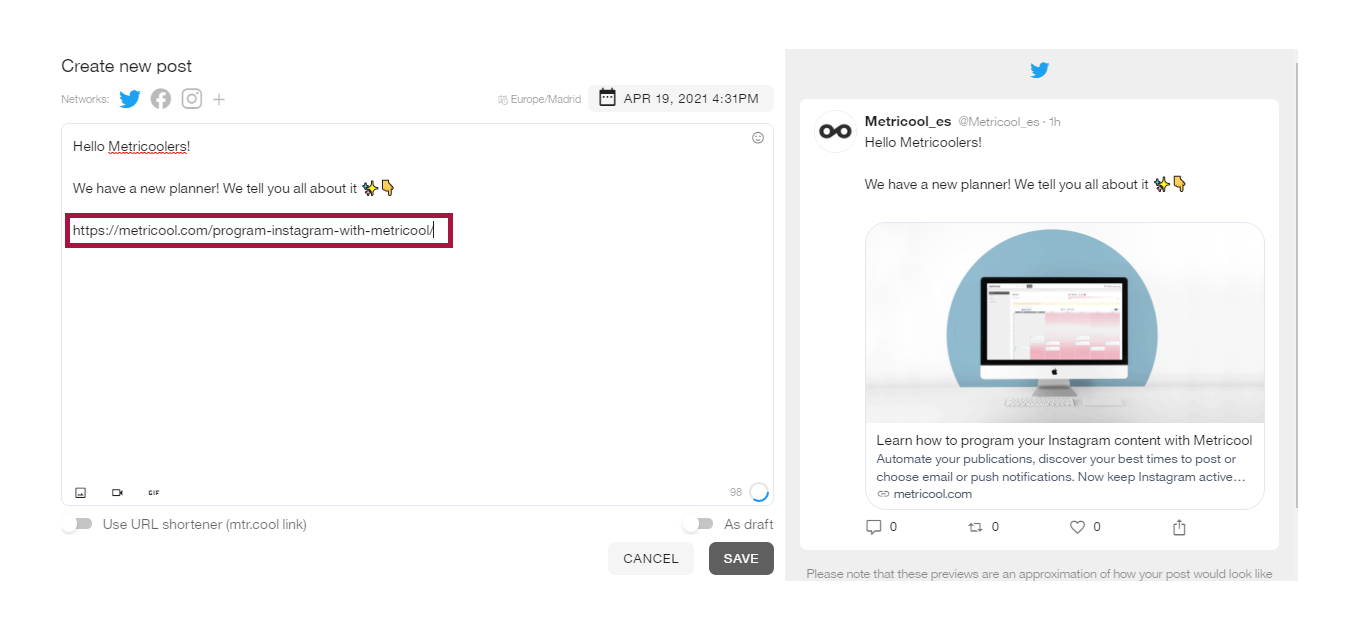
For the link to be previewed, you simply have to add it in the text without attaching any image or video. The post will be published with the image extracted from the preview of the link. If you add two links, the last one will be previewed.
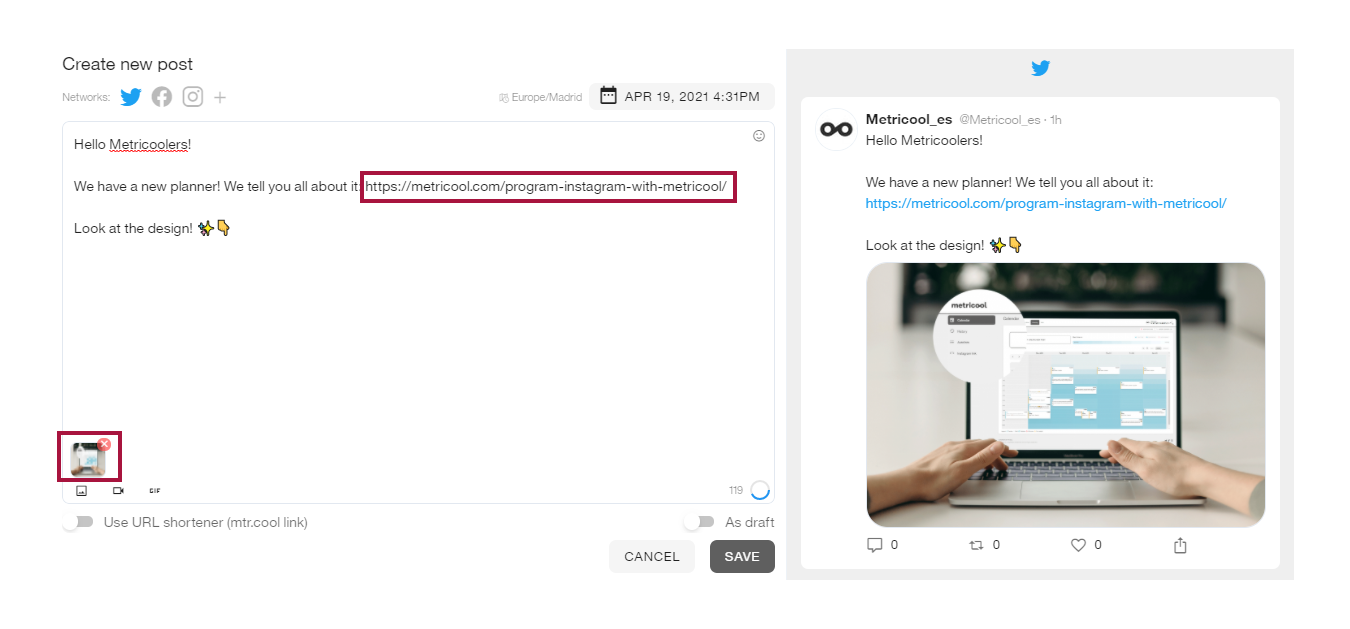
If you add a photo or video to a post, the link will appear in the text and the photo or video will be displayed.
YouTube links receive special treatment when shared on Facebook; the YouTube video appears embedded for playback, but it doesn't generate a preview like a regular link to a web page
On Google Business Profile the link will always be displayed as a button with the text "More Info".
⚠️ LinkedIn changes ⚠️: check the Differences in image size and third party links for organic posts and sponsored content
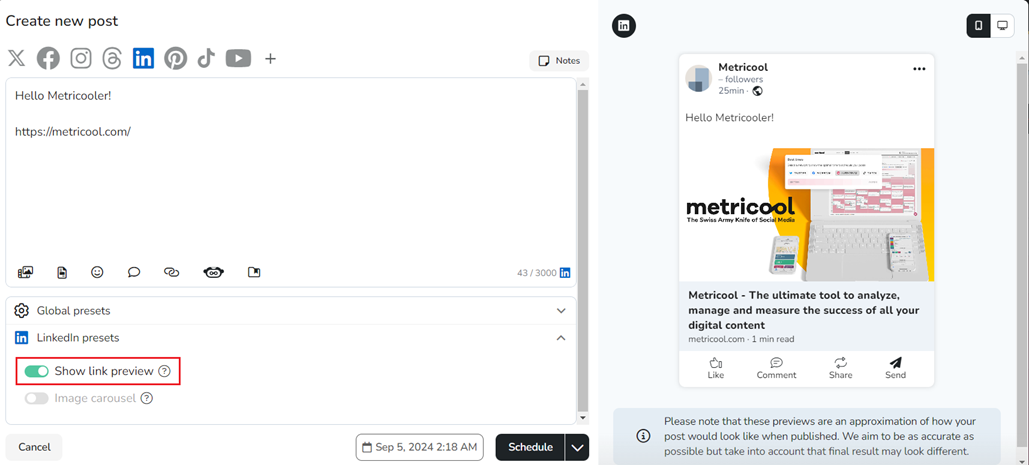
Exceptionally, in the LinkedIn settings, you have the option to enable link preview (if you add more than one link, the last one will be previewed).
Additionally, if you attach an image, it will replace the original image. If the preview is not enabled, the URL and the image will be displayed as a photo.
URL shortener
When the URL shortener is enabled, all links you add to your posts will be automatically shortened at the time of publishing. Instead of seeing your original URL, the published post will display a shortened link like t.mtrbio.com or similar Metricool domain.
How it works:
Only links starting with
https://will be shortenedShortening happens at publish time, so you'll see your original URL in the preview
If you add more than one link, they will all be shortened
The destination remains the same — the shortened link redirects to your original URL
Privacy-focused: Unlike other link shorteners that track interactions with your content, Metricool's shortener doesn't track anything, giving you more privacy and control over your posts.
To enable or disable the URL shortener:
You can toggle the URL shortener in the Global Presets section of the composer. Enable it if you want to hide the original URL in your posts.
Open the composer to create a new post
Find Global Presets in the composer interface
Toggle Use URL shortener on or off
Why is my link showing a Metricool domain? If you see your published links appearing as t.mtrbio.com/... instead of your original URL, check if the URL shortener is activated in Global Presets. Disable it if you prefer your links to display with their original domain. For more link-related scenarios, see Why is my link not displaying as expected.