
How to set up AI prompt customization in Metricool
Updated last week
With Metricool, you can now optimize both the overall writing style of your brand and the specific instructions for each social network.
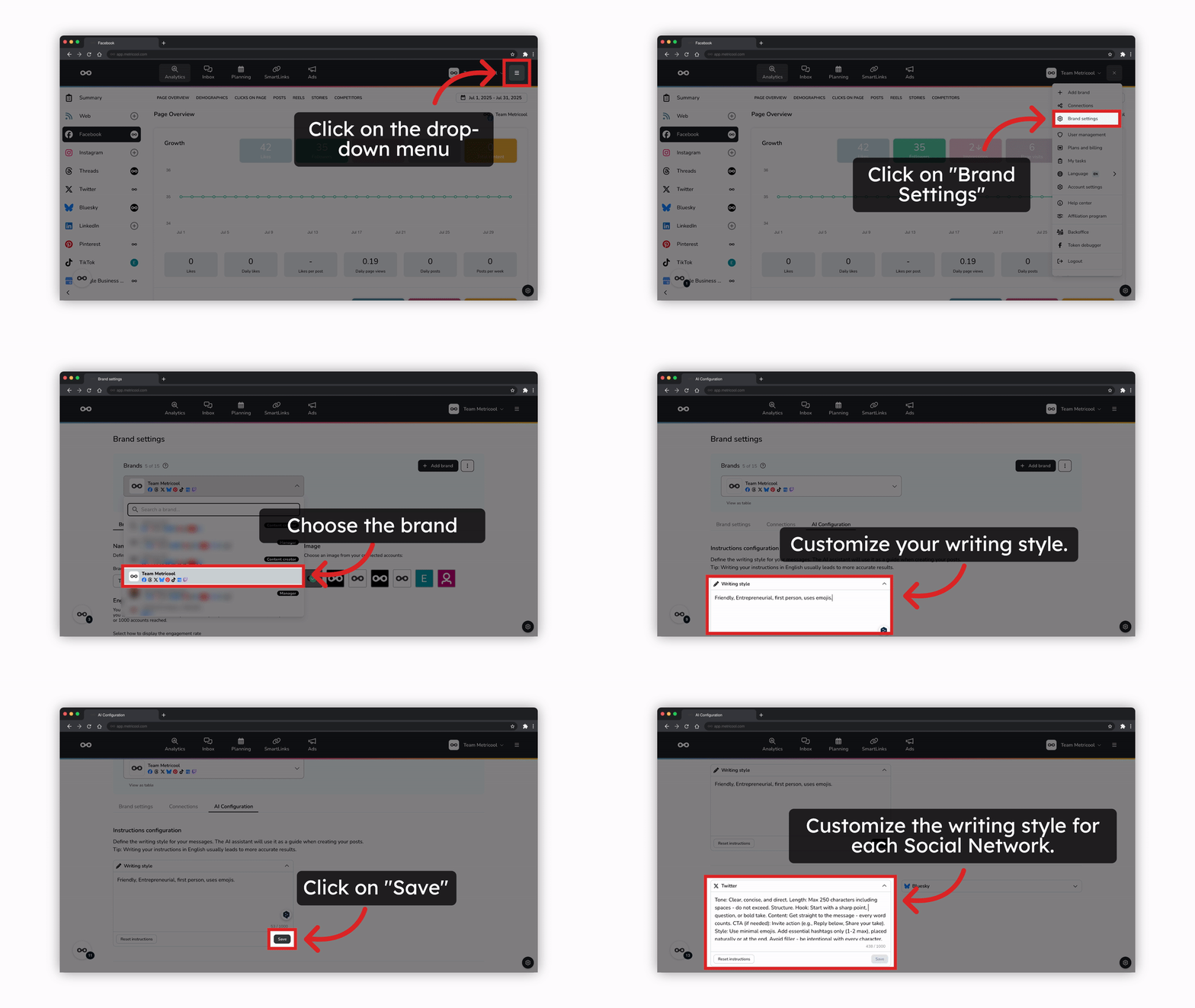
This feature is located in a dedicated tab within the brand settings:
Brand settings > AI Configuration
Go to AI Configuration →
Who can access it?
Only users with brand management permissions can access this tab and modify the prompts.
Writing style settings
From this section, you can define the tone and writing style that the AI assistant will use when creating your posts.
Each brand has its own style, so you must configure it individually.
You can give general instructions (e.g., “informal tone with emojis”) or more specific ones (e.g., “short messages of max 200 characters, no hashtags”).
Writing instructions in English usually gives more accurate results.
When you’re done, click Save and you’re all set ✅.
If needed, you can also use Reset instructions to return to the initial values.
Social network customization
In addition to the overall style, you can also adjust the way AI writes for each social network. This allows you to adapt communication depending on the channel (e.g., more professional on LinkedIn and more casual on Instagram).
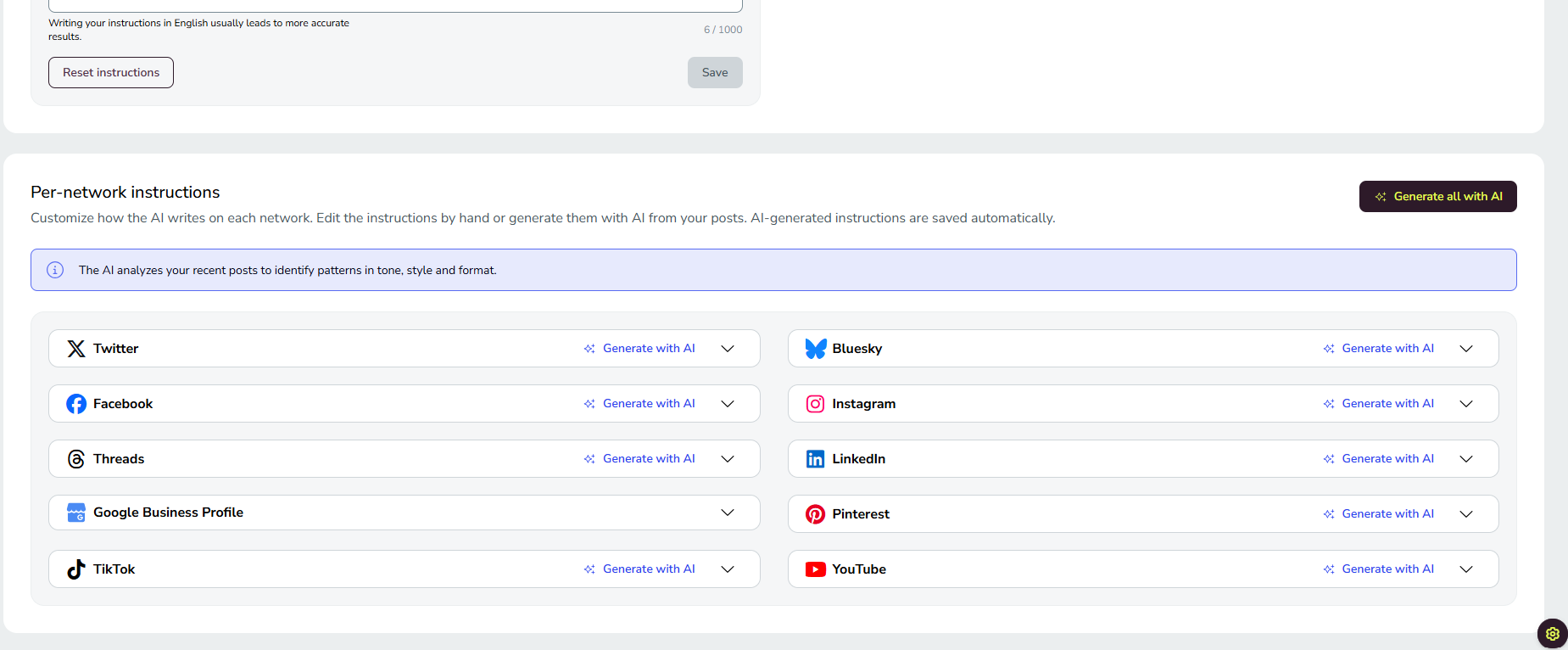
The AI Configuration tab shows a block for each social network connected to the brand, so unused networks no longer fill the screen. When you connect a new network, its block appears automatically; if you disconnect one, its block is hidden but your saved instructions are kept in case you reconnect it later. General instructions that aren't tied to a network keep showing always. Available on web.
Generate network instructions with AI
Instead of writing the instructions for a network yourself, let AI write them from your brand's own past posts on that network. This is useful when you already have an established posting history and want instructions that match the way your brand writes.
Go to Brand settings > AI Configuration.
In the block of the network you want, click Generate with AI. To do it for every connected network at once, click Generate all.
Generation runs in the background, so you can keep working in Metricool. You receive an in-app notification when it's done.
The generation works from the text of the posts you have published on that network: it gives the best result with about 30 posts and needs at least 15 posts with text from the last two years. Only the post text counts, alt text is not used, and posts without text do not count toward the minimum. The instructions are generated in the language of your posts.
Generating instructions does not use your AI assistant credits. A 10-minute cooldown applies between generations so the instructions cannot be regenerated continuously. AI-generated instructions carry a Generated with AI label until you edit them: once you edit the text, the label is removed.
Generate with AI is not available for Google Business Profile yet. For this network, write the instructions manually.
How AI uses your instructions
When you generate a post with the AI assistant, Metricool applies the custom instructions of the selected network by default. If a network has no custom instructions, the assistant uses the default Metricool instructions for it.
If you optimize a post for several networks, each network uses its own instructions. If you optimize for any social media, the assistant uses your brand general instructions, the block at the top of the AI Configuration tab.
✨ Get more out of AI in Metricool: Try the AI text generator to create copies tailored to your needs.