
How to link an RSS feed to an autolist
Updated 3 weeks ago
Link an RSS feed to an autolist to add your blog posts to it automatically and share them on your social networks without scheduling each one by hand.
Good to know
Feed format: The system is designed to work with RSS feeds from blogs that follow the standard XML format. You can check if yours is valid with the W3C Feed Validation Service.
Other feeds: Feeds from other services, such as YouTube or Instagram, may sometimes be read, but their structure is different and they are not fully compatible, so they may not work correctly.
New posts: Metricool checks the feed periodically and adds new posts to the autolist based on your configuration.
Link your RSS feed
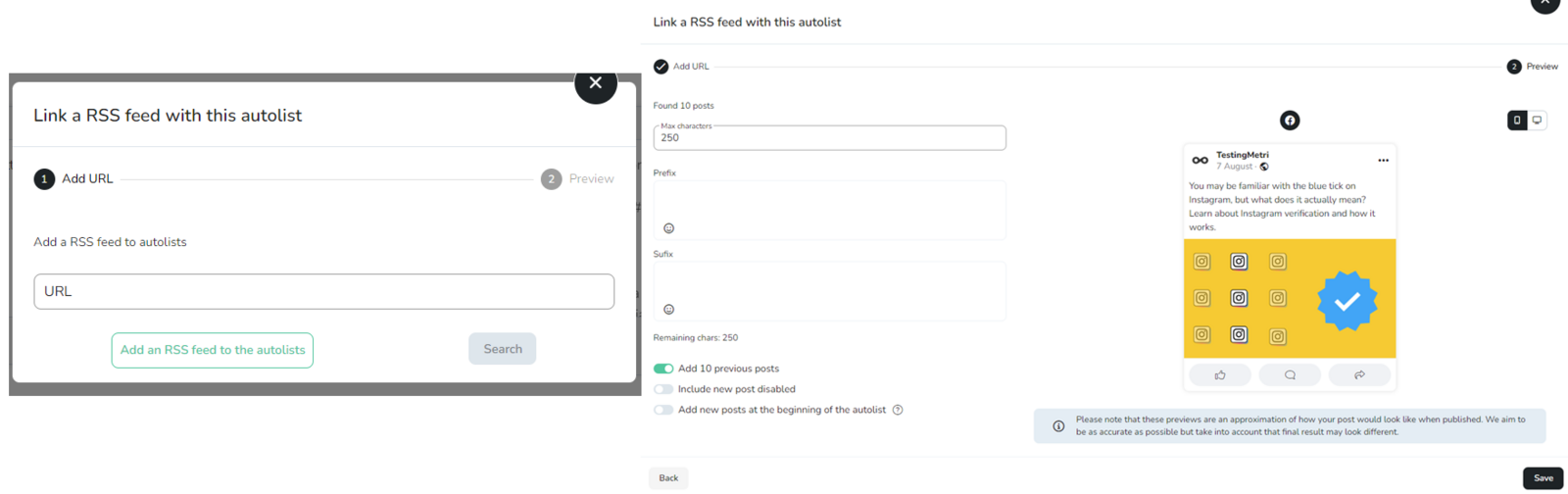
Add the feed URL and click search. If the file is correct, the recent content contained in the feed file will be discovered.
Complete the following fields:
Prefix: text that will go at the beginning of all posts containing your feed.
Suffix: text that will be placed at the end of each post.
Choose the options you need:
Include previous posts: if you click on this option, the latest content contained in the RSS will be included along with the upcoming ones. If you do not select this option, only the following ones will appear, that is, the autolist will start when a new post is made.
Add disabled posts: this means that the added posts will be included as disabled, so they will not be published on your social networks until they are manually activated.
Add to the beginning of the autolist: if you select this option, new RSS posts will be added to the beginning of the autolist. If you do not select this option, they will be added by default at the end of it.
Click save, and your RSS feed will be linked.
If Metricool says the feed URL is not valid, see Why does Metricool say my RSS feed URL is not valid?
How images work in RSS posts
For each item in your feed, Metricool looks at the <link> property and uses the og:image (Open Graph) tag of that page as the post image. If the page doesn’t have this tag, Metricool shows the first available image, which is usually your logo.
Images are only added to the autolist for Instagram and Pinterest. On other networks, such as X (Twitter), LinkedIn, Google Business Profile, or Facebook, the autolist shows only the link, and the social network generates the preview when the post is published. If you don’t see the image in the autolist for those networks, this is expected behavior.
Use tools like Open Graph Checker to check if your pages have the og:image tag correctly set up.