
Why does my scheduled post show an incorrect time?
Updated 2 months ago
If a scheduled post shows an unexpected time even though the Metricool time zone and your computer time zone look correct, the cause is usually the system clock (Windows or Mac) not being synchronized with your browser. Check the planner time zone first, then the browser and system clock.
Check the planner time zone for the brand
Before touching the system, confirm the active time zone for the brand in the planner, because each brand can have its own.
Open Planning and go to the brand whose post shows the wrong time.
Look at the time zone shown next to the current time at the top of the calendar.
If it is not the one you expect, open the dropdown next to the current time and select the correct time zone for that brand.
If the planner time zone is correct, move on to the browser and system clock.
Check the time your browser reads
Open Google Browser Info Tool in the same browser where you use Metricool. Check the Time section, which shows the time according to your browser and indicates whether your clock is in sync.
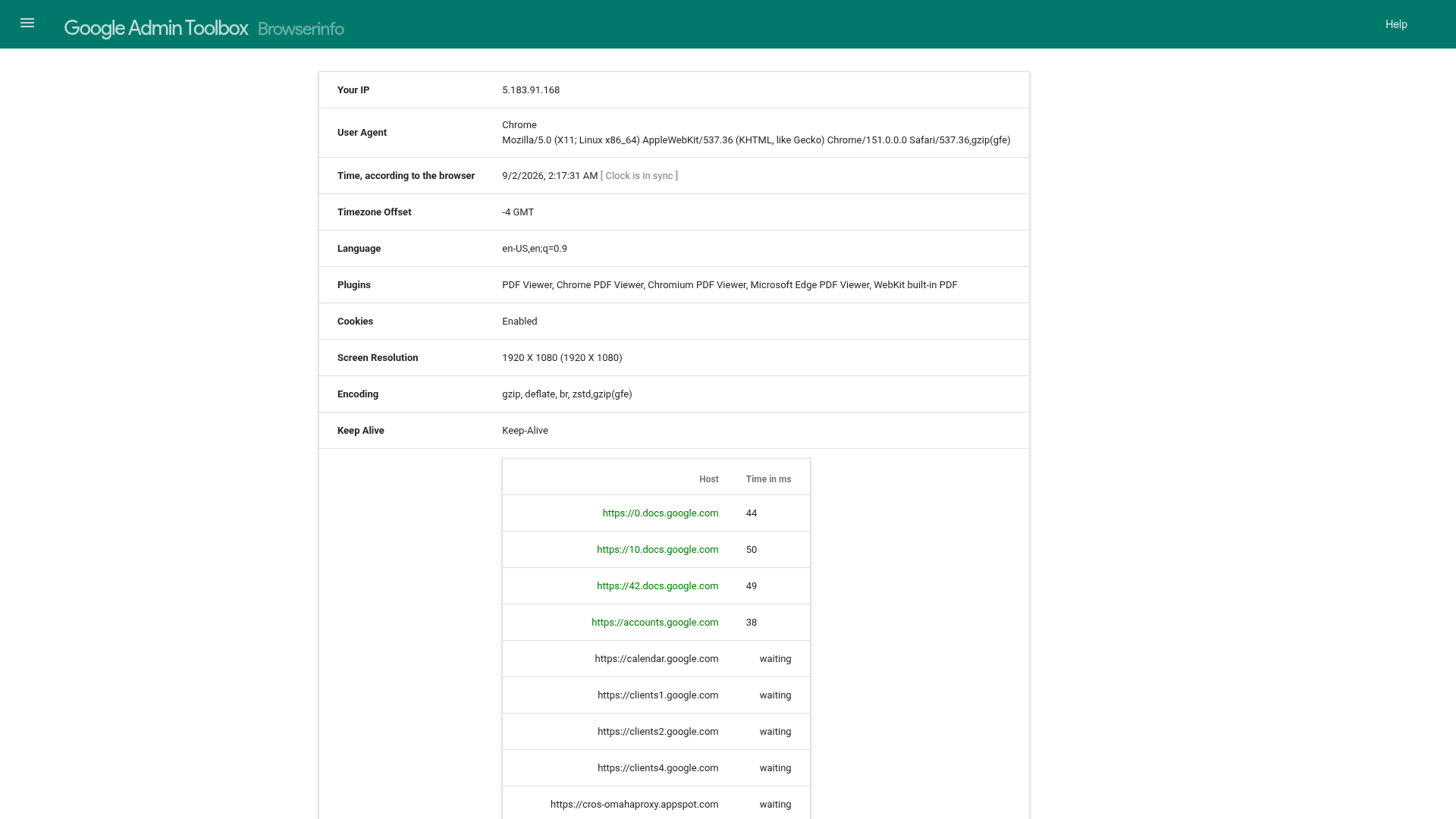
If the browser time differs from your system time, sync the system clock.
Sync the system clock on Windows
Open Settings > Time & language > Date & time.
Turn on Set time automatically.
Click Sync now to force a resync.
Sync the system clock on macOS
Open System Settings > General > Date & Time.
Turn on Set date and time automatically.
Confirm the time server in the dropdown is set correctly.
Restart and recheck
Close and reopen your browser.
Check the scheduled post time in Metricool again.
If the time still looks wrong, clear your browser cache and reload Metricool. See How to clear your browser cache.
To review or change the account and brand time zones, see How to set your time zone in Metricool.
Related articles